
Kling 4.0 is now available in QuestStudio Video Lab. Make a 720p video from a written brief or one start image, with durations from three to 30 seconds. A good first shot is a small camera move around a subject you already approved in a still.
Start with the frame you want people to see
Use a written brief when you still need to decide what the scene looks like. A start image gives you a specific subject, view and crop to work from. In a product shot, start with a still whose silhouette and details you can recognize immediately. If the source hides a handle or crops its base, moving the camera may reveal details that the original photo never supplied.
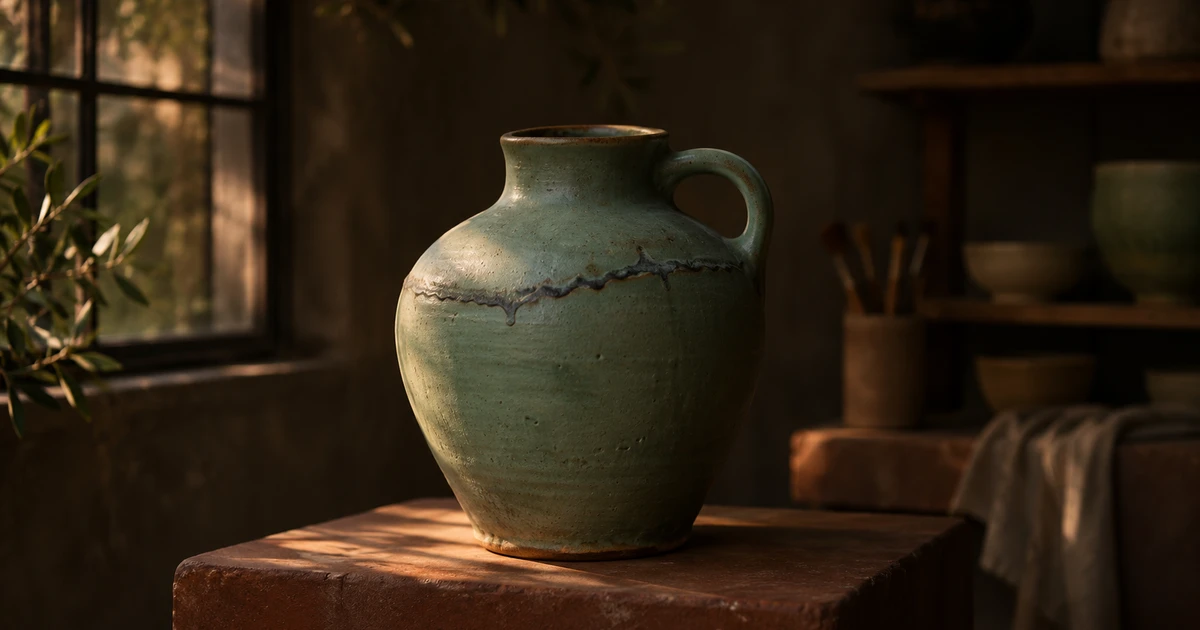
For an example, picture a sea-green ceramic vase on a terracotta plinth. The vase has a round shoulder, a small handle and a visible glaze seam. Check those three details in the start frame, then decide which one the move should reveal. The cover image illustrates this setup so you can see how much room the object has around it.

If you plan a vertical clip, crop your start image vertically first and look for breathing room around the object. QuestStudio’s Kling route uses the start image for the framing. The guide to preparing a still before video generation walks through the crop and source quality checks.
Write one move the clip can finish
Decide whether the camera moves or the object moves. An orbit changes what the camera sees. A turntable can reveal the other side with the camera fixed. If you request both at once, it becomes harder to tell which direction explains the result or where the camera should stop.
Here’s a starting brief for a small arc around the vase. Use it with a still that already shows the front of the vase and part of the handle.
Start from the supplied frame of the ceramic vase. Move the camera slowly to the right in a small arc, keeping the vase upright and centered on the plinth. Keep the handle, glaze seam and window light stable. Ease to a stop as the handle becomes clearer and hold the final view. One continuous shot.For a three-second draft, reduce the size of the move and leave time to settle. Give a longer take time to reveal something useful, such as how the seam catches light from the side. A larger movement may ask the model to invent more of the subject. Keep a version of the original frame handy when you review the clip.
Set the duration and review the Kling 4.0 setup
- Open Kling 4.0 in Video Lab. Use Start image if you have the opening frame, or describe the opening scene in the prompt if you are starting from text.
- Pick a duration between three and 30 seconds. The current QuestStudio setup generates at 720p. Use the displayed credit estimate to review the generation before starting.
- Choose Generate Video when the brief and settings are ready. Kling manages its own audio on this route. Review the soundtrack if you plan to keep it.
- Inspect the entire preview and download the original MP4 when you have the shot you want.
Kling lists a wider set of capabilities in its Kling 4.0 model guide. In QuestStudio, plan around one optional start image and a written motion brief. For another option with a 480p draft setting and an audio toggle, see the Seedance 2.5 launch post.
Check the subject through the whole move
Compare the opening image with the clip’s first, middle and last frames. Check whether the object stays on the same surface, keeps its proportions, and ends where you can use the shot. On the vase example, the handle should stay attached at the same point and the glaze seam should move around the surface with the object.
If the camera overshoots or the subject drifts toward the edge, change one thing in the next brief. Try a shorter arc, a steadier subject, or more room around the start crop. When you have two clips, the linked playhead in Video Lab can help you review the same section of both before saving a shot setup you want to reuse.
Check the closing frame against the next edit you want to make. If you are cutting from the vase to a detail shot, leave the handle on the same side of the frame as it appears in the next shot. If the clip will stand alone, allow a brief hold at the end so viewers can read the shape. These are things you can check even on the shortest draft.
Record the starting still, framing, duration and one revision note with the approved clip. If a later cut needs a slower move, you will know which source and brief to reopen. Keep a copy of the actual MP4, too, so you can return to the take you approved.
Frequently asked questions
What resolution does Kling 4.0 generate in QuestStudio?
The current Kling 4.0 route in QuestStudio Video Lab generates at 720p.
Can Kling 4.0 make a clip from text alone?
Yes. Describe the opening scene, subject and movement in your prompt, then review the duration and framing before generating.
How long can a Kling 4.0 clip be in Video Lab?
Choose any whole-second duration from three to 30 seconds. Review the current credit estimate before generating.
Can I upload a video for Kling 4.0 to edit in QuestStudio?
The Kling 4.0 setup in QuestStudio takes a written brief or one start image. Use one of those inputs to create a new clip.
Can I turn off Kling 4.0 audio with a Lab toggle?
Kling manages audio for this setup. Listen to the finished clip and make any needed audio edits in your finishing tool.
Try one Kling camera move
Open Kling 4.0, bring a still you can use, and write a short move around a detail you want the shot to reveal.
Continue with a useful next step
 Video
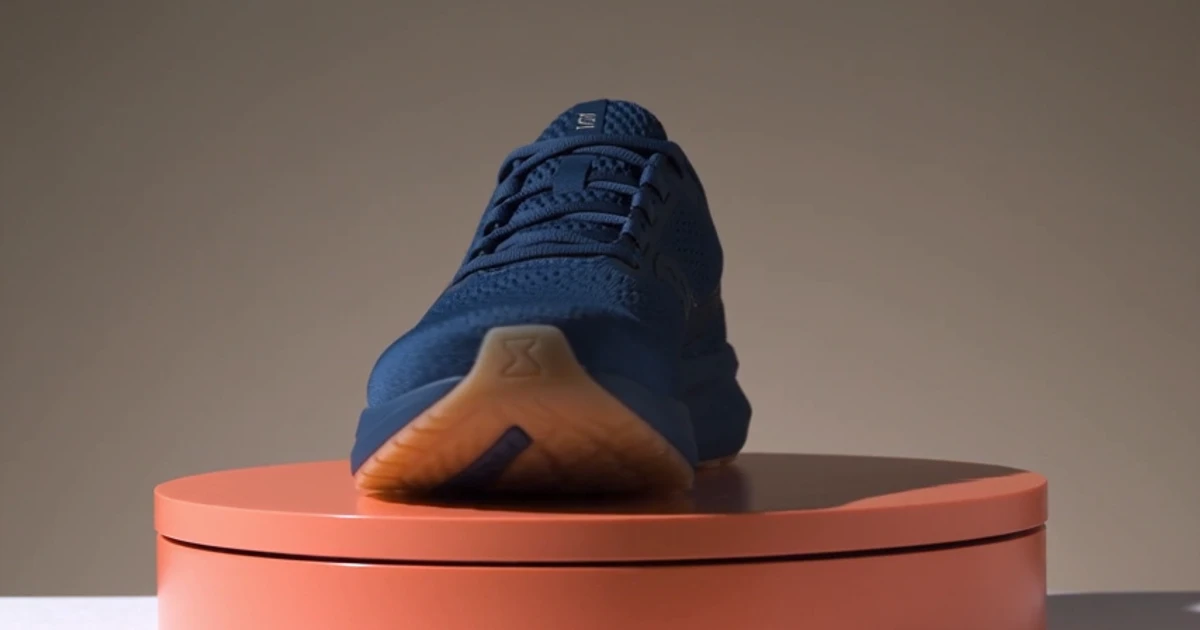
Seedance 2.5 Is Now Available in QuestStudio Video Lab
Try Seedance 2.5 in QuestStudio Video Lab. See the original four-second product film, compare 480p and 720p, and plan a clip from text or a start image.
 Video
Best Image Prep Before Generating Video for Cleaner AI Motion
Learn the best image prep before generating video, including crop, lighting, sharpness, and source image fixes that improve AI motion.
 Video
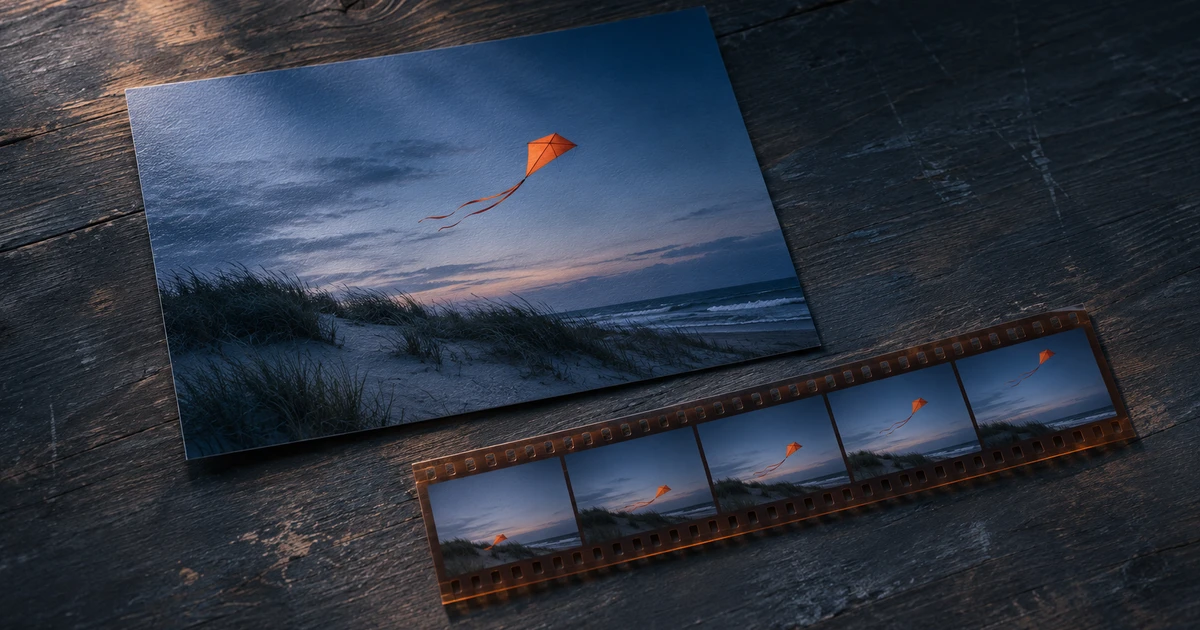
QuestStudio Image Lab and Video Lab Get a New Workspace
See what changed in QuestStudio Image Lab and Video Lab, including bottom prompt bars, side-by-side review, saved looks and shots, and social-format exports.