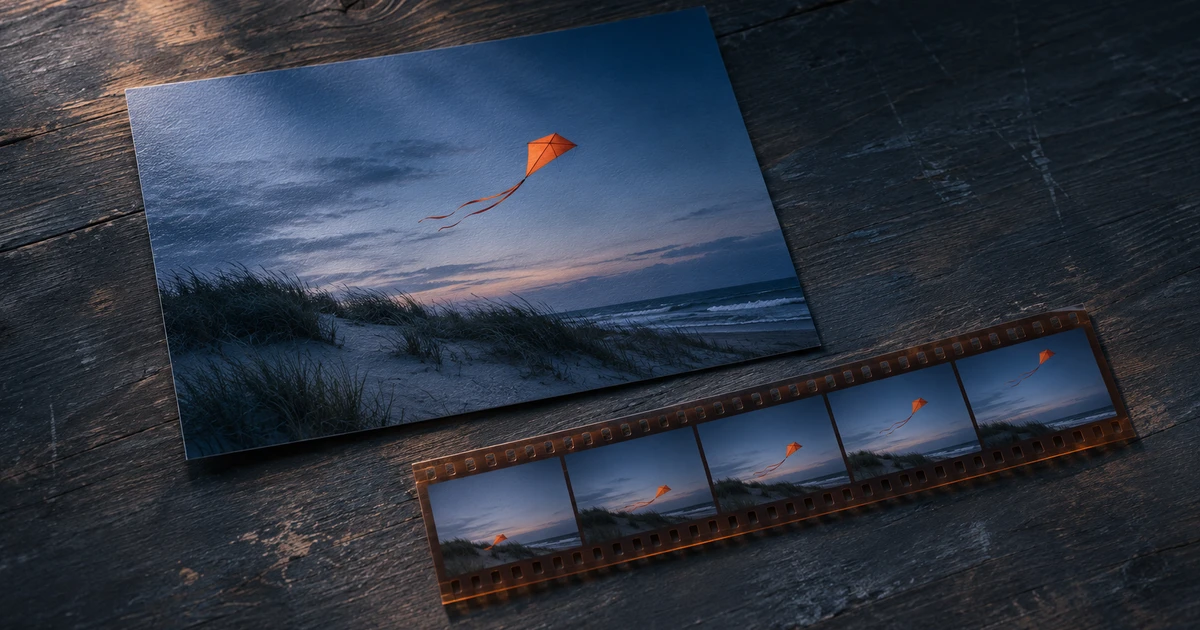

QuestStudio’s web Image Lab and Video Lab have a redesigned workspace. Both now put the prompt and model controls at the bottom of the screen, with the canvas above for examples and finished work. The update also adds ways to review results side by side, reuse a setup and export files for different formats.
Open the redesigned Image Lab Open Video Lab
What changed in the two Labs
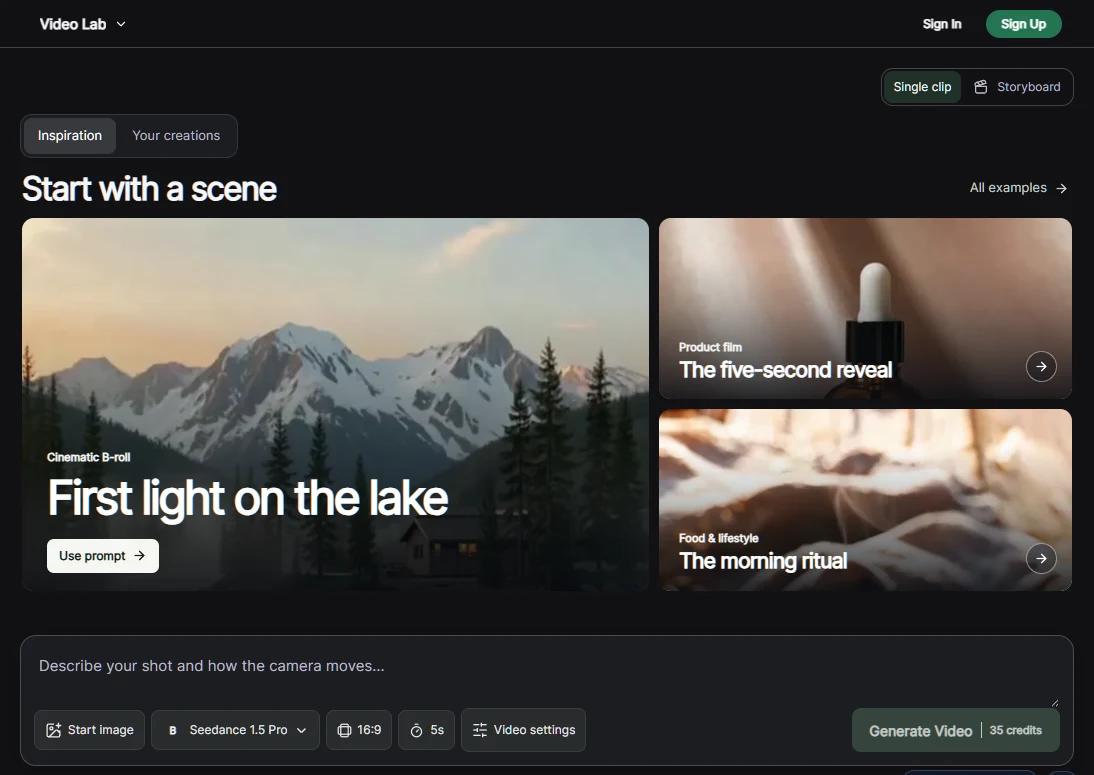
The prompt bars put the decisions you make before generating in one place. In Image Lab, start with the prompt, model and format. Add a reference when the selected model supports one. In Video Lab, choose a model, review the clip settings and add a start image if your shot needs one. Available controls depend on the model.
Use Inspiration to see examples you can adapt, then switch to Your creations to review your work. The Switch Lab menu in the header lets you move between creative tools. When a finished image offers Animate in Video, use that action to carry the selected image forward as a start frame. You can also upload a start frame directly in Video Lab.
On a new project, decide what you need to see first. A still helps you settle the composition, product angle and backdrop. A short motion test helps when the shot depends on a turn, a reveal or a camera move. Starting with the decision that is most uncertain can save you from revising both assets at once.
Recent image and video model additions
- Grok Imagine Image 2.0 is available for text-to-image work, such as a cover or a new scene concept. The Grok Imagine launch post includes a sample image and its original prompt.
- Seedream 5 Pro supports a written brief or a single reference image in Image Lab, with 1K and 2K output choices. Try it when an existing still will guide the next image.
- Kling 4.0 supports 720p clips from text or a start image, with durations from 3 to 30 seconds.
- Seedance 2.5 supports 4- to 30-second clips. Depending on the setup, you can choose 480p or 720p, add a start image and choose whether to include sound.
Look at the credit estimate after setting the model and output options. For a first motion test, choose the shortest clip that lets you see the movement finish. For example, a small product turn may only need enough time to reveal one side and settle.
Try one cover and one matching clip
Say you need a square cover and a short vertical clip for a small product announcement. Give the cover one job and the clip another. The cover shows the shape of the product at a glance. The clip shows one detail, such as the edge of the sole or the texture of the material in side light.
- Compose the still. In Image Lab, use your own product photo with a compatible reference model when the exact item matters. Leave room near the top and bottom if the clip will need a vertical crop later.
- Choose the version to carry forward. Review the finished image in the canvas. If you’ve generated versions with different models as a comparison, use the side-by-side view to inspect framing and small details. Pick the still that holds up at both cover size and full size.
- Write the movement. Take the chosen still into Video Lab as the start image. Ask for one action, such as “Slow clockwise turn, steady camera, fixed lighting, hold the final position.” Keep the shot brief enough to check the whole action.
- Check the whole clip. Watch the opening, the point where the subject moves the most, and the final frame. With two finished clips, use Compare finished clips to scrub through them with the linked playhead and choose the version you want to keep working with.
If the subject slips out of frame, revisit the crop or reduce the camera motion. If a product detail changes partway through, mark the exact moment where it happens. That gives you a specific problem to check on the next revision.
Save the setup and export the result
Once a result is ready, use Save this look in Image Lab or Save this shot in Video Lab to keep the setup for reuse on this device. This is handy for a series where the model and format should stay fixed while the prompt changes. Keep the finished asset in the Library when the file itself is what you need again.
Image Lab offers crop controls and square, portrait and story PNG exports from image review. Video Lab lets you download the original MP4. Export sizes makes a ZIP of square, portrait and story MP4s on browsers that support the required encoding. Open the exported format and check the subject, edges and audio before using it in a post or client handoff.
For your next project, start with one image you would be willing to publish and one short motion test. That gives you two actual files to review, plus a setup you can reuse if the next brief calls for the same look.
Frequently asked questions
Where did the Image Lab and Video Lab settings move?
The main generation controls are in the prompt bar along the bottom of both Labs. Open the additional settings there for controls that depend on the selected model.
Can I start a video with an image from Image Lab?
Yes. Use Animate in Video on a finished image when available, or upload the image as a start frame in Video Lab and choose a compatible model.
Can I compare clips before exporting?
Yes. Video Lab can show two finished clips side by side with a linked playhead. Use it to check the same point in each clip before choosing a version.
What is the difference between downloading a clip and exporting sizes?
Download MP4 saves the original clip. Export sizes creates square, portrait and story MP4s in a ZIP when your browser supports the required video encoding.
Do saved looks and shots sync between devices?
The saved looks and shots described here are stored on this device. Use the Library when you need to keep the actual finished asset in your QuestStudio account.
Try the new workspace
Open either Lab, load an example and see what carries over to the prompt bar. When you have a project in mind, replace the example brief with your own.
Continue with a useful next step
 Image
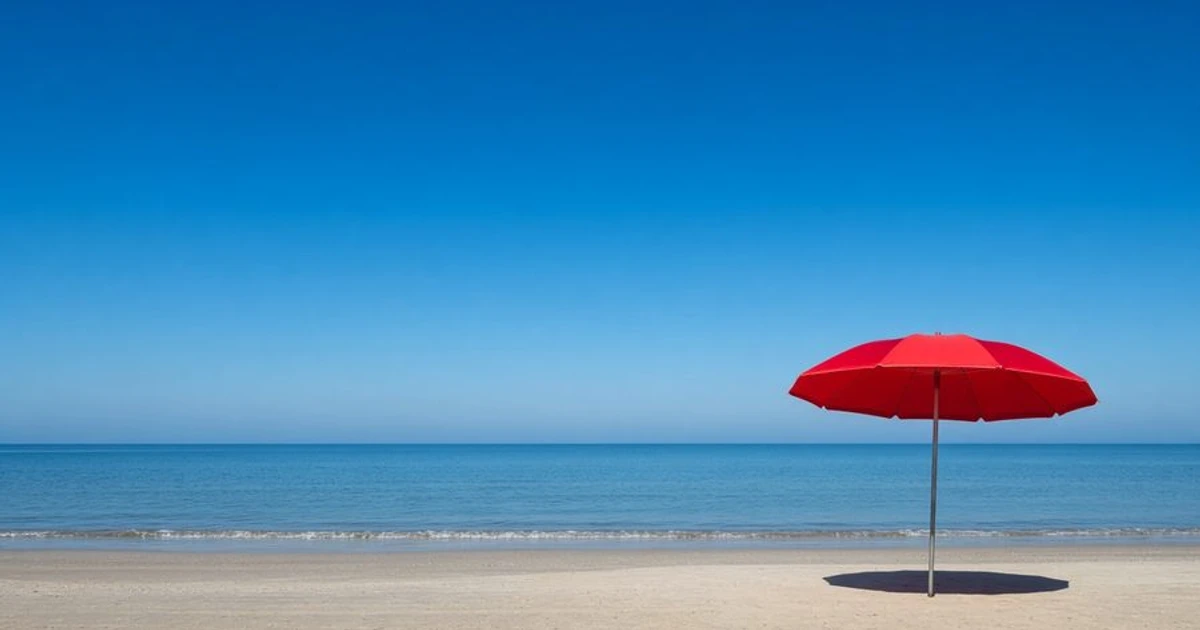
Grok Imagine Image 2.0 Is Now in QuestStudio Image Lab
Try the red umbrella cover and see which Grok Imagine settings are available in Image Lab.
 Video
Best Image Prep Before Generating Video for Cleaner AI Motion
Learn the best image prep before generating video, including crop, lighting, sharpness, and source image fixes that improve AI motion.
 Creator Workflows
Choose an AI Model for Images, Video and Voice
Choose an AI model by the asset you need, required controls, and a small acceptance test. Use a practical comparison sheet without trusting a universal ranking.