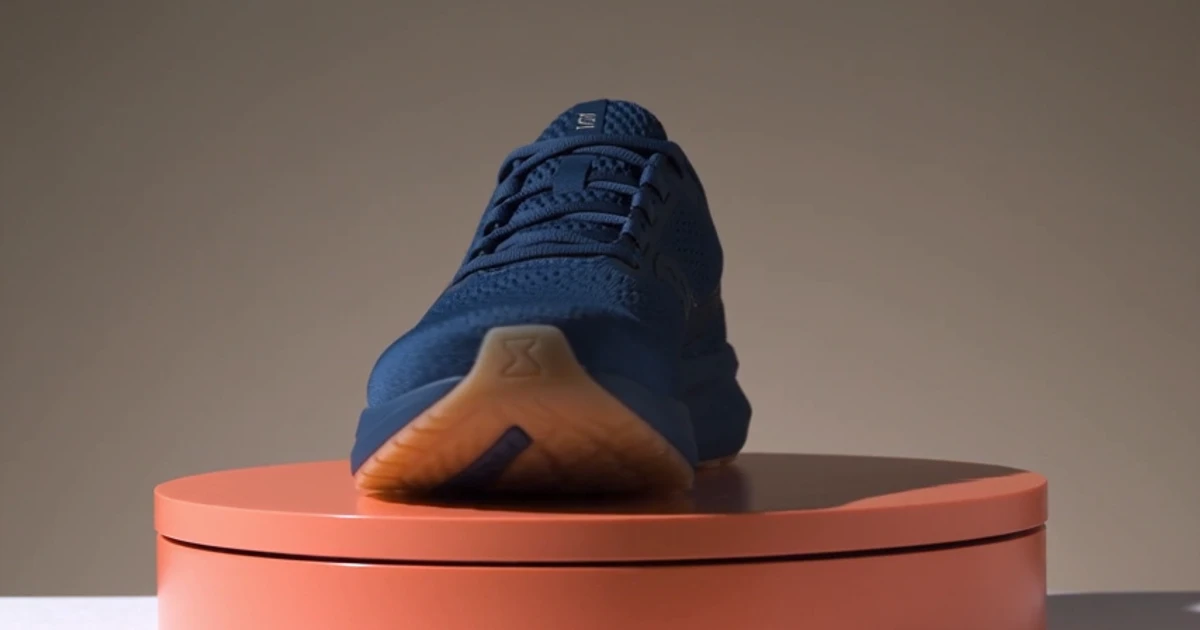

QuestStudio has added ByteDance Seedance 2.5 to Video Lab. Start with a written shot brief or one image, set the duration, and decide whether the clip needs generated sound. The web Lab offers 480p and 720p options for clips from four to 30 seconds.
Watch a four-second Seedance 2.5 film
Cobalt in Motion is a short QuestStudio film of a running shoe on a coral turntable. It was generated from a written brief at 480p in 16:9 with audio off. The movement reveals the sole and side panel while the view stays close enough for the shoe to fill the frame.
Here’s the written brief from the original shot. Use it as a starting point for your own test, then change the subject or the movement to fit your project.
A single continuous four-second product film of an unbranded cobalt-blue running shoe on a coral studio turntable. Smooth slow rotation reveals the gum sole and woven side panel, camera steady in a close three-quarter view, crisp side lighting, clean solid backdrop, no lettering, graphics, or cuts.The rotation gives the viewer one clear thing to follow. A steady view makes it easier to see whether the side panel stays attached to the same shoe as it moves. One shot gives you a baseline before you add a camera move, a second subject or a different lighting direction.
Choose a short draft or a longer shot
Start at 480p when you are deciding whether a movement reads clearly. Review an early draft on the device where people will see it. When framing and timing are ready, try the 720p Seedance 2.5 setup if you want more detail. Review the credit estimate for the current settings before each generation.
Four seconds is enough to test a turn, a tilt, or a short push. Try a longer clip when the action depends on two connected beats, such as an object entering a frame and then settling. Describe the opening, the change, and where the action ends. If the pause in the middle feels empty when you read the shot aloud, shorten the clip or give that beat a job.
Use generated audio when a sound helps explain the movement. Choose one cue, such as the soft click of a lid as it closes, and check that sound against the picture. For a clip that will sit under narration or music you already have, consider starting with audio off so you can review the movement on its own.
Set up Seedance 2.5 in Video Lab
- Choose the first frame. Use a written description when you are exploring a scene. Use a start image when you already have a crop, subject or color palette you want to carry into motion.
- Give the shot one task. Describe what moves and how. For a first pass, keep the camera steady if the subject moves. A small movement that reads clearly can carry a short clip.
- Review the output controls. Confirm the model, duration, resolution and sound choice. When you add a start image, prepare its crop for the intended frame shape.
- Watch past the opening. Check for changes in the subject or background halfway through. Watch the end long enough to judge whether you can cut out of it cleanly.
The QuestStudio route supports a text brief or one start image. For a broader look at the capabilities ByteDance introduced across its own distribution, see the Seedance 2.5 release notes and the Seedance 2.5 and 2.0 comparison.
Review the draft alongside the shot you wanted
Keep the brief next to the output while you watch. In the shoe example, the core decision is whether the rotation reveals the details you asked for. If one side stays hidden, you can start the object at a different angle or ask for a smaller turn over a longer beat. If the shoe changes shape, note the moment it happens and simplify the next test.
When you have two finished versions, open clip comparison to inspect the same point in both. Keep the version that best meets the brief and download the MP4 when it is ready. The Image Lab and Video Lab update shows where the prompt, history and export controls now live.
For a two-clip sequence, give each shot a different job. Start with a four-second wide view to establish the product, then make a tighter clip for the material detail. Match the direction of movement and the lighting between them. If you want the two shots to cut together, carry the same approved still or the same subject description into the second brief, depending on which route you are using.
Set the final shape before upload. A wide source framed around the product and a vertical source framed for a story are two different starting images. Review the crop where the subject moves farthest from center. That is where a vertical export is most likely to trim a handle, toe or label.
Frequently asked questions
Is Seedance 2.5 available in QuestStudio?
Yes. Open Video Lab in the QuestStudio web app and select Seedance 2.5 or Seedance 2.5 at 480p.
Can Seedance 2.5 start from a still image?
Yes. Add one start image in Video Lab and write a separate motion prompt. Frame your subject for the intended output before uploading.
Can I generate a clip without sound?
Yes. Switch generated audio off in the Seedance 2.5 settings when you want a silent clip.
How long can a Seedance 2.5 clip be in Video Lab?
Choose a duration from four to 30 seconds. Start with enough time for the action to finish and check the estimate before generating.
How was the Cobalt in Motion example made?
QuestStudio generated the four-second clip at 480p, in 16:9, from a written prompt with audio off.
Try one Seedance draft
Open the 480p setup, choose four seconds and write one movement to test. Review the quote and check the beginning and end of the clip before deciding whether to make a higher-resolution version.
Continue with a useful next step
 Video
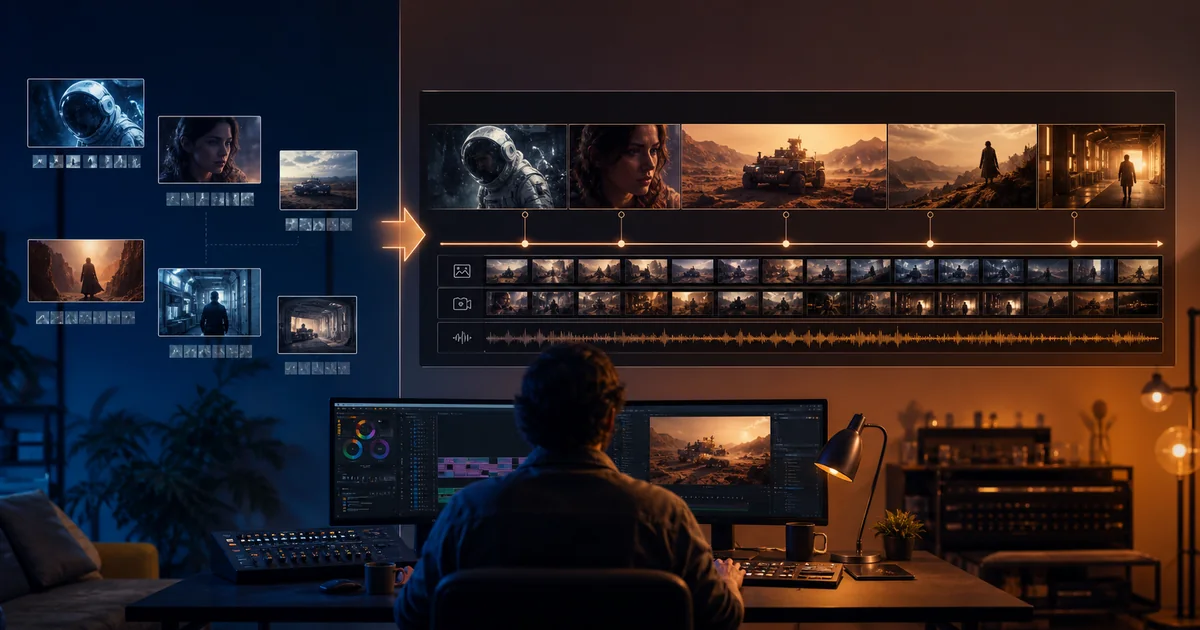
Seedance 2.5 vs Seedance 2.0: What Actually Changed?
Compare Seedance 2.5 and Seedance 2.0 by duration, references, editing, storytelling, access, and the workflow each version requires.
 Video
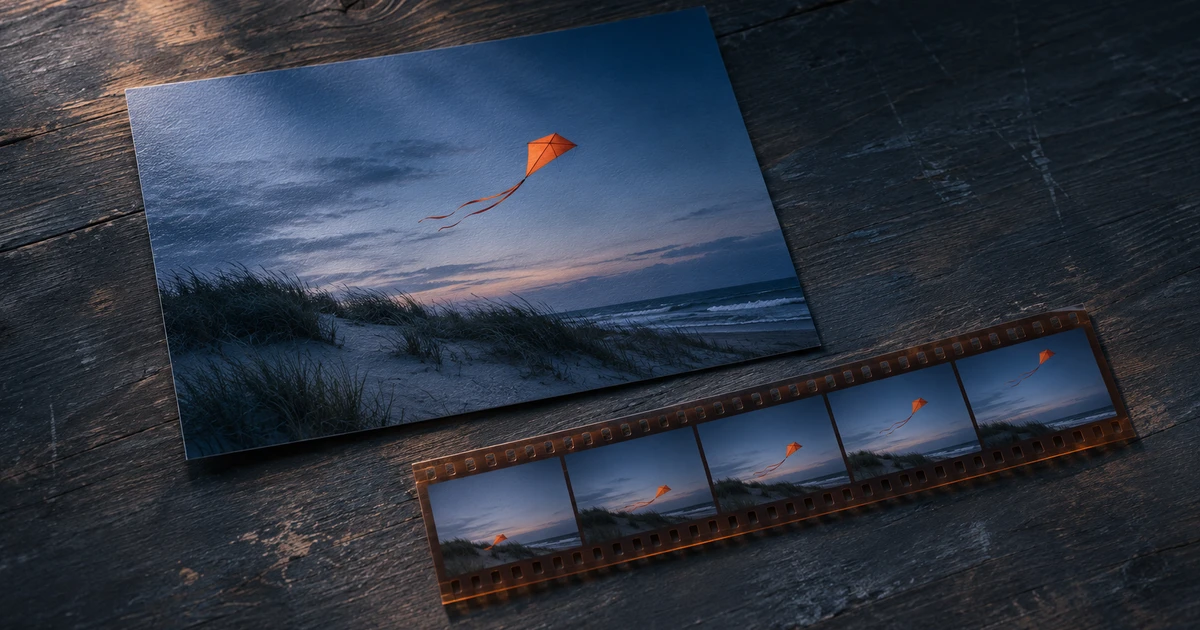
QuestStudio Image Lab and Video Lab Get a New Workspace
See what changed in QuestStudio Image Lab and Video Lab, including bottom prompt bars, side-by-side review, saved looks and shots, and social-format exports.
 Video
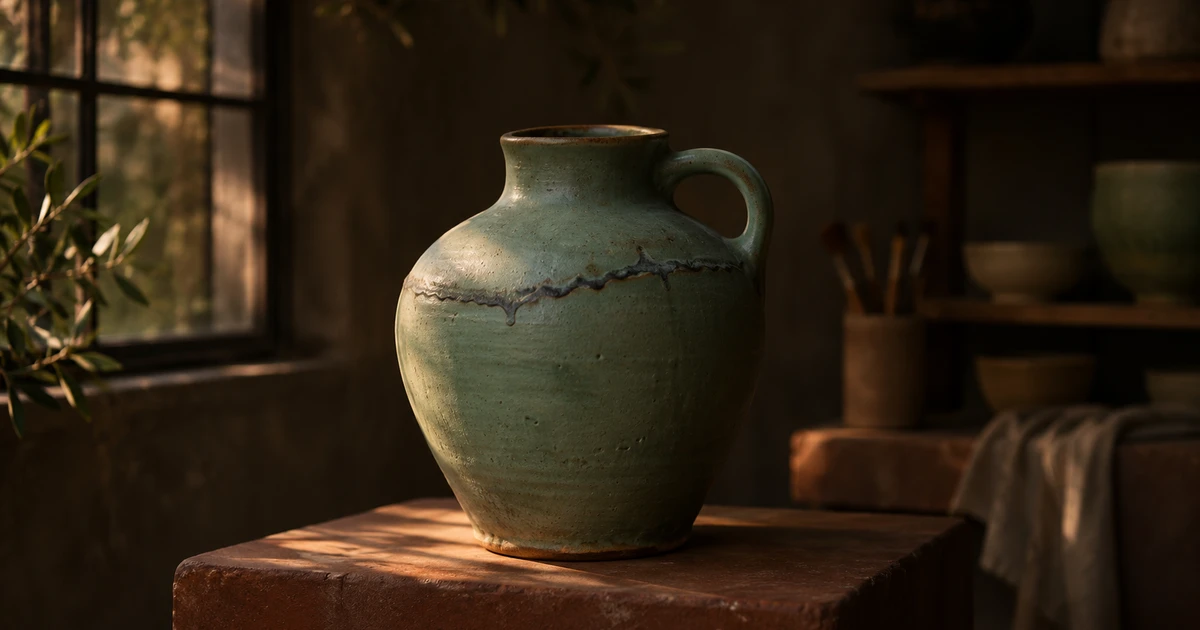
Kling 4.0 in QuestStudio Video Lab for Image-to-Video
Use Kling 4.0 in QuestStudio Video Lab to make a 720p clip from text or one start image. Plan a camera move, choose a duration, and review the finished shot.