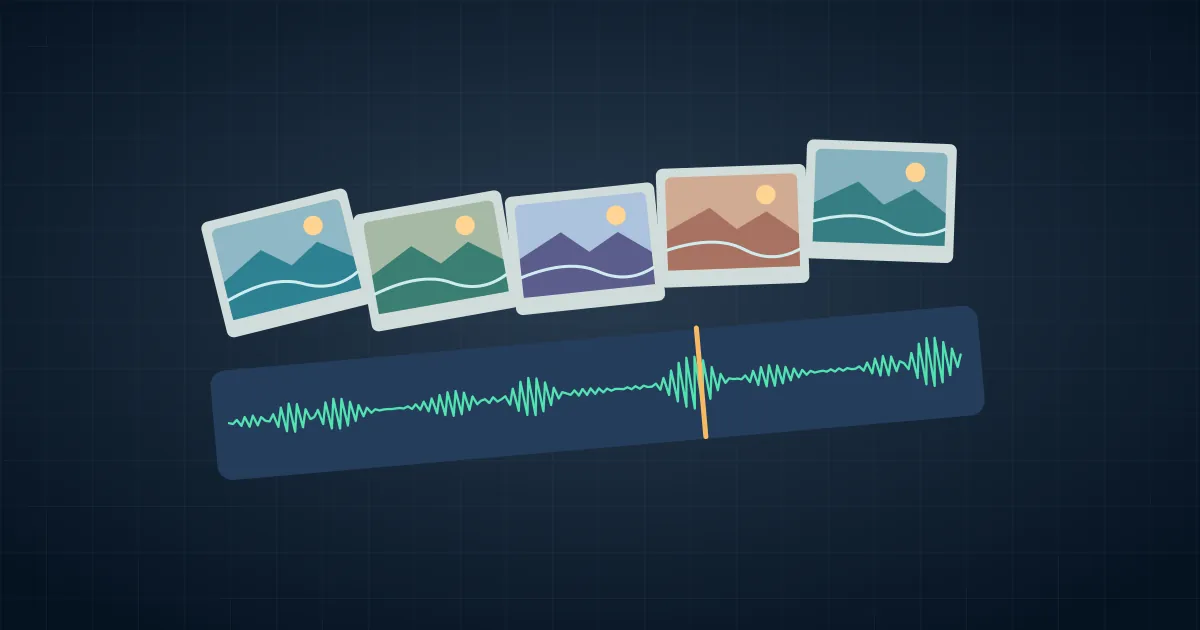

To make a video with photos and music, put the photos in order on a video track, place the song on a separate audio track, and set each photo's duration in the timeline. Cut to a few meaningful moments in the music, then check the final title and audio ending before exporting. You can do this with still images alone.
Try the 24-second timeline below with six photos. It leaves room for a clear opening, a musical reveal, and an ending you can actually read. The timing is a starting example you can adapt to your pictures.
Choose what the photos need to communicate
Start with the ending. What should someone remember after the video plays once? If the answer is the finished object, choose a final image that shows it clearly. Then select the minimum number of photos needed to show what led there. Open with a wide shot, follow with actions or details, and hold the reveal long enough to register.
Make a folder with only the approved selects. Name the pictures in order or keep a contact sheet. Open them at the intended crop and check faces, edges and any printed words. A photo that works horizontally may lose the important object in a vertical cut. Solve that before committing to the timing.
Import the images and music into a timeline editor. OpenShot's quick tutorial shows the basic import, arrangement, audio and export controls. Other timeline editors can use the same track layout. Place your six pictures on one video track and keep the music separate so you can adjust it without moving the pictures.
Mark a few musical events before you cut
Listen once for the start of a phrase, a clear accent and an ending that can decay naturally. You need only a few marks. Cutting every photo on a beat can make the video feel mechanical and can remove the time a detailed photograph needs. The most important transition deserves the clearest musical cue.
If you have a track with a strong accent near the middle, put your reveal there. If the track starts slowly, use a short lead-in or begin at a suitable phrase boundary. Check the start with headphones. Trimming into the middle of a sustained note can sound abrupt even if the waveform looks quiet at the edit.
Choose music you have permission to use for the destination. If you plan to post across several services, verify the track can travel with the exported file. A song attached inside one app may behave differently from an audio file you add in your editor.
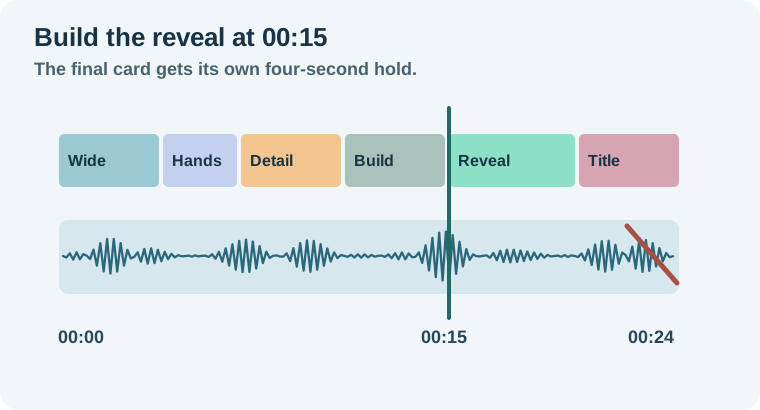
Build a 24-second, six-photo edit
In this example, the first image is a wide workshop view from 00:00 to 00:04. Show hands setting up from 00:04 to 00:07 and a material closeup from 00:07 to 00:11. The next four seconds show assembly. Cut to the finished object at 00:15 on the strongest musical accent, hold until 00:20, then show the same object with a separate title through 00:24.
Set those boundaries using the timeline or clip-duration controls. Start with hard cuts, then watch the whole edit. If a transition hides the first instant of the reveal, shorten it or remove it. Some editors overlap clips to make a dissolve. Check the resulting runtime after adding any overlap so the title still appears where you planned.
Give the music a short fade from 00:22 to 00:24 in this example, or use a phrase ending that lands naturally. Let a narrator finish a line before the loudest accent if the story includes speech. The music-under-dialogue guide covers the separate balance decision. Review the pictures once with the volume off, then watch again with sound. Both passes should make the sequence understandable.
Use movement only where it explains something
A slow push can help someone find a detail. A small pan can show the relationship between two objects. If every picture moves, the viewer has to keep reorienting, including during the final title. Try one purposeful move on the material closeup and leave the reveal still first.
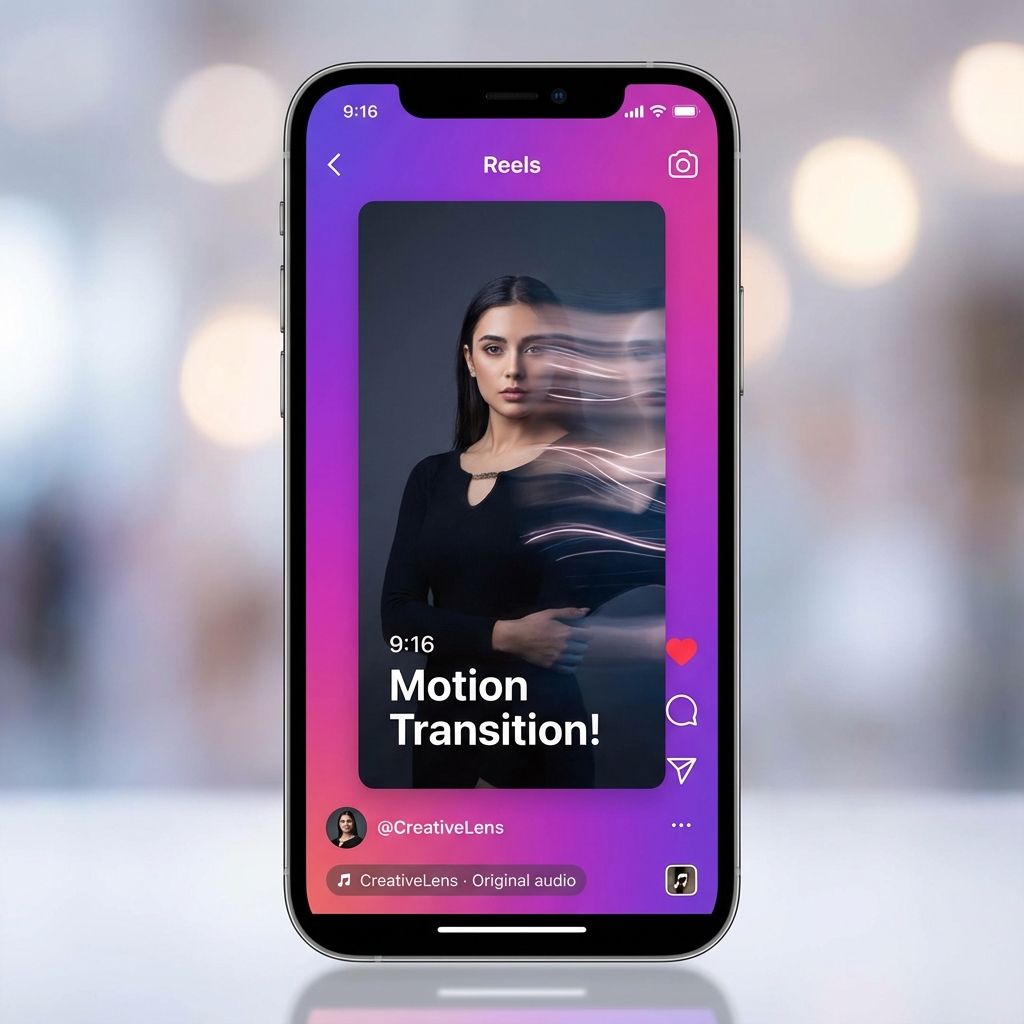
If the video is going to a short vertical format, review the actual 9:16 composition and crop. The photo-to-video guide for Instagram Reels helps when you want a separate motion shot from one still. The slideshow timeline can hold that shot later, but you can finish the first edit using plain photographs.
Reopen the export and watch the ending
Check the dimensions and run time in the exported file. Watch the first frame, the strongest cut and the last two seconds at the intended viewing size. The title should remain legible through the closing hold, and the audio should fade or resolve before playback stops. Look for a black frame after the last photo if the music runs longer than picture.
If the timeline ends at 00:24 but the file runs longer, inspect the tracks for a stray clip or a transition tail. Keep the project, approved images and song together so you can rebuild the sequence when an image changes.
How QuestStudio helps
Use Music Lab to audition a separate bed if the current song has no usable reveal or ending. Ask for a restrained build and a clear final accent, then place the resulting audio in your editor and check the real timing. The product reveal music workflow helps when the accent needs more precise adjustment.
Start with the 24-second cue sheet, then change the holds to fit your own photographs. The finished video should feel paced around the story even with the sound off.
Download the 24-second photo and music timeline.
Frequently asked questions
How long should each photo stay on screen?
Start with the time a viewer needs to recognize the subject or read the text. Short action images and a final title can need different holds.
Do I have to cut every photo to the beat?
Choose a few story points to match strong musical cues, then leave enough time to see each image.
Why does my last slide end before the song?
Trim or fade the audio, or extend the final image deliberately. Reopen the export to catch a trailing black screen.
Can I use a vertical and a horizontal version?
Yes. Keep the same timing plan and review the crop and titles independently for each layout.
What if the music overwhelms the story?
Listen with any voice present and reduce the bed around it. Pick a simpler cue if the arrangement still competes with the words.