

A MIDI keyboard is useful when you want to play your own notes, chords or drum parts around a music project. It is not required to generate music from a prompt. The Arturia MiniLab 3 is a compact option for a compatible computer and DAW, particularly if you want keys, pads and a few physical controls without committing much desk space.
A product to consider
Check the fit below, then select Buy on Amazon for the current offer and buying options. We may earn a commission from this paid link.
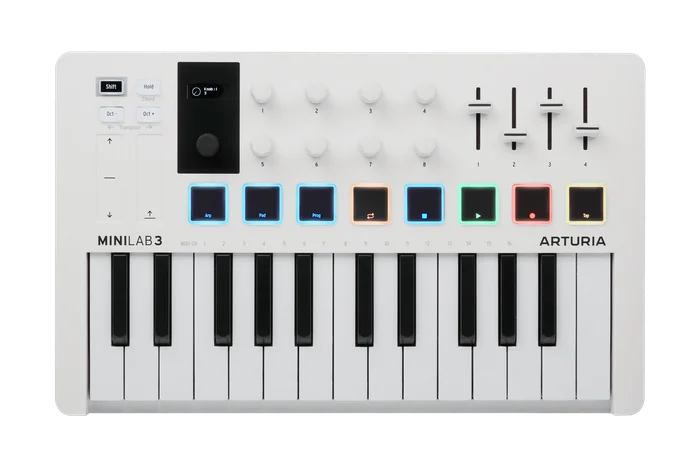
Arturia MiniLab 3, white
For adding played notes and simple controls to a computer music project
A compact MIDI controller for a compatible DAW and software instruments. It does not make sound by itself, record an XLR microphone or turn an AI-generated audio file into editable MIDI.
Download the practical worksheet
Original blank CSV worksheet. Record your own setup and observations.
Decide whether you need notes or finished audio
A generated audio file is a recording. MIDI is a set of performance instructions, such as which note starts, how hard it is played and when it stops. A keyboard can send those instructions to a software instrument, but it does not automatically reveal the individual notes hidden inside a mixed audio file.
This difference changes the buying decision. If you only need a background track for a short video, a keyboard may add an unnecessary production step. If you want to write a melody, change chord timing or perform a drum pattern, MIDI gives you editable musical events. You can revise those events before rendering them as audio.
Some production applications offer audio-to-MIDI or separation features, but those are separate software capabilities with their own limits. Do not buy a controller assuming it includes perfect transcription, stem separation or a direct connection to every AI music service.
What the MiniLab 3 contributes
Arturia's MiniLab 3 offers 25 compact keys, eight pads, eight rotary controls and four faders. It connects over USB-C and also provides a five-pin MIDI output for suitable external equipment. Its small display and browsing control support the documented software workflows. These are control features; the keyboard has no built-in speaker or standalone sound engine.
Jon Musgrave's MusicRadar review praises the construction and smooth controls, while questioning the need to upgrade from an existing MiniLab MkII. That is useful context for a compact controller purchase, not evidence that every reader will find the small keys comfortable. We have not tested the hardware ourselves.
Choose it for short parts, portable production and a limited desk. Consider a larger keyboard if two-handed playing or a wider note range is central to your work. If your current controller already records the notes and controls you need, a new model may change the feel more than the finished music.
Check the software and sound path
| Part | Role | Check before buying |
|---|---|---|
| MIDI controller | Sends notes and control messages | Computer connection and supported setup |
| DAW | Records, edits and arranges the project | Operating system and controller integration |
| Software instrument | Turns MIDI notes into sound | License, installation and computer support |
| Audio output | Lets you hear the result | Headphone or interface routing |
For a first project, connect the controller using the manufacturer's instructions and load one software instrument on a track. Select the controller as a MIDI input, enable the track for input and play a single note. If the keyboard lights up but produces no sound, check the instrument and output route before assuming the device is defective.
Included software can be useful, but bundles change over time and used products may have licenses already registered. Read the current offer and activation conditions. Buy the controller for a workflow you can support, not for an old review's list of temporary subscriptions.
A MIDI keyboard is not an audio interface. If you also want to record an XLR microphone, that is a separate signal path. Our audio-interface guide explains the difference without turning every music setup into a large equipment purchase.
Make the small keyboard work for your project
Twenty-five keys can be enough to enter a bass line or a short melody. Octave controls let you reach notes outside the current range, but they do not provide more physical keys for a two-handed performance. Decide whether you mostly enter parts one at a time or need to play a full arrangement live.
Start with only a few controls assigned. For example, use one knob for a software instrument parameter and one fader for that track's level. Verify the assignment in your actual DAW. A control mapped correctly in one application may do nothing, or something different, in another.
If playing feels delayed, check the audio device and application buffer using the software's guidance. Delay is not always a keyboard problem. Do not purchase a second controller before confirming whether the sound path is responsible. Monitor at a comfortable level and save the settings that work.
Try an original eight-bar arrangement exercise
Choose a musical idea you own or have permission to use. The exercise works with an existing audio loop, a newly generated idea or a simple metronome. Keep the first attempt short enough that you can hear every part rather than hiding timing problems in a long arrangement.
- Set the project: choose a tempo and create an eight-bar region in your DAW.
- Establish a baseline: draw a simple bass or melody part with the mouse and save it.
- Play an alternative: record the same musical role from the keyboard, or a borrowed controller if available.
- Edit deliberately: correct only the notes and timing that interfere with the idea. Compare before and after quantization.
- Render: export a short audio file and listen away from the project controls.
Use the worksheet to record the role of each track, the source of the material, the edit you made and whether it helped. A keyboard purchase is easier to evaluate when you can name the action it improved: entering a phrase, varying note strength or finding a chord. “More professional” is too vague to test.
If drawing the notes is already comfortable and you do not enjoy playing, keep that approach. Physical controls are optional. The exercise should reveal a preference and a bottleneck, not manufacture a reason to buy gear.
Connect generated ideas to your own arrangement
In QuestStudio Music Lab, draft a musical idea with the available model and controls. Describe the role of the music, the intended mood and the arrangement space you need. Check the selected workflow's output and usage terms before planning a commercial project.
Treat the exported audio as one source in your local production project. Import it into a compatible DAW, then add your own MIDI part with a software instrument if that serves the arrangement. This is a file-based creative workflow, not a native MiniLab integration with QuestStudio.
Keep generated audio, performed MIDI and final renders in separate named tracks or folders. That makes revisions easier and helps you remember which parts can still be edited as notes. For a video, leave room for narration rather than filling every moment with a busy melody.
Use a consistent listening check and keep a second copy of the project. The project-storage guide explains why an external working drive is not itself a complete backup.
Buy for the musical action you will repeat
The MiniLab 3 makes sense if compact keys and a few assignable controls help you build parts regularly. It is less compelling if your entire workflow consists of prompting, downloading and placing a finished track under a video. In that case, improve the brief and editing decisions first.
Before ordering, verify the selected white model, the current software package, your computer support and the connection you need. Keep the first setup small: one instrument, one recorded part, one successful export. Expand only after the basic route feels dependable.
Check the current offer
If this product fits the setup described above, review the selected model, condition and included contents on Amazon. We may earn a commission from this paid link.
Frequently asked questions
Does MiniLab 3 make sound without a computer?
It is a MIDI controller, not a standalone synthesizer. It needs a compatible sound source, such as a software instrument or suitable external MIDI hardware.
Does it turn an AI song into MIDI?
No. It sends new performance instructions. Transcription or stem separation would be separate software work and may not recover a mixed recording accurately.
Do I need an audio interface just to use it?
Not necessarily. A supported computer audio output may be enough to begin. An interface serves a separate audio input/output need.
Are 25 keys enough for learning piano?
They can support simple note entry and small parts, but the limited physical range is restrictive for ordinary two-handed piano practice. Choose around your actual learning goal.
Does QuestStudio support direct MiniLab control?
This guide does not claim a native integration. Generate or prepare an idea in Music Lab, then arrange exported audio and your own MIDI parts in a compatible local DAW.
Sources and further reading
Research checked October 27, 2026. Check the current Amazon offer for seller, price, availability and included contents. Images: credited manufacturer product imagery, not QuestStudio test photographs. Original decision framework and worksheet: QuestStudio.
Affiliate disclosure and research approach
As an Amazon Associate I earn from qualifying purchases. If you buy through paid links, QuestStudio may earn a commission at no extra cost to you. See our editorial and affiliate policy.
This is a research-based guide using linked manufacturer documentation and clearly attributed published reviews where available. We have not tested this equipment hands-on. The worksheets are original exercises for your observations, not published test results.