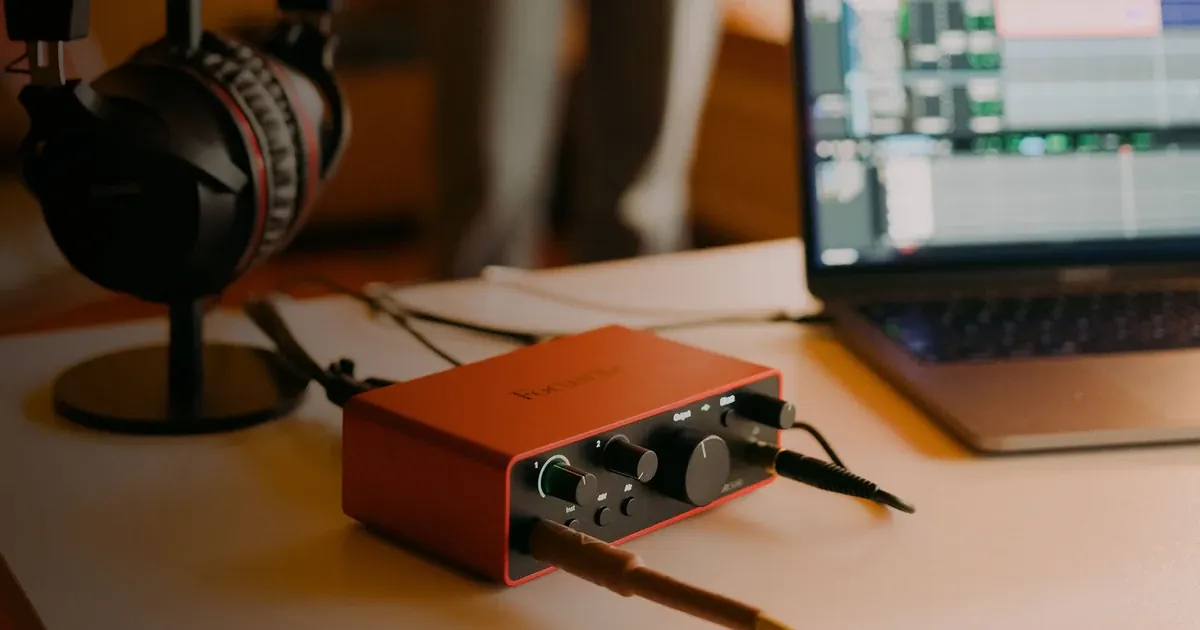

For one XLR narration microphone, the Focusrite Scarlett Solo 4th Gen provides a straightforward path into a compatible computer. It is the wrong purchase if you need two XLR microphones at once, or if your existing microphone connects only by USB. Count the microphone inputs and plan your monitoring before comparing sample rates or bundled software.
A product to consider
Check the fit below, then select Buy on Amazon for the current offer and buying options. We may earn a commission from this paid link.
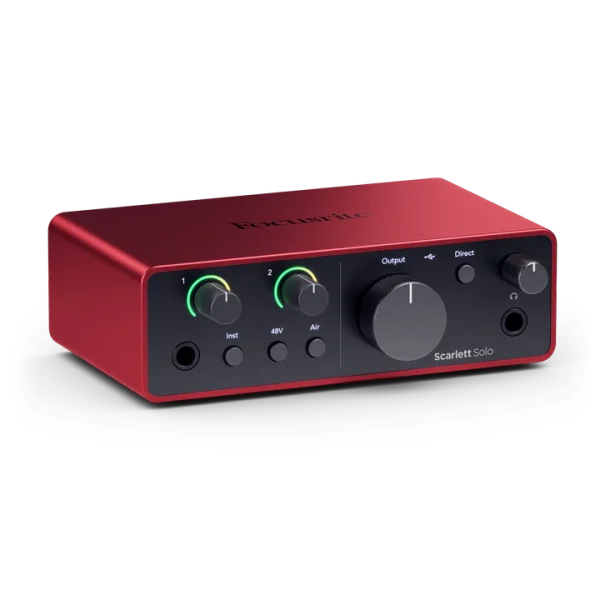
Focusrite Scarlett Solo, 4th generation
For one XLR narration microphone connected to a compatible computer
One microphone input plus one instrument input suits solo voice recording. Skip it for two XLR speakers or a USB-only microphone. This link is the interface, not the Studio microphone-and-headphone bundle.
Download the practical worksheet
Original blank CSV worksheet. Record your own setup and observations.
Start with the connection you actually need
An audio interface converts a microphone's analog signal into digital audio and provides outputs for monitoring. An XLR microphone usually needs this conversion somewhere in the recording chain. A USB microphone already includes its own conversion, so a separate interface does not normally improve that microphone by plugging it into the interface's USB socket.
Write down the microphone model and its output connection. If you only need one person recording at a desk and have not bought a microphone, compare the complete XLR setup with a USB microphone workflow. Include the cable, stand and headphones rather than comparing the interface price alone.
A simple system you can operate consistently is more valuable than unused inputs. Conversely, buying a one-mic device for a planned two-person interview creates a limitation immediately. A quarter-inch instrument socket is not a second XLR microphone preamp.
Our conditional pick: Solo for a solo voice
The fourth-generation Scarlett Solo has one XLR microphone input and a separate instrument input. Its direct-monitoring control lets you hear the input without waiting for an application to send the signal back. The front-panel gain indicators help with manual level setting; they do not make recording impossible to overload.
The SoundGuys review describes a week of use with a manufacturer-provided unit and finds the controls approachable. It also distinguishes the Solo from larger fourth-generation models: Solo lacks Auto Gain and Clip Safe. We have not tested the unit, so we are recommending the documented input arrangement rather than promising a measured noise or latency advantage.
Choose this model if one XLR voice input meets your foreseeable needs. Choose a device with two documented mic preamps if you regularly record two speakers. Keep your existing interface if it already provides clean, reliable capture and supported drivers. An upgrade should solve a specific limitation.
Make an input and output map
| Stage | What to identify | Common mistake |
|---|---|---|
| Microphone to interface | XLR cable and microphone power requirement | Treating a USB connector as an XLR audio input |
| Interface to computer | Supported data connection and driver | Using a charge-only cable |
| Track in the recording app | Correct mono input | Recording a stereo pair with speech on one side |
| Monitoring | Interface headphone output and one monitoring path | Hearing delayed software monitoring twice |
Use the current Solo manual to identify the microphone input in your recording application. Interface numbering can differ from the intuitive order of sockets on the front panel. Select a mono track for one microphone and verify the saved file plays centrally. Do not assume that seeing an input meter proves the correct track is being recorded.
A suitable cable matters, but a higher advertised data speed does not automatically improve audio quality. Check the manufacturer's supported connection. Our USB-C connection guide explains why the connector shape alone is insufficient.
Set a clean baseline before using effects
Install supported software and drivers from the manufacturer where required. Begin with a direct computer connection, then select the interface as the recording and playback device in your application. Keep system sounds and private calls out of the recording route.
Check the microphone's instructions before enabling phantom power. Some microphones require it; others do not. Turn monitoring down while making connections and follow the manufacturer's sequence. A microphone being quiet does not by itself mean that every available power or enhancement button should be enabled.
Record a normal passage and the loudest delivery you expect. Adjust gain to leave headroom rather than making every meter peak. Keep processing simple for the first sample so you can distinguish capture problems from compression, noise gates or other effects. Solo's optional Air processing is a creative choice, not a prerequisite for a usable voice reference.
Understand monitoring without chasing a magic latency number
Direct monitoring is useful for hearing your microphone promptly. Application monitoring can include software processing, but its delay depends on the computer, buffer and project. Hearing both paths at once can produce a distracting doubled voice. Choose the intended path and test it at a comfortable listening level.
If you need to hear an effect while recording, start with a modest project and the manufacturer's setup guidance. Lowering a buffer may reduce delay but increase the chance of glitches on an overloaded computer. The usable setting is the one that remains reliable during your actual session.
A faster sample rate is not automatically a better voiceover. Match the needs of the project and downstream tools, and keep the original file. The 32-bit-float explanation covers a different recording capability; do not transfer claims about specialized recorders to this interface.
Run a five-part mono recording check
Use the downloadable worksheet to document a private rehearsal before a client session or long tutorial. Save the unprocessed sample and its settings so you can repeat the same check after a driver or operating-system change.
- Identity: speak the mic, interface generation and selected input at the start of the file.
- Normal passage: read a short paragraph at your usual position.
- Louder phrase: use realistic emphasis and watch for overload.
- Quiet gap: leave a pause to hear the room and equipment background.
- Playback: listen to the exported mono file, checking that no side is missing and no system sound entered it.
If the result is too quiet, inspect the selected input and microphone placement before boosting everything. If it is distorted, check both input gain and downstream processing. If speech appears only on one side, correct the track routing rather than duplicating an incorrectly recorded stereo setup indefinitely.
A successful short check does not guarantee an hour-long session. Rehearse for a duration relevant to your work and keep a recovery note explaining how to reselect the device after a normal reconnect.
Use the clean take in an AI voice workflow
A clean original is useful whether you publish your own narration or use it as a permitted reference. Keep consent, the source file and any processing notes together. Do not use a sample to impersonate another person or imply their endorsement.
In QuestStudio Voice Lab, choose the appropriate workflow and check that model's upload and reference requirements. Hardware capture and generation are separate steps. The Solo does not speed up cloud generation or guarantee the generated voice will preserve every detail of the source.
For a single XLR narrator, this interface is a reasonable starting point when its current support and connections fit. For two speakers, plan a different input count now. For a working USB setup, spend only after identifying a problem that an XLR chain can actually address.
Check the current offer
If this product fits the setup described above, review the selected model, condition and included contents on Amazon. We may earn a commission from this paid link.
Frequently asked questions
Can Scarlett Solo record two XLR microphones?
No. It has one XLR microphone input and a separate instrument input. Choose a model with two mic preamps for two XLR speakers.
Can I plug a USB-only microphone into it?
Not as an ordinary microphone input. A USB mic uses its own digital connection to a supported host. Solo receives analog audio through its specified inputs.
Does Solo 4th Gen include Auto Gain or Clip Safe?
No. Those features should not be inferred from reviews of larger fourth-generation Scarlett models. Set Solo input gain manually.
Why is my voice recorded only on the left or right?
You may be recording a stereo input pair when only one input has a microphone. Select the correct mono input and verify the saved file.
Will an interface remove echo?
No. Room acoustics, mic placement and recording technique still matter. Start by improving the source before applying processing.
Sources and further reading
Research checked October 27, 2026. Check the current Amazon offer for seller, price, availability and included contents. Images: credited manufacturer product imagery, not QuestStudio test photographs. Original decision framework and worksheet: QuestStudio.
Affiliate disclosure and research approach
As an Amazon Associate I earn from qualifying purchases. If you buy through paid links, QuestStudio may earn a commission at no extra cost to you. See our editorial and affiliate policy.
This is a research-based guide using linked manufacturer documentation and clearly attributed published reviews where available. We have not tested this equipment hands-on. The worksheets are original exercises for your observations, not published test results.