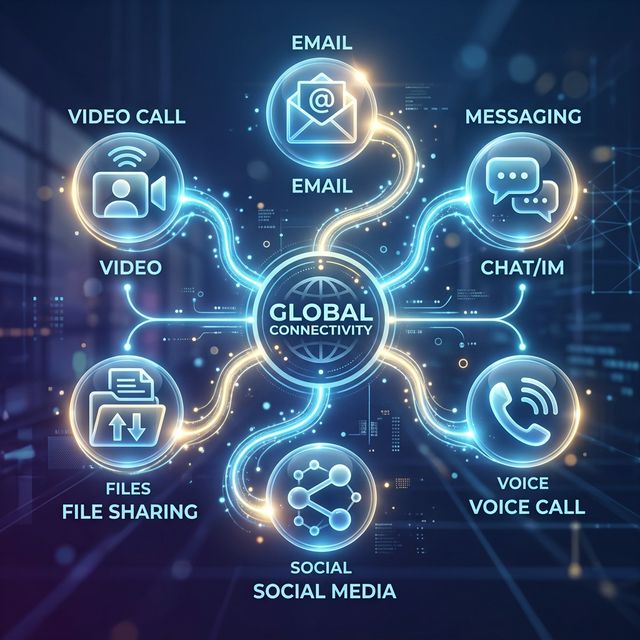

The official OpenClaw channel docs are clear on the big picture. OpenClaw connects to chat apps through the Gateway, text works across supported channels, and media or reaction support varies by platform. The current channel overview lists support for BlueBubbles for iMessage, Discord, Matrix, Nostr, Signal, Slack, Telegram, WeChat, WhatsApp, and Zalo.
That is a big part of what makes OpenClaw different from a normal chatbot. Instead of living in one web tab, it can meet you inside the apps you already use. But that flexibility also means channel choice affects setup difficulty, feature support, and security.
This guide explains what OpenClaw AI channels are, which ones are supported, how routing works, what setup usually looks like, and which channels make the best starting point.
What OpenClaw AI channels are
OpenClaw channels are the chat platforms connected to your OpenClaw Gateway. The official docs describe channels as the way OpenClaw talks to you on the chat apps you already use, with each channel connecting through the Gateway.
In practical terms, a channel is the entry point where you send a message and where OpenClaw sends a reply.
That means channels are not just cosmetic add-ons. They are part of how the system actually works:
- they define where messages come from
- they affect which features are available
- they influence how safely the assistant is exposed
- they shape how convenient the assistant feels day to day
Which chat apps OpenClaw currently supports
According to the current official channel overview, OpenClaw supports these channels:
- BlueBubbles for iMessage
- Discord
- Matrix
- Nostr
- Signal
- Slack
- Telegram
- Zalo
The docs also note that text is supported everywhere, while media and reactions vary by channel. That distinction matters because not every channel gives you the same experience.
Why channels matter so much in OpenClaw
A lot of people first hear about OpenClaw as an AI agent or self-hosted assistant. That is true, but in practice the channel layer is a big part of the experience.
Channels matter because they determine:
- where you can reach the assistant
- whether you can use DMs, group chats, or both
- how much friction setup will involve
- what kind of media or interaction support you get
- how broadly the assistant is exposed to messages
The official channel docs and CLI pages make that clear by separating channel setup, status, capabilities, logs, and routing into first-class parts of the product.
How OpenClaw channel routing works
One of the most useful details in the docs is that OpenClaw routing is deterministic. The current channel routing docs say OpenClaw routes replies back to the channel where the message came from, and the model does not choose the channel. Routing is controlled by host configuration.
That matters because it removes a lot of ambiguity.
In plain language:
- a message comes in from one channel
- OpenClaw processes it
- the reply goes back to that same channel
- the routing behavior is controlled by configuration, not model improvisation
That is a better design than asking the model to guess where replies belong, especially once you are using multiple connected apps.
How channel setup works
The current CLI channel docs show that OpenClaw has a dedicated channels command set for adding, removing, listing, checking status, viewing capabilities, resolving targets, and reading logs. The docs specifically mention commands like:
openclaw channels listopenclaw channels statusopenclaw channels capabilitiesopenclaw channels addopenclaw channels removeopenclaw channels logs
The docs also say that openclaw channels add can prompt interactively, while per-channel flags differ based on the channel, such as tokens, private keys, app tokens, or Signal CLI paths.
That means channel setup is not one-size-fits-all. Different platforms require different credentials and integration steps.
What the ranking pages get right
After checking the ranking pages around this topic, there is a consistent pattern. The current pages correctly emphasize that OpenClaw is valuable because it can connect to many existing chat apps instead of forcing users into one interface. The official docs strongly support that framing.
They also tend to correctly highlight:
- multi-channel messaging as a differentiator
- support for both direct chats and broader platform use
- the convenience of talking to the assistant where you already spend time
Those are real strengths.
What many ranking pages miss
A lot of pages talk about supported apps, but they often skip the more important operational details:
- support is not identical across channels
- feature coverage varies
- setup requirements vary
- routing is deterministic and config-controlled
- channel exposure is also a security decision
That last point is especially important. Adding a channel is not just enabling convenience. It is creating another path through which people or systems can reach your assistant.
Which OpenClaw channel should you set up first?
The best first channel is usually not the most ambitious one. It is the one that gives you the clearest, lowest-friction test of the system.
A good first channel usually has:
- straightforward setup
- low security risk
- easy direct-message testing
- enough reliability to confirm your gateway is working
In many cases, that means starting with one personal-use channel before you expand to more public or shared environments.
The official docs also make clear that the browser dashboard can be the fastest first chat in general, before you even add channels. That is still the smartest sequence for many users:
- get OpenClaw working locally
- verify the gateway
- then connect one real channel
Best channels for different use cases
For personal messaging
If your goal is a personal assistant experience, a direct-message-friendly channel is usually the cleanest option. The official channel list includes platforms like Telegram, Signal, WhatsApp, and iMessage through BlueBubbles, which naturally fit one-to-one assistant workflows.
For community or server workflows
If your use case involves groups, communities, or shared spaces, Discord, Slack, or Matrix may be a more natural fit because they already support broader conversational environments. The docs specifically list Discord and Slack among the supported platforms.
For experimental or technical setups
Platforms like Nostr or Matrix may appeal more to technical users who want protocol-driven or open ecosystem workflows. The official support list includes both.
For region-specific messaging habits
WeChat, WhatsApp, Zalo, and Telegram matter more in some regions than others. Since OpenClaw already supports several of these, the best channel can depend as much on your messaging habits as on technical preference.
What controls channel quality most
The quality of your OpenClaw channel experience depends on more than whether the app is supported.
1. Feature support by platform
The docs explicitly say media and reactions vary by channel. So even if two channels both work, they may not feel equally complete.
2. Setup complexity
The CLI docs show that channels may require different tokens, private keys, or integration paths. Some are naturally simpler than others.
3. Exposure and trust level
A private direct-message channel is very different from a shared workspace or group environment. The more open the channel, the more carefully you need to think about trust boundaries and security.
4. Routing predictability
OpenClaw’s deterministic routing helps here because replies go back to the source channel by configuration rather than model choice. That reduces one major source of confusion in multi-channel setups.
Common OpenClaw channel mistakes
Adding too many channels too early
A lot of users expand too fast. It is usually better to get one channel working cleanly before you connect five more.
Assuming all channels have the same capabilities
They do not. The official docs explicitly say media and reactions vary by platform.
Ignoring channel-specific credentials
The CLI docs show that different channels require different setup flags and authentication methods.
Forgetting that channels are part of your security surface
Every new channel is another way to reach the assistant. That makes channel choice a security decision, not just a convenience setting.
Expecting the model to decide reply destinations
The routing docs say the opposite. Routing is deterministic and host-controlled, not chosen by the model.
Best quick workflow: test, connect, verify, then expand
The cleanest way to set up OpenClaw channels is:
Test. Confirm the gateway and local setup work first.
Connect. Add one channel, not all of them at once.
Verify. Check status, capabilities, and logs using the built-in channel commands. The CLI docs explicitly support all three.
Expand. Only after the first channel is stable should you move into multi-channel use.
This gives you a cleaner troubleshooting path and makes it easier to see which channel-specific step is actually failing.
How QuestStudio helps
QuestStudio is not a channel gateway, so it does not replace OpenClaw channel setup. Where it helps is in planning and documenting your assistant workflow before you widen access.
If you are rolling out OpenClaw across channels, QuestStudio can help you:
- map which channel fits which use case
- document safe-use rules and routing logic
- organize prompt patterns in Prompt Lab
- create onboarding assets or internal docs for your setup
That is useful because the hardest part is often not adding a channel. It is deciding which channel should exist in the first place.
Related guides
FAQ
Which chat apps does OpenClaw support?
How does OpenClaw choose where to send replies?
Are all OpenClaw channels the same?
How do you add a channel in OpenClaw?
What is the best first OpenClaw channel to set up?
Can OpenClaw use multiple channels at once?
Conclusion
OpenClaw channels are one of the main reasons the project feels more like a real assistant than a normal chatbot. They let you bring the assistant into the apps you already use. But that flexibility also means setup, routing, and security matter more than they first appear to.
The best approach is simple: start local, connect one channel, verify it works, then expand carefully. That usually gets you a much better OpenClaw experience than trying to connect everything on day one.