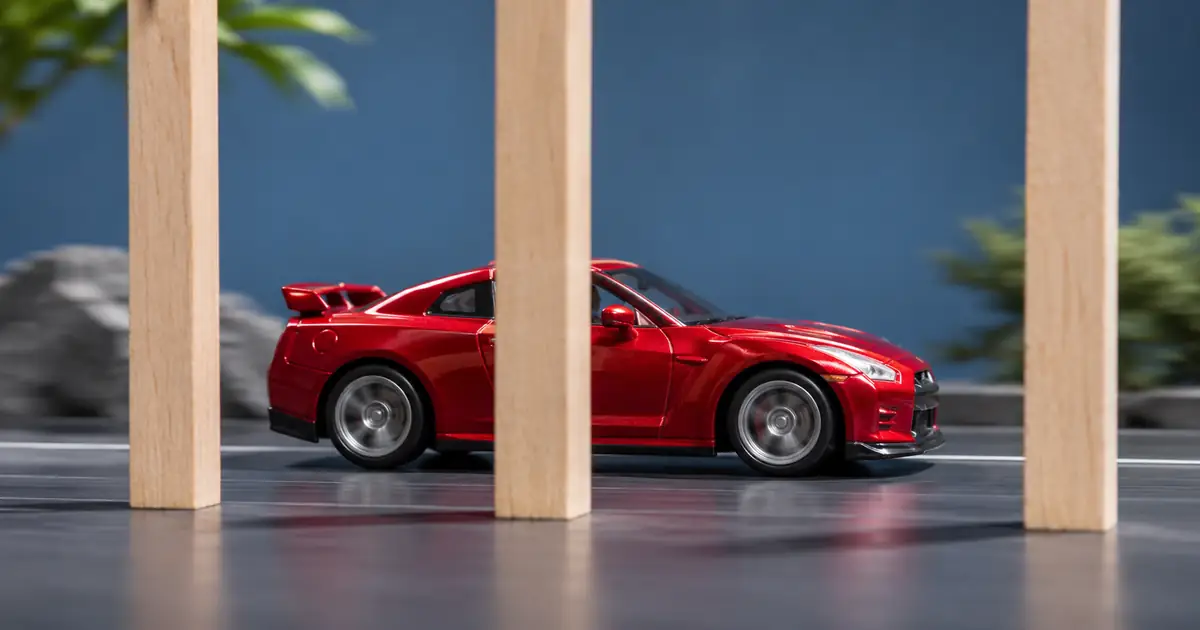

A slow product reveal can become smoother after frame interpolation, but smoothness is only one part of the result. Watch the fingers around a handle, the edge of a spinning cap, or the moment a product passes behind a prop. Those are the places where a new frame has to make a difficult guess.
I recommend comparing the motion and the product detail separately. Keep the smoother version when both improve. If a readable label becomes unstable or a hand gains an odd contour, a simpler retiming method may be the better edit.
What optical flow contributes
Optical flow estimates image motion between frames. A frame-interpolation system can use motion estimates to construct intermediate images. This is useful when changing frame rate or slowing footage beyond the captured frames available for the intended playback.
Adobe's time-interpolation documentation distinguishes three options: frame sampling repeats or removes existing frames, frame blending mixes neighboring frames, and Optical Flow analyzes motion to generate intermediate frames. They produce different compromises, so the setting that helps one shot can damage another.
A larger output frame count does not prove that the video contains more reliable observations of the original scene. Some frames may be reconstructed. This distinction matters for product demonstrations: a newly generated view of a tiny latch or printed word still needs inspection.
An original comparison with a known reference
For this guide, I built a simple geometric scene: a red object moves across a checkerboard and passes behind a stationary dark post. The reference contains 96 drawn frames at 24 fps. Keeping every second frame produces a 12 fps source with 48 frames. That gives us an intermediate position we actually know, rather than guessing whether the interpolation looks plausible.
I converted the reduced source back to 24 fps in two ways: repeated frames and FFmpeg's motion-compensated minterpolate filter. The comparison below shows output frame 39, at 1.625 seconds. This is synthetic geometry, not camera footage, and it does not test a QuestStudio model or Adobe's Optical Flow implementation.
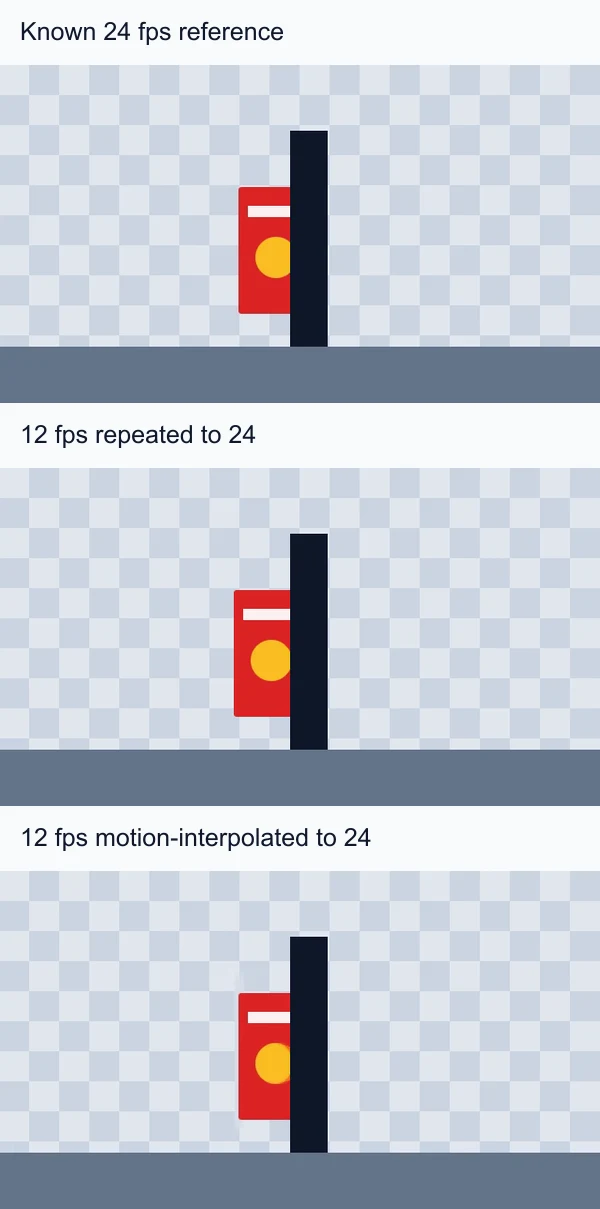
At this instant the reference object's left edge is 255 pixels from the source-frame border. The repeated-frame version retains the earlier position, 250 pixels. The interpolated version is visibly closer to the reference position. That is a useful result in this simple case; it is not evidence that interpolation will preserve every label, hand, or reflection in real footage.
Use the short clips to compare the motion rather than relying only on a still. The files are silent, and the controls let you pause on the crossing.
Why crossings deserve extra attention
When an object passes behind another, some image regions disappear and others become visible. This is occlusion. A system cannot simply move every visible pixel along one uninterrupted path and assume the hidden content remains available.
The OCAI research paper explicitly addresses occlusion and consistency when constructing intermediate frames. Its work illustrates why this is a real technical problem, rather than a reason to dismiss all interpolation. Different methods handle the ambiguity differently.
In a creator workflow, I would mark the moments when a hand crosses the product, an object leaves the frame, or a thin detail passes against a similar background. Inspect the frames just before, during, and after that event. A clean opening and closing frame can hide a brief error in the middle.
For reflective packaging, add the moving highlight to your review. The highlight may move differently from the underlying surface. A result that keeps the bottle outline stable can still distort the reflection or the printed label. Judge each important region rather than accepting a whole clip because its camera move is smooth.
Compare methods on a short section first
- Choose the difficult moment. Include the crossing, quick turn, or detailed movement that the final edit must preserve.
- Keep the intended timing fixed. Compare methods at the same speed and output frame rate. Otherwise you are changing the creative decision as well as the processing.
- Make a repeated-frame baseline. It may look less fluid, but it helps you distinguish reconstructed detail from source detail.
- Render the interpolated version. Use the editor's completed render or export rather than judging an unfinished preview.
- Review motion and detail separately. Watch at normal speed first, then step through the marked moment. Finally, watch it again in the full sequence.
I would keep the comparison short until it passes. Rendering an entire campaign before checking one difficult hand movement wastes time and makes a bad setting harder to abandon. If the interpolation only fails around one crossing, consider a cut or a shorter retimed section instead of applying the same treatment everywhere.
Reproduce the fixture with FFmpeg
The command below shows the filter used for the motion-interpolated version. It doubles a 12 fps source to 24 fps without changing its intended real-time speed. It does not slow the clip by itself. FFmpeg's filter reference documents the available modes and options.
ffmpeg -i source12.mp4 -vf "minterpolate=fps=24:mi_mode=mci:mc_mode=aobmc:me_mode=bidir:vsbmc=1" -an -c:v libx264 -crf 18 -pix_fmt yuv420p output24.mp4
The fixture uses FFmpeg 7.1, 640 × 360 frames, and a deliberately simple background. Encoder settings and filter versions can affect output. You can download the 12 fps source to try another method. Keep the known-reference clip beside it, and compare the same time before drawing a conclusion.
Choose better source motion before adding more frames
If an AI clip already contains a hand passing through a handle, interpolation is not a reliable way to correct that physical mistake. Start by choosing a take with believable contact and stable objects. The foot-sliding guide addresses a related source-motion problem that should be reviewed before retiming.
In QuestStudio Video Lab, create a short shot with one clear action and compare the generated source before editing. A slower requested action and a slowed-down finished clip are different workflows. Use the action-timing guide if the generation itself moves too slowly.
My final choice would favor readable product detail over maximum smoothness. If the interpolated version preserves both, use it. If it introduces distracting shapes, reduce the speed change, choose a simpler method, or change the cut. The audience needs to understand the product, not the sophistication of the interpolation setting.
Frequently asked questions
Is optical flow the same as frame interpolation?
Optical flow estimates image motion. Frame interpolation constructs intermediate frames and can use optical flow or other methods. The terms are related but do not describe exactly the same operation.
Does converting 24 fps to 60 fps create real captured detail?
It can create additional output frames, but those frames may be reconstructed rather than recorded observations. Inspect important details before treating the conversion as an improvement.
Why do hands and thin edges sometimes look strange?
Crossings, occlusion, and difficult motion can make intermediate detail ambiguous. Check neighboring source frames and compare another interpolation method or a smaller speed change.
Can optical flow repair a physically incorrect AI video?
Do not rely on it for that. Choose a source with believable motion and stable objects first. Interpolation can make an incorrect movement smoother without making it correct.
What does the downloadable experiment prove?
It shows one reproducible conversion of simple geometric motion using FFmpeg 7.1. It helps compare known positions with repeated and interpolated frames, but it does not benchmark real footage, other algorithms, or QuestStudio models.
Technical references
Continue with a useful next step
 Video
AI Video Looks Like Slow Motion? Fix Unwanted Slowness
Fix AI video that looks like slow motion. Separate slow action from camera drift, simplify the shot, and decide when to regenerate or adjust playback speed.
 Video
AI Walking Video: Fix Sliding Feet and Floating Steps
Fix sliding feet in AI walking video by checking ground contact, stride and camera motion. Use a three-frame test to choose a better source, prompt or cut.
 Video
How to Speed Up a Video in CapCut and Keep Clear Audio
Speed up part of a video in CapCut without rushing the important moments. Split the clip, change playback speed, and recheck dialogue, captions, and audio.
Hero: AI-generated editorial illustration. Supporting diagrams and exercises: QuestStudio.