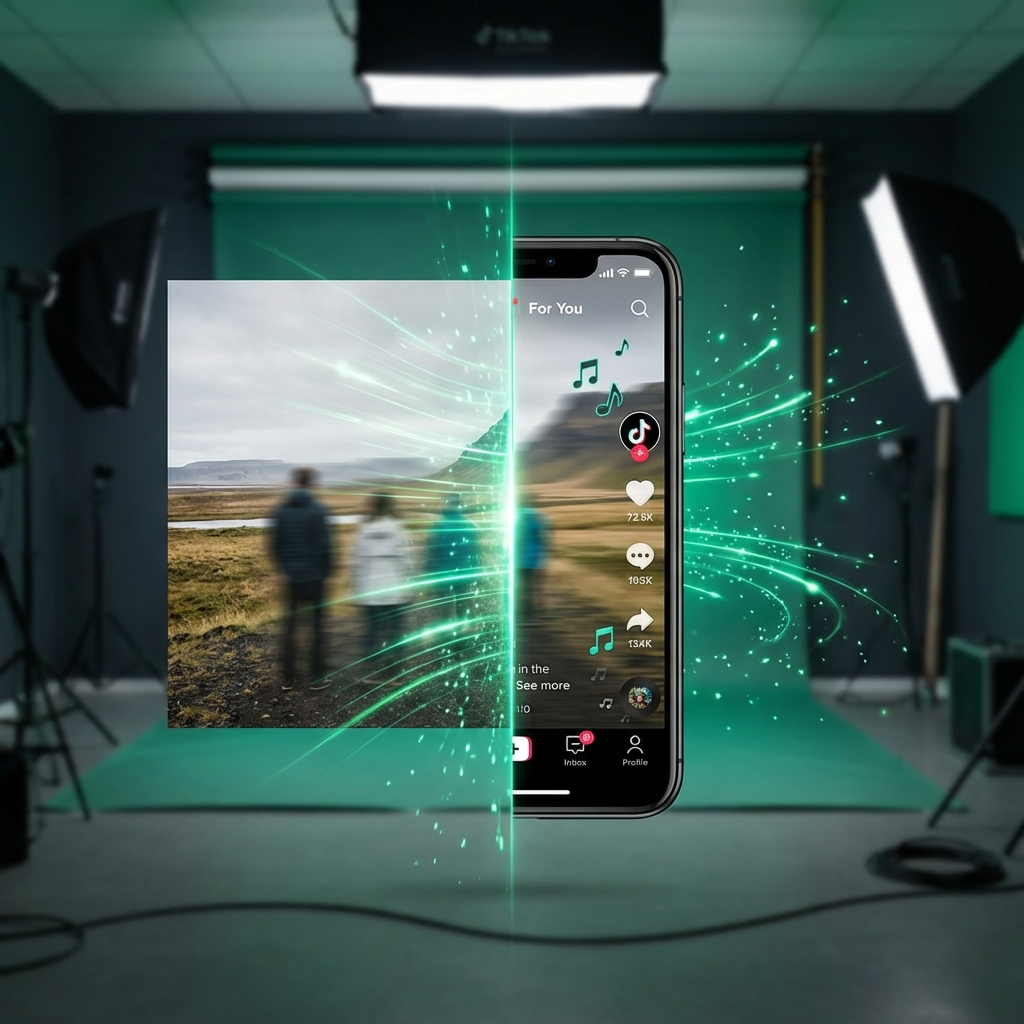
Photo to Video for TikTok
TikTok • Video Lab • 2026 Playbook

Photo to Video for TikTok

Best Ratios, Pacing, Hooks, and Posting Times

Turn photos into TikTok-ready videos that hold attention. Master 9:16 ratios, hook templates, pacing rules, and posting times—plus an AI workflow in QuestStudio.

Erick By Erick
Dec 29, 2025 12 min read

Quick Answer (Save This)

If you're turning a photo into a TikTok video (or a slideshow), the safest defaults are:

  • Aspect ratio: 9:16 (vertical)
  • Resolution: 1080×1920
  • Length: Aim for under ~30 seconds unless you have a clear story arc
  • Hook rule: The first frame (or first slide) must make people stop scrolling
  • Posting times: Start with weekday evenings, then refine using your analytics

For the full workflow, see our main guide: Image to Video AI.

Step 1: Choose the Right Format

TikTok has 2 "photo-to-video" styles:

Option A: Photo Mode Slideshow

Best when you want viewers to swipe: step-by-step, before/after, product catalog, mini story.

Key idea: Your first slide is your hook.

Option B: True Photo → AI Video

Best when you want viewers to watch through: cinematic motion, camera moves, parallax, "it looks real" vibes.

This is where QuestStudio shines with Sora 2, Kling AI, and Veo 3.1.

Step 2: TikTok Ratios and Export Settings

9:16

Best Ratio

Native full-screen experience

1080×1920

Best Resolution

Export at this whenever possible

Don't Ignore the "Safe Zones"

Even at 9:16, TikTok overlays UI (caption area, buttons). If you add on-screen text:

  • Keep key text centered and away from the right edge (icons)
  • Keep text away from the bottom (caption + UI)
Practical rule: If you must place text, keep it in the middle 60% of the frame.

Step 3: Pacing That Works

Photo-to-video has one big weakness: it can feel static. Your pacing needs to create "motion" even if the source is a still image.

Pacing Formula for 7–15 Seconds

  • 0–1s Hook (one bold idea, one clear promise)
  • 1–6s Proof or progression (2–3 "beats")
  • 6–7s Payoff + loop (end where the beginning makes sense)

Pacing Formula for 15–30 Seconds

  • Break the video into 5–7 micro-beats
  • Change something every 1–3 seconds: crop, zoom, caption line, cut, or camera move
Why most posts fail: The first frame is "pretty but unclear" — people swipe immediately.

Step 4: Hook Templates (Copy/Paste)

These are designed specifically for photo-based content, where the first image must act like a thumbnail AND a headline.

Set A: Curiosity + Payoff

  • "I didn't believe this worked until I tried it…"
  • "Wait until you see the last shot…"
  • "This is what nobody tells you about ___"

Set B: Outcome First

  • "Here's the before/after in 8 seconds."
  • "From this… to this… (watch the change)"
  • "I fixed ___ with ONE adjustment."

Set C: Mistake Framing

  • "Stop doing ___ on TikTok (do this instead)."
  • "3 reasons your slideshows flop."
  • "Your first slide is killing your reach."

Set D: Ultra-Clear Value

  • "Steal this layout for your next post."
  • "Use this pacing to boost retention."
  • "Best posting times + why they work."
Pro tip: Put the hook as big on-screen text on frame 1, and repeat the same hook idea in the caption (clean + consistent).

Step 5: Best Time to Post on TikTok

Here's the truth: "best time" depends on your audience, and major studies don't fully agree. Here's a practical starting point:

Practical Posting Schedule (Eastern Time)

Tue–Thu

6–9 PM

Friday

4–6 PM

Sunday

7–9 PM

Use this for 2 weeks as your baseline, then personalize using TikTok analytics.

Then Do the "Real" Fix: Personalize It

After you post 10–20 videos:

  1. Open TikTok analytics
  2. Find your top 3 posts by watch time / completion
  3. Write down: day + time posted + topic + hook style
  4. Pick the top 2 time windows that repeat
  5. Post 70% of content in those windows for the next 2 weeks

Step 6: The QuestStudio Workflow

If your goal is "photo to video that doesn't look boring," AI motion is your advantage.

Workflow

  1. 1 Start with a high-quality photo (sharp subject, good lighting)
  2. 2 In QuestStudio, choose a model: Sora 2 (cinematic), Kling AI (stylized), or Veo 3.1 (detailed)
  3. 3 Set output to 9:16 and export at 1080×1920
  4. 4 Generate 3 variations: subtle, medium, aggressive motion
  5. 5 Pick the best one, add captions, and publish

Prompt Patterns That Work for TikTok

Prompt Pack 1: Clean Cinematic (Safe Default)

"Smooth handheld camera, subtle push-in, natural lighting, shallow depth of field, realistic motion, 9:16 vertical."

Prompt Pack 2: Parallax + Depth

"Add depth and parallax, foreground/background separation, slow dolly, gentle film grain, 9:16."

Prompt Pack 3: Scroll-Stopper

"Start with a fast push-in for 0.5s, then settle into slow motion, emphasize subject, crisp details, 9:16."

Step 7: Ready-to-Use Storyboards (Copy/Paste)

9-Second "Before/After" Template

  • 0–1s: "This ONE change fixed it."
  • 1–4s: Show "Before" with subtle zoom
  • 4–8s: Show "After" with stronger camera move
  • 8–9s: Loop back to first frame

18-Second "Mini Story" Template

  • 0–2s: "I wish I knew this sooner…"
  • 2–6s: Context in 2 short lines
  • 6–14s: 3 fast beats (one sentence each)
  • 14–18s: Result + CTA ("Want the prompt? comment 'PROMPT'")

Common Mistakes to Avoid

  • Using 9:16 but placing text too close to edges (UI covers it)
  • Hook is "pretty" but not clear
  • No loop ending (video ends abruptly, killing replays)
  • Posting based only on generic "best time" charts (instead of your analytics)
  • One-and-done generation (you need variations; pick the best performer)

Quick Checklist (Print This)

Before You Post:

  • 9:16 and 1080×1920
  • Hook text on frame 1 (clear promise)
  • A change every 1–3 seconds (beat pacing)
  • Ends with a loop or payoff
  • Posted in a tested time window (start with Tue–Thu evenings)

Ready to Create TikTok-Ready Videos?

Turn any photo into a scroll-stopping video with Sora 2, Kling, or Veo 3.1.

Open Video Lab