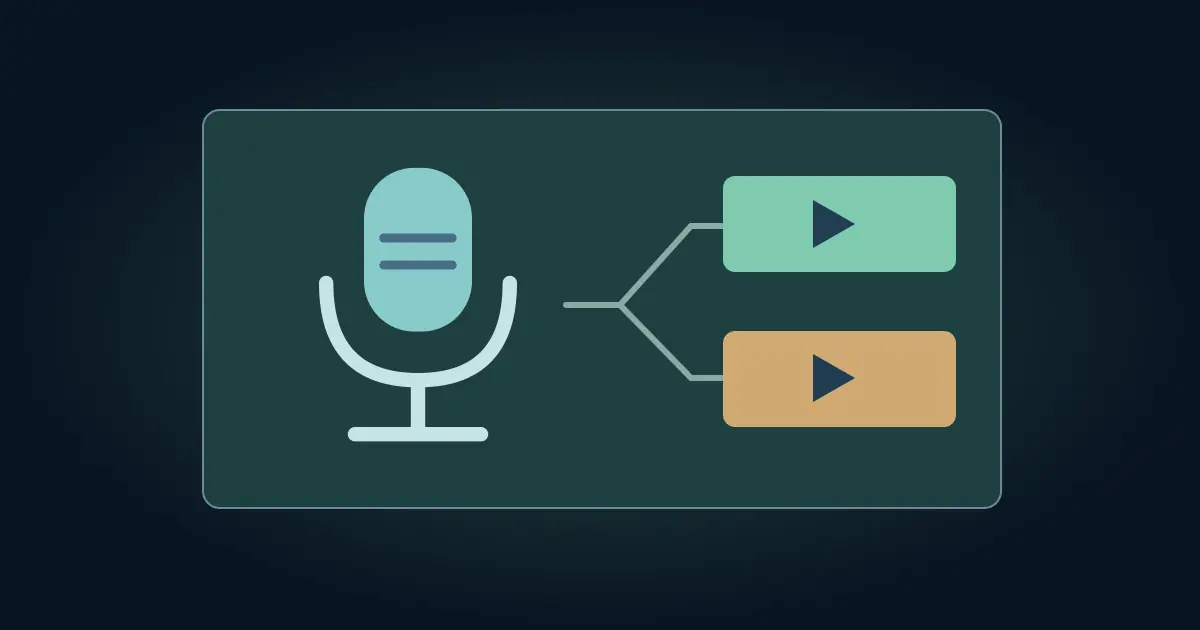

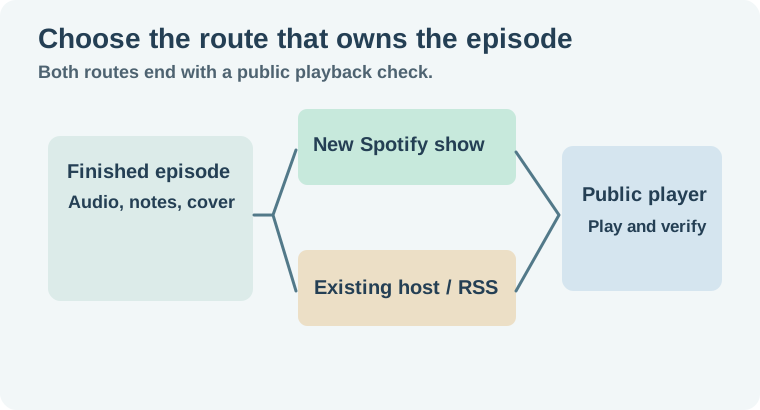
To start a new podcast on Spotify, sign in to Spotify for Creators, choose Add a new show, and create a new show if you want Spotify to host it. If you already have a podcast host, choose the existing-show route and use your RSS feed to claim or submit the show. Prepare one complete episode first so you can check the listening experience from the artwork to the final seconds of playback.
The decision that matters is where you will manage the show. A show hosted elsewhere still needs its existing feed. A new Spotify-hosted show gives you a separate home for the episode files and metadata.
Choose who will host the podcast
Use the new-show route when you are launching from scratch and want to publish through Spotify for Creators. Spotify's new show instructions explain the distinction between creating a show and finding one hosted elsewhere. For the existing-show route, bring the current RSS feed and check whether the show already has a Spotify listing before creating anything new.
If another service already distributes the show, make sure you know where to correct the next episode title or audio. Keep the feed address in your show notes. When an old listing has the same name, compare the artwork and recent episodes so you identify the right show. The podcast RSS guide explains what the feed publishes and how to inspect it.
On either route, use an account that the show owner controls. Check who needs ongoing access and keep the original production files available. A public player link is useful for sharing, while the host account and original files let you fix future issues.
Prepare one release-ready episode
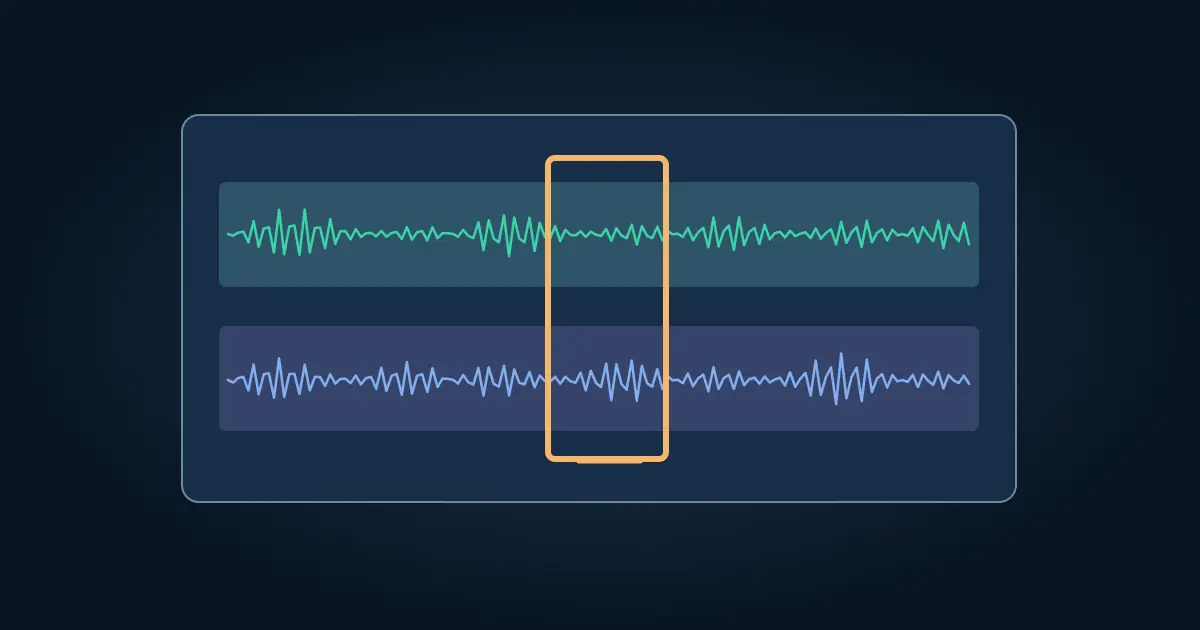
Choose one question the first episode can answer. A simple opener tells the listener what they will learn and why the host is covering it. Record an opening, a main segment, and a close. Keep a separate copy of the raw recording before making cuts. When two people are on separate tracks, follow the two-track Audacity workflow to check alignment before export.
Play the finished file away from the editor. Listen to the first line, a quiet section, any guest handoff, and the end. Check that the intro does not overpower the voice and that the file stops where intended. Use audio and artwork you have permission to release. Keep a local master and a copy in the format requested by your host.
Prepare a show title, a short show description, and cover artwork that reads at thumbnail size. Confirm the current requirements where you upload. The podcast cover art guide shows how to check a small preview and prepare a clean export. Write an episode description that states the topic and names the guest accurately. A clear title and first sentence help the listener decide before pressing Play.
Build a launch packet for a simple show
Imagine a fictional show called Workshop Notes. Its first episode answers how to label files when several people share an edit. A useful episode description names the problem and tells listeners what they will hear. The show description can be broader, explaining that each episode covers one production habit. Keep the two descriptions separate so the show page still makes sense as the catalog grows.
Record the exact audio filename, cover filename, episode title, description, and planned release time in the worksheet. Check the time zone if you schedule the episode. Prepare one short excerpt to use after the episode is live. The excerpt should introduce the actual episode and leave enough time to hear the point.
Before scheduling, send one private proof to the person checking names and artwork. Ask for feedback tied to a timestamp or exact field. If a guest name changes, update the spoken intro or show notes wherever necessary before you make the public listing. Keep a tiny change log so a second correction does not send the earlier audio back into production.
Publish through the selected route and verify
For a Spotify-hosted audio show, upload the finished episode in Spotify for Creators, add the details, and review the publishing options. Follow Spotify's audio episode instructions for the current upload and release flow. If you use another host, publish the episode through that host and confirm the update appears on the correct Spotify show. Allow the platform time to process it.
Open the public episode from a listener's view. Verify the title, cover, and description, then play the start and a later section. Compare the public runtime with the approved export. Check the link you plan to share. Copying a dashboard preview can leave another person staring at a sign-in screen. Use the public episode address for the announcement.
If the episode is missing, confirm that the scheduled time has arrived and that you are viewing the correct show. For an existing host, check the episode in the feed before trying to add another show. Record the observed public status in the worksheet and keep the launch packet for the next episode.
How QuestStudio helps
Use Voice Lab to audition a short scratch intro while you work out the episode's pace. Record or select the final approved audio separately. A ten-second practice read can reveal whether the show name, episode topic, and first transition need a simpler script.
Finish with one working public link and a repeatable packet. That gives you a concrete starting point for episode two.
Download the first episode launch sheet.
Frequently asked questions
Do I need a new Spotify show if I already have a host?
Use the existing-show route with the current RSS feed. Claim the listing if it already exists.
Where should I correct an episode hosted elsewhere?
Make changes at the source host and check how its feed and Spotify listing update.
Do I need to record the episode inside Spotify?
You can prepare the episode in your editor and upload through the supported route.
Why can I see the episode in my dashboard but not as a listener?
Check whether it is scheduled, still processing, or on a different show. Verify from the public listing.
What should I verify before sharing?
Open the public episode, check title and artwork, and play both the opening and a later section.