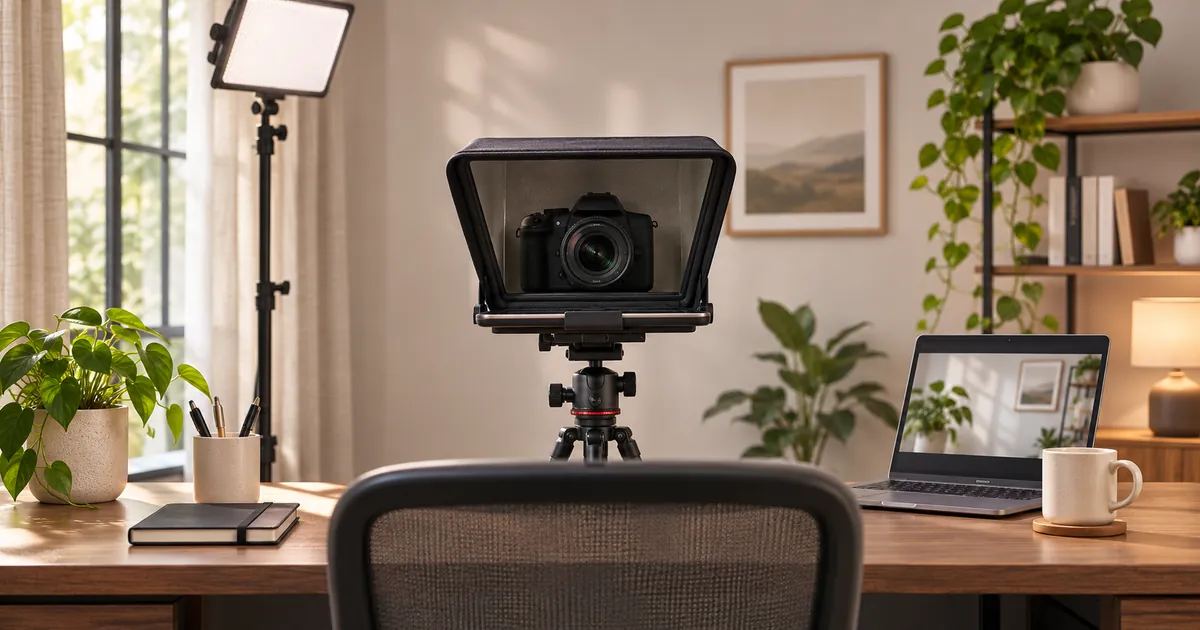

Put the guest's video or your short question list next to the lens when a monitor off to the side pulls your eyes away during remote interviews. Start with a small window aligned to the webcam. Consider the Elgato Prompter when you need a stable on-lens display for repeat interviews and have confirmed the host software, camera mount and physical support.
Gear to consider
We may earn a commission if you buy through these Amazon links.
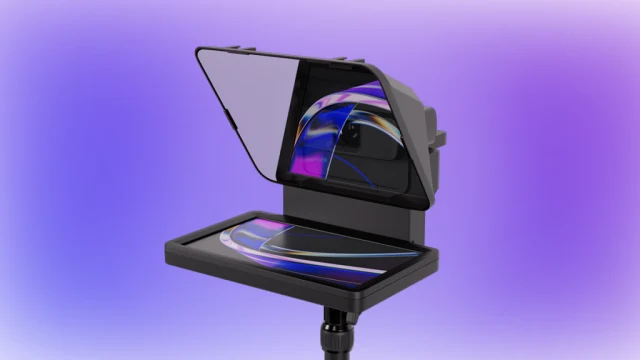
Elgato Prompter, 9-inch
For recurring on-lens guest views and cues
Consider it if the host can run the required display software and your camera and support fit. Rehearse the ordinary meeting layout as a fallback.
Decide what needs to sit at the lens
For a conversational interview, prioritize the guest's face. When you can see their expression without looking away, it is easier to ask a timely follow-up. Place short notes below the window or keep them on a separate screen for quick checks between questions. A full script can be useful for a prepared introduction, but keeping it in view during open questions may make you follow the script at the expense of listening.
If the call app allows a compact speaker view, move the guest window near the lens and hide the self view. Try an ordinary call before buying anything. Put a note on the edge of the window for the next question. Have a colleague tell you when your eyes visibly move to the side. If that quick adjustment solves the issue, record the layout and keep the simpler setup.
What the reviews give you to test
Elgato's video-call guide shows its built-in display being used for a meeting window. Digital Camera World's hands-on review describes the integrated display and Camera Hub workflow. The useful buying question is whether the second-display arrangement gives you a clear guest image at the distance you actually sit. The installation can be more involved if you use a large lens, a cramped desk or an employer-managed computer.
Check the current system requirements on Elgato's Prompter page, including any software or display permissions for your platform. Verify the mount and support for the combined size and weight before ordering. Set a camera angle that works without forcing the desk arm to reach farther than it can comfortably support. Keep an ordinary meeting layout saved so you can continue when your extra display is unavailable.
| Interview format | At the lens | Off to the side |
|---|---|---|
| Open conversation | Guest's face | Outline and time checks |
| Prepared intro then Q&A | Three cue lines, then guest view | Full script for recovery |
| Multiple guests | Active speaker or small group view | Participants, chat and recording controls |
| Managed work computer | The normal approved layout first | Any software request for your administrator |
Rehearse a real question
Record a brief practice conversation with permission. Use a question with a long answer and a quick follow-up. Watch the replay with the sound on. Notice where your attention shifts when the guest pauses or when you look for the next topic. If the notes take up too much room, shorten each to a few words and make it easy to line up the guest display again. Confirm the call is sending the intended camera and recording to the intended location.
Test the picture from both sides if possible. A bright room can create reflections that change with the camera angle. A lens that sits too far back may show edges. Check the preview at the focal length you will actually use. Shoot one wide safety frame with the same layout. Record how to move straight back to the normal webcam view without disrupting the call.
Leave time to compare readable text sizes when seated. Use the smallest note block you can read comfortably without moving your eyes across the whole screen. A single phrase such as “ask how it failed” keeps you available to listen. A dense paragraph can draw your gaze down for several seconds. Give the guest another sentence before changing the notes, then check the playback for a repeatable rhythm.
Make defaults for a busy recording day
Save a short opening, three key prompts and a closing question as separate pieces of text. If you share an application or slides during the interview, verify you are sharing the correct window. Keep private notes and participant details off the shared surface. Review the teleprompter setup comparison and the script formatting guide if your interviews also include scripted transitions or pickup lines.
Decide whether the display will move between rooms
A permanent interview corner can keep the camera, display and stand aligned. If your desk gets cleared daily, choose a known spot for the mount and use a short setup card with the display orientation and camera setting. During a rehearsal, disconnect and reconnect the arrangement to see where the meeting window opens. Keep a one-screen version ready for a last-minute room change. The extra display should make it faster to get back to a conversation after a restart.
Make reference frames in QuestStudio
When a live interview is part of a longer piece, use Video Lab to storyboard the intro, speaker return and closing cutaway. Use Prompt Lab for a short reusable brief when the series repeats. Keep these references outside the video call. That gives you a quick way to move from the recording setup to the edit without filling the prompter with production notes.
Frequently asked questions
Can I use a free layout first?
Yes. Put the guest video near the camera, shrink the window and rehearse with another person. Buy dedicated hardware when the improvement matters in routine recordings.
Should I put a script or the guest on the display?
Start with the guest for unscripted interviews. Use short cue lines for fixed segments, then switch back for conversation.
Does the prompter replace my webcam?
It provides a display and an optical setup for use with a compatible camera. Confirm your camera or webcam fit and the connection your call app uses.
Is a separate monitor permission needed?
Confirm your platform's current driver and permissions requirements, especially on managed devices. Arrange approval before planning a live session around the device.
Buy for repeat interviews
The Elgato Prompter makes sense when the guest window or cues need to sit on-axis regularly and your host and mount pass a rehearsal. Keep the window-near-camera layout if it solves the problem with the equipment you have.
Download the setup checklist (CSV)
Ready to check the listing?
We may earn a commission if you buy through these Amazon links.
Elgato Prompter, 9-inch
Sources and further reading
Affiliate disclosure
As an Amazon Associate I earn from qualifying purchases. Recommendations draw on product documentation and the external tests linked above. The hero is an AI-generated setup illustration.
Continue with a useful next step
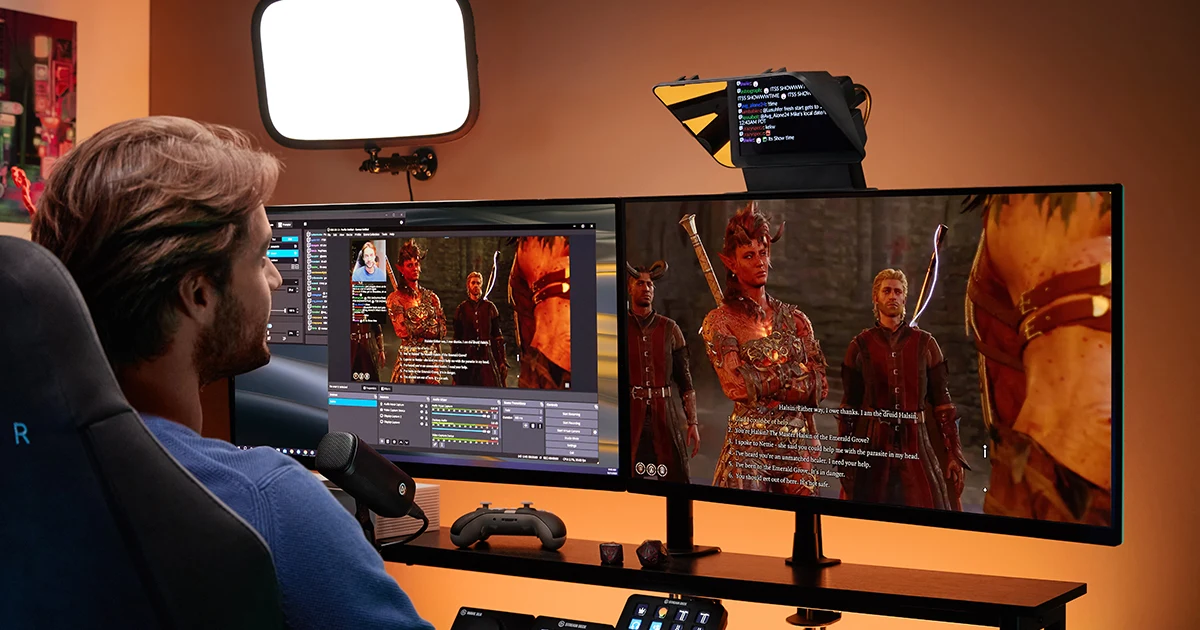 Video
Teleprompters for YouTube: Choose for Your Recording Setup
Choose a teleprompter for tutorials and talking-head videos. Compare a built-in screen with phone rigs, check camera fit, and try a three-take script exercise.
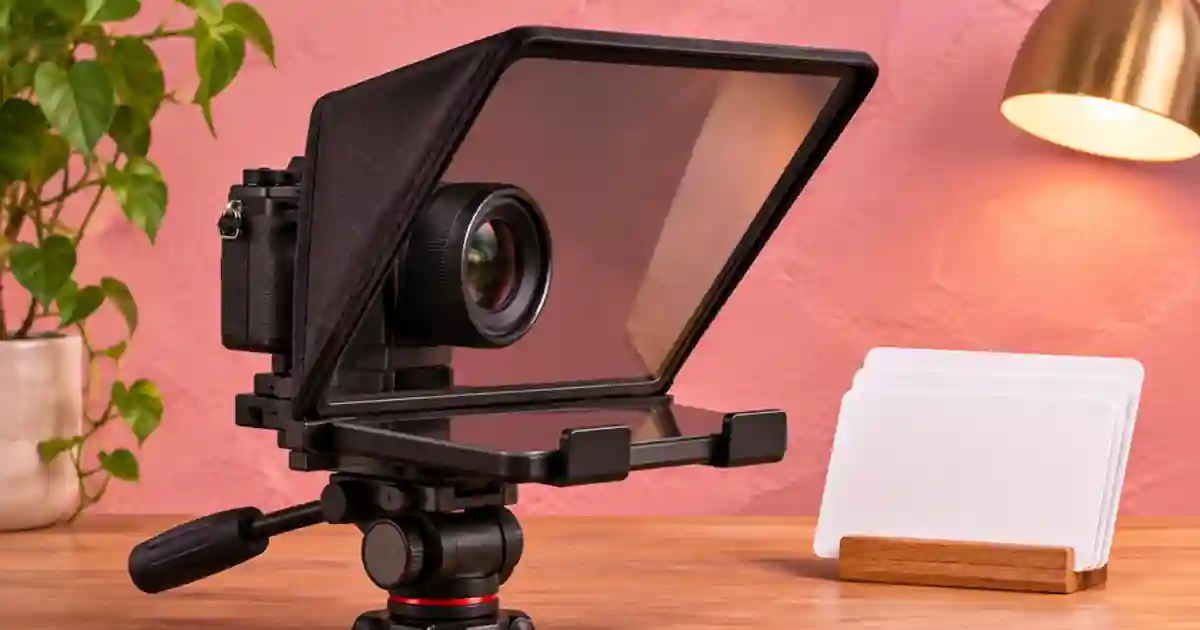 Prompts
How to Format a Teleprompter Script That Sounds Natural
Format a teleprompter script for natural delivery with spoken phrases, readable line breaks and pause cues. Rehearse one short section before recording.