
Canva is a visual design platform for arranging text, images, and other elements into assets such as announcements, presentations, and documents. For a first project, its usefulness is easiest to understand by finishing one small design. Choose the destination, supply the content, arrange it clearly, and inspect the downloaded file before sharing it.
Our original exercise is a square announcement for a fictional sketching workshop. The layout illustrations are teaching diagrams, not Canva screenshots or evidence of an account test. The goal is to make the first design decisions understandable without suggesting that a template or an AI feature can approve the information for you.
Begin with the finished asset you actually need
Write the destination before choosing a template. A square social announcement, a presentation slide, and a printed flyer have different dimensions and reading conditions. Selecting an attractive template first can force your content into the wrong shape. For the exercise, we choose a square image and a short announcement that someone should understand on a phone.
Write one purpose: invite adult beginners to a small sketching session. Supply the title, date, place, and next action from an approved source. If one is unknown, keep a placeholder in the working copy and block release until it is confirmed. A beautiful layout with a missing booking address is an unfinished communication asset.
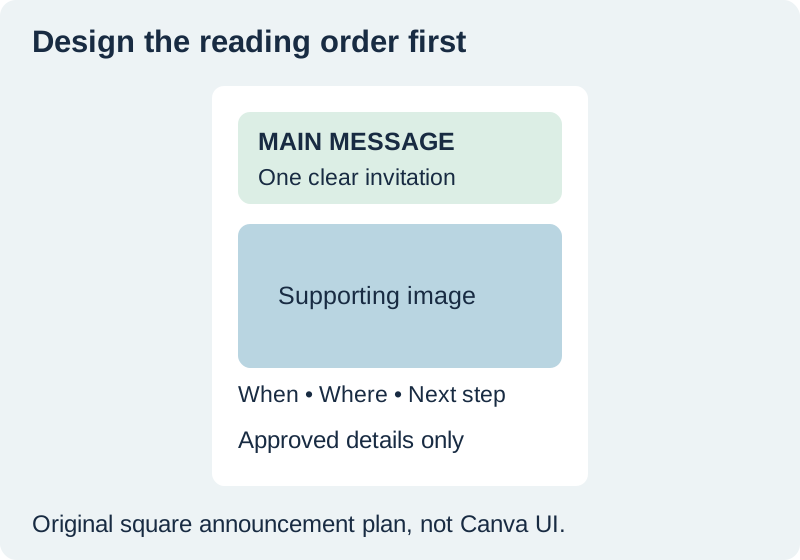
Understand the difference between a layout and its ingredients
A design combines elements: text boxes, photographs, shapes, backgrounds, and other objects. A template gives you a starting arrangement. It does not know which facts are important to your audience or whether a stock image represents the activity accurately. Replace the sample information, remove unnecessary decoration, and make the main message easy to find.
Canva’s essentials course outline introduces elements, text, and core design workflows. Use current help for the editor you see, since controls can differ across document types and devices. Avoid buying a plan simply because a particular template contains a restricted element; first decide whether you need that element at all.
Build a small copy sheet before editing
For the fictional workshop, the required fields are “Sketch Your First Still Life,” an approved date and place, “materials provided,” and a booking route. Keep the exact approved wording in a separate note. This prevents sample template text from surviving into the export and lets you check the final graphic against one stable reference.
Decide a reading order. The title tells people what is offered. The supporting image shows the activity or outcome. The details explain when, where, and how to act. Do not make every line the same size or use five font styles to create emphasis. Hierarchy comes from a few clear relationships, including spacing and placement, not only from decorative effects.
Choose or create the design format
Start a design in Canva using a format that fits the intended destination, then confirm the actual dimensions. If the destination gives a specification, follow it rather than copying a number from an unrelated template. Keep the working design editable. Exporting a PNG gives you a delivery file; it does not replace the editable source.
Choose a simple template or blank canvas. Add the approved copy and one supporting image, then remove anything that does not help the reader. If a layout includes a sample logo, address, or price, check it explicitly. Small leftover details are easy to miss because they already look professionally designed.
Arrange the main message before polishing
Place the title where it is visible at the intended viewing size. Keep the supporting image from competing with essential text, and reserve a consistent area for the details. If the picture has a busy background, crop or reposition it instead of making the words smaller. Leave breathing room around the outer edges.
Read the graphic as a viewer who has never seen the brief. Can you identify the activity and the next step without zooming? Does the image imply equipment, an outcome, or an audience the workshop does not actually serve? A design review includes those meaning checks as well as visual balance. The editable-text guide covers wrapping and copy verification in more detail.
Export, reopen, and compare with the source
Use the download route for the intended delivery format. A static PNG or JPEG is a different output from a multipage PDF, and an animated design needs an appropriate motion format. Confirm the selected pages and file type before downloading. Do not assume the editor preview and the saved file are identical in every detail.
Open the downloaded file in another viewer. Check the title, date, location, and booking route against the copy sheet. Inspect the crop, smallest type, and page count where relevant. Look for clipped words, changed line breaks, and template remnants. Keep the approved export alongside its source design URL and the supporting files so later revisions have a clear starting point.
How QuestStudio helps with the supporting image
Editor Lab can help prepare a source image before it enters the layout, for example by reframing it for the intended composition. Keep exact event copy as editable type in the design tool. If you generate a conceptual illustration, label it appropriately and check that it does not promise a different workshop experience.
For comparison of broader production approaches, see QuestStudio and Canva AI workflows. This first-design exercise is complete when the exported announcement matches the approved brief and reads clearly at its destination. You do not need to explore every feature before finishing one useful asset.
Download the original practice worksheet
Frequently asked questions
Is a template a finished design?
No. Replace sample content, check the dimensions and elements, and review the final export against your own brief.
Do I need AI features for a first design?
No. A clear layout using approved text and an appropriate image is a useful first project.
Should I keep only the downloaded image?
Keep the editable design and source files too. The image export is a delivery copy.
Why should I reopen the export?
It lets you inspect the actual delivered crop, text, pages, and file format outside the editor.
What if I do not know the event date yet?
Mark it unconfirmed in the working copy and resolve it before releasing the announcement.
Prepare a supporting image first
Use Editor Lab to crop a supporting image before placing it in your chosen layout tool.
Hero: AI-generated editorial illustration. Original teaching materials and documented feature research, checked November 1, 2026. Examples are labeled where synthetic or hypothetical.