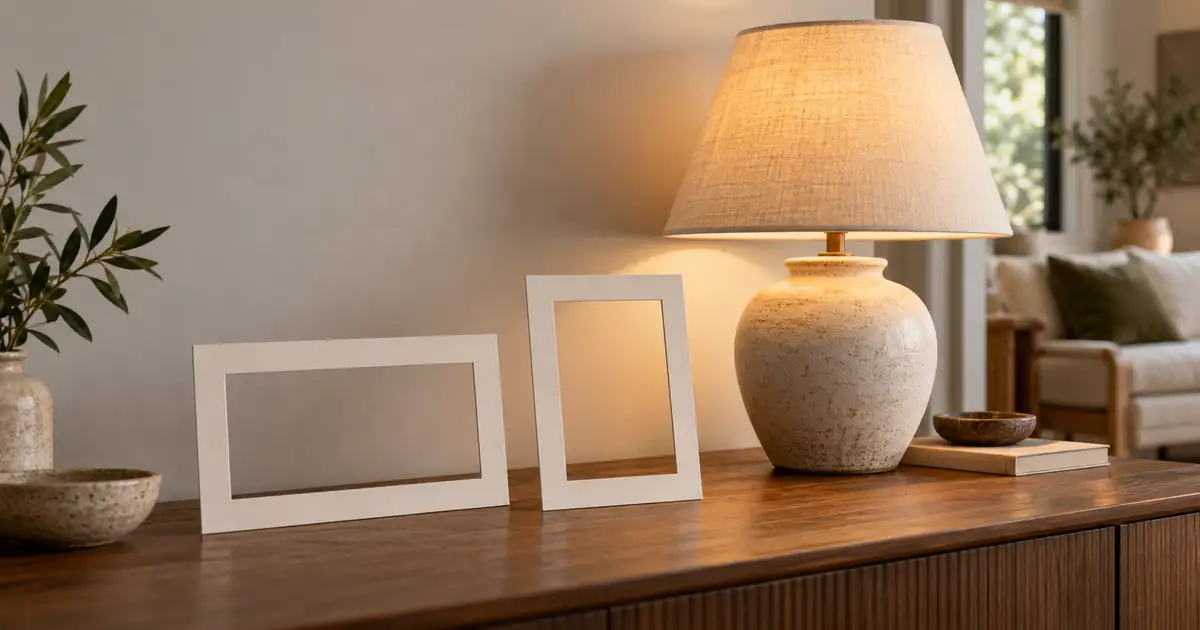

An AI website hero image should be planned around the page where it will appear. A beautiful wide scene can fail as soon as a mobile crop removes the product or the headline covers the subject. Start with the actual headline, button and layout dimensions, then create artwork with space for those elements.
The practical workflow is to define desktop and mobile compositions, generate one useful direction, and test the resulting crops in the real page. Keep text and buttons as website elements. The image supplies the scene; it should not contain a fake interface or a baked-in headline that becomes unreadable when resized.
Start with the content the image must support
Write the headline and supporting sentence before choosing a visual. Use the real copy, including the longest reasonable version of the button label. Short placeholder text hides layout problems that become obvious after the final message arrives.
For an original planning example, imagine a fictional desk-light brand launching a compact reading lamp. The desktop design places the headline on the left and the lamp on the right. On mobile, the text appears above a closer view of the lamp. Those layouts need related artwork, but they do not necessarily need the exact same crop.
Describe what the visitor should recognize immediately. In this example it is the lamp's form and warm pool of light, not the books, wall decoration or surrounding furniture. A clear subject priority helps you remove decorative details that compete with the headline or disappear awkwardly at smaller widths.
Write a delivery matrix before generation
Measure the actual image containers in the design or working page. Distinguish the source image's aspect ratio from the visible container's aspect ratio. A wide source displayed inside a tall container will lose substantial content when the layout fills the available space.
| Layout | Proposed composition | Text relationship | Acceptance check |
|---|---|---|---|
| Desktop | Lamp on right, open wall on left | Live headline sits in open area | Full product visible beside actual copy |
| Mobile | Closer centered lamp | Text appears above the image | Lamp and light pool survive the crop |
| Social preview | Clear product-centered scene | Separate preview text supplied by the page | Recognizable without website layout |
These are composition decisions, not universal export dimensions. Use the sizes your site actually needs. Keep a record in the hero crop and delivery worksheet, including focal point, text exclusion area and the result of the rendered-page review.
Decide whether one source can serve both layouts
A single source can work when the subject remains recognizable across the required crops and there is enough surrounding space. Test that assumption early with a rough crop. Do not spend time polishing details in areas that the mobile layout will remove.
Use separate art direction when the wide and narrow compositions need fundamentally different relationships. The desktop lamp might sit far to the right of the headline, while the mobile version needs it centered. Simply shrinking the wide image can make the lamp too small; filling the container can cut it off.
MDN's responsive image guide distinguishes choosing appropriate image resolutions from choosing different compositions. A developer can use the appropriate responsive-image approach for each need. The creative decision comes first: determine whether the same visual content actually works at both sizes.
Generate the scene around a clear exclusion area
Translate the layout into visual language. Ask for a subject location, camera distance and a deliberately quiet area. Avoid relying on vague requests such as “website-ready” because they do not tell the model where the actual headline will sit.
When working with a real product, use the supported reference inputs and inspect fidelity. If the generated lamp changes shape, preserve the approved product photograph through a suitable editing process. For organizing those sources, use the image reference pack workflow.
Test the actual headline on the image
Place the real headline, supporting copy and button over or beside the candidate in the working design. Check the brightest and busiest areas under every line of text. A dark overlay can improve separation, but an overly strong overlay may make the product difficult to see.
Read the page at ordinary viewing size. Do not approve only from a large design canvas. Check long headlines, line wrapping and browser zoom. The image may provide excellent contrast behind the first line and poor contrast behind the second after the layout changes.
If the image repeatedly fights the content, move the text into its own solid area or choose a quieter composition. The visitor should not need to admire the artwork before understanding the offer. Keep a real button with a clear label; a generated button-shaped object inside the artwork is not an interactive control.
Inspect crops at the widths where they break
Review a wide desktop view, a narrow phone view and at least one intermediate width. The middle state often exposes a problem hidden by the two endpoints: the headline wraps while the image still uses the desktop position.
Check the subject's edges, the intended negative space and any implied physical relationships. A crop that removes the desk but keeps the lamp can make the object appear to float. A cut through the lampshade may look accidental even when the product remains technically identifiable.
If extra space is needed, the outpainting workflow explains how to extend an image cautiously. Inspect newly generated edges and do not assume expansion preserves product geometry. Sometimes a separate mobile composition is a cleaner solution than repeatedly extending a source that was framed for another purpose.
Export for delivery and check the page again
Keep an approved master, then create web delivery files at suitable dimensions and compression settings. Compare the compressed file with the master, especially around product edges, soft gradients and fine textures. Excessive compression can undermine the detail that made the original useful.
Have the page use explicit image dimensions or an equivalent stable container so the layout has room reserved while assets load. Supply meaningful alternative text when the image communicates information, or appropriate decorative treatment when it does not. The alternative should explain the image's role instead of repeating marketing keywords.
Finally load the page using the delivery files, not the design-tool originals. Check that the intended desktop and mobile sources are actually used, that the button works, and that the headline remains readable before and after the image appears. A good image file is only one part of a functioning hero section.
How QuestStudio helps
Use Image Lab to explore a composition with the required subject placement and open space. Bring the real product reference when the selected model supports it. Generate one direction first and test it against the real layout before expanding the set.
QuestStudio can supply visual candidates; your design and website tools control live text, responsive source selection and page delivery. Your first completed task is one approved desktop composition plus a verified mobile crop or alternate. That is more useful than a large collection of attractive images that have never been placed on a page.
Frequently asked questions
What size should an AI website hero image be?
Start with the actual container dimensions and required display sizes. There is no single source size that guarantees a good result across all layouts. Plan composition and delivery resolution separately.
Should I generate the headline inside the image?
Keep the headline as live website text. That allows responsive wrapping, accessibility, editing and proper interaction with the page, while avoiding distorted or unreadable generated lettering.
Can one image work on desktop and mobile?
Yes, if the subject and intended open space survive the required crops. If they do not, create a separate mobile composition and have the site choose the appropriate source.
Is outpainting enough to fix a bad hero crop?
It can add surrounding space, but it can also introduce inconsistent edges or alter nearby details. Review the extension and compare it with the simpler option of composing a separate image for that layout.
Approve the rendered experience
Finish with the actual headline, button and compressed image in place. A useful hero supports the visitor's next decision at every layout size, and its subject remains recognizable without competing with the message.
Hero image: AI-generated editorial illustration. Examples are original planning exercises, not measured model tests.