

A useful pastel color palette needs more than attractive swatches. Give the light colors a clear job, choose a dark text color, and test the actual foreground/background pairs. Soft backgrounds can work well for workbooks, announcements, and creator graphics without making the words difficult to read.
The three palettes below are original examples with calculated contrast ratios. They are starting points for a layout, not a claim that a palette alone makes an entire design accessible. Font size, spacing, imagery, interaction states, and the final display still need review.
Assign roles before collecting more colors
Start with three roles: a main background, a secondary accent, and a dark ink color. The background carries most of the page. The accent separates a note, illustration area, or small visual detail. The ink carries the wording that the reader must understand.
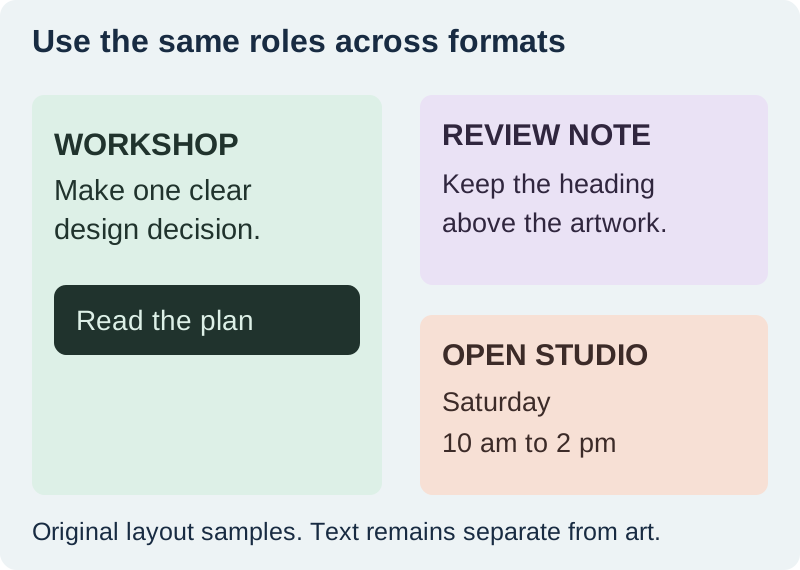
For a workshop graphic, those roles might become a mint page, a peach illustration block, and dark green text. Repeating the same roles across a cover, worksheet, and social announcement makes the set coherent without making every item identical.
Do not assign a new color to every paragraph or category just because the palette contains several attractive shades. If two colors do not communicate a meaningful difference, they may add visual noise. Keep enough neutral space for the hierarchy to remain clear.
Try three measured pastel palettes
These measurements use solid sRGB hex colors and the WCAG relative-luminance contrast calculation. Ratios are rounded to two decimal places. They describe the named ink on the named background at full opacity, not text placed over an arbitrary photograph or a translucent overlay.
| Palette | Background | Accent | Ink | Ink contrast |
|---|---|---|---|---|
| Mint workshop | #DDF0E7 | #F4D8C6 | #20332D | 11.25:1 |
| Lilac notes | #EAE2F5 | #DBEAF4 | #30263E | 11.34:1 |
| Peach announcement | #F7E0D5 | #E4EDDB | #3C2B28 | 10.57:1 |
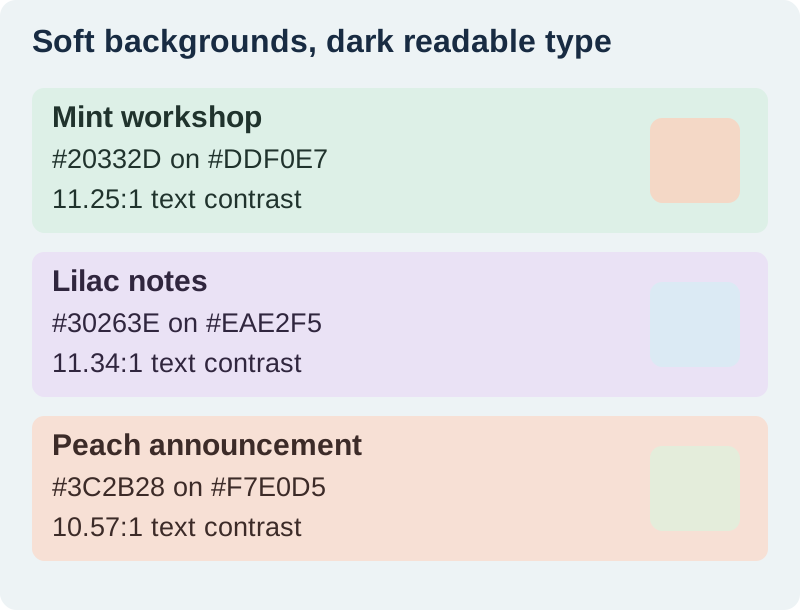
Download the palette values and contrast measurements. Keep exact values in your design notes so a later version does not depend on sampling a compressed screenshot. If you change opacity or blend a color with an image, calculate the actual resulting pair again.
Understand why white text often fails on pastels
White text on these backgrounds produces much lower contrast: approximately 1.19:1 on mint, 1.26:1 on lilac, and 1.27:1 on peach. That is why a white heading may look delicate in a large editor preview but become hard to read on a phone.
The WCAG contrast explanation uses a minimum of 4.5:1 for ordinary text and 3:1 for qualifying large text. Large text has a defined size and weight threshold; a heading is not exempt merely because it is called a heading. These contrast checks are one part of accessibility, not a complete audit.
If white wording is required, give it a sufficiently dark solid surface and test that pair. Another option is to keep the pastel background and use dark ink. Do not rely only on a thin shadow or outline around low-contrast letters, especially for small body text.
Build a small set with consistent color roles
For the first layout, use Mint workshop as a worksheet cover. Keep the main title and instructions in the dark ink. Put decorative artwork in a separate accent region, and leave enough space around the title that the illustration does not become its background.
For the second, use Lilac notes for a compact review card. The dark heading identifies the task, and the body contains one concrete instruction. Avoid turning the pale blue accent into a second text color; it works better as a quiet shape or section surface.
For the third, use Peach announcement for a fictional open-studio card. The date and time should be as easy to find as the event name. Decoration can remain small because the reader's task is to identify what is happening and when.
Use generated artwork without surrendering exact colors
QuestStudio's Image Lab can help create a supporting scene with a mint, lilac, or peach direction. Treat that as art direction. A request containing a hex code does not establish that every generated pixel will match that code or remain unchanged through export.
Apply exact background blocks and type colors in the layout editor. Keep important copy as editable text rather than asking the image to render the entire announcement. The text-rendering review explains how to protect dates, prices, and other required strings.
If the artwork contains a real product, preserve its actual shade independently of the surrounding palette. A pastel campaign should not turn a rust-colored pouch into a peach product the customer cannot buy. Use the product-color correction workflow for that accuracy problem.
Test the layout after export
Open the exported graphic at the size the audience will actually see. Read the smallest required text without zooming. Check that line breaks still make sense and that no essential word sits against a busy edge of the illustration.
Inspect all text states in an interactive design: normal links, visited links where relevant, disabled controls, errors, and selected items. A palette that works for a heading may still fail when an interface adds a lighter text style. Do not use color as the only way to communicate a category or status; add wording or another clear cue.
For a printable workbook, inspect a printed sample under ordinary reading conditions. Screen contrast calculations concern the specified digital colors, while paper, ink, and printer settings affect the physical result. The workbook audit is useful for small footer text and page navigation.
Keep one approved reference export with the palette values. When a later revision looks washed out, compare the actual values, opacity, and output settings before changing every color. A display setting or an unintended translucent overlay can create an apparent palette problem.
Repair a weak palette by changing one relationship
If the body text is hard to read, darken the ink first and retest. If a heading disappears over an image, move it to a solid surface. If the page feels crowded, reduce the number of competing accent regions before adding another shade.
Keep the successful relationships intact. You do not need to abandon a soft visual style to make the wording clear. The goal is a design in which the colors support the reading order and the essential content survives its real destination.
Frequently asked questions
Can pastel designs meet text contrast requirements?
Yes. Pair a light pastel background with sufficiently dark text and measure the exact pair. The three original examples here exceed 4.5:1 for their listed ink and main background.
Can I use white text on these pastel backgrounds?
The measured white-on-background ratios are too low for ordinary text. Use the listed dark ink or place white text on a separately tested dark surface.
Does a passing color pair make the whole design accessible?
No. Review typography, layout, meaningful labels, images, interaction states, and other accessibility requirements. Contrast is one necessary check among several.
Will an image generator reproduce an exact hex color?
Do not treat a prompt as a guarantee of exact pixel values. Apply exact colors to layout elements in an editor and inspect the exported file.
Should the product itself match the campaign palette?
Preserve the product's truthful color. Use the palette for surrounding graphics and backgrounds rather than changing the depicted item into a different shade.
Create a supporting pastel scene
Use Image Lab for background art, then apply exact text colors and approved copy in your layout editor.
Hero: AI-generated editorial illustration. Original teaching materials and documented feature research, checked October 31, 2026. Examples are labeled where synthetic or hypothetical.