
To group elements in Canva on desktop, hold Shift and select the items you want to move together, then choose Group. You can also drag a selection around nearby items when the area is clear. To separate the items again, select the group and choose Ungroup. On mobile, select an item, open the available selection options and use Select multiple before grouping. The selection controls can move depending on the design type and device.
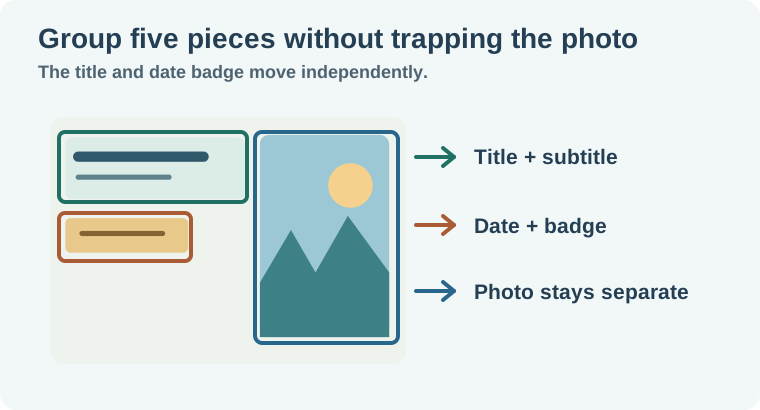
Grouping is most useful for parts that belong together but still need to be edited. A date and its badge background can travel together. A title and subtitle can move as one block. The background photograph can stay separate so you can recrop it for the next version.
Choose which elements should travel together
Imagine a small workshop announcement with five objects. There is a title, a one-line description, a date, a rounded rectangle behind the date, and a large photo. Group the title and description. Group the date and its rectangle separately. Leave the photo independent.
The two groups represent different edit decisions. If the workshop moves to Friday, change the date in the badge. If the long workshop name forces the title onto two lines, move the title and subtitle down a little together. When you make the square version, the photo needs a different crop. None of those changes requires a single group around the whole page.
Before grouping, check the selection outline. If it includes the entire page, you may have selected a full-width background or photo. Click away and use Shift to select the exact pieces. The Canva grouping instructions cover the selection and group controls for supported editors.
Group the pieces after setting their spacing
- Place the headline and subtitle where you want them. Use alignment guides to make their left edges agree, then review the spacing between the two lines.
- Shift-select both items and choose Group. Move the resulting group a little to confirm that both move together. Undo that test move.
- Select the date and its badge background. Group them separately. If the date is difficult to select because the badge or photo is in front, check the layer order first.
- Save a copy of the page, then try moving the title group and date badge on the copy. Confirm that the photo stays put.
Grouping preserves the relative arrangement at the moment you group the items. It does not align them first. If the date is slightly off center inside the badge, fix that before grouping. When a date changes from “Nov 9” to “November 23,” reopen or ungroup the badge and widen the background as needed. Scaling a group is a different operation from expanding the badge behind the same size text.
Know when you need alignment, locking, or layers
Use alignment to make objects share an edge or center line. Use grouping after they are arranged. The alignment helps the design look intentional. The group helps that arrangement survive a move.
Use locking when something should stay in place while you work over it. For example, protect a background from accidental dragging while you position the foreground elements. If a locked item cannot be included in the selection you need, unlock it, make the change, and lock it again where appropriate. If a shape covers text, change which element is in front through the layer controls. Grouping will preserve the stack you already have.
Sometimes an item that looks like a group is a single flat image. If a logo and lettering arrived as one exported PNG, there are no separate elements to select. Return to the editable source or recreate the parts you need to change. For text that should remain independently editable, use the Canva text box guide.
Reuse the layout at a second size
Duplicate the page or make a copy of the design. Move the title group into the new position first. Check the wrapping before scaling it down. A two-line title may be a better fit than tiny text. Move the date badge where it remains visible against the photo, then update the crop behind it. The Canva frame replacement guide shows how to keep a frame while swapping its contents.
Export a proof from each layout. At phone size, check that the main title reads before the smaller date and that the date still has padding. Reopen the editable design and test one common revision, such as a new date. If it is faster to redraw the badge than change it, simplify the group boundaries.
Check the order of edits on a copy before distributing the template. Ask someone to change the date, replace the photo, and move the title down a little. If any of those revisions selects the whole composition, inspect which objects share a group. If the photo can be replaced without moving the title, and the date can change without resizing the text, the grouping reflects how the design will actually be reused.
How QuestStudio helps
Use Image Lab if you need a separate background that works behind several layouts. Ask for open space near the title area, then place the image behind the editable objects in Canva. The desktop and mobile hero planning guide has a related crop exercise if the same artwork also needs to work in a site header.
Keep one editable layout and one exported proof per size. The grouping map gives the next editor enough context to move a block without moving the entire design.
Download the canva grouping map.
Frequently asked questions
Can I group text and a shape together?
Yes, when they are separate selectable elements in the design. Align them before grouping.
Why is Group unavailable?
Check that more than one eligible element is selected. Check locked layers and whether the items are actually part of one flattened image.
Can I ungroup the result later?
Yes. Select the group and choose Ungroup, then update the individual elements.
Will grouping align my objects?
Grouping preserves the positions already present. Align and space the objects first.
Does a PNG keep the group editable?
A PNG stores the rendered pixels. Keep the Canva design for edits to the individual objects.