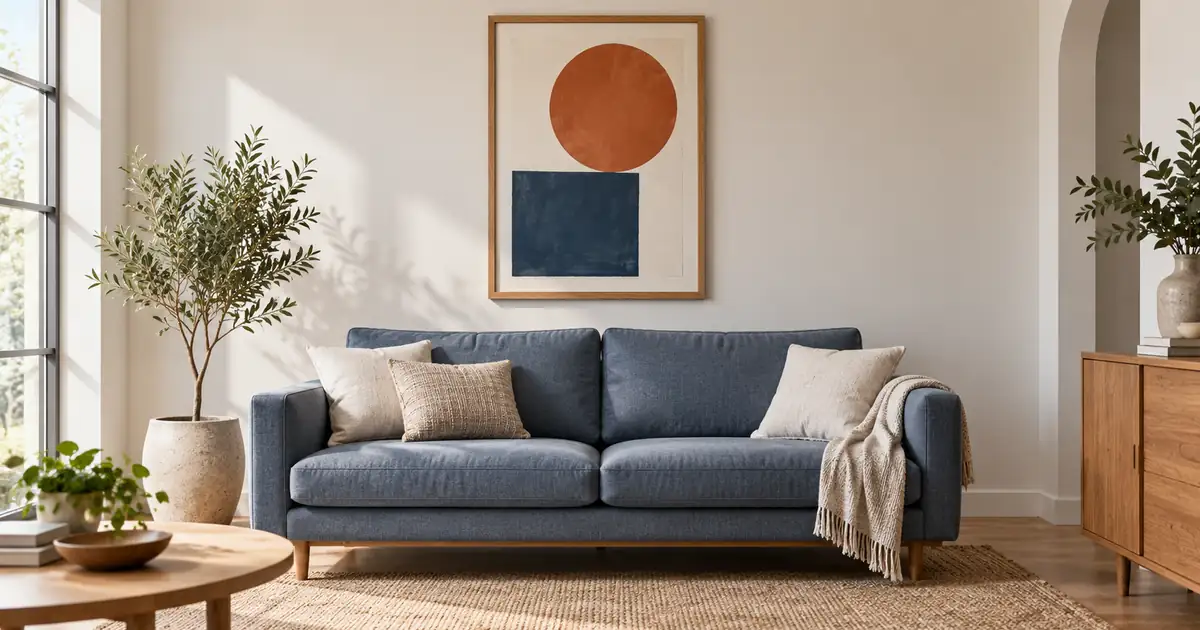

A room mockup helps a buyer imagine artwork on a wall, but “make this a 50-centimeter frame” does not guarantee that an image generator will preserve that measurement. The room, furniture, and camera can all change. Use AI to explore the setting, then use a controlled placement when the image needs to communicate physical size.
This guide separates three things that often get mixed together: the artwork file, the outside dimensions of the framed product, and the scale of that product in a room. It builds a front-view calculation and an original visual comparison. Neither the generated room nor its furniture is a measured real interior.
Download the wall-art scale worksheet. If you are creating the artwork itself, begin with the wall-art prompt and print-file guide.
Identify which dimensions the listing describes
A print measuring 40 × 50 centimeters is not necessarily a framed product measuring 40 × 50 centimeters. A mat and frame can increase the outside dimensions. The visible opening may also cover a small part of the paper. Record the actual product specifications before building the room view.
Keep separate fields for paper size, visible artwork opening, mat treatment, and outside frame size. If the item is unframed, say so in the product presentation. A room image with a decorative frame can otherwise suggest that the frame is included.
Use the supplier's finished outer dimensions when available. Do not calculate the real frame solely from a guessed border width in a photograph. For a custom framing job, confirm the construction with the framer and use that agreed measurement in the mockup brief.
Our examples compare hypothetical outside frame widths of 50 and 80 centimeters. They do not assign those measurements to the generated scenes. The distinction matters because a visually larger frame is not automatically the requested number of centimeters wide.
Read the generated comparison honestly
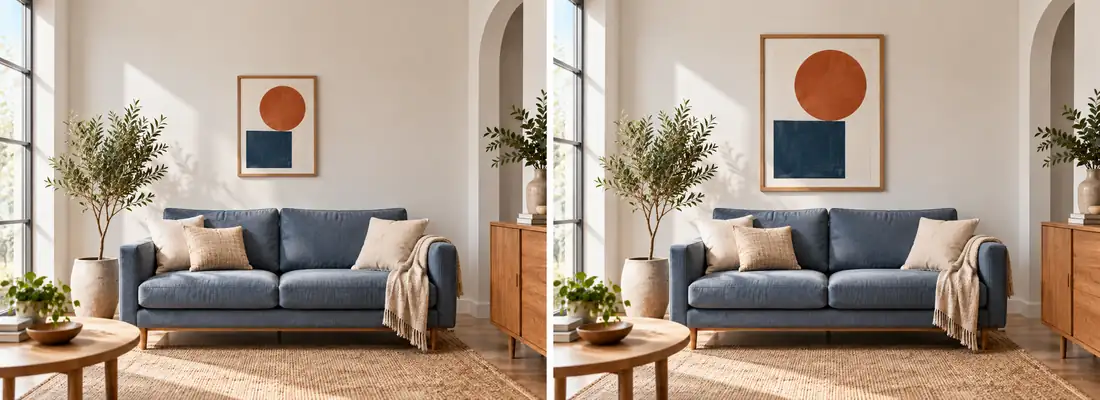
The art remains recognizable as a terracotta circle above a dark blue shape, and the larger treatment occupies more of the wall. That makes the study useful for choosing a composition. It does not establish exact frame dimensions, a verified furniture width, or identical camera geometry between the panels.
Even apparently unchanged room features can shift subtly during generation. Do not measure the sofa in one panel and assume the second panel uses the same scale. If the final gallery needs an accurate size comparison, keep one room background and place separately controlled frame layers within it.
Create a room concept around the supplied artwork. Keep the artwork's orientation and proportions. Use a quiet bright room, an oak frame, and a blue-gray sofa. Leave the entire frame visible. Do not add text, dimension labels, extra artwork, or claim a measured size. This image will be used to choose a setting before controlled placement.
That brief gives the generator an achievable creative task. Add the actual dimension labels later as editable text linked to verified product information, rather than relying on generated numerals.
Use a simple elevation to explain relative size
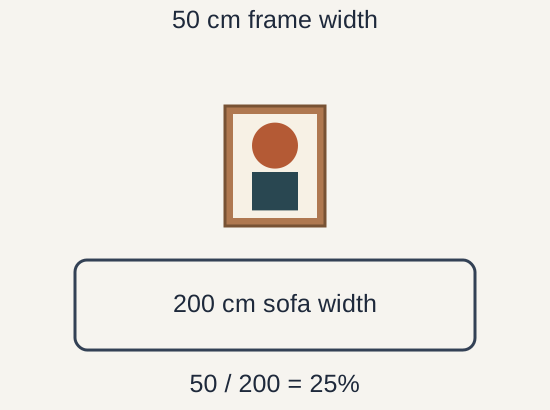
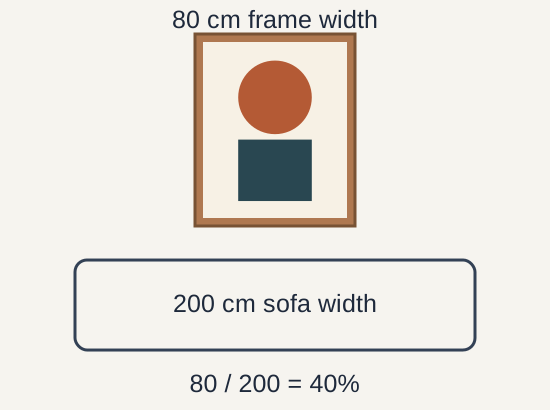
A flat diagram can communicate a relationship more clearly than an atmospheric photograph. In this exercise, a 50-centimeter frame is 25% of a 200-centimeter sofa's width. An 80-centimeter frame is 40%. The drawing uses those proportions directly, without asking a model to infer them.
This is not a rule for choosing art above every sofa. It is an arithmetic example showing why two frame sizes should not be normalized to the same image width in a comparison. A buyer may prefer either arrangement; the gallery should make the difference understandable.
Keep the furniture width fixed between size variants. If the mockup tool quietly enlarges the sofa for the larger frame, the comparison loses its meaning. A dimension graphic beside a decorative room view can be more useful than trying to force every fact into one image.
Calibrate a front-view placement
For a real room photograph, use a known measurement on the wall plane where the frame will sit. A sofa positioned in front of that wall is an approximate visual cue, not a reliable calibration reference: its distance from the camera differs from the frame's.
In a straightforward front-facing exercise, two marks on the wall are 100 centimeters apart and appear 400 pixels apart in the photograph. The local scale is 400 ÷ 100 = 4 pixels per centimeter. A 50-centimeter outside frame width therefore occupies 200 pixels at that position; an 80-centimeter width occupies 320 pixels.
Keep the frame's width and height proportional to its verified outside dimensions. If a hypothetical frame is 50 × 60 centimeters, that front-view exercise gives 200 × 240 pixels. These are scene-placement dimensions, not the resolution of the print file.
This simple method assumes a suitable front view and a reference on the same plane. Strong perspective, a wide-angle lens, or a sloping camera can make one pixel scale insufficient across the image. Use a calibrated perspective workflow or a simpler front-facing photograph when accuracy matters.
Keep artwork, mat, and frame controllable
Place the approved artwork in a separate layer within the frame opening. Preserve its aspect ratio. If the product includes a mat, show that mat explicitly rather than stretching the artwork to fill the whole outer frame.
Decide whether an opening requires a crop or a border. A landscape artwork placed inside a portrait opening cannot fill it proportionally without losing part of the image. Show the actual product treatment. Do not conceal the mismatch by squeezing a recognizable circle into an ellipse.
Adobe's transform documentation covers scale and perspective operations for controlled placement. Apply a shared perspective to the complete framed assembly, while keeping the flat artwork master available for comparison.
Add a modest wall shadow only after the geometry is approved. A dramatic floating shadow can make a thin frame appear deeper than the actual product. Likewise, strong glare may conceal the artwork and imply glazing that is not included. Use the product's actual construction to guide those choices.
Build a size-aware gallery
Use one appealing room view to introduce the design, a controlled comparison to explain available sizes, and a detail to show the artwork and frame finish. Give each image a specific job. A single decorative room scene should not carry the entire burden of explaining size and included components.
| Image | Question it answers | Review condition |
|---|---|---|
| Room concept | Does this style suit the setting? | Clearly illustrative if uncalibrated |
| Size comparison | How do the variants differ? | Same background and reference scale |
| Artwork detail | What will the image look like? | Approved file, undistorted proportions |
| Frame detail | What physical finish is included? | Actual product reference or sample |
Check the gallery on a phone with the variant selector. The selected size should match the image and label. Avoid a thumbnail crop that hides the outer frame edge, because it removes the very boundary used for the size comparison.
The product scale guide covers broader size-family presentation. The print upscaling workflow covers pixel density and physical output. Keep those print-file calculations separate from positioning a frame within a room photograph.
Deliver the assumptions with the mockup
Save the background source, measurement reference, outside frame dimensions, artwork version, and layered placement file. Include a note stating whether the image is calibrated, approximately scaled, or purely illustrative. That note is useful when another editor makes the next size variant.
Before approval, compare the final export with the layered source. Confirm that the artwork has not been cropped accidentally, the frame size label matches the variant, and no export preset has stretched the whole composition. Keep a separate clean artwork master for production.
Frequently asked questions
Can AI create an exact-size frame from a written measurement?
A prompt can request a size but does not verify it. Use a controlled placement with a known reference and the product's actual outer dimensions when physical scale is important.
Should I measure the print or the outside frame?
Record both when relevant. The room placement uses the outside dimensions of the framed product, while the print and visible opening may have different sizes.
Is the sofa a reliable calibration reference in a photograph?
Not by itself. It usually sits in front of the wall and can have a different perspective scale. Use a known measurement on the wall plane for a controlled placement.
Are the two generated room images measured size previews?
No. They are original illustrations of smaller and larger visual presence. The separate elevation diagram demonstrates exact hypothetical width ratios.
Does resizing the mockup change my print file?
It should not. Keep the artwork master separate from the room presentation. Scene placement pixels and production print resolution serve different purposes.
Explore a room around your artwork
Use Image Lab for room concepts, then place approved artwork with measured guides in a layered editor when the image needs to communicate size.
Hero: AI-generated editorial illustration. Original teaching materials and documented feature research, checked October 30, 2026. Examples are labeled where synthetic or hypothetical.