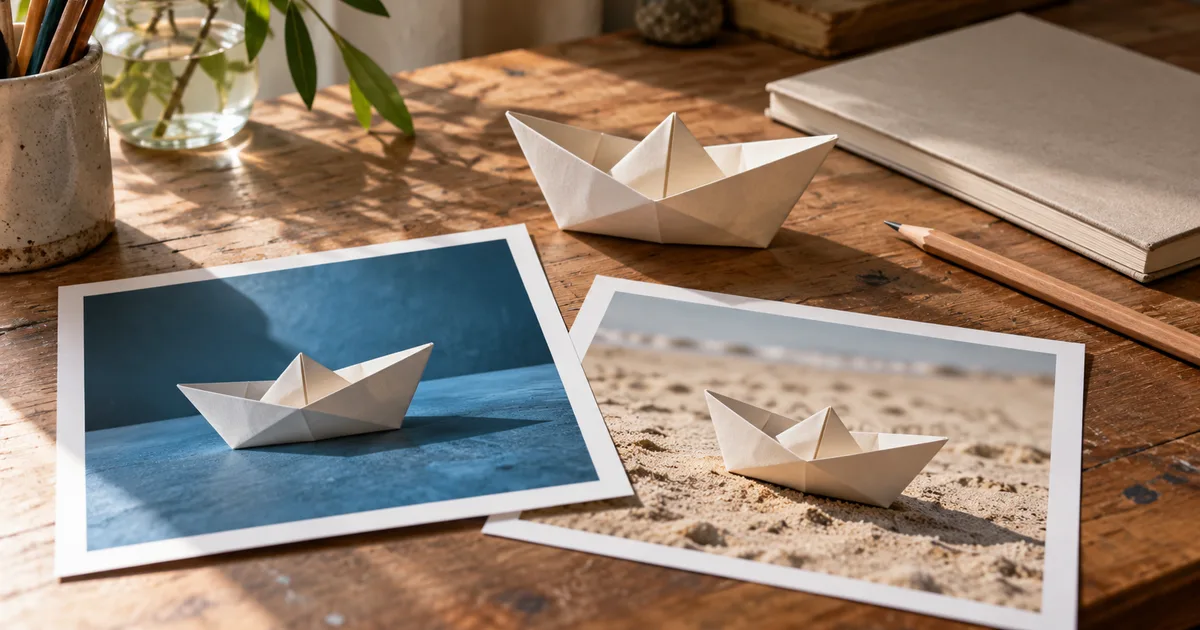

Yes, Gemini can generate images from descriptions and edit images you provide, subject to account eligibility and feature availability. On a computer, start in Gemini Apps, choose the image-creation experience available in your account and describe a specific scene. Save the image using its download control, then inspect the file before publishing.
This guide explains a first-image workflow and a controlled revision exercise. Instructions were checked against Google's documentation on October 25, 2026. The paper-boat exercise below is an original brief you can try, not a claim that we benchmarked Gemini or that every account will produce the same result.
Start in the right Gemini product
Gemini Apps, Google AI Studio and the Gemini API are different entry points. A tutorial about API parameters does not necessarily describe controls you can select in the consumer app. Start with Gemini Apps if your goal is to make a picture through a conversation rather than build software.
Google's image-generation help page documents sign-in requirements and restrictions by account, age, language and region. It also distinguishes image generation from editing eligibility. If your interface differs from a tutorial, check the account and current help page before assuming something is broken.
For developers, the separate Gemini API image documentation describes programmatic generation and editing. This article does not cover API billing, code or integration. Keeping that boundary clear avoids trying to reproduce developer settings in an app that does not expose them.
Create one simple image first
- Sign in and open the image-creation option shown in your Gemini interface.
- Choose one subject and one setting. A simple scene makes it easier to tell whether the result followed the request.
- Describe the composition, lighting and intended use. Leave out details that do not affect the picture.
- Submit the prompt and inspect the returned image before asking for another version.
- Use the image's download option and open the saved file separately.
Google's image prompting guidance emphasizes describing the scene and desired treatment. For a first attempt, a coherent brief is easier to inspect than a long chain of quality adjectives.
Before generating, write down what would count as a failure: two boats, a cropped sail, lettering, a busy background or a boat that no longer looks folded from paper. These are your acceptance criteria. They make the review less dependent on whether the first result feels attractive.
Do not begin with a valuable product photograph or a person's face while you are still learning the interface. An invented object lets you explore controls without confusing a trial with a publishable business asset.
Revise one thing and inspect everything
After selecting an initial boat image, request a single change: replace the blue tabletop with pale sand while retaining the boat's shape and camera angle. This gives the next attempt a clear job. It also makes unintended changes easier to spot.
The instruction to preserve details is a request, not a guarantee. Compare the original and revision side by side. Look at the sail's tip, central crease, hull opening, shadow direction and overall proportions. If the surface changes but the boat also changes, note both outcomes.
A useful review record is: “Background changed as requested; left hull fold changed; return to original and retry a smaller edit.” That is more actionable than “bad result.” Use the image revision log to keep the selected input, instruction, intended change and unintended changes together.
If repeated revisions drift further from the original, return to the best source rather than continuing from the latest image. For an actual product, consider a conventional mask or composite when exact geometry matters. The editing-versus-generation guide explains that choice.
Use reference images with clear roles
An uploaded image can communicate appearance, composition, color or style. Those are different roles. State which role you intend instead of expecting the model to infer it. “Use this image only for the camera angle” is a different instruction from “preserve this exact object.”
When using more than one reference in a supported workflow, identify each one in your prompt. A product photograph might supply object details, while a separate image supplies a lighting direction. If both contain objects, say which object belongs in the result. Remove irrelevant references that make the brief harder to interpret.
Check that you have permission to use the images and are comfortable with the service's handling of them. Google's Gemini Apps Privacy Hub describes account data practices. Read the information applicable to your account type rather than treating consumer and workplace accounts as interchangeable.
Our reference-pack workflow provides a fuller method for assigning source roles. Start there if several inputs seem to be pulling the result in different directions.
Download before judging the final quality
Google documents a full-size download control for generated images. Use it instead of taking a screenshot of the conversation. Then check the actual file dimensions and inspect the image at both full size and the size it will occupy on the page.
For the paper boat, inspect the folds at full size and the silhouette in a small card. For a product image, inspect labels, edges and any detail a customer could interpret as evidence. For a diagram, verify the meaning of every label and relationship separately from the image's visual polish.
Do not assume the file matches the exact pixel dimensions you mentioned in a prompt. Resize or crop in an editor when the destination requires a specific canvas, and check that important content survives. Keep the original download so that a later crop does not become your only source.
If your design needs a headline or a price, consider placing that text with a layout tool after generation. That keeps important wording editable. Our image-text review workflow covers cases where generated lettering is part of the image.
Troubleshoot the symptom you actually see
| Symptom | First check | Practical next action |
|---|---|---|
| No image option | App, account eligibility and available controls | Compare your interface with current Google help |
| Text response instead of an image | Whether image creation is selected and requested clearly | Try a simple harmless scene in the image flow |
| A limit or capacity message | The exact message and any reset information | Follow the stated limit; repeated prompts may not help |
| Unwanted changes during an edit | Reference role and number of requested changes | Return to the source and isolate one change |
| Incorrect writing | The saved image at full size | Correct typography in an editor or simplify the image |
A policy refusal is different from a generation limit or a poor-quality result. Read the explanation and use a permitted request; do not treat a restriction as an invitation to disguise the same prompt. If a simple eligible request fails repeatedly, use Google's support options with the exact error and relevant account context.
How QuestStudio helps
When you want to continue exploring a visual brief across available models, take the same brief and permitted reference to Image Lab. Compare the actual delivered assets using the same acceptance criteria. Models, controls, access and costs can differ between QuestStudio and Gemini Apps.
For model-selection background, see the Nano Banana Lite workflow guide. Keep the immediate goal small: one useful image, one deliberate revision and one checked export.
Frequently asked questions
Can Gemini generate images?
Yes. Gemini Apps supports image generation, with availability depending on your account and the feature's current eligibility rules.
Can Gemini edit a photo I upload?
Supported accounts can use image editing. Explain what should change and what should remain, then inspect the whole result for unintended edits.
Is Gemini image generation free?
Google documents image access without a paid AI plan, alongside paid options and usage restrictions. Check the current limits and capabilities shown for your account.
Why does my Gemini interface look different?
Interface and access can vary by app, account type, region and rollout. Compare your experience with the current help page for the product you are using.
Can I request exact dimensions in the prompt?
You can describe the intended composition, but inspect the saved file instead of assuming the request produced exact dimensions. Use an editor for a required final canvas and review the crop.
Hero: AI-generated editorial illustration. Worksheets and fictional examples are original teaching exercises, not measured provider results. Sources checked October 25, 2026.