
To insert a table in a Canva design, open Elements, find Tables, and choose a table. You can also try the /table shortcut in the editor. Then replace the sample content, adjust the rows and columns, and check the exported design at its actual reading size.
The harder part is deciding what belongs in the table. A neat grid can still be difficult to read if its labels are vague, its cells contain paragraphs, or the final image shrinks to phone width. This guide builds an original, fictional production checklist and shows how to keep its information useful through export.
Canva interface instructions were checked against its official help on October 31, 2026. The diagrams below are original layout references, not screenshots of the Canva editor or evidence of a hands-on account test.
Start with the decision the table should support
For this example, a small studio needs to decide which assets are ready for a product launch. It has three deliverables: a product photograph, a short demonstration clip, and a narrated instruction. The table should expose the next review task, not describe every production detail.
Use three columns: Asset, Review next, and Owner. Keep the wording concrete. “Check label” tells the image reviewer what to inspect; “quality” leaves the task open to interpretation. The owners in the example are roles rather than invented employee names.
| Asset | Review next | Owner |
|---|---|---|
| Product photo | Check label | Designer |
| Demo clip | Check captions | Editor |
| Narration | Check names | Producer |
Download the original sample data
The CSV is a reference for copying the nine cell values, not a promise that every Canva design type imports CSV files into an editable table. Keep a separate source sheet if you expect frequent changes or calculations. A promotional layout should not become the only surviving record of the numbers it displays.
Insert an editable table
- Open the design page that will contain the table.
- Choose Elements, locate the table options, and select a simple style. Alternatively, use /table where supported.
- Replace the example text with your own headings and values.
- Select the table and use its More menu to add a row or column. Row and column menus also offer removal and movement controls.
These are the documented controls in Canva's table insertion guide. Menus can differ by device and design type. If the control is missing, check the current help for that editor instead of rebuilding the whole table from unrelated rectangles.
Start with a plain style so decoration does not hide structural problems. Read each row horizontally and then each column vertically. Every row should answer the same questions, and every column should contain the same kind of information. If one cell needs a footnote-length explanation, move that explanation beneath the table.
Make room for the information
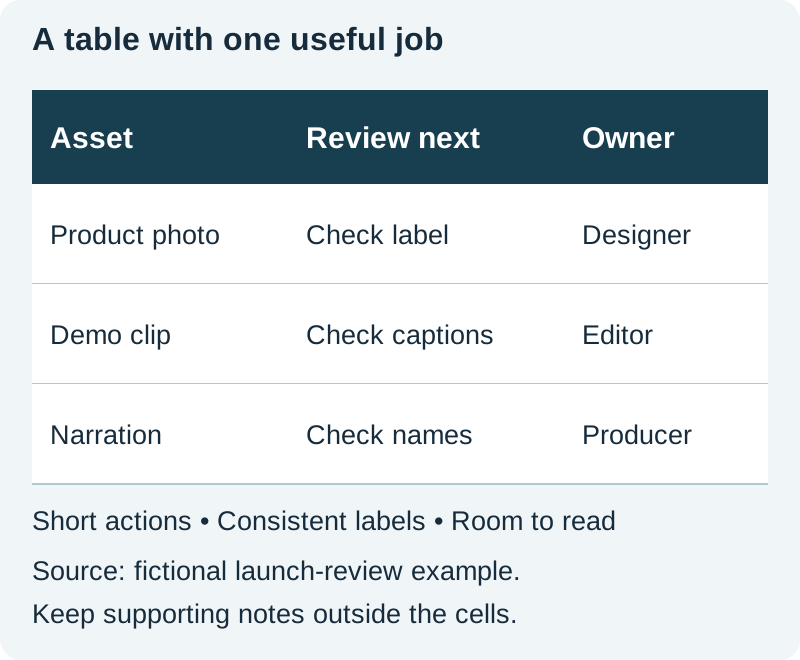
Our reference gives the asset and review columns more room than the owner column. That is a content decision: a role usually needs less space than the name of a deliverable. Equal widths would be convenient, but they would spend room where the example does not need it.
Select a cell to expose sizing options. Canva documents fitting rows or columns to content and making selected rows or columns equal; some column sizing options are unavailable in Canva Docs. It does not currently support typing exact table row heights or column widths. Use the available controls, then check line breaks. See Canva's table formatting help.
When a label wraps, decide whether that break helps comprehension. “Product” on one line and “photo” on the next is usually understandable. Splitting an amount from its unit is more confusing. Rewrite a heading before reducing the whole table's type size to accommodate one long phrase.
Style the table around reading order
Use one strong header treatment and a quiet body. In the reference, dark text on white carries the information, thin lines separate rows, and a dark header contains white labels. The color is not the only way to identify a heading: placement and bold type reinforce its role.
Canva's formatting controls let you select borders, change their color and thickness, and change cell fills. Use those controls to simplify the grid. A heavy border around every cell can overpower a short checklist; a border too faint to survive export can make neighboring rows merge visually.
For status information, write the status as text. A green cell alone does not tell every reader whether an asset is approved, assigned, or merely started. “Approved” or “Needs review” remains understandable in a grayscale printout and when someone describes the table aloud.
Keep decorative photography outside the cells in this example. A background image behind tiny text introduces a second contrast problem and competes with the comparison. If the page needs an illustration, reserve a separate area and follow the same hierarchy used in the product infographic workflow.
Check the exported file, not only the editor
Export a draft in the format required by the destination. Open that file independently and inspect it at the size readers will actually encounter. A social image that looks comfortable while zoomed in can become unreadable when fitted to a phone screen.
- Check the smallest text. Read the source note and the longest cell without zooming into a single row.
- Compare every value. Check the export against the source data, including units, spelling, dates, and any revision number.
- Inspect the edges. Confirm that no border, last row, or note was clipped by the page boundary.
- Test the destination. Review a draft upload or print proof when available; resizing and compression can change readability.
- Supply a text alternative. Include the important values in surrounding page text or a separate accessible document when the exported image is the only visual version.
Download the export review sheet
If the table fails this check, first remove a nonessential column or split the content into two clearly labeled panels. Shrinking everything is usually the least useful response. Preserve enough context on each panel that a reader can understand it without guessing which heading applies.
Adapt the layout to the output
A presentation slide should support a spoken point. Show only the rows needed for that point, and place detailed supporting data elsewhere. A worksheet can carry more information because the reader controls the pace. A small social graphic needs the tightest selection.
For a product comparison, keep the same measurement conditions across rows. Do not compare one product's package width with another product's usable interior width under a generic “size” heading. The product scale guide explains why visual comparisons need equally careful reference conditions.
For a channel banner, a table is rarely the right fit. Its narrow visible area rewards a short identity message; use the banner safe-area template for that task instead. Choosing a different format can solve a readability problem that no amount of cell styling will fix.
How QuestStudio helps
Image Lab can help you explore supporting artwork for the surrounding design. Keep the actual table headings, values, and source note as editable text in Canva. Generating a picture of a finished table makes correction harder and can introduce incorrect lettering or figures.
Frequently asked questions
Can I insert a real table in Canva?
Yes. Canva documents an editable table element. Add it through the available table controls, then replace its content and adjust its structure.
Do I need to draw every cell separately?
No. Start with the table element when you need a normal grid. Separate shapes make routine row changes and alignment harder to maintain.
Can I enter an exact width for a table column?
Canva's current help says exact numeric row heights and column widths are not supported. Use its sizing controls and inspect the resulting layout.
Does the downloadable CSV import directly into every Canva table?
No such behavior is assumed here. The file supplies original sample values to copy or keep as a reference; import capabilities depend on the specific editor and workflow.
What should I do if the exported table is too small?
Reduce the information on that page, split it into labeled panels, or choose a larger output. Check the revised export at reading size and provide the important information as text as well.
Create supporting artwork separately
Use Image Lab for an optional illustration, then keep all table labels, figures, and cells editable in Canva.
Hero: AI-generated editorial illustration. Original teaching materials and documented feature research, checked October 31, 2026. Examples are labeled where synthetic or hypothetical.