
If an SVG color will not change in Canva, select the imported graphic and look for a color tile in the toolbar. If Canva exposes color tiles, choose the fill you want to change. If it shows none, inspect the source in a vector editor and try a simpler SVG with separate solid fills. You can also recolor the artwork in its source editor and export the finished colorway.
The SVG extension tells you which format the file uses. It does not tell you whether its visible parts are simple paths, painted effects, or an embedded image. Two graphics can look identical and offer very different editing controls.
Check what Canva exposes for this element
Select the graphic itself rather than its surrounding group, photo frame, or whole page. Canva's element color help describes the color control for elements that support it. If several tiles appear, change one on a copy and watch which part follows it. A shared fill can appear in more than one shape, so a palette change may affect multiple pieces.
If a tile is absent, compare with a native Canva shape you know can be recolored. That helps you distinguish the selected element's behavior from a toolbar or selection problem. Then compare with a simple uploaded vector. If the sample exposes colors and the project artwork does not, the source construction is worth inspecting. Menu availability can depend on the element and editor, so use a small import before committing the whole design.
Inspect the source rather than the filename
Open the artwork in the editor it came from. See whether the colored regions can be selected individually as shapes. A single image layer with no separate paths is often the real reason a new fill cannot be picked. Exporting that image with an SVG wrapper leaves the underlying colors in pixels.
For an SVG you own, open a copy in a text editor if you are comfortable doing so. Look for simple shape or path elements with fills. An image element can contain or point to raster artwork. Gradients, masks, filters, and styles can be part of valid vector art while complicating what another editor exposes. Inspect in a vector editor before removing effects, because simplifying the file can change the visible result.
Try one plain two-color import
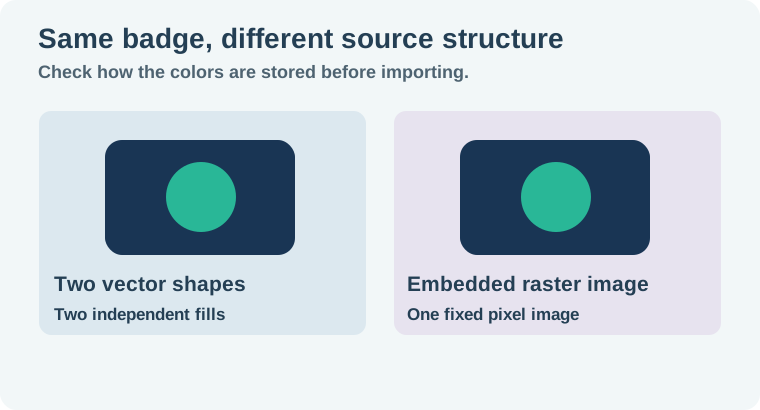
Consider a navy badge with a teal circle. Put the badge and circle on independent vector shapes. Give both visible solid fills and export a plain SVG with the artboard bounds you intend. Reopen it outside the source editor. If it matches the design, upload this copy to Canva and see which color controls it offers.
The downloadable badge for this exercise contains a rounded rectangle and circle with separate fills. Its palette is intentionally simple. A new vector can still look different after import, so check the result in your actual Canva design. When you change teal, the navy field should stay navy. If both shapes change together, inspect whether the exported artwork really uses distinct fills or was flattened in an intermediate step.
For source artwork coming from a raster illustration, the image-to-SVG workflow explains the tracing decision. The vector versus raster export guide helps when you are choosing which type of asset to keep.
Decide whether the effects or the editable fills matter more
If the design requires a gradient or textured edge, keep a master with those effects. Make a separate flat variant only if a simplified version meets the brief. A gradient can explain a product's shape, and removing it to gain a toolbar swatch can make the graphic less useful. Compare the flat and full versions at the intended size before changing the master.
For a fixed client palette, recolor the original in the source editor and export the approved version. Include a descriptive name such as badge-brand-green.svg. If the deliverable is an image and the art does not need to scale further, an appropriately sized PNG with transparency can be a sensible proof. Keep the editable vector source available for the next color change.
Check the real destination
Place the imported graphic at the size it will appear. Inspect the palette, padding and any transparent cutouts. Export a small proof and reopen it. A graphic can import successfully while adding extra artboard padding or changing the treatment of a thin stroke. Compare it with the source on both a light and dark background.
If the asset will live in a Canva photo frame, use the Canva frame replacement guide to check placement and crop separately. A crop problem can hide an edge even after the color is correct.
Try the vector and raster versions on an otherwise empty test page. Place them at the same dimensions and export a proof without effects. You should see why appearance alone is a weak diagnostic. The useful comparison is the independently selectable shapes in the source, the controls Canva actually exposes, and the exact color change you can make without altering the rest of the design.
How QuestStudio helps
Use Image Lab to explore a color direction for a separate concept or texture. Keep logos, approved symbols, and brand-critical fills in your editable vector source. Use the worksheet to record which version Canva can recolor and which one should be placed as a fixed asset.
Save both the approved appearance and the source that produced it. The next editor should be able to choose a colorway without rebuilding the art.
Download the simple two-color badge SVG and its raster-backed counterpart.
Download the svg color troubleshooting sheet.
Frequently asked questions
Does every SVG have editable colors in Canva?
No. Canva exposes color controls for supported elements. The file's contents and how it imports affect what you can change.
How can an SVG contain a raster image?
An SVG can include an image element. Its visible colors may be stored in pixels even though the outer file is SVG.
Do I have to remove every gradient?
Keep gradients in the master when they are part of the design. Try a flat copy only if simplified editable colors meet the job.
Why did two shapes change color together?
They may share a fill. Inspect the source and test distinct colors before exporting another copy.
What if Canva still shows no color tiles?
Recolor the artwork in its source editor, then import a clearly named approved colorway.