
The file ends in .svg, but the client still cannot recolor the acorn. That usually means the artwork is an embedded bitmap or a tangle of shapes that behaves like one. A useful vector handoff must survive an actual edit, not just a zoom test.
Download the SVG handoff checklist · Create a simple illustration source
Editorial guide checked September 13, 2026. Examples and worksheets are original planning material; the hero is an AI-generated illustration, not a model benchmark.
Start with the edit someone needs to make
Ask what the recipient must do with the artwork. Recolor the cap of an acorn? Cut its outer silhouette from vinyl? Use it at twenty-four pixels in a navigation bar? Those jobs require different levels of simplification. A vector file that looks excellent on a poster can fail as a small icon or a cutting path.
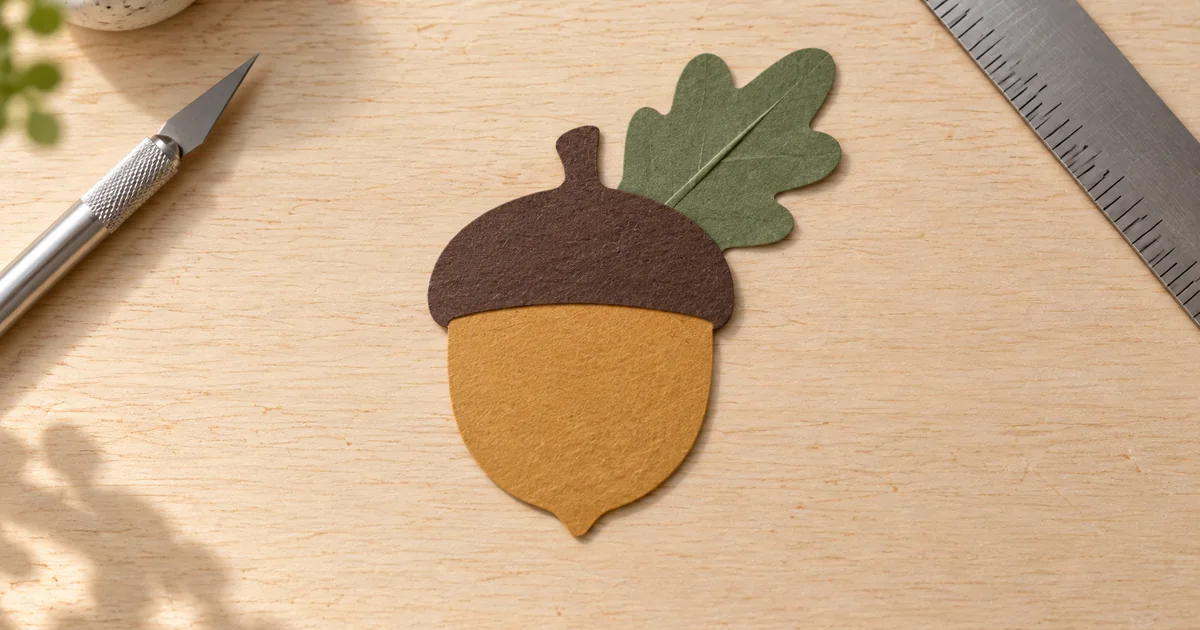
Our original assignment is a simple acorn illustration with an ochre nut, brown cap, and green leaf. The recipient needs to change each color independently and place the artwork on a dark background. This defines three meaningful regions, a transparent exterior, and a readable silhouette. It does not require preserving every paper fiber from an attractive raster concept.
Write that handoff requirement before tracing. Otherwise, the converter may faithfully reproduce details that the recipient never needed while turning a simple edit into hundreds of selections. “Looks the same” and “works for the job” are related, but they are not identical acceptance criteria.
Choose between tracing, rebuilding, and keeping the raster
Tracing follows boundaries inferred from pixels. Manual rebuilding creates a deliberate set of shapes. Keeping the raster preserves photographic texture without converting it into geometry. None is automatically the professional choice; the correct route depends on the image and its destination.
| Source | Useful approach | Reason |
|---|---|---|
| Simple acorn with three flat regions | Trace, then clean or rebuild | Its identity is mostly shape and color |
| Softly lit realistic acorn photograph | Keep raster or intentionally simplify | Texture and continuous tone carry the image |
| Precise wordmark | Rebuild with appropriate typography | Tracing damaged letters preserves the damage |
| One-color cutting silhouette | Rebuild a clean closed outline | The machine needs a usable boundary |
The Inkscape tracing guide explains how bitmap tracing creates paths and provides single-scan and multiple-scan approaches. That is a useful free starting point. A paid converter may be convenient, but paying does not remove the need to inspect its geometry.
Generate a source that contains the right information
For the acorn, ask for a clear outer shape, a limited palette, and separate color regions. Avoid gradients, cast shadows, textured paper, and tiny decorative hatching if the final needs only three editable fills. Those effects can look flat at first glance while containing many slightly different colors.
This is a raster-source brief. Words such as “vector” or “SVG” in an image prompt do not prove the exported file contains editable paths. Check the actual format. The editorial hero uses physical cut paper to illustrate the idea; it is not the finished vector asset or a tracing benchmark.
Fix structural mistakes before conversion. If the leaf merges with the cap in a way you dislike, tracing will not infer your intended design. Choose another concept or redraw the boundary. A cleaner source often saves more effort than trying every smoothing option afterward.
Trace a working copy and inspect what was created
Keep the original raster on a separate layer or in a separate file. In Inkscape, import the image and use the Trace Bitmap workflow described in its guide. Start with the approach appropriate to the artwork: one-color silhouette or several color regions. Preview before accepting the trace.
Move the resulting object aside temporarily so you can distinguish it from the original bitmap underneath. This simple step catches a common mistake: judging the crisp-looking source while assuming you are inspecting the trace. Restore the intended alignment after the check.
Select the new objects and inspect their paths. Look for tiny islands, unwanted background shapes, and multiple nearly identical regions. Delete or merge only after checking what each piece contributes. An aggressive cleanup can remove the gap that makes the leaf legible.
Do not chase a universal path-count target. A three-region acorn should be straightforward to edit, but a detailed illustration can legitimately need more geometry. The meaningful question is whether the complexity serves the visible design and the required handoff.
Perform a real edit instead of trusting the extension
Change the cap from brown to navy without changing the nut or leaf. If you must select dozens of fragments, the file may need more cleanup. If clicking the picture selects only an image object, you may still be working with a raster embedded inside an SVG container.
The Inkscape FAQ distinguishes imported bitmap images from editable vector objects. An SVG can include both. That flexibility is useful, but it means the filename alone cannot establish what you have delivered.
Place the artwork on a temporary dark rectangle. Look for a white background box or pale halos along the outline. Then remove the temporary rectangle. Check that the transparent exterior remains transparent in the actual export, rather than only appearing so on the editor’s white canvas.
Open the exported SVG in the recipient’s intended application when possible. A file that reopens correctly in your own editor may still expose grouping, sizing, or rendering differences elsewhere. Ask for one real operation: recolor the cap, resize the artwork, or place it into the intended layout.
Test the silhouette at its smallest use
View the acorn at the size it will occupy in the interface or printed piece. The leaf may become a distracting speck, the cap may blend into the nut, or a narrow gap may close visually. Vector geometry scales cleanly; the human ability to recognize a small shape does not scale indefinitely.
Create a simplified small-use version if necessary. That is a deliberate design variant, not a failure of the format. Keep the main identity while removing details that cannot survive. Name it clearly so a collaborator does not mistake it for an outdated draft.
For cutting, inspect closed shapes and unintended overlapping boundaries in the actual cutting workflow. For web use, inspect the final dimensions and visual bounds. For print, check the requested production format with the printer. Avoid assuming one SVG automatically satisfies every destination.
Package the editable result with a useful proof
Deliver the editable SVG, a preview image, and a brief note stating the intended use, palette, and any small-use variation. The preview lets someone recognize the approved appearance without opening a vector editor. It should not be the only file they can actually use.
Record the successful edit in the handoff checklist: cap recolored independently, background transparent, smallest use readable, export reopened. These are reproducible checks. “High quality” without a demonstrated edit tells the recipient much less.
Use Image Lab for the source, then finish the paths
Image Lab can help explore the acorn concept and other simple illustration directions. Its generation workflow supplies raster artwork; it does not currently promise editable SVG export. Use a vector editor for tracing, cleanup, and final delivery.
Save the accepted source next to the finished SVG and the handoff checklist. If the design changes later, you can decide whether to revise the existing shapes or return to the concept stage. That is a more dependable workflow than repeatedly converting a flattened export and accumulating new fragments each time.
If the artwork will be sewn onto fabric, use the embroidery artwork and digitizer handoff workflow to review physical size, material and the sew-out separately from SVG cleanup.
For a tonal illustration that will be engraved as a raster image, use the laser engraving image-preparation workflow to calculate physical size, preserve a grayscale master and approve a material sample.
Frequently asked questions
Does renaming a PNG to SVG vectorize it?
No. Vectorization creates editable geometry. An SVG can also contain an embedded raster image, so inspect the actual objects.
Should I vectorize a realistic photograph?
Only when a simplified interpretation serves the job. Tracing a photograph can create complex geometry without preserving useful photographic detail.
How many paths should a good SVG contain?
There is no universal number. Use the fewest paths that preserve the required shape and allow the intended edits.
Does Image Lab export editable SVG artwork?
Its image-generation workflow produces raster artwork. Use a vector editor for tracing, path cleanup, and final SVG export.