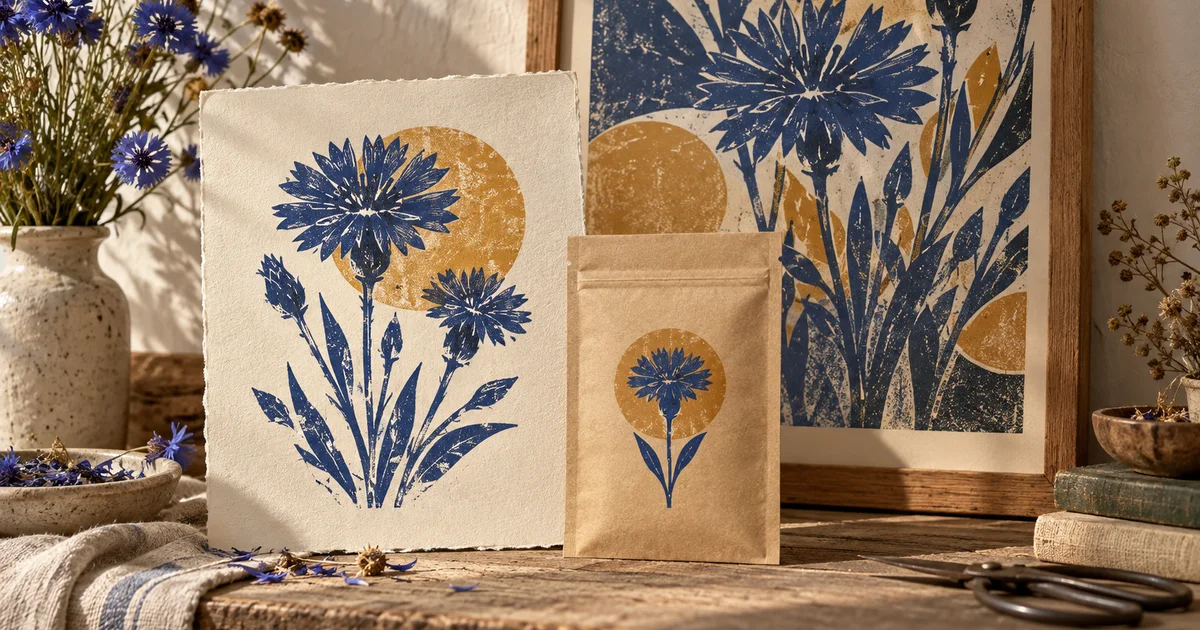

A style that works on a large illustration can fall apart on a small icon. This Recraft V4 Styles tutorial follows one visual direction across an editorial image, a packet illustration, and a compact vector mark. The goal is a usable asset family, not three images that happen to share colors.
Download the raster/vector delivery matrix · Explore a visual direction
Feature documentation checked September 16, 2026. The botanical identity below is an original proposed exercise. The hero illustrates the concept; it is not a Recraft-generated comparison or proof of vector output.
What V4 Styles changes in the workflow
Recraft’s V4 Styles announcement describes creating styles from references without a separate training process. Precise emphasizes closer reference matching; Flexible allows more variation. That gives the designer a reusable starting point, but it does not remove the need to judge the resulting assets.
Use the current model and style options available in your workspace. Recraft’s API documentation tracks supported model versions; interface and API availability can differ. Do not assume a saved style works identically in every older model or third-party integration.
The important design decision comes before generation: which properties must remain fixed, and which may adapt to the output? A poster can carry paper texture and uneven ink. A tiny navigation icon may need the same silhouette language with much less texture.
Write a style contract for a botanical project
Imagine a fictional seed library called North Plot. It needs a journal illustration, a seed-packet motif, and a small leaf symbol. Use three style rules: dark blue shapes, warm ochre accents, and broad carved edges. Subjects may change; the construction of the shapes should remain related.
Keep the name as real editable typography added later. Asking the generator to reproduce a precise wordmark introduces a separate lettering problem. The illustration set should succeed even when the organization’s name is temporarily removed.
| Property | Keep stable | Allow to adapt |
|---|---|---|
| Palette | Blue base, ochre accent, warm light background | Relative area of each color |
| Shapes | Broad carved contours | Number of leaves and level of detail |
| Texture | Subtle print-like irregularity where useful | Remove tiny speckling in small assets |
| Composition | Readable focal subject | Landscape image, tall packet, compact mark |
This contract gives you a reason to accept a simpler vector asset. Exact texture matching is not the same as a coherent identity. If every format retains the same visual hierarchy, the set can remain recognizable without identical surface noise.
Choose references that teach one visual idea
Use references you are entitled to use and that actually demonstrate the intended treatment. A photograph of a garden communicates subject matter; a carved botanical print communicates shape construction. Combining unrelated references can leave you unsure which one caused the result.
Begin with a compact, coherent set. Include different subjects only when they share the same visual rules. Repeating the same leaf composition in every reference makes it harder to tell whether the system learned a style or merely kept reproducing a familiar layout.
Separate style references from any exact logo or product artwork that must remain unchanged. Generate supporting imagery around those assets, then place the approved originals in your design application. A style request should not become permission to redraw a client’s mark.
Compare Precise and Flexible on the same task
Use one subject and one output shape for the first comparison. Request a broad-leaf seedling viewed from the side, with clear negative space around it. Keep the subject brief unchanged while comparing the available style modes.
Evaluate the results against the contract. Does Precise preserve the carved contour more clearly? Does Flexible offer a useful new silhouette without changing the palette? Record what you observe instead of assuming that one mode is universally better.
Then test a different subject, such as a seed pod. This is the meaningful transfer check. If the seedling succeeds but the pod becomes glossy clip art, the style needs a clearer reference or a stronger brief before you build a whole library.
Build the raster illustration at its real destination
For the journal header, compose a wider cluster with enough empty area for a separately typeset title. Do not judge only a full-screen preview. Place the image into the actual page mockup and view it at a common reading size.
Check whether the ochre accent attracts attention to the intended subject, whether the texture distracts behind text, and whether a mobile crop removes the recognizable shape. A good source image still needs editorial cropping.
Export using the dimensions and format required by the destination, keeping an editable source where available. Review the final compressed file. Compression can turn delicate texture into distracting blocks or erase a subtle edge you relied on for separation.
Treat the vector export as a different quality gate
For the compact mark, simplify the brief to one leaf and one stem. Choose a vector-capable output path in the tool or integration you actually use. A raster preview placed inside an SVG wrapper is not the same thing as useful editable vector shapes.
Open the delivered file in a vector editor. Select its components, inspect whether the artwork consists of paths or embedded imagery, and check how many tiny pieces it contains. You are verifying the file, not merely trusting its extension.
Reduce the mark to the size where it will appear in navigation or on a small label. Look for closed gaps, broken stems, and fragile detail. If simplification is needed, remove low-value detail deliberately rather than scaling down a complex poster illustration and hoping it survives.
Use the actual approved color values when the identity requires exact colors. A generated blue that looks close is not an exact palette specification. Convert or replace fills in the design file, and check the result in the intended color workflow.
Approve the set with a delivery matrix
Lay the three assets beside one another on a neutral background. Hide the labels naming their intended use. Ask whether they seem to belong to the same organization, then ask which visible property creates that relationship. This separates a meaningful design connection from a vague feeling.
- Journal image: readable focal point and room for real text.
- Packet motif: clear silhouette in the available print area.
- Compact mark: open internal gaps at small size.
- All assets: agreed palette, related edge treatment, no accidental lettering.
- Delivery files: correct dimensions or editable paths, with approved originals preserved.
If only the large image works, revise the style system before adding more assets. The smallest required output reveals which parts of the visual language are essential and which are decorative.
Use QuestStudio for exploration before the final system
Explore a visual direction in Image Lab when you need to choose between several broad looks. Save a promising concept and write its visible rules. Recraft-specific style creation and vector delivery then happen in Recraft or your chosen compatible workflow.
Our Recraft alternatives guide helps compare the surrounding tool choices. If your task instead concerns a series of raster illustrations, the style-reference series guide addresses that narrower delivery problem.
Frequently asked questions
Should I always choose Precise?
No. Compare modes against a fixed brief. Precise may suit close matching, while Flexible can provide useful variation when the design allows it.
Does an SVG file guarantee editable vector artwork?
No. Inspect the file in a vector editor and check whether the artwork is made of useful paths or contains embedded raster imagery.
Should raster and vector assets have identical texture?
Not necessarily. Preserve the identity’s essential shapes and palette while simplifying detail that fails at the smaller delivery size.
Does QuestStudio include Recraft V4 Styles?
This guide does not claim that integration. Use Image Lab for concept exploration and perform the Recraft-specific steps in the appropriate Recraft workflow.