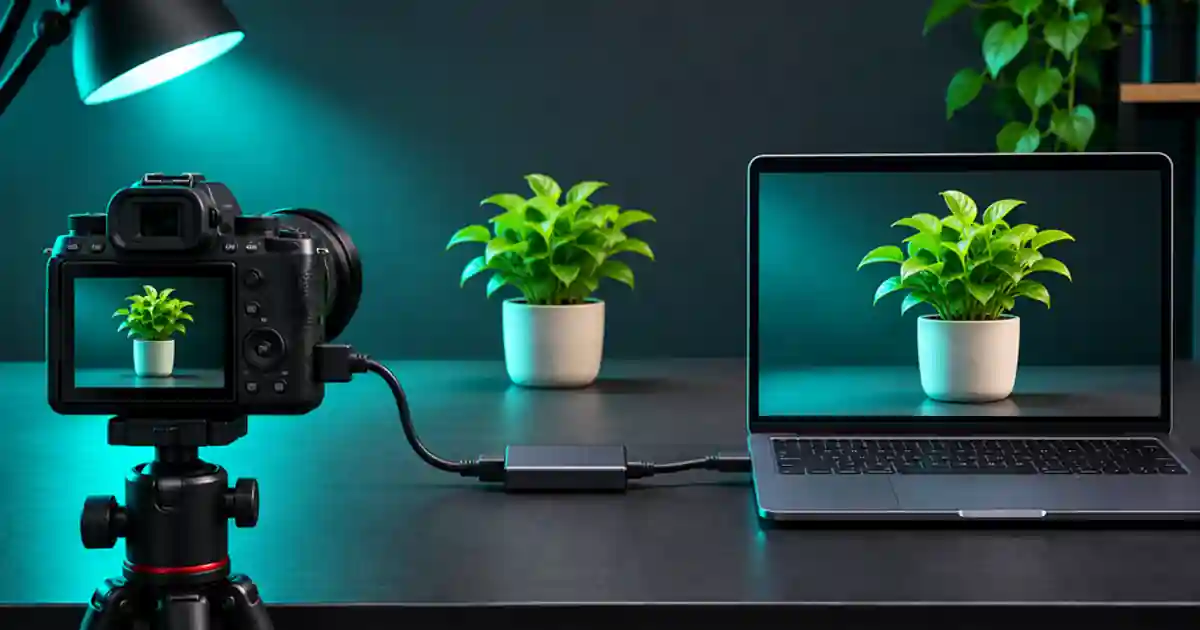

If your OBS camera feed shows focus boxes or battery icons, I recommend checking what the camera sends over HDMI before cropping the source. A clean HDMI signal is the picture without those camera overlays. The capture adapter can receive the output your camera provides. I start by testing the output itself, then set up the OBS scene.
My gear pick for this setup
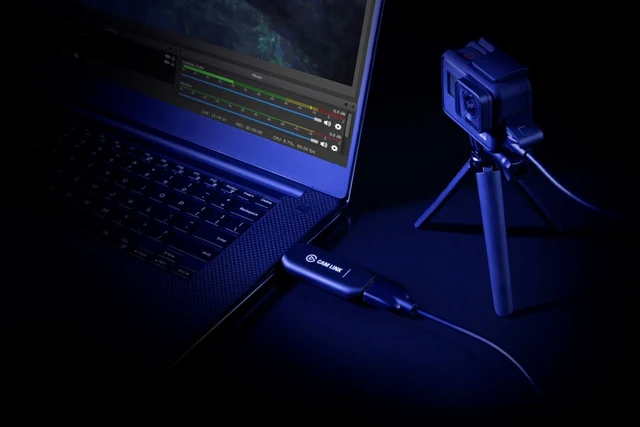
Elgato Cam Link 4K
A capture adapter for a supported clean HDMI feed
I’d use Cam Link 4K if the camera can send a compatible clean output and the computer has the supported USB connection. Check both requirements before buying.
Look at the HDMI output separately
Connect the camera’s HDMI output to a compatible display if you have one. Keep the same camera mode and HDMI settings you plan to use for the OBS session. Check for a focus box, exposure information, battery state or recording overlays on that external picture. If the camera’s own rear display still shows them, that can be normal. The important view is the signal delivered externally.
In the camera manual, find the setting for HDMI information display or output overlays. The exact name and behavior vary. Some cameras change their output when you switch from photo to movie mode, press record, use an autofocus mode or open a menu. Run through the actual filming actions you will use. If the model cannot supply the desired clean mode, you may need to pick another supported output mode or a different source.
Connect the adapter and identify the source
Power the camera in an approved way, connect the camera to the adapter over HDMI, and connect the adapter to a documented compatible USB port. In OBS, add a Video Capture Device source and choose the adapter. Avoid opening a second app that also needs exclusive access to the device if it causes problems. Start with a supported resolution and frame rate. I pick a mode I can verify end to end before trying the highest one in the camera menu.
Put the source into a new scene and fit it to the canvas. Check that the picture fills the intended frame without stretching. If the adapter reports no signal but a direct monitor works, verify the adapter supports that specific input resolution and frame rate, then try the camera's simpler output mode. If the source is visible but overlays remain, return to the camera’s HDMI settings rather than masking the problem with a crop.
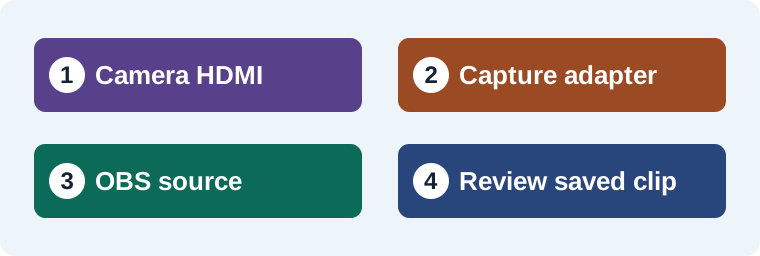
Make a short rehearsal that can reveal a returning icon
I start a 20-second local OBS recording. For the first few seconds I hold still. Then I move a product toward the camera, let focus settle and do the normal action for the tutorial. If I plan to record internally as well, I check the output while switching internal recording on and off. Open the saved OBS file and inspect each transition. A clean stationary shot does not prove the overlay stays gone when focus moves or the camera changes state.
Use one easy-to-read object, such as a label on a plain box, to test crop and focus. Add one visible clap if you need a reference for audio sync. If the camera may sleep, test the expected session length with the approved power arrangement and inspect the manual for timeout and temperature behavior. Do a shorter check every time you move to another camera or output setting.
Troubleshoot the path one stage at a time
| Symptom | Check first |
|---|---|
| Icons visible on direct HDMI and OBS | Camera output information and movie mode. |
| Direct HDMI works, adapter reports no signal | Adapter input format, cable and USB connection. |
| Picture shows but framing is wrong | OBS source transform and canvas aspect ratio. |
| Recording loses picture after several minutes | Power, sleep, temperature and connection stability. |
I write down the working camera mode, output format and capture source name. The camera capture card guide covers hardware selection and the separate OBS audio tracks workflow covers independent narration and desktop audio. Keep a short known-good recording with the notes so a later change is easier to diagnose.
Plan the supporting shot after the feed is clean
For a tabletop demonstration I keep the live camera source for the actual handling. If I need a supporting transition or concept clip, I can plan one in Video Lab and compare it with the captured setup before cutting it in. Match direction and timing so the viewer can still follow what happened on the work surface.
I keep an eye on the OBS recording indicator during the rehearsal. Watch the saved file afterward rather than relying on the preview. If the device has multiple outputs, note whether the feed comes from the camera or a proxy source in the scene. Check the active camera by briefly moving a neutral card in front of the lens. This is useful when a virtual camera or an older source has a similar name.
Keep a five-check rehearsal with your scene
I’d save a short record that shows the camera at rest, a hand entering, a focus change, the expected recording state, and the ending frame. Inspect all five moments in the saved file. If a box appears only during focus, return to the camera output settings and test that behavior again. If the picture disappears only after changing formats, compare the camera’s output to the adapter’s published input support. Name the OBS scene and camera mode on the worksheet. A saved rehearsal gives a second editor something to compare if the output is cropped or the framing shifts. Check the full scene separately from the raw source so a transform issue has a clear home.
Download the camera capture workflow worksheet (CSV)
Frequently asked questions
Can OBS remove icons already in the HDMI picture?
Change the camera’s output when possible. Cropping can hide an edge overlay at the cost of framing, and it cannot reliably recover pixels beneath an icon.
Why are icons still on the camera screen?
The internal display and HDMI output can behave differently. Use an external display or the recorded OBS clip to check the delivered image.
What if I get a black screen at 4K?
Check the exact format supported by the camera, adapter and USB path. Test a documented lower output mode to isolate the connection.
Should I test while the camera is recording?
Yes, if you plan to record internally during the session. Some cameras change what they send when recording starts or stops.
Sources and further reading
Affiliate disclosure
As an Amazon Associate I earn from qualifying purchases.
Continue with a useful next step
 Video
Capture Cards for Cameras: Check the Whole Recording Path
Connect a camera to your computer with the right HDMI capture adapter. Check clean output, USB support, Cam Link revisions, audio sync and a real recording.
 Creator Workflows
OBS Separate Audio Tracks for Mic and Desktop Sound
Set up separate mic and desktop audio tracks in OBS. Keep a combined preview mix, test the isolated tracks and fix missing or doubled audio before editing.
 Creator Workflows
OBS Screen Recording: Capture a Clear First Tutorial
Set up an OBS screen recording with a deliberate capture source, clean microphone routing, and an export check. Use a short test plan before your full tutorial.