
To flip an entire image in Photoshop desktop, choose Image → Image Rotation → Flip Canvas Horizontal or Flip Canvas Vertical. To mirror only one layer, select it and choose the corresponding flip under Edit → Transform. Use a whole-canvas flip when every layer should mirror and a layer transform when the background or lettering should stay as it is.
A horizontal flip exchanges left and right. A vertical flip exchanges top and bottom. If you only need to inspect the layout from another direction, a view-only mirror can help where your version offers one. It changes how you see the document while the saved image keeps its orientation.
Decide what should move before choosing the command
Open the Layers panel and inspect the subject. If the subject, background and heading are separate, you can select only the subject. If they arrived as one flattened image, you cannot flip the subject independently without isolating it or returning to the editable source. Keep a duplicate document or layer for a useful before-and-after comparison.
Write down what must stay readable or true to the original. A logo, readable label, product control, uniform detail, or text on a sign may make a mirrored subject unusable. A direction can matter for a tutorial too. If the original shows the knob to turn on the left, a mirrored frame may give a different instruction.
Adobe's whole-image instructions cover the canvas commands. Its layer flip guide covers selection and a targeted transform.
Mirror one layer and check the position
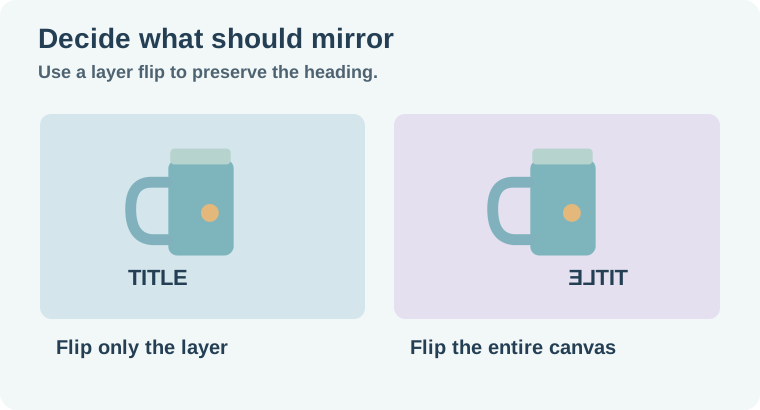
Imagine a product image with a subject, a background, and an editable heading. The brief calls for the subject to face toward the heading. Select its layer and choose Flip Horizontal. The heading remains readable because it was not part of the transform. Compare the subject's new edges with the background. You may still need to move the layer to create more space for the heading.
If the subject has a linked mask, check the mask after the transform so the correct part remains visible. If you intend to flip several parts together, select the intended layers or group and verify which properties move. Preserve your original layer and any attached effects until the comparison is approved. The layered product graphic guide shows why a separate background, type and subject make later edits easier.
Check for contradictions. A mug that faces the other direction can be a harmless composition edit. A kettle with a specific on-product label, visible switch or handle orientation may no longer show the approved version. Consider a new source photograph if the details must stay exact.
A layer flip changes the direction of the layer itself. If you wanted to put the object on the other side of the layout, check its position after mirroring and move it separately. Check the spacing with the actual heading in place. This is especially useful when the new direction points toward the text but the object still covers the intended margin.
Compare with a full-canvas flip
Duplicate the document and apply the whole-canvas horizontal flip. Compare the heading, any watermark, and all visible background features with the original. The entire scene flips, including readable text. This can be useful when assessing a composition or turning an abstract texture around. For a graphic you will publish, inspect every readable element and restore the parts that should remain oriented correctly.
A vertical flip makes different problems visible. Gravity, shadows, and object reflections can look wrong when an object is upside down. If you intended to rotate a sideways image, use rotation instead. A rotation changes the angle while a flip creates a reflection. Try the operation on a clear corner or asymmetric shape so you can see the distinction immediately.
If the lettering needs to be rewritten rather than repositioned, see the editable Photoshop text guide. Use the separate layer to restore correct reading direction.
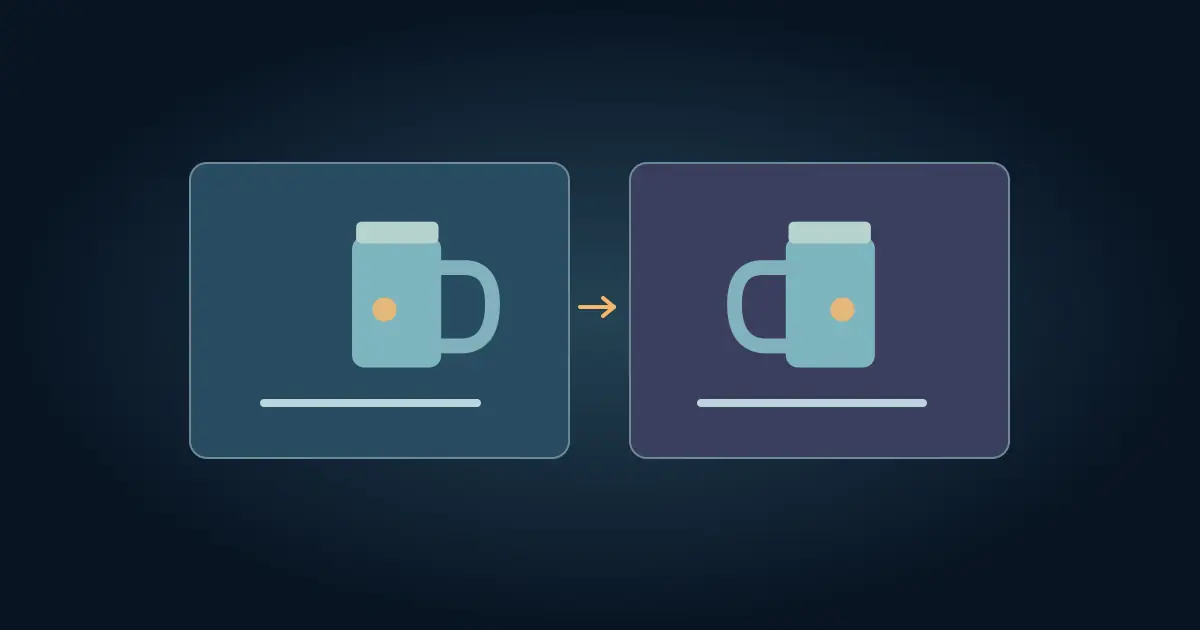
Try a simple orientation proof before choosing which version to send. Put the original on the left and the proposed edit on the right at the same scale. Mark one feature that should flip and one that must stay in place. In the sample, the handle changes sides while the heading stays readable. If a product in a series has a matching side view, compare both images together. A reversed switch or logo can make two images of the same item look like different variants.
Approve the exported image against the original
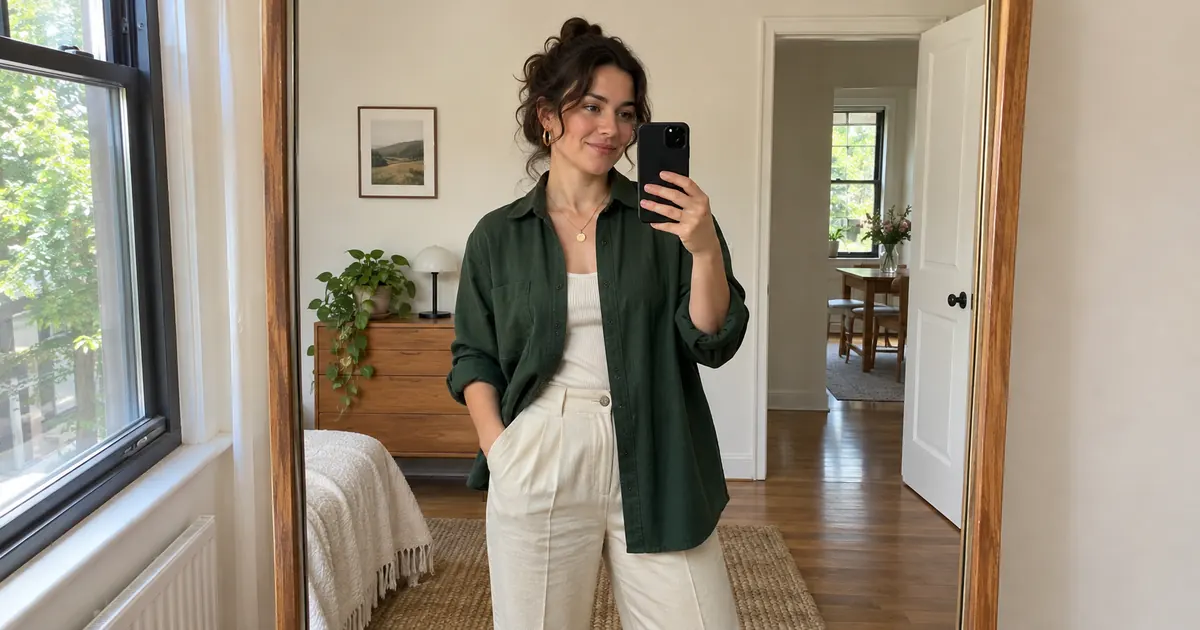
Compare the original and new version at full size. Look at the most asymmetric detail first. Check the product label, buttons or hardware, direction of the strongest shadow, and the position of any readable sign. When the flip is part of a photo edit with a mirror, use the reflection check workflow to verify objects and reflections agree.
Open the exported image away from Photoshop. A view-only flip can make the editor preview look different from the real file. Inspect the actual image and identify which orientation it contains. Keep the editable document and the proof together so a later editor can see which layers were transformed.
How QuestStudio helps
Use Image Lab to explore a supporting composition if you need a new orientation without reversing a factual label or detail. Keep the approved original visible when comparing the result. For exact placement of a product layer, a local transform in Photoshop gives you a simple operation you can inspect.
Use the mirror proof sheet to record the scope and the details you checked. A clear before-and-after makes the choice easy to revisit.
Download the photoshop mirror proof sheet.
Frequently asked questions
How do I flip one layer without flipping text?
Select the intended layer and use Edit → Transform. Leave the text layer out of the selection.
What does Flip Canvas Horizontal do?
It mirrors the entire canvas left to right, including visible text and other layers.
Is flipping the same as rotating?
A flip mirrors the image. A rotation changes its angle without making it a reflection.
Can I flip only a flattened subject?
You need to isolate it into an editable layer or return to a source with separate layers.
How do I know whether I changed the view or the file?
Open an exported proof outside Photoshop and compare its orientation with the original.