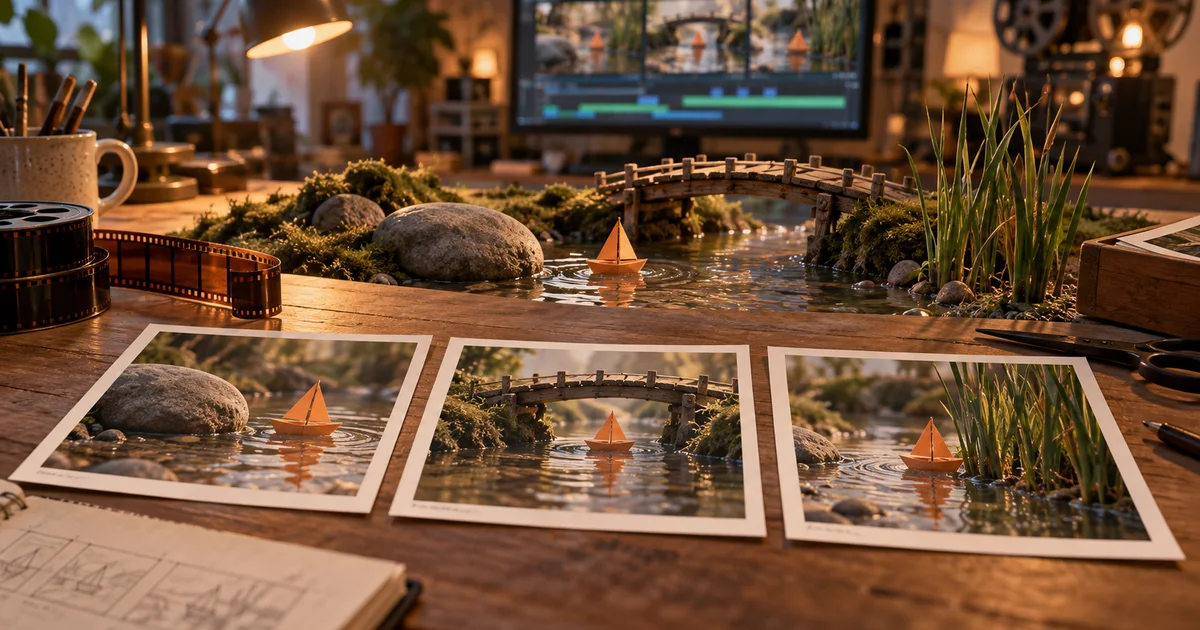

Three attractive clips do not automatically become one scene. A boat can change direction between shots, daylight can move to the other side of a bridge, and an object can arrive somewhere it never traveled. Google Flow Scenebuilder gives you a place to arrange the clips. The editing decisions still need to make their relationship believable.
Download the scene continuity ledger · Develop a source clip in Video Lab
Feature information checked September 17, 2026. The paper-boat scene is an original planning exercise, not a reported Flow render. The hero is an AI-generated editorial illustration.
What Scenebuilder does—and what a cut still needs
Google’s current instructions describe adding clips through More → Add to Scene, arranging them, trimming their ends, previewing, and downloading the result. Flow also keeps earlier clip versions in History. Those are useful assembly and recovery controls; arranging two clips does not itself resolve their visual contradictions. See the official Flow editing guide for the controls available on desktop.
Think of a join as a question the second shot must answer. Where did the subject go? Did the action continue? How much time passed? A wide shot followed by a close-up can omit travel if the viewer understands the geography. A nearly identical view with a suddenly different prop usually reads as an error.
Plan one small journey, with three visible landmarks
Our example is a short scene of an orange paper boat floating past a stone, beneath a footbridge, and toward reeds. The boat’s journey is the entire story. We do not need a second character, a storm, or a surprise camera orbit. Keeping the action small makes continuity problems easier to diagnose.
Write the fixed facts before generating: the boat has one triangular sail and a dark wet edge; it moves left to right across the screen; the light comes from the left; the stone, bridge, and reeds belong to the same narrow stream. The exact wording matters less than having a reference you can check after an attractive result tempts you to change the brief.
| Shot | Start state | End state | Useful cut point |
|---|---|---|---|
| A: departure | Boat beside the stone | Boat nearing the bridge shadow | After its direction is unmistakable |
| B: passage | Boat entering the same shadow | Boat clearing the bridge | Once the sail is fully visible again |
| C: arrival | Boat leaving the bridge area | Boat slowing beside reeds | After a readable moment of stillness |
This is a state ledger, not a requirement to show every second of the journey. If the bridge passage proves unreliable, a clear departure followed by a clear arrival may communicate the story better. You can remove a shot without losing the objective.
Choose an extension only when you want the same shot to continue
Flow’s documented Extend action applies to Veo-generated clips. Select the clip, choose Extend, describe the continuation, and generate. The same help page warns that other listed video edits cannot be applied to extended clips; save a useful earlier version before committing to that route. Older tutorials may show controls that differ from your current interface.
For our scene, extend shot A if the boat has not quite reached the shadow and the camera should remain where it is. Generate a separate shot B if you want a closer view under the bridge. Trying to force a new viewpoint through a continuation can create an awkward travel move when a simple cut would do.
A practical decision is: “Do I need more time, or different information?” More time suggests an extension. Different information suggests another angle. Neither choice guarantees visual consistency; it only gives the model and the edit a clearer job.
Build and approve the first shot before requesting its neighbors
Make the first shot your reference for scale, color, folds, and light. Reject a source with an ambiguous boat shape. If you approve a boat whose sail changes halfway through, the next generation inherits an unresolved identity problem. Save both the source file and a clear reference frame.
Flow documents saving a paused frame for later use as an ingredient or a start/end frame. Choose a frame that actually shows the needed details. A motion-blurred frame at the darkest moment under the bridge may be the chronological end of a shot, but it is a poor description of the boat.
Use this proposed description as a starting brief, then adapt it to the inputs and model you have selected. Keep camera direction separate from boat direction in your notes. A camera tracking right alongside the boat may hold the boat near the middle of the screen even though it continues downstream.
Assemble the rough scene before polishing individual clips
- Add the approved candidates to the scene and place them in story order.
- Trim obvious setup and unstable ending frames, while keeping enough material to adjust the joins.
- Preview all three shots without pausing. Write down the first moment that feels confusing.
- Inspect that join rather than regenerating the entire sequence.
- Download a review copy and watch it at the intended delivery size.
At the first join, compare the boat’s direction, sail side, distance from the bridge, and shadow position. At the second, compare the exit side and speed. A slow boat that suddenly accelerates can feel discontinuous even when the reference details match.
Do a silent review first if generated audio distracts you from the picture. Then restore the intended sound. A continuous stream ambience may help connect an intentional time skip, but it cannot explain a boat appearing on the wrong side of the bridge. Fix the visual story before using sound to smooth it.
Repair the join with the smallest useful change
If the boat reverses direction, try another candidate or revise that shot’s movement brief. Mirroring is only safe after checking asymmetrical details, the lighting, and the whole scene geography. If the start of B looks wrong but its middle works, a later entry frame may solve the problem without another generation.
If the scale jumps, decide whether the change reads as an intentional closer view. A clear wide-to-close cut often works better than two almost-identical framings with different object proportions. If the sail shape changes, that is an identity failure; trimming helps only when a stable usable range remains.
If the bridge itself keeps changing, reduce how much of it appears in the second shot or return to a clearer approved reference. Avoid hiding every error with a transition. A dissolve can make two incompatible structures visible at once, drawing attention to the mismatch.
Define a stopping point you can actually inspect
The scene is ready for review when a viewer can describe the journey correctly, the boat remains recognizable, and each cut has a deliberate reason. Save the selected filenames and trim points. “Best-looking version” is a weak approval note; “consistent sail, readable passage, clean arrival” tells the next editor what must survive.
For a first experiment, develop a restrained source shot in QuestStudio Video Lab. The available model controls vary; Flow’s Scenebuilder and Extend features belong to Google Flow. You can apply the same ledger in another editor if your source clip is not eligible for Flow extension. For larger assemblies, continue with the AI video editing workflow.
Frequently asked questions
Should every shot use the previous shot’s last frame?
No. Use a frame that communicates the subject clearly, and choose references appropriate to the new view. A dark or distorted final frame may carry errors forward.
Can I extend any uploaded video in Flow?
The current Google help page specifies Veo-generated clips for Extend. Check eligibility in your project rather than assuming every uploaded clip supports it.
Why does a scene still feel wrong when the subject matches?
Screen direction, action timing, scale, light, and geography also affect continuity. Inspect the actual join, including the frames immediately before and after it.
Does a longer sequence require more generated shots?
Not necessarily. A deliberate hold, a useful extension, or removing a redundant beat can improve a scene. Let the story determine the number of shots.