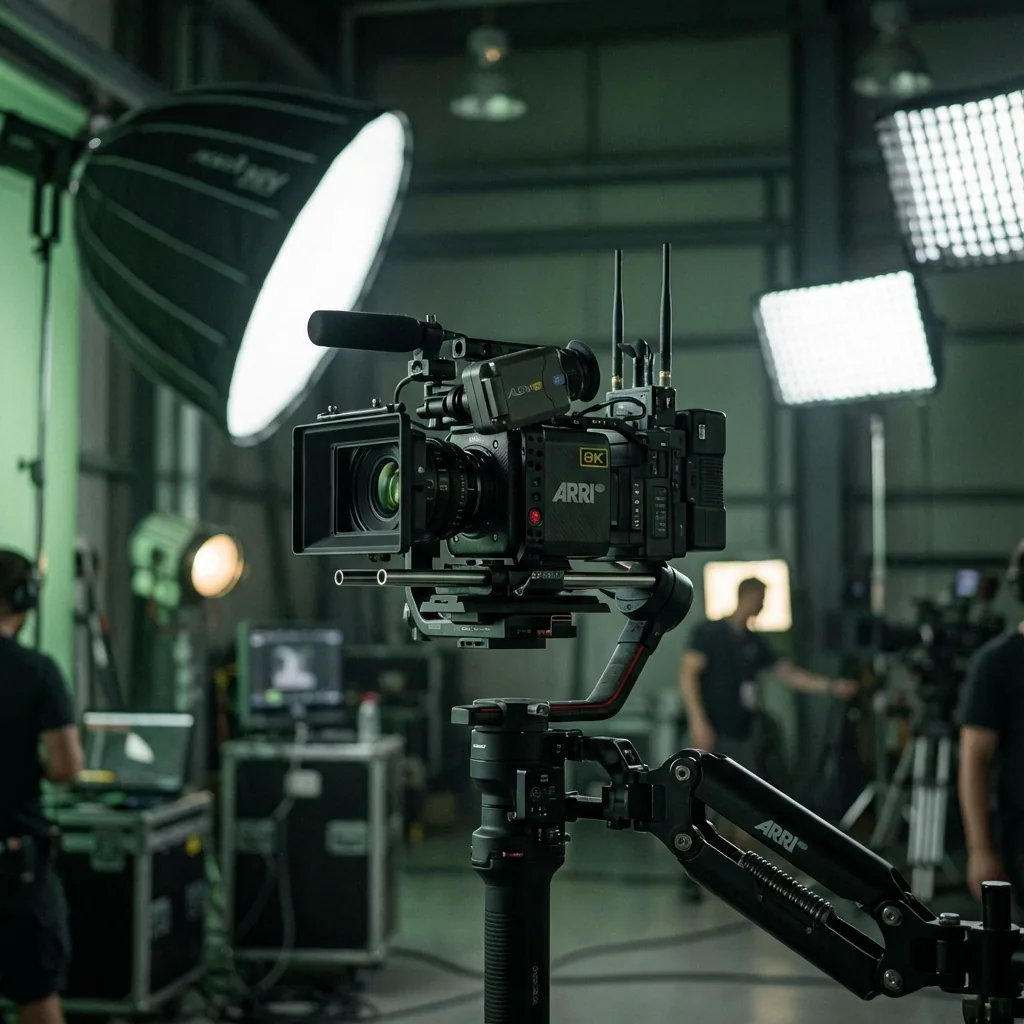

This free Veo 3 prompt generator turns a rough video idea into a structured, natural-language prompt for Google Flow and Veo 3.1. Choose the kind of shot, camera movement, duration, aspect ratio, lighting, visual treatment, sound, and optional dialogue. The builder runs in your browser, so you can generate and copy the prompt without creating an account.
This page creates the production brief; it does not pretend to render a video by itself. Once the prompt looks right, copy it into Google Flow or preserve it through signup and open QuestStudio Video Lab. That separation matters because a useful prompt tool should help you make a better decision before you spend credits on another generation.
Build a Veo 3.1 prompt
Start with one visible action that can finish inside a short clip. Then choose one camera move and add only the details a viewer can see or hear. The generator follows the same core areas in Google DeepMind's official Veo prompt guide: framing and motion, style, lighting, character, location, action, dialogue, and audio.
QuestStudio Director's Seat
Video Prompt Builder
How this Veo 3 prompt generator works
The builder is intentionally deterministic: the same choices produce the same prompt. That makes revision useful. If a clip misses the mark, you can change one control—camera movement, lighting, duration, or sound—and know what changed between attempts. Random adjectives and invented model flags make a generator feel active, but they make it harder to learn why an output improved.
- Describe one shootable moment. Name the subject and the action that should happen on screen. “A runner crosses a wet intersection” gives the model an observable event; “an inspiring athletic story” does not.
- Choose production constraints. Select a camera move, visual look, duration, aspect ratio, and lighting setup. These choices define how the moment should be photographed rather than adding unrelated decoration.
- Direct the soundtrack. Add ambience, synchronized effects, and a short line of dialogue when needed. Keep spoken text brief enough to fit the selected clip instead of asking a character to deliver a paragraph in eight seconds.
- Generate, review, and carry it forward. Copy the prompt for Google Flow, or choose “Use in Video Lab.” QuestStudio stores the generated text in the current browser session and restores it after signup so you do not land on another blank prompt field.
The generator outputs normal prose rather than fake command-line switches. Google’s public Veo examples use natural-language descriptions; there is no need to append unsupported text such as a random seed or a made-up “high fidelity” flag. If a specific product surface exposes a setting, choose it in that interface. Keep the prompt focused on the scene.
What the generated prompt controls
A good generator should not merely make a sentence longer. Each field should resolve a production decision that would otherwise be left to the model. This tool assembles the controls below in a readable order.
| Control | Decision it makes | What to avoid |
|---|---|---|
| Subject + action | What viewers see change during the clip | Abstract themes or several unrelated actions |
| Camera | How the shot is framed or moves | Stacking a pan, orbit, zoom, and crane move together |
| Duration | How much action can reasonably fit | Writing an entire scene for a short clip |
| Aspect ratio | Whether the composition serves landscape, vertical, or square placement | Putting important details outside the intended crop |
| Light + look | Mood, contrast, texture, and visual treatment | A pile of conflicting style labels |
| Audio + dialogue | What should be heard and who speaks | Long dialogue, unnamed speakers, or contradictory music cues |
Duration availability can vary by model and mode. Google Flow currently documents common 4-, 6-, and 8-second generations, with some combinations supporting 10 seconds. Treat the duration selector as a writing constraint and confirm the active model’s options before rendering. The complete Veo 3 prompt guide explains those limits and includes ten task-specific templates.
Example: from a rough idea to a usable prompt
Suppose the starting idea is “a skincare creator showing a serum.” That is a topic, but it does not yet tell Veo what should happen, how the product must remain visible, or what the creator says.
A skincare creator showing a serum.
Create an 8-second 9:16 vertical cinematic shot. A skincare creator raises an amber serum bottle beside a bright bathroom window and holds the label toward the camera. Use a slow push-in with soft diffused daylight and a clean digital look. Preserve the bottle shape, cap, label placement, and amber color throughout the shot. Audio: clear casual voice and quiet bathroom room tone; no background music. The creator says, “This sits perfectly under my makeup.” One continuous shot with no cut.
The improved version is not better because it has more adjectives. It is better because it specifies a visible action, a delivery format, one camera move, product continuity, and sound. If the first result distorts the label, the next test can keep everything else fixed and reduce the hand movement. For more product-specific continuity rules, use the AI product video prompt workflow.
How to choose the right settings
Choose one camera behavior
A static shot is useful when dialogue, product geometry, or facial stability matters more than spectacle. A tracking shot helps communicate movement through a location. A push-in emphasizes a reveal or emotional beat. Orbit and FPV-style motion can feel energetic, but they ask the model to solve more changing geometry. Begin with the least complicated movement that communicates the idea.
Match the action to the duration
Four seconds is enough for a single visual hook: a lid opens, a light turns on, or a character looks toward camera. Six to eight seconds can support a setup and one completed action. Ten seconds, where available, creates more room for dialogue or a deliberate reveal, but it still is not a multi-scene commercial. If the idea needs a location change or several story beats, write separate prompts and edit the approved clips together.
Choose aspect ratio before composition
Use 9:16 vertical when the clip is designed for Reels, Shorts, or TikTok and keep the subject near the center-safe area. Use 16:9 for cinematic landscape framing, presentations, and conventional video players. Square can be useful for flexible feed placements, but it gives wide motion less room. Aspect ratio is not a finishing detail: it affects subject placement, negative space, and the path available to the camera.
Write sound as production direction
Separate the sound layers you actually need: spoken dialogue, synchronized effects, ambient room tone, and music. “Audio: spoon taps ceramic, caramel cracks, quiet kitchen ambience; no music” is easier to evaluate than “amazing cinematic sound.” When dialogue matters, name the speaker and quote one short line. If the clip returns garbled speech, shorten the line before changing the visual prompt.
What a prompt generator can—and cannot—fix
A structured prompt reduces ambiguity. It cannot guarantee perfect hands, readable packaging, exact lip sync, stable identity, or a finished commercial on the first try. Video generation remains probabilistic, so the useful unit is not “one prompt” or “one generation.” It is the approved clip.
After each attempt, score only a few dimensions: did the requested action finish, did identity and geometry remain stable, did the camera follow one clear instruction, and did the audio match? Change one variable for the next attempt. The cost-per-usable-clip framework helps compare models and prompt revisions without mistaking a low generation price for a low production cost.
If a reference image is available, consider an image-led workflow when appearance matters more than discovery. Text-to-video is useful for exploring compositions; image-to-video gives the model a concrete first frame. The text-to-video versus image-to-video test shows how to choose between them before spending credits.
Veo 3 prompt generator FAQ
Is this Veo 3 prompt generator free?
Yes. You can build and copy prompts in the browser without an account. Creating the actual video requires access to a compatible video model, and QuestStudio asks you to create an account before using its Video Lab.
Does this tool generate the Veo video itself?
No. This page creates the prompt. After reviewing it, copy the text for Google Flow or continue through signup to QuestStudio Video Lab to render it with a supported model.
Does the generator work for Veo 3.1 and Google Flow?
Yes. It produces structured natural-language prompts using the scene, camera, style, lighting, action, dialogue, and audio elements documented in Google's Veo prompt guidance.
How long should a Veo 3 prompt be?
Use enough detail to describe one shootable clip, but do not confuse prompt length with quality. A focused prompt that specifies the visible action, camera, lighting, and sound is more useful than a long multi-scene script.
Do Veo 3 prompts need JSON?
No. JSON can organize fields for your own workflow, but Google's official examples use natural language. Clear instructions and compatible controls matter more than wrapping the same request in JSON.
Build the prompt, then test the shot
Use the generator at the top of this page to resolve the shot before rendering. Keep the first attempt simple, save the result, and revise only the control tied to the failure you observed. When you are ready, the generated prompt can follow you through signup into the QuestStudio Veo 3.1 Video Lab.