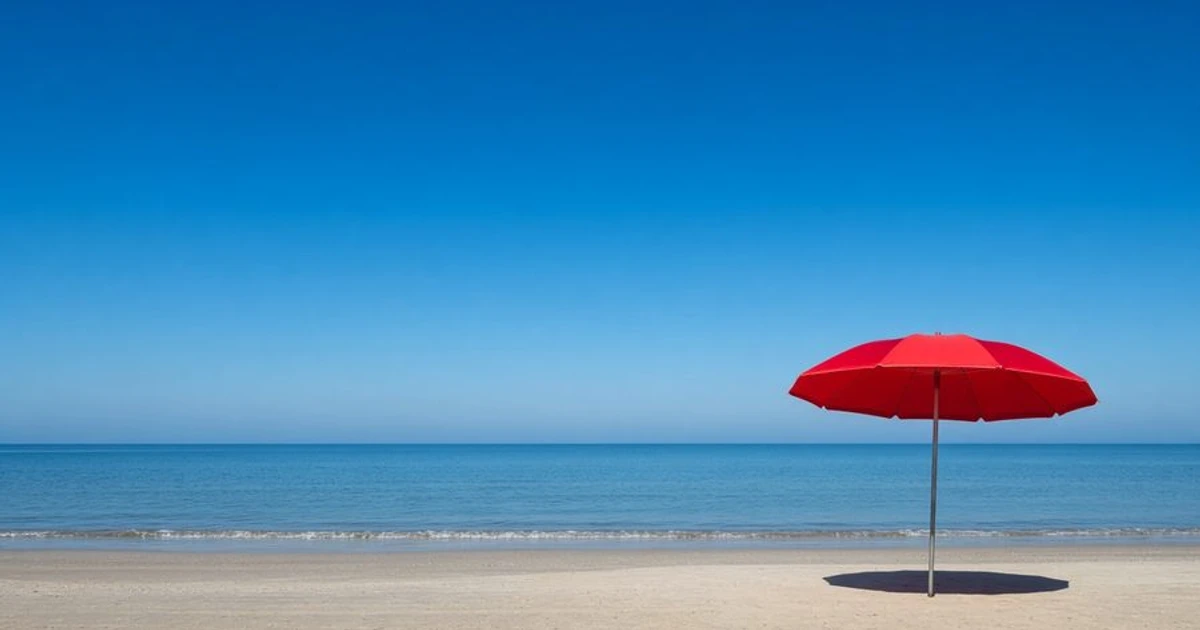

QuestStudio has added Grok Imagine Image 2.0 to Image Lab. Use xAI’s image model to turn a written brief into a fresh still for a thumbnail, newsletter cover or campaign concept. You can start with your own prompt or open the red umbrella example to see how an actual Grok image was made.
What Grok Imagine can do in Image Lab
In the QuestStudio web app, the model picker calls it Grok Imagine 2.0. This setup takes a text prompt and creates a 1K image. Start with widescreen (16:9) for a video cover, square (1:1) for a feed tile, or vertical (9:16) for a story. Portrait (3:4) and landscape (4:3) are also supported.
Pick the format before refining the brief. “Leave the left third empty” can work on a wide cover. A story cover usually needs the subject lower in the frame so a short title can sit above it. Changing the canvas shape is a good reason to rewrite the placement instruction.
For work that starts with a product photo, illustration or brand reference, choose a reference-capable image model from the picker. Seedream 5 Pro is one option when you have a single reference image. If you want to see what xAI offers across its own products, consult the xAI model documentation. The settings below describe the QuestStudio setup.
Try the red umbrella cover
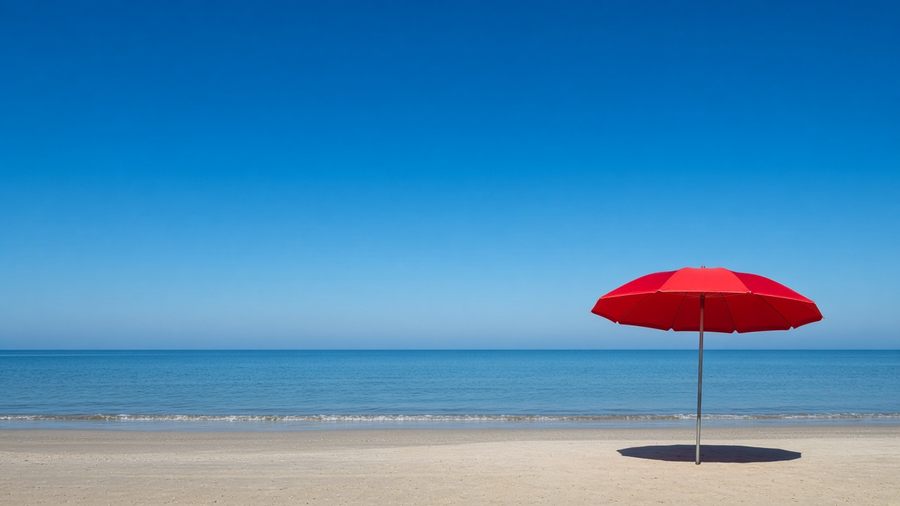
The brief calls for one red umbrella on a blue beach. The umbrella gives the image a clear focal point. Keeping the left side open leaves room to typeset the real title later. Here’s the prompt behind the example.
Editorial cover photograph of a single red picnic umbrella on a quiet blue beach, clean blue sky, wide landscape composition with the umbrella to the right and room on the left for a title, no text or lettering.- Open the Grok example and choose The red umbrella above the prompt field. It loads the original brief and widescreen format.
- Check that the selected model is Grok Imagine 2.0. Keep the brief intact for a baseline, or replace the umbrella with a subject that fits your project.
- Review the credit estimate beside Generate Image. When the setup looks right, choose Generate Image. Loading a prompt leaves that choice with you.
- Check the result at the size you plan to publish. A cover that looks spacious at full width can get crowded in a small thumbnail crop. Drop your actual title over the image and shrink the preview before settling on a composition.
If you reuse the brief, keep the purpose of the empty space in the prompt. “Space on the left for a title” is a more concrete instruction than “minimalist.” You can make the right side visually rich as long as the subject stays legible and the title area stays calm.
Adapt the prompt for your own cover
Write the asset type first, then give the model a subject, a setting, a crop and one placement instruction. If the image will sit under lettering, describe the contrast you need behind it. Dark type needs a relatively light or even background. White type needs enough separation from bright highlights.
Newsletter cover
Try “Wide editorial still life of one cobalt-blue ceramic mug on a warm wooden table, soft morning window light, mug on the right, quiet matte background on the left for a headline, no lettering.” Keep the color, object and composition fixed if you want to judge a change in lighting.
Vertical social cover
Try “Vertical cover photo of a bright orange raincoat on a hook beneath a misty cabin window, subject in the lower half, quiet dark wood above for a short caption, no lettering.” Check the upper area with your real caption before approving the image. Even a small highlight can interrupt a headline when the image is viewed on a phone.
If the first image almost works, identify the one change you need. Move the subject farther right, simplify a busy background or change the light direction. A focused revision gives you a result you can compare with the previous version.
Review and reuse the image in QuestStudio
In the updated Image Lab, the prompt, model and format stay together along the bottom of the canvas. Use Your creations to return to finished work. Save a look if you want to reuse the prompt, model and format on this device. Keep the original image in your Library if you want to carry that specific result into another project.
Before exporting, check three things. The subject should read on a phone. The intended text area should still be available after cropping. Any invented markings that look like a logo or product claim should be resolved before publication. For a campaign, put the headline on the cover in your layout tool so revisions remain easy.
If the still is going to become a clip, the Image Lab and Video Lab update shows where to add a start image and review motion. For a recurring character that depends on a specific reference, see the Grok Imagine and FLUX character consistency comparison.
Frequently asked questions
Is Grok Imagine Image 2.0 available in QuestStudio?
Yes. Open Image Lab in the QuestStudio web app and choose Grok Imagine 2.0 from the model picker, or open the red umbrella example directly.
Can I upload a reference image to Grok Imagine in QuestStudio?
The current QuestStudio Grok Imagine setup creates images from text. Choose a reference-capable model in Image Lab when you need an uploaded image to guide the result.
Which aspect ratios does QuestStudio support for Grok Imagine?
The supported ratios are 1:1, 3:4, 9:16, 4:3 and 16:9. The red umbrella example uses 16:9.
Does opening the red umbrella example spend credits?
Opening the example and loading its prompt lets you review the setup. Generation is a separate action. Check the displayed credit estimate before you start.
Can I turn a Grok image into video in QuestStudio?
Yes. Create the still in Image Lab, then use the finished image as a start frame with a compatible model in Video Lab. Write a separate prompt for the motion.
Make your first Grok cover
Open the example, change one part of the brief and see whether the result leaves enough room for the title you plan to use.
Continue with a useful next step
 Workflow
QuestStudio Image Lab and Video Lab Get a New Workspace
Find the new prompt bars, review tools and export options through a cover-to-clip workflow.
 Image
Grok Imagine vs FLUX for Character Consistency (2026)
Compare Grok Imagine Image 2.0 and FLUX.2 Pro for character consistency, then run a fair six-image test for faces, outfits, poses, scenes, and props.
 Creator Workflows
Choose an AI Model for Images, Video and Voice
Choose an AI model by the asset you need, required controls, and a small acceptance test. Use a practical comparison sheet without trusting a universal ranking.