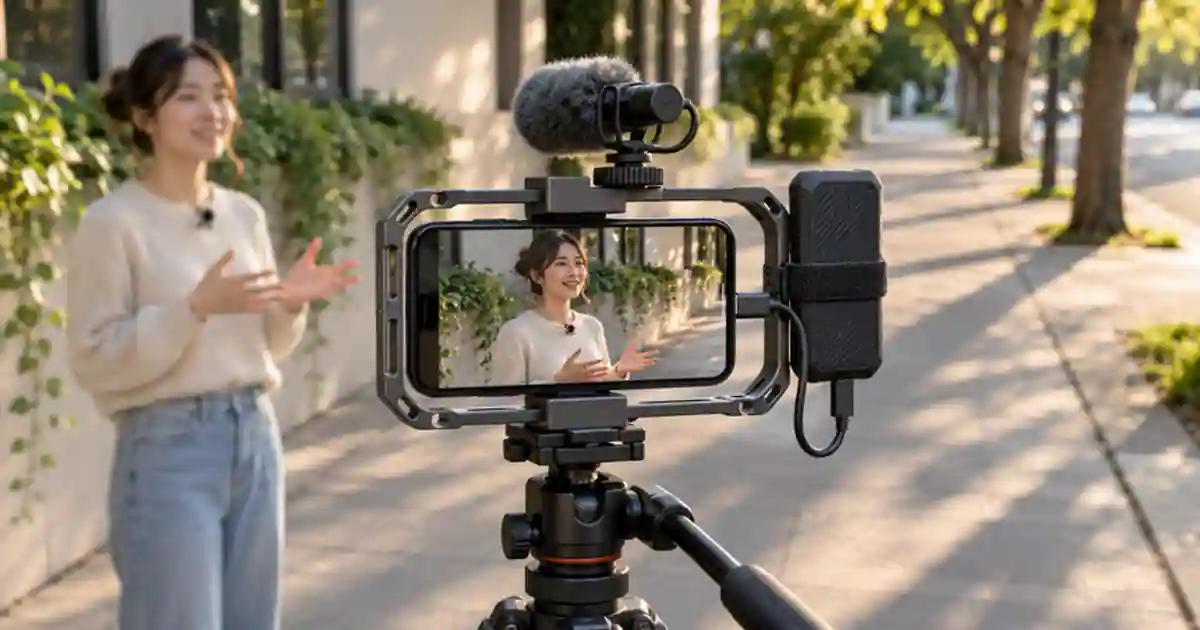

Buy an iPhone ProRes SSD for the exact mode your phone supports. Apple documents external recording on supported USB-C iPhone Pro models. Its requirements vary with frame rate. A drive that shows up in Files has passed a connection check. I’d buy only after confirming the sustained write requirement, the cable rating, and how the drive will be secured when I hold the phone.
My gear pick for this setup
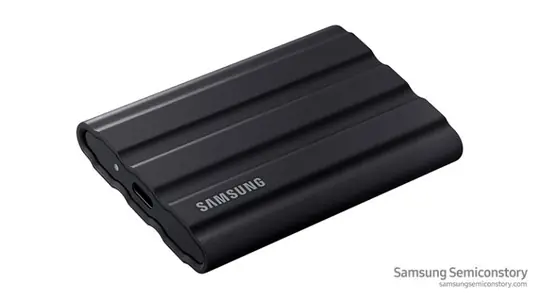
Samsung T7 Shield 2TB
For a compatible iPhone and mode where a rugged 2 TB portable SSD and a secure mount fit the rig.
I’d shortlist the T7 Shield for a 4K60 workflow after checking the phone, cable, and power requirements. Run the entire rehearsal at your chosen mode before using it for paid work.
Check the phone, recording app, and mode
Find the exact phone model in Settings and check Apple's current ProRes recording requirements. A USB-C port alone does not tell you which modes are available. Choose the resolution and frame rate your edit needs, then confirm that the camera app exposes it with external storage connected. Check the codec too. An app that saves ordinary video to the drive may still impose different requirements when you enable a higher-data-rate recording mode.
Apple specifies a USB cable rated for at least 10 Gbps for its supported external ProRes workflows, an exFAT-formatted device, and speed and power requirements for the selected mode. Apple lists at least 220 MB/s sustained write for 4K60 and at least 440 MB/s for supported 4K120 capture. Confirm the current figures against your phone and mode. An advertised peak read rate is a poor substitute for sustained write performance after the drive has been recording for several minutes.

Buy the connection and mount as a kit
Make a short list with the phone, drive capacity, cable, and mount as separate items. Check that the cable fits with your case and cage attached and that there is slack when you grip the rig. A short cable helps when the SSD sits alongside the phone. A cable that is pulled tight can work loose when you pan. Keep the drive attached to the rig so its weight is not carried by the port. Leave access to the controls and enough space to unplug the drive without twisting the connector.
Samsung documents T7 Shield use for ProRes on the iPhone 15 Pro generation in its own testing. Treat that as evidence for the described setup. For a different phone, cable, capacity, or 4K120 mode, check the individual requirements and test your combination. If your current drive already meets the requirements and runs a full rehearsal, put the budget toward a better mount or a second verified copy of the footage.
Make a full-length rehearsal
Back up anything on the drive before formatting it, then check that the camera shows the external recording destination. Record a short test and stop normally. Open the file from the external storage and confirm it plays with audio. Next, record for as long as your longest likely take. If you normally shoot several long clips in a row, mimic that sequence. Keep the same frame rate, case, cable, and mount you expect to use. A thirty-second test in a cool room gives limited information about a long take on location.
During playback, inspect the first and last sections and scrub through the middle. Review audio and duration. If recording stops, note when it stops and whether the drive disappeared from the phone. Change one variable at a time. Try the known rated cable directly connected and repeat at the same mode, then test a lower mode separately. The SSD connection test helps isolate a cable or host-port bottleneck when you can also check the drive on your computer.
Plan for the handoff before the shoot
Use a sample clip from the rehearsal to estimate capacity. If the file is 8 GB for one minute in your actual mode, twenty minutes of similar footage is roughly 160 GB before allowing room for other takes and file-size variation. Keep free space for retakes. Copy the footage to a separate destination, check the file count and durations, and verify the copies before erasing the camera drive. An attached SSD is the recording destination. A second verified copy makes the footage recoverable if that drive fails.
For a product shoot, keep the real action and label frames as source clips. If a cut needs a short atmosphere insert, use a still from the approved footage as a reference in Video Lab. Keep the generated insert labeled in your project so you can quickly find the actual demonstration.
Consider the file size before changing codecs
A product test clip for a short listing may already look good in the standard video mode. Record both formats under the same light and inspect the graded export, especially in dark packaging and colored reflections. Check how long each takes to copy and how it plays in your editor. I’d buy external capture gear when the edit needs the ProRes source or the recording is too long for the phone, and I can accommodate the extra copies and transfer time.
A one-take SSD rehearsal
Pick the longest single shot you expect to film. Enable the exact mode, record a ten-second clip, and confirm it exists on the SSD. Then record the full planned duration while handling the rig normally. Check the file size, start and end, and audio on the device you use for editing. Save the cable and drive model beside the recording mode in your notes. If the test stops early, reproduce the failure with the same mode and a second known rated cable before assuming you need a different drive.
Download the iphone prores storage worksheet (CSV)
Frequently asked questions
Can any USB-C iPhone record ProRes to an SSD?
External ProRes capture depends on the iPhone model, camera app, and recording mode. Check Apple's supported models and current limits for the exact phone.
Is USB-C enough to identify the right cable?
No. USB-C describes the plug. Apple specifies a cable with a data rating of at least 10 Gbps for its documented external ProRes workflow.
Can formatting erase my footage?
Yes. Copy and verify anything you want to keep before formatting, and check you selected the intended external disk.
Why does the drive work in Files but fail while filming?
Browsing files requires less sustained throughput. Check the selected mode, cable, power needs, free space, and sustained write behavior with a representative recording.
Sources and further reading
- Apple ProRes recording and external storage requirements
- Samsung's iPhone ProRes guidance for the T7 Shield
Affiliate disclosure
As an Amazon Associate I earn from qualifying purchases.
Continue with a useful next step
 Video
External SSD for Video Editing: T7 Shield or T9?
Choose an external SSD for video and AI assets by checking your computer's USB port, project size and backup plan. Compare Samsung T7 Shield and T9.
 Creator Workflows
External SSD Slow? Test the Cable, Hub and Drive
Diagnose slow external SSD transfers with one repeatable video copy. Compare a direct port and hub, then check the source disk and longer writes.
 Creator Workflows
Proxy Editing on an External SSD for Smooth 4K
Try proxy editing from an external SSD before changing drives. Create and attach one proxy, test playback, relink originals and verify the master export.