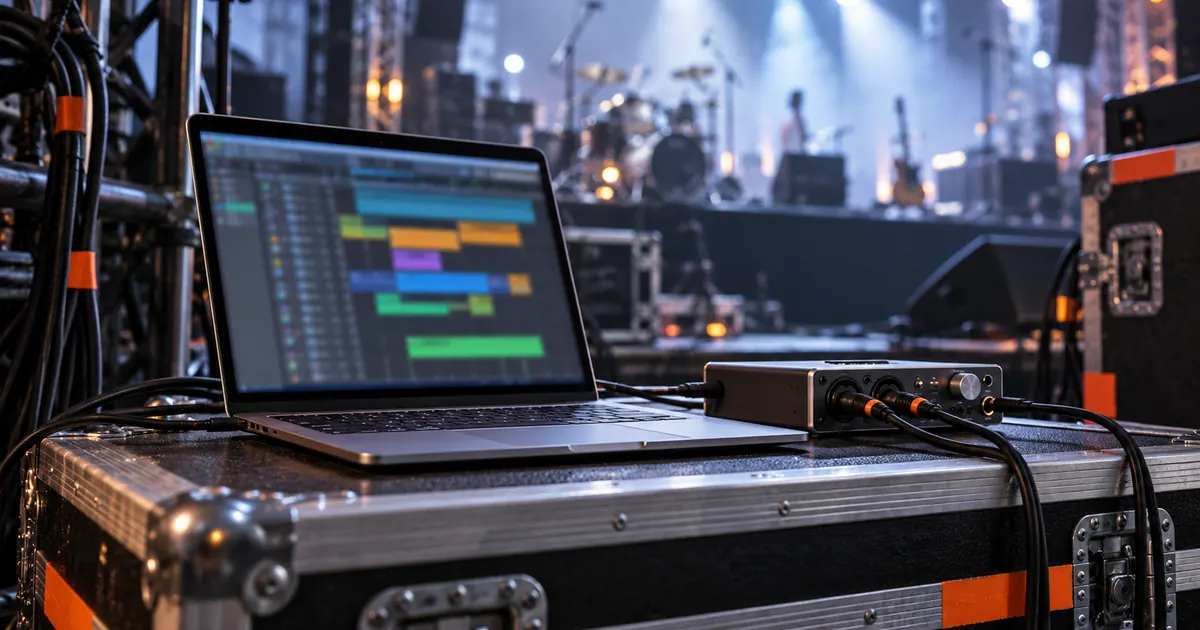

The best laptop for music production is one that runs your actual session reliably with the audio interface and plug-ins you need. Start with your software and recording method, then check processor compatibility, memory, storage, ports, and cooling. A large benchmark number is less useful than knowing whether your vocal session plays without interruptions at a workable monitoring delay.
This guide helps you choose a configuration and test it. It does not rank untested laptop models or claim measurements from machines we have not used. The original session worksheet lets you compare a current computer, a borrowed machine, or a prospective purchase on the same job.
Separate browser generation from local production
A browser music-generation workflow and a large local instrument session place different demands on your computer. In a hosted generation workflow, the model usually runs on the service's infrastructure. Your laptop still needs to run the browser, manage uploads and downloads, and play the result, but buying a powerful graphics processor does not automatically speed up that remote model.
Local recording and mixing are different. Your computer may need to process instruments and effects quickly enough to play each audio buffer on time. A session that exports successfully offline can still struggle while you sing through a chain of live effects. Decide whether you mostly arrange downloaded audio, record live inputs, or compose with large sample libraries.
| Your work | First constraint to inspect | Practical test |
|---|---|---|
| Browser generation and short edits | Browser responsiveness, storage, and supported editor | Download, arrange, and export a real short project |
| Recording voice or instruments | Interface drivers and stable monitoring | Record while the backing session plays |
| Large virtual-instrument arrangements | Memory, processor load, and library storage | Open your largest representative instrument session |
| Music plus video production | Audio requirements plus video decoding and export | Play and export the intended picture format with the mix |
Check the whole compatibility chain first
Find the weakest link before buying
Write down the exact operating-system version, workstation version, interface model, driver version, and essential plug-ins. Check each manufacturer's current support information. A computer that meets a workstation's minimum requirements may still be unsuitable if one indispensable interface driver or plug-in does not support its processor architecture.
Ableton's Live minimum requirements are a useful example of why detail matters: requirements distinguish operating systems, processors, memory, storage, and audio hardware. Its Windows compatibility guidance also recommends checking third-party plug-ins and drivers before changing the operating system.
Do not treat “the application launches” as proof that the complete recording setup works. Test the specific input, output, and plug-ins you intend to use. On an unfamiliar architecture, distinguish native application support, application emulation, and hardware-driver support. One does not establish the others.
List physical connections too. A connector's shape does not tell you every protocol or power capability behind it. Confirm the interface manufacturer's cable and port requirements, then account for an external drive, display, keyboard, and charging. A cheap adapter that disconnects under load can ruin an otherwise capable session.
Budget memory and storage from your projects
Memory holds active software and project data. Sample-heavy arrangements can need more than a small audio-only edit. Ableton's computer specification guide discusses how requirements change with track count, plug-ins, and sample libraries. Treat its recommendations as guidance for that product, not a guarantee for every workstation or project.
Before selecting a memory configuration, open a representative session on your current computer and observe memory pressure with the tools your operating system provides. Include the browser, notation software, or video player you normally keep open. A carefully staged empty session can hide the real workload.
Storage planning can be more concrete. Uncompressed 48 kHz, 24-bit stereo PCM contains approximately 17.28 MB per minute of sample data: 48,000 samples × 3 bytes × 2 channels × 60 seconds. Ten minutes across twenty-four stereo tracks is about 4.15 GB before project overhead, alternate takes, backups, and exports. These are arithmetic examples, not a measurement of a particular session.
Keep room for operating-system updates, application caches, temporary exports, and libraries. An external drive may hold a library or archive, but confirm its connection and backup process. Two folders on the same drive are not protection against that drive failing. The source session and an approved delivery deserve a separate recoverable copy.
Consider cooling, power, and monitoring
A recording setup includes the room. A laptop that becomes noisy under your session load may be difficult to place near a sensitive microphone. Test where the computer will actually sit, with the microphone in its normal position. Do not infer recording suitability from a fanless label alone; sustained performance and available processing headroom still matter.
Repeat a short session on the power source you expect to use. Battery-saving settings can change performance, and an interface may have its own power requirements. Confirm the chosen power mode, connected peripherals, and whether a dock is part of the test. Keep those conditions in the worksheet so later comparisons mean something.
Monitoring delay depends on more than the laptop's processor. The interface, driver, buffer setting, sample rate, and plug-in chain all contribute. If the interface offers direct monitoring, understand what you are hearing through that path. A direct signal can feel immediate while bypassing some software processing; that is a different test from monitoring entirely through the workstation.
Use the editing headphone guide to plan a practical listening setup. Bluetooth convenience and low-latency recording monitoring are separate decisions. Check the route you will actually use while performing.
Run a repeatable session before deciding
Download the laptop session worksheet
- Choose a representative project and preserve an untouched copy.
- Record the workstation, plug-ins, interface, driver, sample rate, buffer, and power mode.
- Play the busiest section with the tracks and effects you normally use.
- Record a short permitted input while that section plays, if live recording is part of your work.
- Save, close, reopen, and export the same range.
- Record interruptions, missing plug-ins, fan audibility, export duration, and any manual workaround.
Use two session sizes if your work varies: a typical everyday edit and a demanding project you genuinely expect to finish. Do not create an unrealistic hundred-track stress test and treat its failure as proof the laptop cannot handle a weekly two-track show. Equally, do not use a three-stem exercise to claim a computer can handle a large orchestral template.
The small music editing project supplies a simple baseline for import, arrangement, and export. It is deliberately too small to establish a laptop's maximum capacity. Use your own licensed instruments and representative effects to test the heavier workload.
If you cannot test a prospective machine, label the remaining uncertainty. Check the seller's current return conditions and the manufacturer's support information before purchase. Do not turn someone else's benchmark on a different configuration into a promise about your interface and project.
Spend on the missing requirement
Separate must-have compatibility from useful headroom and optional comfort. A supported interface driver is a requirement. More memory may be valuable if your libraries need it. A brighter display or lighter case may matter for travel, but it does not repair an incompatible plug-in.
Compare the complete setup cost, including required adapters, storage, backup, software, and monitoring. If the current computer already completes the real project reliably, a better microphone position or a clearer session organization may solve more than replacing the laptop. The recording setup guide helps trace those other constraints.
How QuestStudio helps
Music Lab offers a browser-based place to explore an original music direction. Evaluate generation separately from local editing and delivery. Once you have an approved source, use a real session to decide what hardware you need for the next stage. Buying a laptop should follow that workload, not precede it.
Frequently asked questions
Is there one best laptop for every music producer?
No. Software compatibility, live monitoring, project size, sample libraries, ports, and recording conditions change the decision. Use a representative session and the exact configuration you plan to buy.
Does browser-based music generation require a powerful GPU?
A hosted service generally runs its generation model remotely. Your local needs depend on browser use, playback, file handling, and any editing or local models you run afterward.
How much memory should I buy?
Start with your software's current requirements, then inspect the memory needs of representative projects. Large libraries and many active applications can need substantially more than a small audio-only session.
Can an external drive replace a larger internal drive?
It may store libraries or projects if the software and connection support that use. Keep adequate internal working space and a separate backup; an external drive does not remove those needs.
Did QuestStudio benchmark laptops for this guide?
No. This is a compatibility and session-planning guide with sourced software requirements and an original worksheet. It makes no measured performance claim about an untested laptop.
Sketch a music direction
Explore a browser-based music workflow, then assess the local computer work needed to edit and deliver your result.
Hero: AI-generated editorial illustration. Original teaching materials and documented feature research, checked October 28, 2026. Visual guides updated October 29, 2026. Examples are labeled where synthetic or hypothetical.