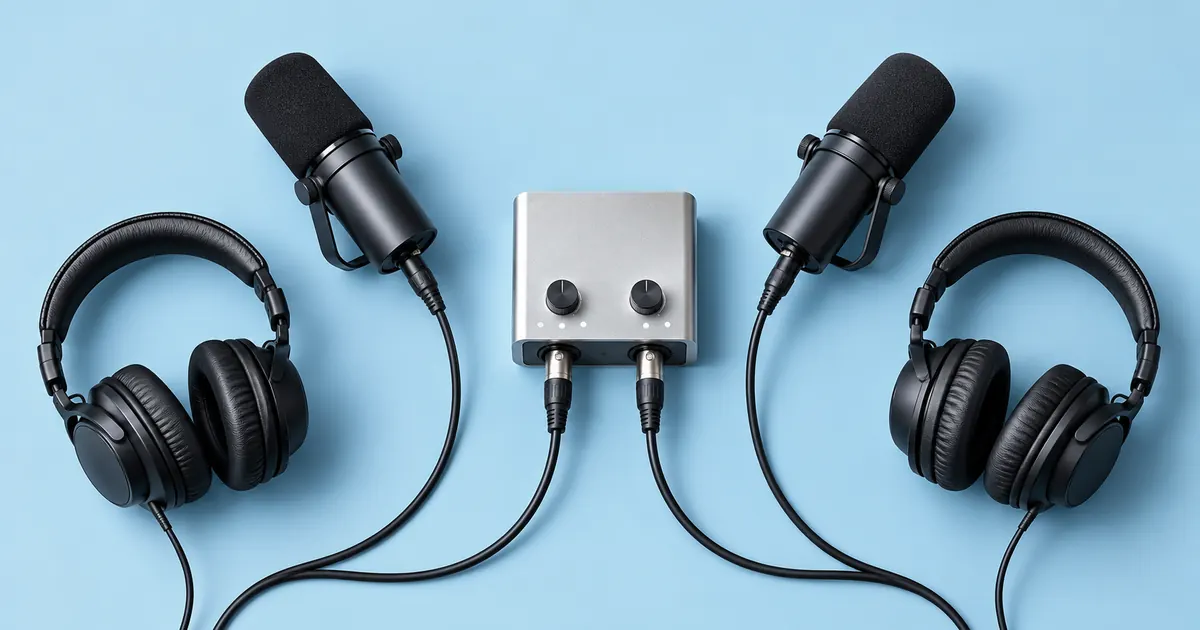

The essential equipment for podcasters is a way to capture each speaker clearly, monitor the sound, and save a recording you can edit. For one person, a phone or USB microphone and wired headphones may be enough to start. For two people in one room, plan separate microphone inputs and monitoring. For a remote guest, add a reliable way to record and preserve both sides of the conversation.
Build the signal path before shopping. Count the speakers, identify where their audio enters the system, and confirm where the recording is saved. This prevents buying a collection of individually good devices that cannot complete the session together.
Setup one: a solo host at a desk
Voice → USB microphone → computer recording app → saved audio
                  ↘ headphone monitoring, if supported
A simple USB microphone combines the microphone and a computer audio connection. Check whether the particular model supports the computer or phone you will use, whether it offers headphone monitoring, and which cable is required. “USB microphone” does not mean every adapter and mobile device combination works.
Place the microphone on a stable stand where you can speak without leaning or turning away. Keep the script at a comfortable reading angle. A boom arm can help with placement, but a suitable desk stand may already solve the problem. Avoid attaching a heavy microphone to an arm that is not rated for it.
If a phone is your starting point, use a stable support and run the short recording and export exercise. The first upgrade should address an observed limitation: poor placement, room noise, uncomfortable monitoring, or a missing connection. Do not buy an interface solely because a photograph of a studio contains one.
For specific microphone tradeoffs, the USB microphone buying guide covers existing shortlist options. Here, the decision is how the complete recording system works, not a second ranking of the same microphones.
Setup two: a host and a remote guest
Host microphone → host recording/call app → host track
Guest microphone → guest recording/call app → guest track
Each person monitors through headphones
Local backup where supported → separate recovery copy
Both sides need an intelligible microphone signal and headphones that prevent the other person's voice from playing back into the microphone. Ask the guest to make a short sample before the interview. A good host setup cannot compensate for an inaudible guest recorded beside a loud fan.
Distinguish the live call from the saved recording. Some workflows record the audio that arrives through the call; others save a local track on each participant's device and upload it later. Check the actual behavior, including what happens if the connection drops before the upload finishes.
Tell the guest when it is safe to close the recording application. Confirm the final files are present and playable before ending the session. Keep a short backup method where appropriate, but label it so nobody mistakes a lower-quality recovery track for the preferred source.
If you route a remote call through a mixer or recorder, understand mix-minus: the caller should receive the useful mix without being sent their own delayed voice again. Zoom's PodTrak P4 manual documents this routing concept for that device. Follow the manual for your exact model and connection; a similarly named recorder can have different routing options.
Setup three: two people in one room
Three recording paths at a glance
Microphone A → input 1 ┐
                       ├→ interface or recorder → separate tracks
Microphone B → input 2 ┘
Headphone output(s) → monitoring for both speakers
Count usable microphone inputs, not just visible sockets. A two-channel device may include a combination of microphone, instrument, or line inputs with different requirements. Confirm that it can record the two microphones in the way you intend and that the application can select those channels.
Prefer a workflow that preserves separate speaker tracks when you expect to edit levels or remove interruptions. A stereo mix can be useful as a reference or backup, but it does not always preserve independent control. Verify the export or recording mode with a short test: let each person speak alone and inspect the resulting files.
Do not assume that plugging two unrelated USB microphones into a laptop creates a reliable two-input system. Device aggregation and independent clocks can complicate setup. A single compatible interface or recorder with the required inputs gives you one documented signal path to check.
Plan headphone access as carefully as microphone access. Two listeners may need independent levels, suitable outputs, or a compatible distribution device. A splitter changes the physical connection but does not automatically create separate volume control or adequate drive for every headphone combination.
Make a short room test before buying accessories
Record the same twenty-second script in the intended room with the microphone in its real position. Listen for echo, traffic, appliance noise, chair movement, and table bumps. Make one change at a time, such as moving away from a hard wall or changing microphone placement, then compare the takes.
A directional dynamic microphone may be useful in a practical spoken-word setup, but it does not erase room sound by category alone. Distance, speaking direction, gain, room surfaces, and background noise still matter. Do not buy a microphone expecting it to repair a room you have not tested.
Leave a few seconds of ordinary room sound in the test and record a louder sentence without deliberately shouting. Confirm that the input does not distort and that quieter words remain understandable. Use the 32-bit float explanation to distinguish file headroom from problems elsewhere in the microphone and recording chain.
This guide does not include measured room comparisons or claim that a particular microphone rejects a quantified amount of noise. The room exercise is yours to run in the actual recording location, where the result matters.
Build a complete compatibility and cost sheet
Download the equipment and compatibility worksheet
| Item | Check | Common missing piece |
|---|---|---|
| Microphones | Connection, mounting, and power requirements | Correct cable or suitable stand |
| Interface or recorder | Required input count, recording mode, and device compatibility | Storage card, power supply, or driver |
| Headphones | Usable outputs and comfortable monitoring | Adapter or second listening output |
| Computer or phone | Supported application, free space, and reliable power | Powered adapter or adequate storage |
| Backup | Independent recoverable copy | Time to verify the copy actually opens |
Separate items you already own from new purchases. Add the actual checkout price, date, tax, shipping, required adapters, and any recurring software cost. A microphone-only budget is misleading if it cannot be mounted, connected, or monitored without additional spending.
Write “not verified” rather than guessing a compatibility answer. Resolve that row with the manufacturer's current documentation or a small test. If a seller bundles a cable, confirm that it carries the required data or audio connection rather than assuming every included lead serves the same purpose.
Run the acceptance check before the real episode
- Connect the complete setup and select the intended recording inputs.
- Have each speaker identify themselves and read the same short sentence.
- Confirm monitoring without an echo or distracting delay.
- Record a short exchange at normal speaking levels.
- Stop, save, and open the files outside the recording screen.
- Verify separate tracks where promised, clear first and last words, and an available backup.
Keep the successful settings with the session notes. If you change a driver, cable, application, or recording mode, repeat the short check. A setup that worked last month can change when one part of the chain changes.
Choose equipment that you can repeatably set up, not just equipment with impressive specifications. The monitoring guide and session-based laptop guide help you evaluate the rest of that chain.
How QuestStudio helps after capture
Once the recording setup works, you can prepare a short intro, an original music idea, or a separate trailer asset with the relevant creative tools. Voice Lab is an optional narration step, not a replacement for recording the real participants. Preserve the original interview and review any added material as a separate production choice.
Frequently asked questions
What is the minimum equipment for a solo podcast?
A usable recording device, a stable microphone position, headphones, and a way to save and edit the recording can be enough to start. Test the complete workflow before adding gear.
Do two people need two microphones?
Separate microphones and tracks usually provide more control over each speaker. Whatever setup you choose, test both voices in the actual room and confirm the saved recording is usable.
Do I need a mixer?
Only if its routing and control functions solve a real need. A compatible USB microphone can serve a solo setup, while an interface or recorder may be enough for multiple inputs.
What does mix-minus do?
It sends a remote participant the useful program mix without feeding their own delayed voice back to them. Follow your device's documented routing and test it before the interview.
Should I buy gear before choosing the show format?
Choose the number of speakers, recording location, remote requirements, and output first. Those decisions determine the equipment and prevent buying unnecessary or incompatible pieces.
Rehearse a short intro
Use an approved script to explore optional narration choices after your real recording setup is ready.
Hero: AI-generated editorial illustration. Original teaching materials and documented feature research, checked October 28, 2026. Visual guides updated October 29, 2026. Examples are labeled where synthetic or hypothetical.