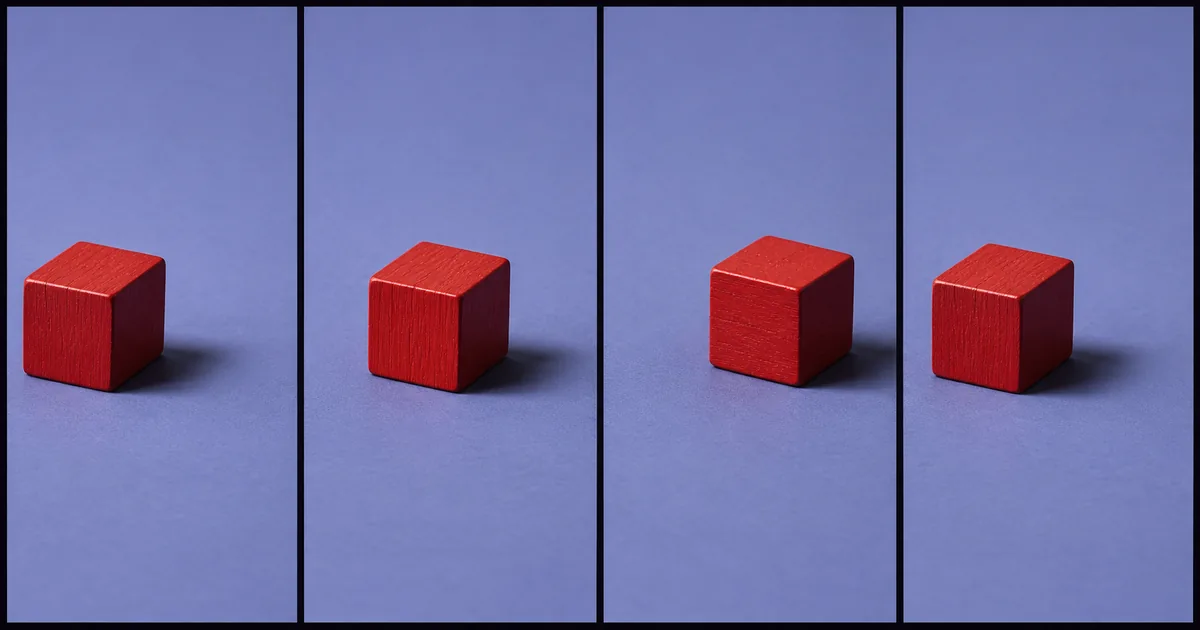

To make a GIF from a video, trim the source to a short action, choose a smaller width and frame rate, then export and work from the preview. Watch several loops and measure the file size before attaching it. Start around 480 pixels wide and 10 frames per second for a simple motion study, then adjust based on the details the viewer needs to see.
Choose a useful segment before encoding
Pick the moment the viewer needs to understand. A three-second drag and drop can explain a support question more clearly than a 20-second desktop recording. If the viewer has to read three menus first, a short video or still screenshots may be a better fit. Save the original video as the reference so you can take a different extract without piling new conversions on top of a GIF.
Set the first and last frames when the subject is in a similar position if you want a seamless loop. Some actions need a clean reset. A lid can close and the cut can return to its earlier open state if that is easy to understand. A fast cut in the middle of a pointer move tends to look like an accidental jump. Play the transition several times because the seam is often more obvious on the third repeat than on the first.
Hold a small pause on a result if it matters. For example, give a confirmation icon time to register before restarting the action. Adding a pause increases the loop duration. Compare that cost with reducing the width or frame rate somewhere else.
Keep the settings simple enough to compare
Trim first. Then change one variable at a time. Width affects every frame, while frame rate affects how many frames are sampled. Reducing the width from 480 to 320 pixels helps for a bold shape. Fine type or a thin cursor may need those missing pixels. If the motion is reserved and the main action remains legible, lowering the frame rate can preserve more detail at the same display size.
GIF stores indexed colors. For a scene with gradients or lighting changes, the palette strategy matters. Generate a palette from the same trimmed, scaled frame sequence that you will encode. Use the palette to quantize those frames. Dithering can trade subtle gradients for a visible texture. On flat art or a screen recording, a simpler palette may make a smaller and clearer result. Always look at the actual export.
For the practice clip, a coral block moves out and back over a gradient. The three downloadable GIFs hold the same source and interval constant and vary width or frame rate. The measured comparison uses the actual delivered file bytes. Your own motion and color distribution can produce very different results.
Convert a short MP4 locally with FFmpeg
This command builds a palette from a 2.5-second selection and applies it to that same branch of scaled frames. Change the start position with -ss before -i if the action begins later. For the comparison below, the practice starts at the start of the clip.
ffmpeg -i cube-motion.mp4 -filter_complex "[0:v]trim=duration=2.5,setpts=PTS-STARTPTS,fps=10,scale=480:-1:flags=lanczos,split[a][b];[a]palettegen[p];[b][p]paletteuse[out]" -map "[out]" -an -loop 0 cube-480w-10fps.gifThe frame rate filter samples ten frames per second. Scale sets the width and derives the height. The two named inputs come from the same preprocessed video, so the palette describes the image it is applied to. The GIF loop option requests continuous looping. A destination player may choose its own playback behavior. You can repeat the command with width 320 or a lower frame rate and compare the result.
If you use a graphical editor or converter, make the same decisions using its controls. Trim locally if the source is confidential and you have not approved an upload destination. Look for a stated width, duration, playback loop and export size. Some tools call a short MP4 a GIF-style animation. Check the actual delivered file extension and type.
Review the file where people will see it
Open the exported GIF at the width you expect it to be displayed. Check whether type, a pointer or the object edge is still legible. Count three repetitions and look for the seam. Refresh the page or reopen the file to check how it starts. If reduced frame rate hides the change you meant to demonstrate, restore the frame rate and reduce width or duration instead.
Read the destination's current limits before treating any specific file size as a rule. For example, an internal support system and a team chat can have different upload ceilings. If your smallest clear GIF is too large, check whether the destination accepts short video or WebP animation. If you need sound, deliver a video format. An ordinary GIF is silent.
Compare the destination's rendered result with your local copy when possible. The service may recompress, resize, loop once, replace the preview with a play button or convert to another format. An attachment that fits the upload limit can still fail if important details are visible only at full size.
Fix the symptom you can see
A jump at the restart points to the selected endpoints. Choose a new start or end before experimenting with the palette. Grain that appears over an otherwise smooth background points toward quantization or dithering. Try another palette choice and compare the area at normal size. A slow upload points to bytes, so make a shorter test or change one dimensional setting.
Use the comparison sheet to keep one row for each trial and one clear reason for retaining the chosen version. For an instruction GIF, the best export is the smallest one where a new viewer can follow the action. If the difference is hard to see, ask someone to explain the gesture from the smaller file before picking the larger one.
Practice and verification
| Version | Width | Frames per second | Bytes | Loop and readability |
|---|---|---|---|---|
| cube-480w-10fps.gif | 480 | 10 | See measured table | Reference encode |
| Version | Width | Frames per second | Total frames | File size (bytes) |
|---|---|---|---|---|
| cube-480w-10fps.gif | 480 | 10 | 25 | 104,693 |
| cube-320w-10fps.gif | 320 | 10 | 25 | 57,427 |
| cube-480w-8fps.gif | 480 | 8 | 20 | 89,308 |



How QuestStudio helps
Use Video Lab to prepare a short source with a clear beginning and end if you need a new visual. Download the chosen shot and make the animated GIF from that file. Keep the video source if you also need a version with sound.
Frequently asked questions
What is a good frame rate for a GIF?
Start around 10 frames per second for simple motion and compare the result at its actual display size. Faster or finer motion can need more frames.
Can an animated GIF include audio from the original video?
No. GIF does not carry sound. Use a compatible video format for a loop with audio.
Why does my GIF have a visible jump?
Look at the first and last frames. Try a shorter selection with matching positions or use a deliberate visual reset.
Why does the GIF look grainy after conversion?
Its palette has a limited set of colors. Dithering and palette choices may add visible texture, especially in gradients.
Does a lower frame rate always make a GIF smaller?
Often, because there are fewer frames to encode. Check the actual byte count because the image content, palette and compression also affect size.
Before you deliver
Choose one action, keep the source, and make a small set of comparable exports. Send the smallest option that preserves the action, the seam and the text your viewer needs.
Sources
Related QuestStudio guides
 Music
Can a GIF Have Music? Make an Animation With Sound
A GIF has no audio track. Compare a silent GIF with an MP4 containing sound, check the exported streams, and choose a format that suits your destination.
 Creator Workflows
GIF Captions: Keep Text Readable Across Every Frame
Plan GIF caption timing, placement, and export checks. Compare original timed examples and inspect the loop boundary so important words survive every frame.
 Creator Workflows
ScreenToGif Tutorial: Record, Edit, and Export a Demo
Record a small demo in ScreenToGif, edit its frames, save the project, and compare exports. Follow a versioned Windows test with original practice material.
Hero image created with AI. Practice materials by QuestStudio.