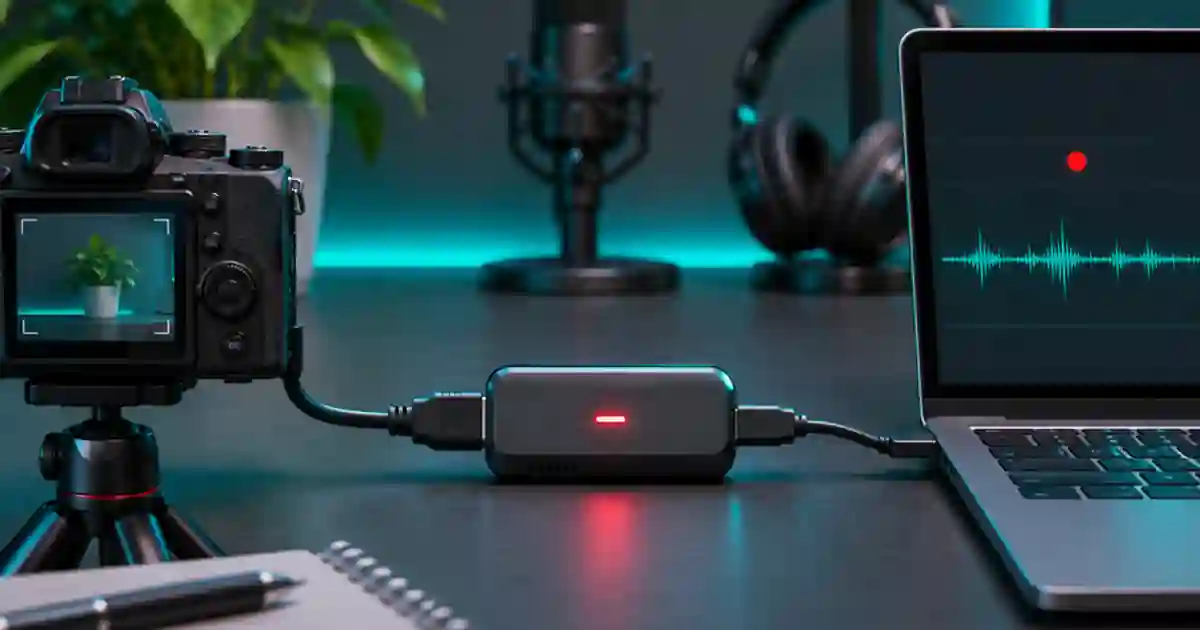

If a capture card shows video in OBS but the recording is silent, I recommend finding the first point where the sound disappears. Check the HDMI source, then the OBS meter, then the recorded track. Hearing the sound in your headphones and hearing it in the saved file are separate checks.
My gear pick for this setup
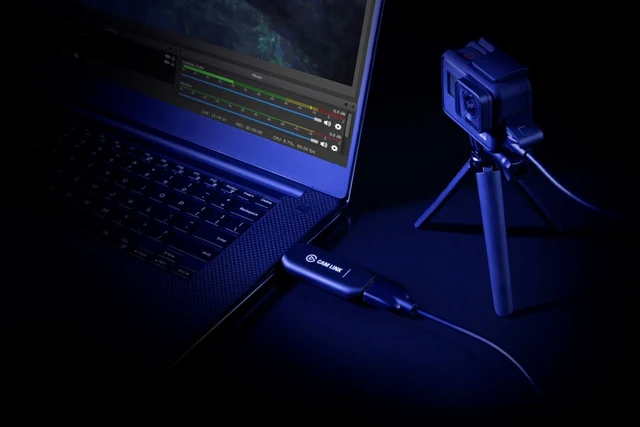
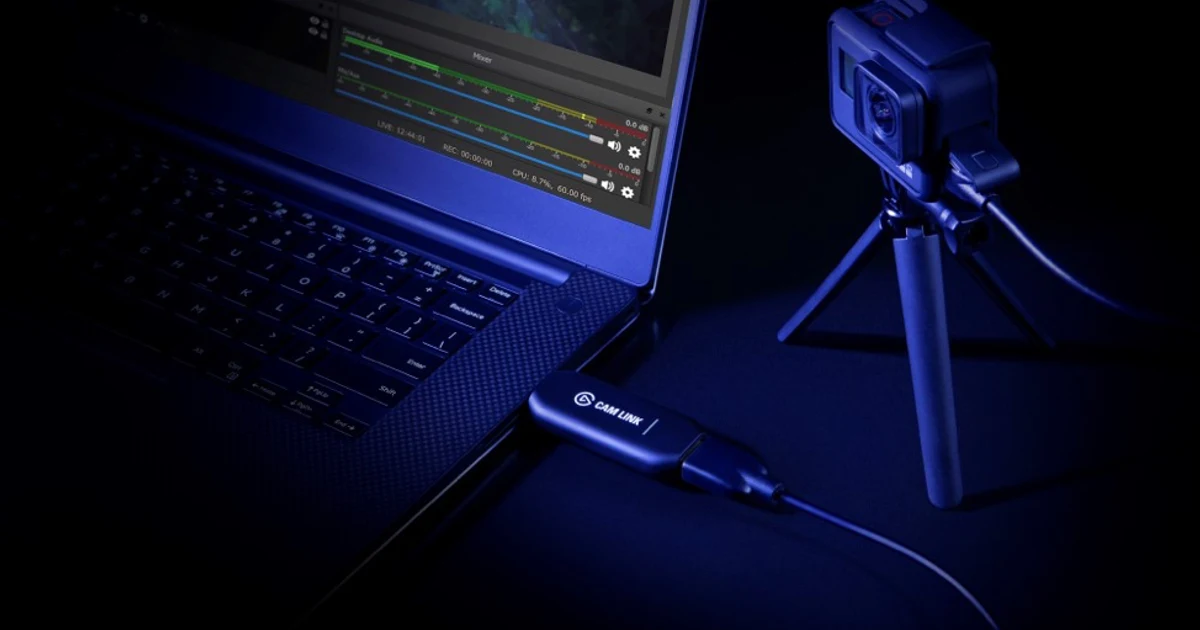
Elgato Cam Link 4K
An adapter for a camera that sends a supported HDMI signal
I’d consider Cam Link 4K for a compatible camera and USB connection. Confirm that your camera sends the audio you need over HDMI before choosing a capture adapter.
Confirm the HDMI source is sending sound
Start with something easy to recognize. On a camera, speak a short line into the mic the camera is actually using. On another HDMI source, play a permitted test sound. Confirm that the source is set to send audio over HDMI and that the chosen output mode is supported by the capture device. A camera headphone jack or a display speaker may use a different path, so the source meter is helpful but a direct HDMI test with a compatible display can narrow the problem further.
Watch the source while the test runs. If the camera meter never moves, choose the right mic or input and check its gain before opening OBS. If the display receives picture and sound, keep that known-good source mode for the next test. On equipment that offers several HDMI audio modes, check the adapter documentation for a supported option. A simple supported stereo mode can be a good starting point when a source defaults to a different format.
Give the capture audio one route into OBS
Add or select the capture device in a quiet test scene. Watch the audio mixer while the source plays. Some devices expose audio with the video source. Others may need a separate audio input or a documented device setting. Use the method recommended for your adapter and operating system. I keep desktop audio and the narration mic out of this first test so a meter moving elsewhere cannot look like proof of capture audio.
If the mixer stays flat, check the device chosen for audio, its mute state and the source’s supported input settings. Closing another application that is using the same device can help isolate a conflict. If the meter moves only after adding a dedicated source, label it clearly and check that the capture source is not sending a duplicate feed. A doubled sound can appear once the scene grows, even though the first isolated test sounds normal.
Check what actually goes into the recording
Record ten seconds with the source playing and open the saved file. If the mixer showed sound but the file is silent, check the source's track assignments and which tracks the recording output includes. Some players open one audio track by default. Try a player with a track selector or import the file into an editor to inspect each stream. Confirm which track you intend to send to the viewer.
Monitoring sends a signal to your listening device. The recording assignment determines whether the signal goes into the file. If the file has sound but you cannot hear it live, check the monitoring device and mode separately. If monitoring sends audio into a desktop source that OBS also records, listen for an echo or a doubled signal. I verify the isolated source before bringing in the wider scene.
Keep a short proof with the scene
| What you see | Check next |
|---|---|
| HDMI picture, source meter silent | Check the camera mic or originating audio source. |
| Direct HDMI has sound, OBS mixer is flat | Check capture audio mode and device selection. |
| OBS mixer moves, recording silent | Check assigned and enabled tracks, then inspect the file. |
| Recording fine, monitor silent | Check monitoring mode and playback device. |
For a camera demo, I keep one short recording containing a visible clap, a spoken line, and the normal demo sound. Inspect the file after adding the scene back into the program. A source that works alone can be muted or assigned differently in the full setup. The clean HDMI guide covers checking the picture. The OBS track-routing guide explains how to preserve a separate mic and computer track.
Use the captured audio as a timing reference
When a supporting clip from Video Lab goes into the edit, I preserve the original camera sound until the timing is approved. Use the audible clap or visible action to align any replacement cue, then compare the short export with the reference. A picture with good focus does not tell you which track actually made it into the delivery.
Identify the selected recording track
Open the saved clip in your editor and expand its audio tracks. Play each stream on its own. If one contains the HDMI test sound, keep that recording and select the right stream in the edit. For future sessions, put the sources you want in a general playback mix on track one and retain isolated tracks for editing where the recording format supports them. Verify the mix in the actual player or editor you will use.
Verify one recorded line from start to finish
Say “camera audio check” while looking at the lens, followed by a single visible clap. Make one recording with only the capture source. If the OBS meter moves and the recording is silent, write down the assigned audio track and which tracks the output is set to record. Enable the intended track and try again. Open the file in an editor and confirm both the spoken line and clap are audible on that track. Only then add your separate narration or app audio sources. I listen to a fresh full-scene recording as the final check. A good isolated recording can still become doubled if the live monitor feeds another source in the complete scene. Keep both test files so you can compare them if the mix changes later.
Download the capture audio troubleshooting worksheet (CSV)
Frequently asked questions
Why does my capture card show video but no audio?
The source may send no HDMI audio, OBS may be using the wrong audio device, or the recording may exclude the track. Check in that order.
Why does OBS show a moving meter but record silence?
Check the source’s track assignments and the recording output’s enabled tracks. Inspect the saved file with an editor or a player that supports audio track selection.
Can I add a separate capture audio source?
Use the route supported by your device. If the video source already carries the same audio, check for duplicate capture before enabling both.
Will turning on monitoring put audio in my file?
Monitoring and recording track assignments are separate. Make a short recording and inspect the intended track directly.
Sources and further reading
Affiliate disclosure
As an Amazon Associate I earn from qualifying purchases.
Continue with a useful next step
 Image
Clean HDMI for OBS Without Camera Overlays
Get clean HDMI into OBS by checking the camera output first, then verifying the capture card, source settings and a short recording for returning overlays.
 Creator Workflows
OBS Separate Audio Tracks for Mic and Desktop Sound
Set up separate mic and desktop audio tracks in OBS. Keep a combined preview mix, test the isolated tracks and fix missing or doubled audio before editing.
 Video
Capture Cards for Cameras: Check the Whole Recording Path
Connect a camera to your computer with the right HDMI capture adapter. Check clean output, USB support, Cam Link revisions, audio sync and a real recording.