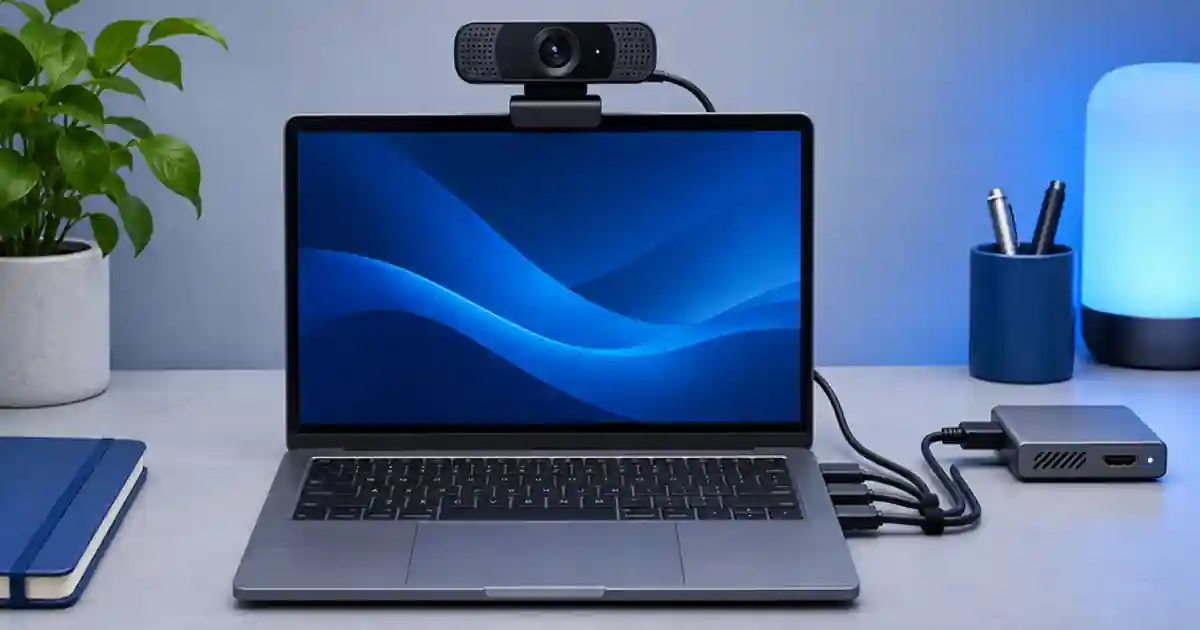

If a webcam freezes in OBS while everything else keeps moving, I recommend testing it by itself on a direct USB connection. Keep the same scene and recording mode at first. Then add other devices one at a time. That makes it easier to tell a camera or connection problem from a slow computer or an overloaded scene.
My gear pick for this setup
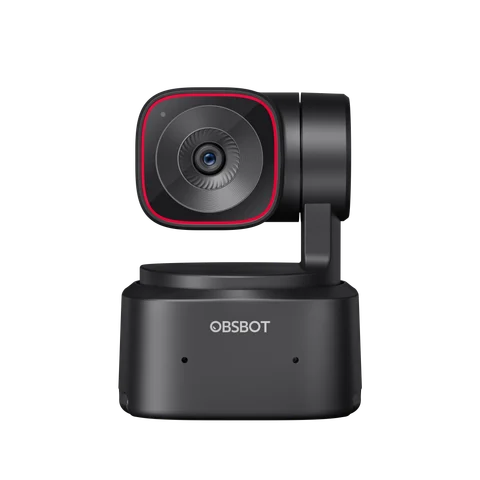
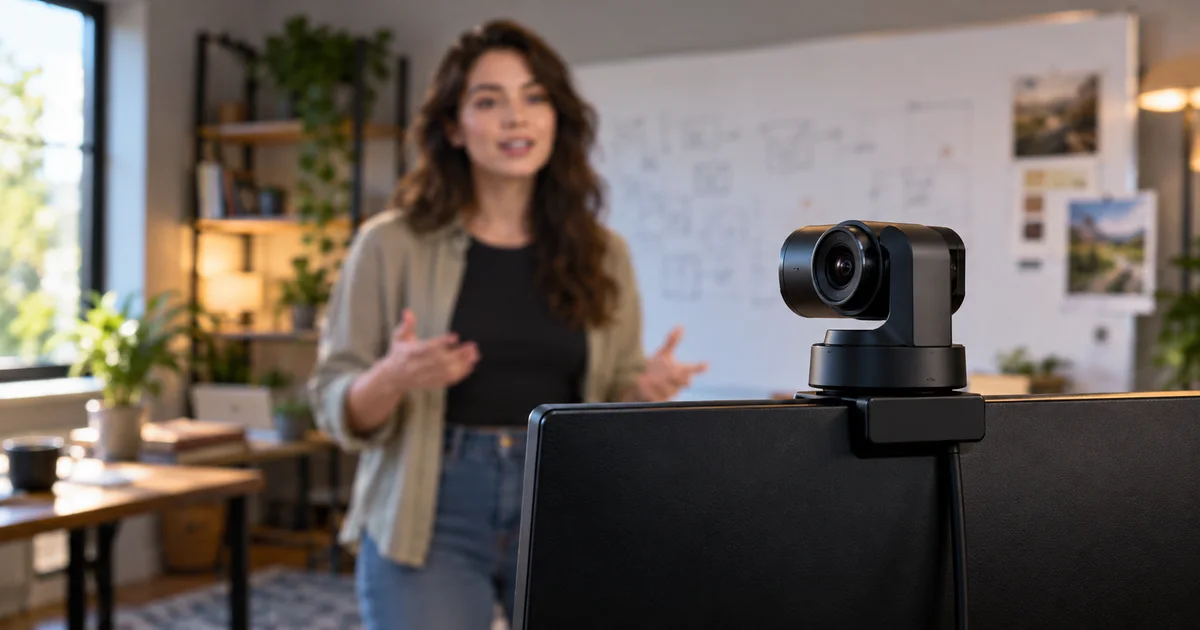
OBSBOT Tiny 2 Lite
A webcam to consider after the USB path has passed
I’d shortlist the Tiny 2 Lite for a desk that needs a dedicated camera with adjustable framing. First verify your existing camera on a stable direct connection so you know what needs replacing.
Define what stopped
Watch the OBS preview, audio meter and controls when the issue appears. A single stuck camera frame with moving meters suggests the video source stopped providing fresh frames. If the whole app is slow or the saved recording drops frames across several sources, inspect system load, encoding and rendering as well. I write down the point when the freeze starts and whether it recovers by itself. A source that hangs immediately after switching scenes can have a different cause from a source that stops after a few minutes.
Check the saved file in a separate player. A slow preview might be distracting but may not show what ended up in the recording. Confirm whether the audio continues across the stuck frame. If the issue appears in the saved file, make a small test scene with only that camera. Use the same cable and settings first so you have a clear way to reproduce it.
Give the camera one clean path
Connect the webcam directly to a port supported by its manufacturer. Use the included cable or a known compatible data cable. Disconnect optional devices for the test when it is safe to do so. A camera and storage drive plugged into the same hub can share a connection. Even ports on different sides of a laptop can share a controller, so check the host documentation when that matters. I start with a direct connection because it removes the dock, an extra cable and some power variables at the same time.
Close camera apps that do not need to be open. Keep OBS set to a mode supported by the webcam. Record a short sample and then a longer pass if the freeze normally takes time to appear. If it still freezes on a direct path, test a second suitable port and verify the manufacturer’s supported cable and firmware. Log each change so you can avoid looping through the same setup.
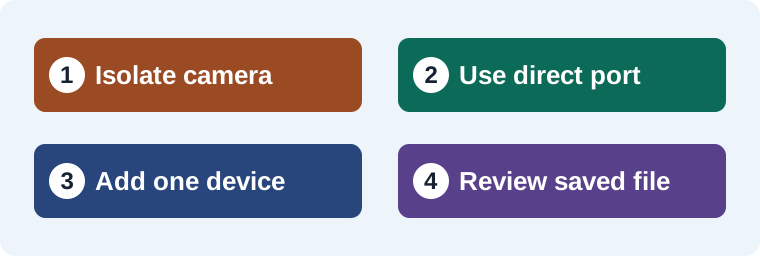
Bring back other devices one at a time
After the webcam passes alone, add the device you most need. Try the capture card without copying files from the SSD in the background. If it remains steady, add the next piece or repeat the intended recording scenario. If the freeze returns when two video sources share a hub, test supported ports or controllers separately. Keep the frame rate and picture settings the same during this isolation pass.
Where the camera and OBS offer several formats, try a documented lower resolution or frame rate and compare. Some formats also move a different amount of data, and compression can move the cost from USB to decoding. Compare the exported result as well as the preview. I would choose the stable mode that still shows the product clearly instead of picking the largest resolution by default.
Separate three common patterns
| Pattern | What I test |
|---|---|
| Camera freezes only on a hub | Direct port, cable and other devices on the hub. |
| Camera freezes only in one scene | Duplicate sources, scene transitions and app conflicts. |
| All sources skip in the saved file | Rendering, encoding and storage load. |
| Lower camera mode works | Confirm acceptable quality and document the working mode. |
I keep a short verified recording with the scene notes. The fixed webcam framing guide covers a separate problem where a steady source keeps reframing, and the clean HDMI guide helps when an external camera is the source. Record again after changing anything that affects the source or USB path.
Retain a clear reference for a product insert
If I use Video Lab for a supporting insert, I keep the real demo clip separate. Check that the real clip is stable before using it as a visual reference. Save its camera settings and framing notes with the edit so a short replacement shot can match the original demonstration.
Watch the source through one real scene change
Once the camera holds steady on its own, record the transition from your talking-head scene to your screen share and back. Leave the same webcam source in both scenes when the framing only needs a crop. Check whether the freeze begins when a source becomes active again or when a second camera starts sending video. Note the timestamp and the last visible action. That gives you a repeatable failure to compare when you change the camera format or the port.
Reproduce the freeze in a controlled sequence
Suppose the camera freezes after two minutes when an SSD and capture card share the dock. I would start with the webcam on a direct supported port and record at least long enough to cover that interval. If it passes, add the capture card and record again. Repeat while using the SSD the way the project requires. Keep the recording mode fixed throughout the connection test. If only the final pass freezes, check which devices share a connection and whether the same clip works at another documented camera mode. Review the recordings and keep the device order in the worksheet. Then test the final scene from start to finish because the simplified scene may omit an effect or source that also affects performance.
Download the webcam troubleshooting worksheet (CSV)
Frequently asked questions
Does a USB hub always make a webcam freeze?
No. The device, hub, data mode, power and what else shares the connection all matter. Compare with a documented direct setup.
How do I tell if OBS itself is overloaded?
Check whether other sources and the saved file also skip or stop. Inspect rendering and encoding alongside the camera path.
Can lower resolution help?
It can reduce the load for some camera modes. Use a supported setting and verify the recorded result is still clear enough.
What if the freeze happens only after switching scenes?
Check the source settings, scene behavior and whether more than one source or application is trying to use the same camera.
Sources and further reading
Affiliate disclosure
As an Amazon Associate I earn from qualifying purchases.
Continue with a useful next step
 Creator Workflows
Lock Webcam Framing for Hands-On Product Demos
Lock your webcam framing for tabletop demos so both hands and the product stay visible. Check camera tracking, app crops, presets and a full-motion test.
 Image
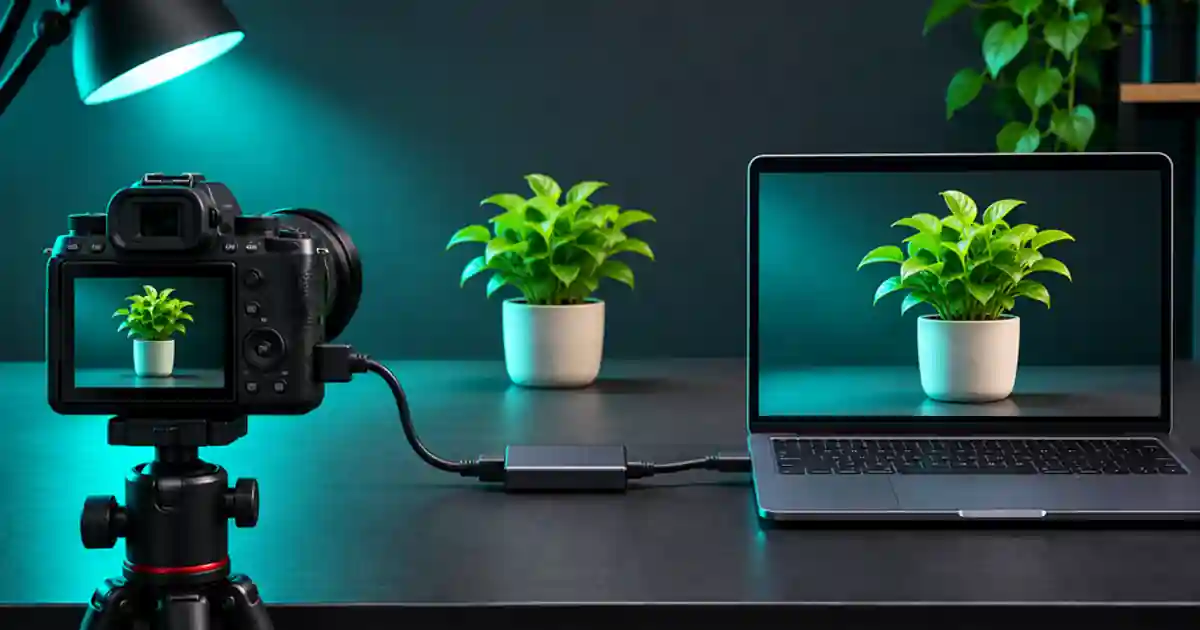
Clean HDMI for OBS Without Camera Overlays
Get clean HDMI into OBS by checking the camera output first, then verifying the capture card, source settings and a short recording for returning overlays.
 Creator Workflows
AI Tracking Webcams: Choose for the Way You Create
Compare OBSBOT Tiny 2 Lite and Insta360 Link 2 Pro for solo video. Check tracking, framing, software and USB limits before choosing a creator webcam.