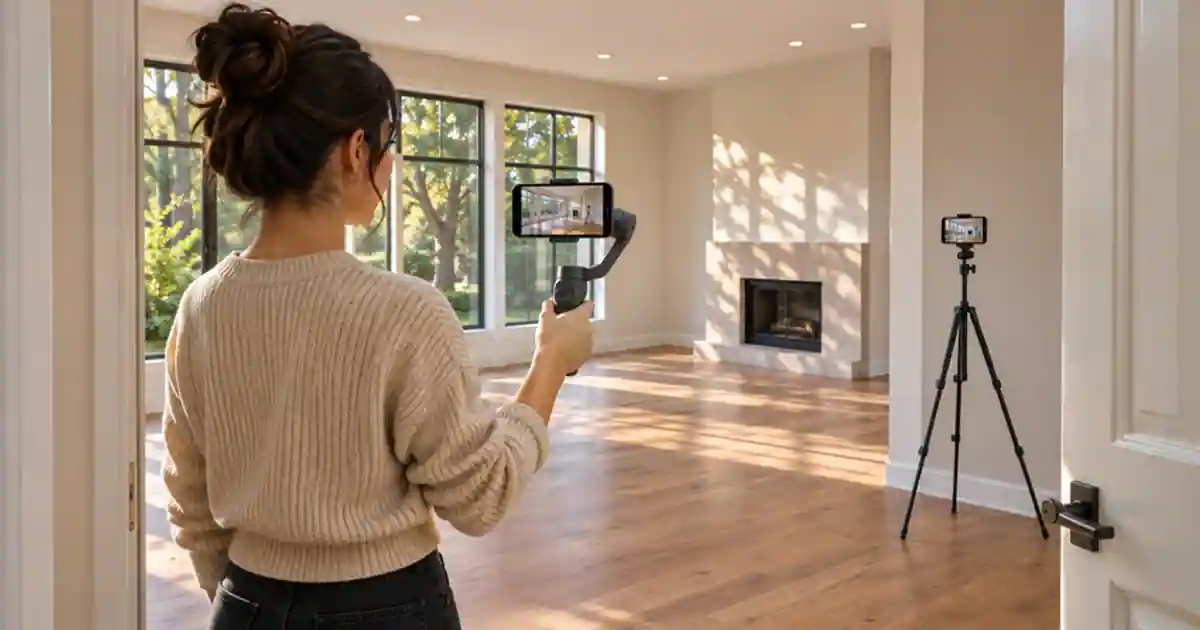

Use a tripod for a real estate video when a steady room view shows the layout clearly. Consider a phone gimbal when the viewer needs to see how one space connects to another and you cannot show that connection well from a fixed position. I’d start with three locked shots and one doorway move. Watch the rough cut before buying a support for every shot.
My gear pick for this setup

DJI Osmo Mobile 7, base model
For recurring walking shots with a compatible phone that balances correctly with its case and accessories.
I’d choose the base Osmo Mobile 7 when a short doorway move is part of the weekly shot list. For room views and detail holds, I’d start with a stable tripod.
Plan what the viewer should learn
Start with the real floor plan and walk the property before recording. Identify the room relationships that matter. A buyer might want to know whether the kitchen opens directly onto a living room, or where the door to the patio sits relative to the dining area. A static view from a corner can show the width and fixtures. A short move through one doorway can explain where the next room begins. Give each shot one job and leave enough time to see it.
Decide whether the delivery is horizontal, vertical, or both. A vertical frame may show less of the room, so check that it includes the features you mention. If both formats matter, rehearse their framing separately. Keep the phone level and inspect doorframes and cabinet edges. An ultra-wide lens can exaggerate nearby features at the edge of the frame, so choose a position that represents the space clearly. A slower fixed shot gives the viewer time to orient themselves.
Use a tripod for the shots that need to hold
Set the phone at a consistent height for the main rooms and level it. Watch for windows that drive the phone’s exposure changes. If the app supports it, lock the exposure and focus after checking the useful area. Record a few seconds before and after the intended cut. For a countertop, storage unit, or appliance, frame the actual detail instead of walking closer throughout the shot. A fixed frame is also easier to repeat when you need a replacement clip later in the day.
Check the phone holder and the tripod’s footprint. A narrow hallway or small bedroom may leave little room to spread the legs. Do not block an exit or leave the rig in a path someone needs to use. A tripod is useful when it can hold the frame at a safe position without the operator touching the phone. I’d start there if most of the listing is made from wide room views and cutaway details.
Test one doorway move with the gimbal
Rehearse the walking route without recording. Keep steps slow and the starting frame still for a beat. Move just far enough through the doorway to reveal what it connects to, then settle on a stable frame. The stabilizer can smooth rotation. Your feet and arm still affect the vertical movement and pace of the shot. Check the horizon at the start, threshold, and finish. If the whole clip bobs, shorten the move or compare it with two fixed shots from either side.
Match the exact phone, case, and accessories to the gimbal’s support and clearance guidance. Check the chosen orientation and mode before you film. The base Osmo Mobile 7 and other packages can include different hardware, so read the listing and manufacturer documentation for the exact kit. If you want automatic tracking or an add-on mic, check the specific app and accessory requirements. A basic reveal usually needs a clear route and reliable balance more than extra features.
Pick the support from a thirty-second edit
Cut the three locked views and the doorway reveal in sequence. Watch without narration and see whether the move explains a real connection. Then remove it and compare. If the room order still makes sense and the clip feels calmer, leave the move out. If the fixed views make the space feel disconnected, retain the reveal and write down how far you moved. The listing video script guide can help align the narration with the rooms you actually show.
If you need a supporting opener, use an approved property image in Video Lab and keep it distinct from the recorded walkthrough. Review it against the real listing so fixtures, window locations, and room connections stay accurate. For the walkthrough itself, I’d keep real footage of the rooms and use movement only to make the layout clearer.
Plan a safe fallback for narrow rooms
Try a fixed view from the doorway if the room is too small to walk through comfortably. Use an alternate angle from inside for the feature you need to show. In the edit, give the viewer enough time to connect the direction of the two views before cutting to a detail. This can show the same room relationship without placing the operator or equipment in a tight path. Save both takes until you know which one reads better in the final crop.
Before filming a whole property, save one successful fixed shot and one successful move as references. Label their orientation and lens choice so you can match a pickup later.
One move and three holds
Choose two connected rooms. Record a steady wide view from each and a detail of a feature a buyer should notice. Then record a short doorway reveal. Export a rough cut with the move and one without it. Ask a viewer to sketch which room leads where and name the detail they saw. Keep the shot that improves their answer. If your phone held still for the fixed frames and you rarely need a reveal, the tripod already does much of the job.
Download the real estate camera support worksheet (CSV)
Frequently asked questions
Do I need a gimbal to start filming listings?
A tripod can cover clear room views, details, and simple edits. Buy a gimbal if regular moving shots help explain the property.
Can a gimbal remove footsteps?
It helps stabilize rotation. Body movement, pace, and the walking surface still affect the shot.
Should I always use the widest camera?
Choose a lens and position that show the room without misleading scale. Check distortion and vertical lines at the edges.
Will my phone and case fit the gimbal?
Check the maker’s exact weight, size, and compatibility guidance. Test any case, cable, or accessory you will use.
Sources and further reading
Affiliate disclosure
As an Amazon Associate I earn from qualifying purchases.
Continue with a useful next step
 Video
Phone Gimbals for Product B-Roll: Is Mobile 7 Enough?
Decide whether a phone gimbal improves your product B-roll. Check DJI Osmo Mobile 7 fit, base-kit limits and a three-shot rehearsal before buying accessories.
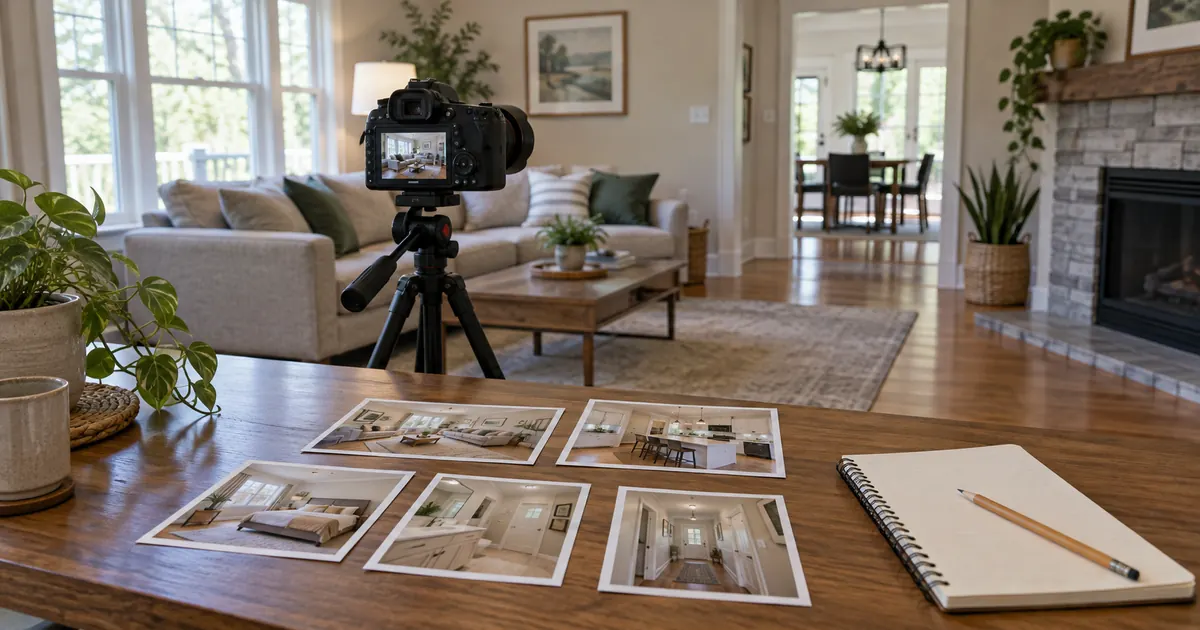 Video
Real Estate Video Script: A 60-Second Listing Template
Write a real estate video script from verified property facts and real photos. Includes a 60-second template, shorter edit plan and downloadable shot ledger.
 Video
Real Estate Photo to Walkthrough Video Prompts That Sell the Space
Turn a real estate photo into walkthrough or b-roll video with prompt formulas, copy-ready examples, and tips for cleaner motion.