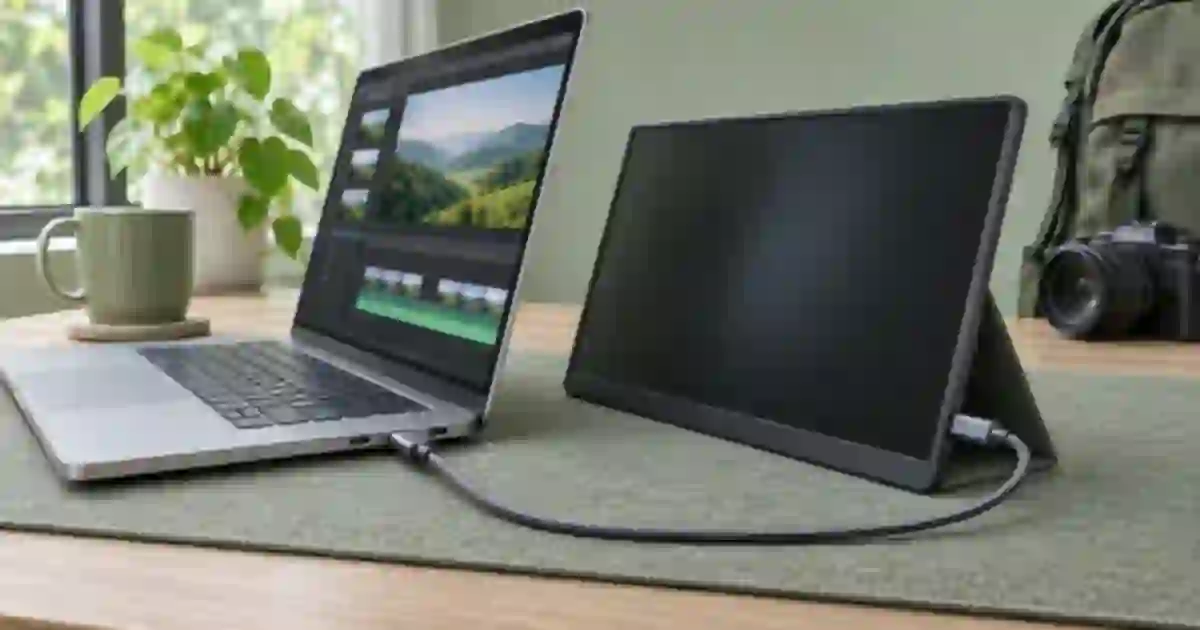

When a portable monitor says “no signal” over USB-C, I recommend testing the direct connection first. Use a laptop port documented for video, a cable that supports that video connection, and the monitor’s video-capable input. I want one working path before trying a hub, a spare cable or a charging arrangement. That order makes it much easier to tell what failed.
My gear pick for this setup
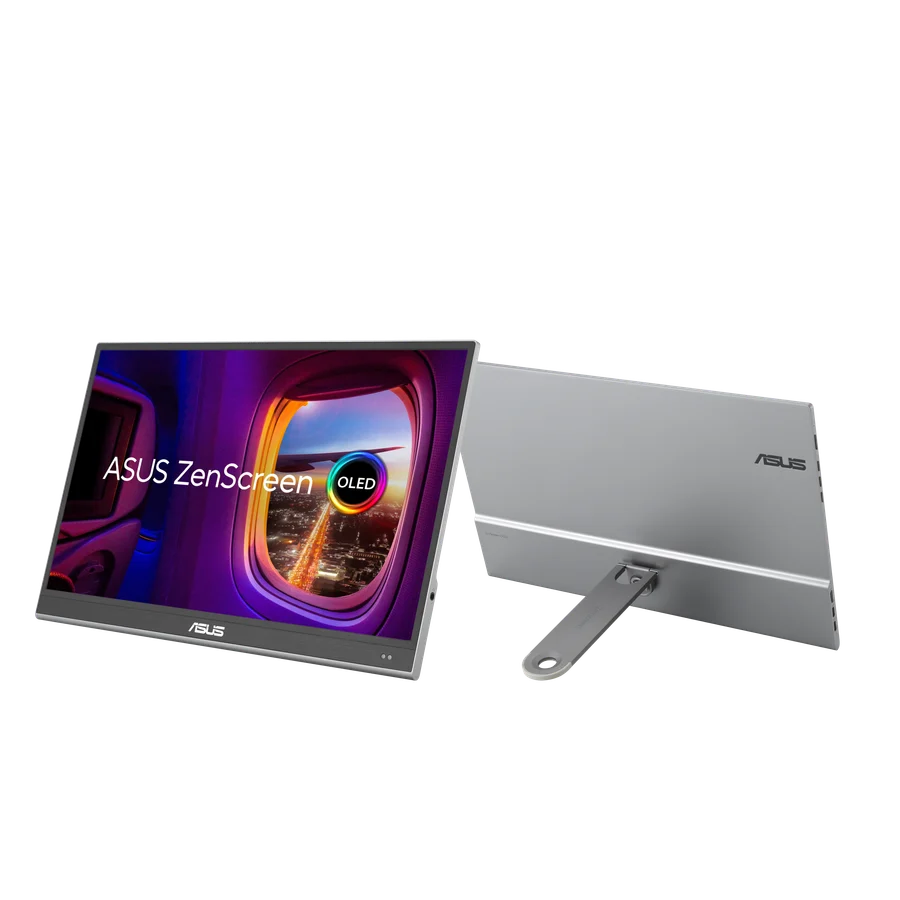
ASUS ZenScreen OLED MQ16AHE
A second screen for a verified USB-C video path
I’d consider this ZenScreen for mobile review after confirming the host port can send video and the kit can power it. If your current monitor works over HDMI, verify the USB-C route before replacing anything.
Separate power from picture
A lit power indicator means the monitor got enough power to show that indicator. It tells you little about whether video is reaching the panel. Likewise, a USB-C plug can physically fit a port that only handles power or data. For a conventional USB-C display connection, check the host specifications for display output, often described as DisplayPort Alternate Mode. Check the monitor manual for the right input. On a model with two USB-C sockets, one may be intended for power or may have a different role depending on its design.
Find the input selector and choose the intended USB-C input if the display allows it. If the panel is completely dark, power it as the manual permits, then see whether its on-screen menu appears. If the menu appears and no source is found, focus on video. If it repeatedly lights and shuts down, try a supported external power supply before changing picture settings. Make only one change at a time so the result tells you something.
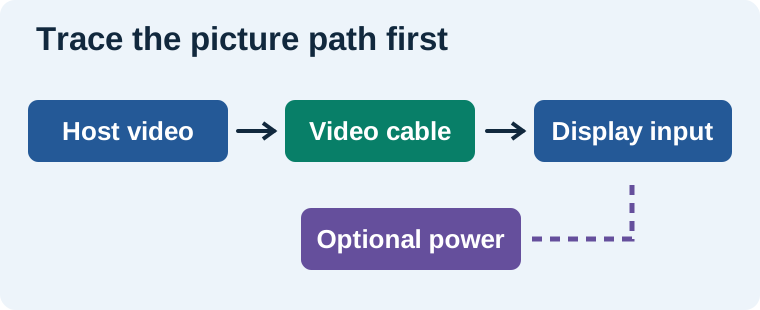
Build one known route before testing the hub
Unplug the hub or dock. Connect the portable display to the documented host port with the cable that came with the monitor, if that cable is specified for display. A known video-capable cable you have already used on a similar connection is also helpful. A charging cable may deliver power even though it lacks the data lanes this display mode requires. Read the cable’s documentation when its purpose is unclear. Connector shape and charging wattage alone are insufficient to establish compatibility.
Try the display at its normal resolution and refresh rate. Open the operating system’s display settings and check whether the monitor is detected. If it appears but is dark, choose a supported mode and confirm the display arrangement. If you use a laptop with ports on both sides, look up their roles before swapping. Some models have different capabilities from port to port. I mark the combination that works in my kit notes so the next setup starts from a verified route.
Use the failure mode to pick the next check
| What you see | Next useful check |
|---|---|
| No power indicator or menu | Use the manufacturer’s supported power path and inspect the power input. |
| Menu works, no video detected | Confirm host video support, cable capability and the display input. |
| Direct works, dock does not | Check whether the exact dock port carries video and supports the display mode. |
| Screen goes dark under load | Try approved separate power and retest at a supported resolution. |
| HDMI works, USB-C does not | Use HDMI as a fallback and isolate the USB-C route one component at a time. |
When an HDMI input is available, it can give you a second route to test the display panel. Many portable screens still need separate power when using HDMI. Use the power method the manual specifies. If a documented USB-C host and the included cable fail on both screens but HDMI works, the problem is now much narrower. Document which two devices and cables were tested before asking the manufacturer for help or spending on a replacement.
Rehearse the travel setup under real conditions
A connection that lights up once is a promising start. I repeat the setup after sleep and on the power arrangement I expect to use away from the desk. Put the preview on the second screen, then move a busy editing window over it and leave the machine running for a few minutes. See whether the picture stays stable and whether the laptop is draining in the intended charging setup. If the monitor supports separate power, repeat that arrangement as a fallback and pack only the cables that passed.
For a photo or video kit, take one note about the complete path. An example is “laptop left video port to monitor signal input with included cable, monitor power input reserved for travel charger.” When buying for a new laptop, I start with the portable monitor guide for photo and video review and verify its fit against the host. For a hub-dependent desk, the creator laptop hub guide helps identify which outputs the dock actually provides.
Give the second screen a clear editing job
Once the connection holds, I put the reference on one screen and a work surface on the other. In Image Lab, compare the original product photo with the edited result at a similar zoom. Check the shape, label and crop first. If the screens show different colors, keep the color approval on a controlled display and use the portable one for layout or reference. That makes the extra screen useful as soon as it is connected.
Trace an example that fails only at the dock
Suppose the display starts when it connects directly to the laptop but shows no signal when you add the hub. Keep the monitor, video cable and power arrangement steady. Read the dock manual for the exact downstream port you used. If that port handles data only, it cannot serve as the same display route. Where both the dock and screen have suitable HDMI ports, try HDMI with the monitor powered independently. Record the direct connection and the fallback in the worksheet. Both can be useful even if they use a different number of cables.
Download the creator desk troubleshooting worksheet (CSV)
Frequently asked questions
Why does a USB-C monitor turn on and then say no signal?
It may have power while the video path is unavailable. Check the host’s video output, the cable's display support and the monitor input independently.
Can every USB-C charging cable carry video?
No. Confirm the cable is rated for the connection you need. A charging rating describes power capability and does not establish video compatibility.
Will HDMI power a portable monitor?
Portable monitors commonly need separate power when using HDMI. Follow the model manual for the supported power input.
How can I tell whether my laptop USB-C port supports video?
Check the laptop's specifications or manual for the specific port. Look for documented display output, such as DisplayPort Alternate Mode or a documented display-capable Thunderbolt or USB4 implementation.
Sources and further reading
Affiliate disclosure
As an Amazon Associate I earn from qualifying purchases.
Continue with a useful next step
 Video
Portable Monitors for Photo and Video Review: What Fits?
Plan a portable photo and video review screen. Check ASUS MQ16AHE connections, power, OLED care and SDR workflow before treating it as a reference display.
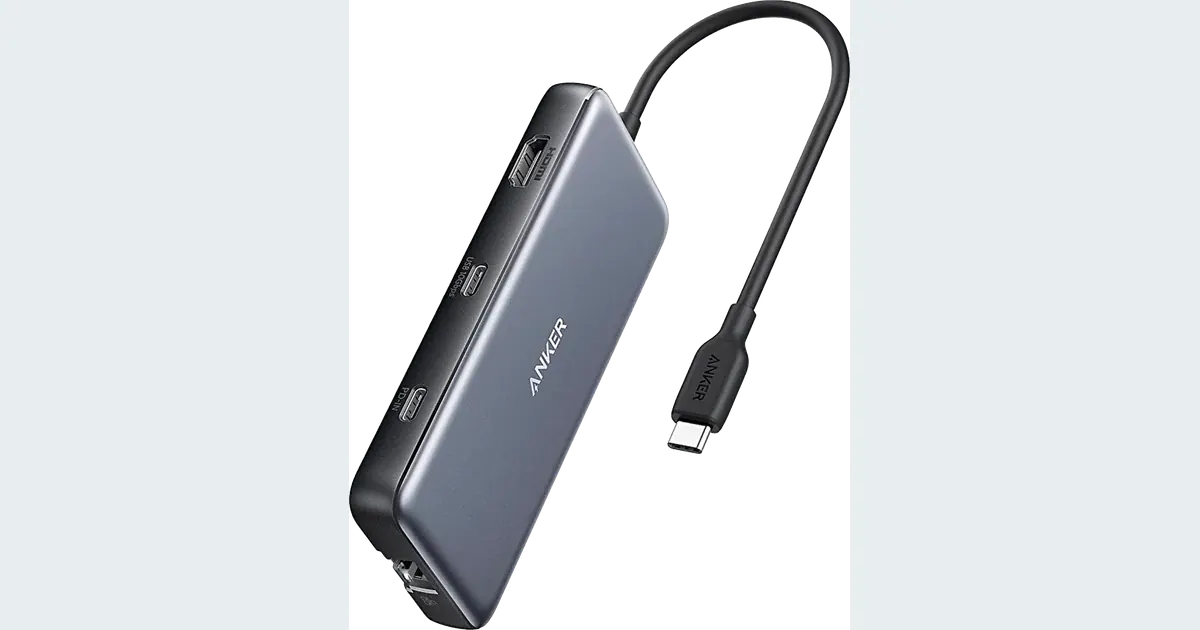 Image Editing
USB-C Hubs for Creator Laptops: Check the Whole Setup
Choose a USB-C hub for a creator laptop. Review Anker 555 power, display and card-reader limits, then map your devices and test them in a sensible sequence.
 Creator Workflows
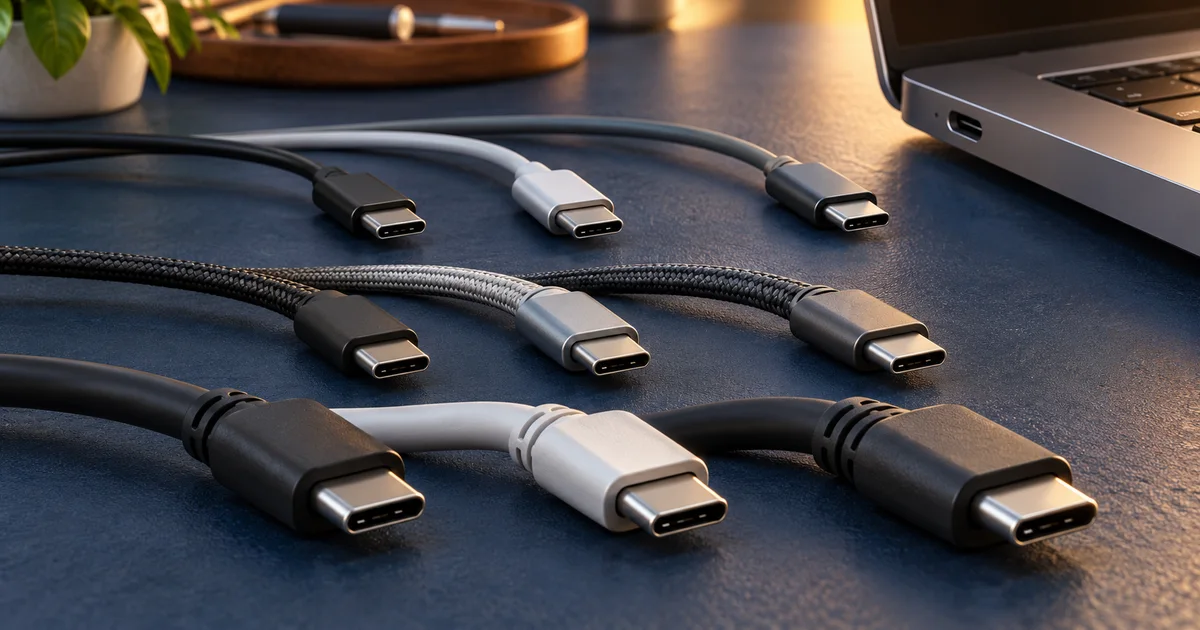
USB-C Cable Speed: A Creator's Compatibility Guide
USB-C shape does not guarantee fast data, video or charging. Check the port, cable, hub and device with a practical connection worksheet for creators.