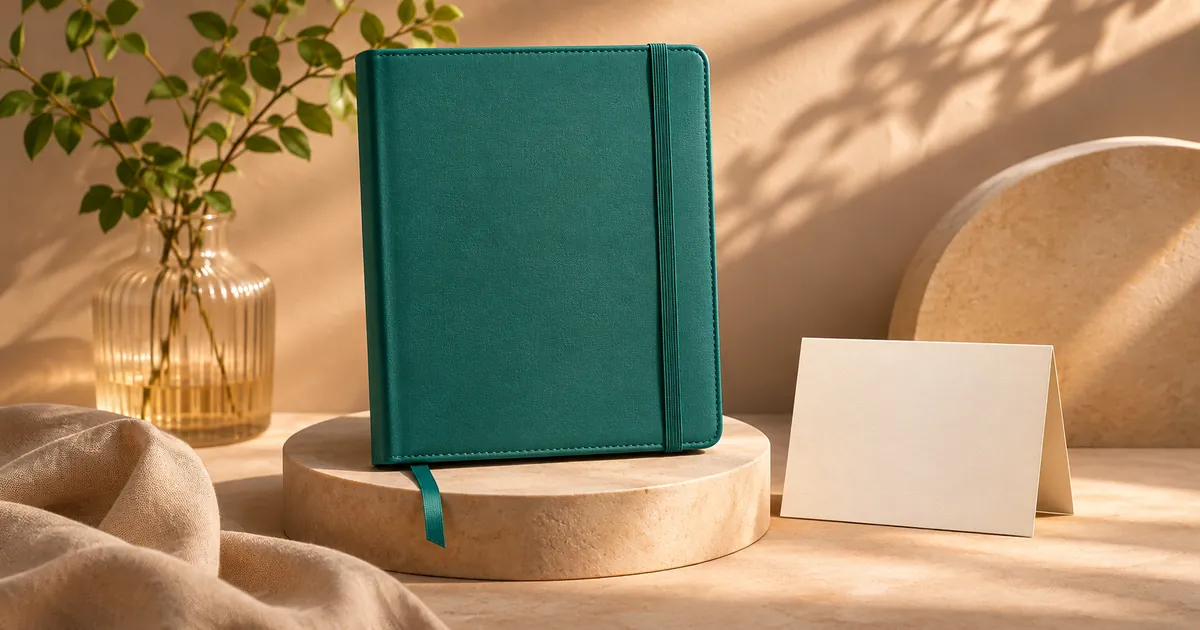

Preorder product launch creative has two jobs. It needs to show what someone will receive and make the waiting period easy to understand. Build the launch around a real sample, an approved ship window, and a destination that shows payment and cancellation details. Keep changing dates outside the picture whenever you can. That gives you a usable creative asset even if manufacturing moves by a week.
Jump to the Image Lab example or download the worksheet.
Write a claim sheet before making a mockup
Ask the person responsible for the first shipment to confirm the batch, eligible variants, lead time, and expected dispatch window. Record who owns each statement and when it was last updated. Include a place to check whether a customer is charged now, charged later, or simply joining a list. Have the store owner read the checkout copy aloud for a test purchase so the campaign uses the same language.
Preordering and registering interest send buyers down different paths. If someone can only ask for an email when orders open, make that the button text. If the store accepts payment at order time, say so where the buyer decides, then repeat it around checkout. Put estimated shipping weeks in a calendar format the reader can recognize. A vague label such as “Ships soon” gets progressively less useful as the launch date gets farther away.
Treat names and finishes as claims too. A silver prototype that will ship in matte graphite can appear in a concept board. A customer seeing silver in the paid creative can reasonably expect a silver product. Keep the approved production finish as a separate entry in the source sheet and link the most recent reference photo.
Decide what the sample can prove
Photograph the real sample from the angle that answers the main buying question, such as the thickness of a desk planner or its open interior. Show the final cover if it exists and label prototype-only details accurately. A synthetic setting can suggest scale, but an invented ruler or accessories can imply features. Keep a simple proof shot with a real measuring reference near the listing.
Suppose Alder Paper is testing a fictional dated desk planner. It has the correct binding and layout, but the final packaging sleeve is still being printed. The launch has enough evidence to show the interior spread and exterior cover. Put the sample packaging outside the shot and document that the sleeve will be added later. If a last-minute design choice affects how the customer uses the product, check the hero again even if the ship window stays the same.
Make one message work across three placements
Use editable text for “Preorder” and the estimated dispatch range. The image can show the planner and one open spread. Share the proof sheet with anyone creating the email, ad, or landing page. Start by filling the fields below with confirmed information. The sample is fictional and any payment instruction should match your actual store.
| Placement | First line | Follow-up |
|---|---|---|
| Social ad | Preorder the Alder desk planner | Estimated to ship Jan 11–15 |
| Product page | Alder desk planner preorder | Choose a color and review charge timing |
| Order confirmation | Your planner preorder is confirmed | Expected dispatch window and support link |
A date range can change while an image remains attached to a customer email. Make order updates available through a stable support path. Keep the current product page actionable for someone who arrived from an older social post and has never seen the newest campaign creative.
Run a checkout and a schedule-slip rehearsal
Open the ad in a mobile preview, tap through, and select the variant pictured. Read the first product screen and check whether the preorder state is still visible. Put the selected item in a test cart, then add an in-stock item. Mixed carts can affect how the store displays fulfillment and payment. Configure and test the behavior in your store before the mixed-order case becomes a support question.
Now move the estimated ship window forward a week in a draft. List everywhere the old date appears, including a pinned caption, order email, scheduled ad, FAQ and customer-service snippet. Ask who can pause or replace each. Draft a short change message that says what moved, how customers can check their order, and who can help. If the date is embedded in an art export, also update the live text so the newest announcement works for readers who can't see the image.
Use the ad creative verification workflow to check variant selection and destination links. A purchase test should confirm that the expectation survives the move from the ad to the order receipt.
Give the support team a specific launch example
Write a sample receipt and a sample status-page update before the campaign. Include a color change or mixed cart scenario so support can tell whether the whole order is held or whether items ship on separate dates. Confirm what the customer sees when only one of two variants sells out. The handoff is complete when support can point to the matching approved photo and dispatch row without consulting the campaign designer. Keep a clean photo-only export for quick changes to the shipping copy.
How QuestStudio helps
Use QuestStudio Image Lab to make a quieter staged backdrop from a real prototype photo. Keep the areas that communicate product facts as close to the original as possible, and place the verified dates in a separate text layer.
Use the approved actual teal desk planner image. Preserve dimensions, cover finish, binding, corners, and page thickness. Position on a matte riser with soft side light and a blank upper area for editable launch details. Keep just the planner and set materials. No invented packaging, accessories, dates, or added lettering.Match the picture against the approved sample before using it in ads. Keep the raw detail image for the product page and flag any photographed component that is still an early production sample.
Try it with your own material
Build one preorder path all the way to the confirmation before creating variants for each channel. If the buyer can repeat what they reserved and when it is expected to ship, the creative is doing its job.
References
Frequently asked questions
Where should I say that the order is a preorder?
Put it next to the main purchase action and in the ad. Repeat it where customers confirm the order and review the expected dispatch date.
Can I use an estimated ship window?
Use a realistic window approved by the team that fulfills orders. Clarify that it refers to dispatch and update customers if it changes.
Can I start with renderings?
A rendering can communicate a plan when identified as such. Use verified product facts and add real sample photos as soon as they're available.
Should I include payment timing in the ad?
Include it when that timing is central to the offer. Always confirm it where the buyer acts and check that it matches the store's checkout behavior.
Related guides
 Product Ads
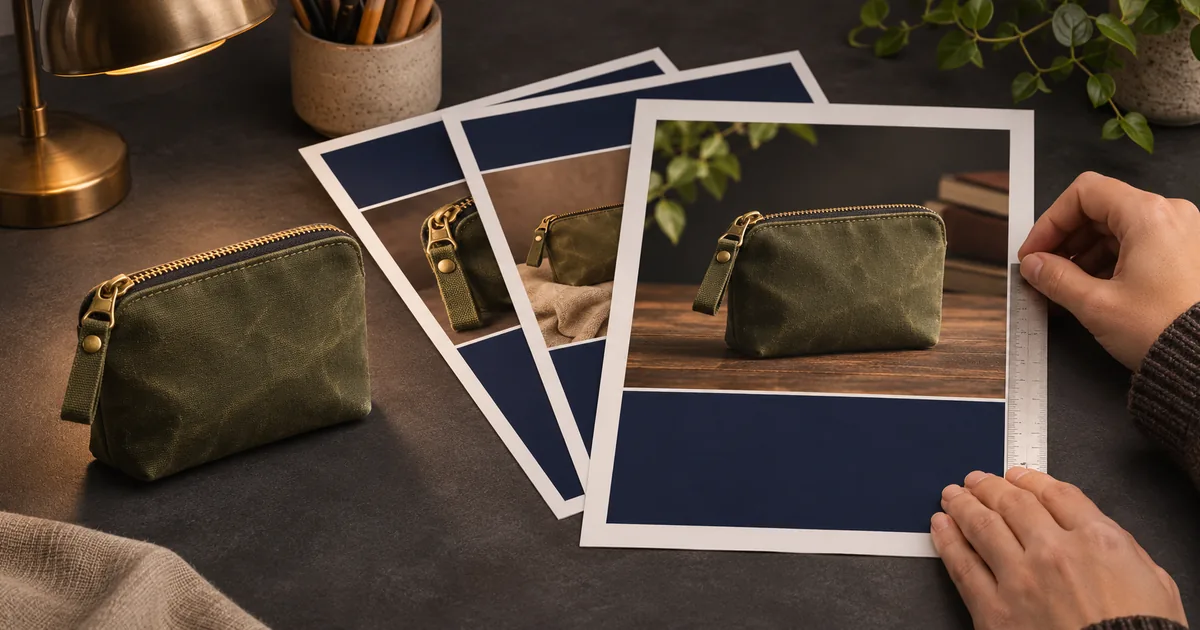
Black Friday Ad Creative Checklist for Small Stores
Build Black Friday ad creative from one real product photo. Plan the offer, make feed and vertical layouts, and check price, product, and checkout details.
 Image
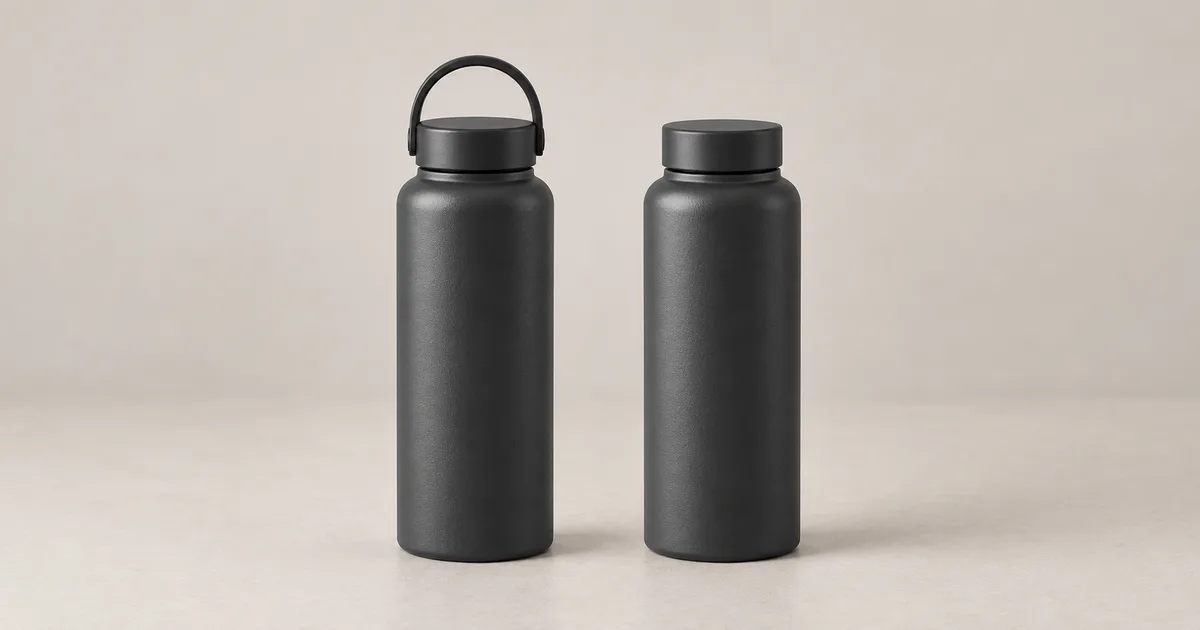
AI Product Photo Approval Checklist: Review Before You Publish
Check AI product photos against the exact SKU, work through a missing-component example, and use a downloadable approval log before publishing the final image.
 Image
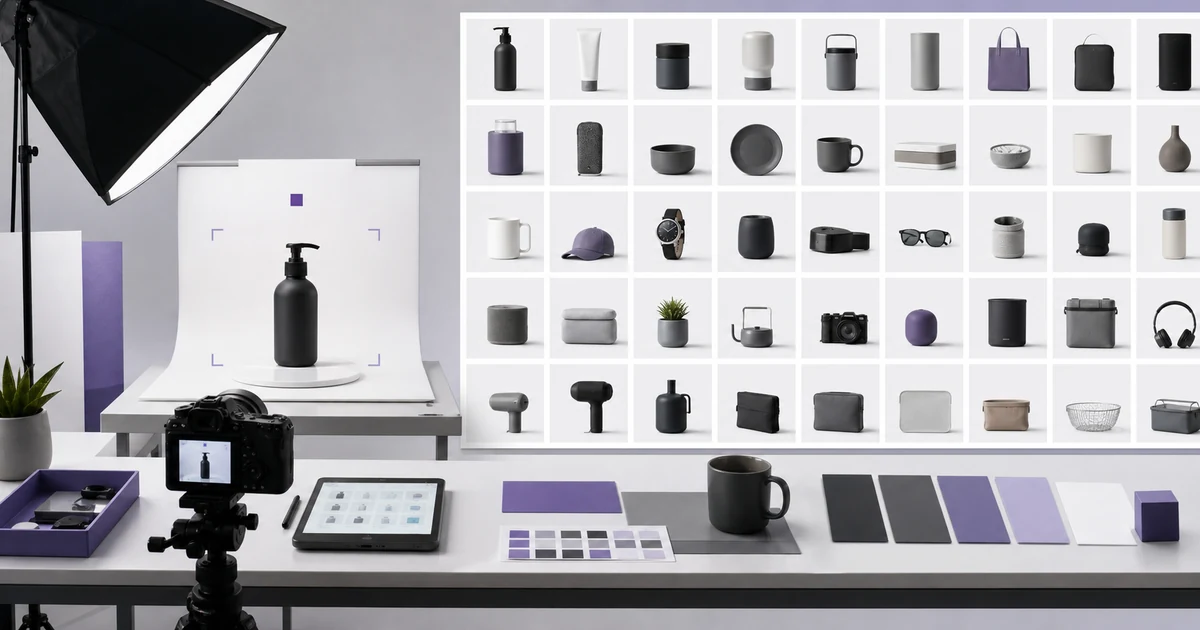
AI Product Catalog Consistency: A 100-SKU Workflow
Create consistent AI-assisted product images across 100 SKUs with a locked product specification, scene recipe, manifest, reference angles, acceptance criteria, and batch QA.