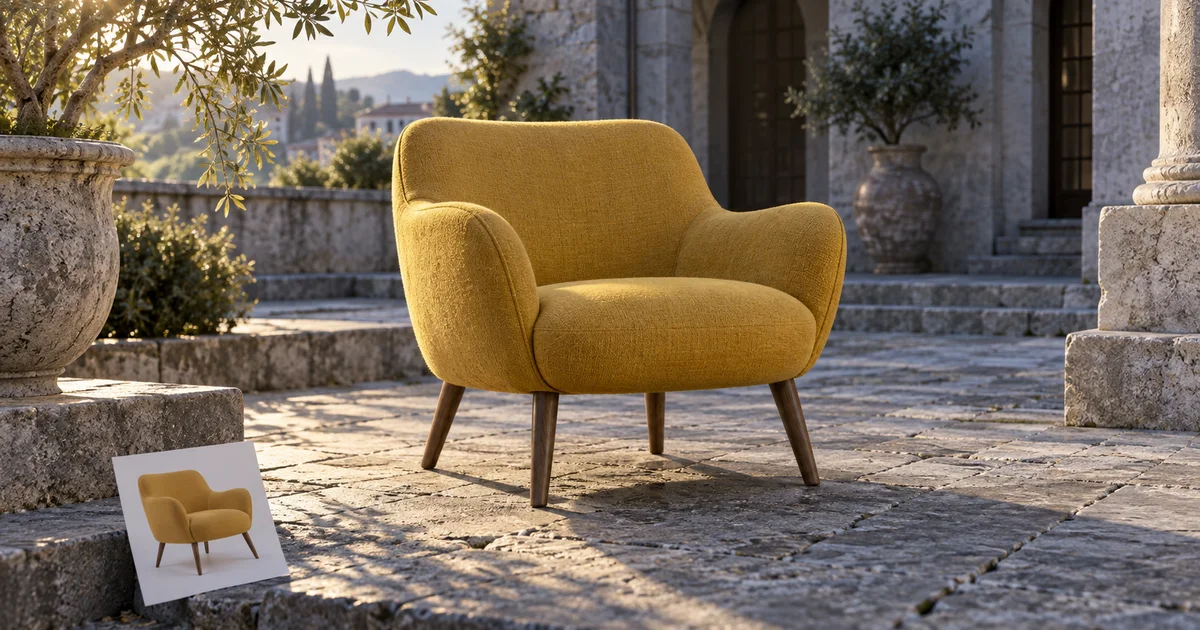

A product cutout can have a clean edge and still look pasted into a scene. Photoshop Harmonize addresses the relationship between the subject and its surroundings, but a convincing result also has to preserve what the product actually is. This tutorial uses a yellow chair to separate lighting improvements from unwanted product changes.
Download the product-composite inspection sheet · Design a background for your product
Adobe documentation checked September 16, 2026. The chair exercise is a proposed review workflow, not a claimed Photoshop before-and-after test. The hero is an AI-generated illustration.
Understand what Harmonize can help with
Adobe’s Harmonize instructions describe matching a subject to a background through adjustments to lighting, color, and shadows. The documented desktop workflow uses a pixel layer; smart objects, text layers, and adjustment layers are not supported inputs for that operation.
This is a compositing aid, not a product-verification system. A pleasing warm cast may make a chair look natural in the courtyard while making its upholstery color inaccurate. A shadow can appear convincing while attaching to the wrong leg.
Start with two references: the background that defines the lighting environment, and the original product photo that defines the product. The final composite must answer to both. For broader background planning, see our ecommerce background replacement guide.
Choose a background with compatible geometry
Our fictional chair has four slim legs, mustard upholstery, and an oval opening in the backrest. The proposed scene is a stone courtyard in afternoon light. Choose a background with a visible ground plane and a camera height compatible with the product photograph.
Perspective comes before color matching. A chair photographed from above may not fit a courtyard photographed from knee height. Harmonizing the illumination cannot make the original camera viewpoints agree. Change the background or obtain a better source angle when the mismatch is structural.
You can design a background in Image Lab with an empty placement area, restrained scene detail, and a clear light direction. Export and inspect the image, then assemble the composite in Photoshop. This is a separate workflow; QuestStudio does not provide the Photoshop Harmonize control.
Prepare a recoverable layer stack
Open the background and place the subject photo. Keep an untouched copy of the original product hidden in the document, and retain the original file outside the working project. Name the layers so that the reference, working subject, and generated variations are easy to distinguish.
If placing the image creates a smart object, duplicate it before converting the working copy to a pixel layer. Confirm the active layer type before looking for Harmonize. Keeping the smart-object original gives you a route back to the unmodified source.
Remove the subject’s original background and inspect the mask. Check between chair legs and through the opening in the backrest. A leftover patch of studio background can remain visible even after the main silhouette looks clean.
Position and scale the chair so its feet meet the ground. Use nearby objects and perspective cues as a reality check. A chair that is implausibly large will not become believable through warmer lighting.
Generate a variation with one review question
Select the prepared working subject layer and follow the current Harmonize flow in the Contextual Task Bar. Review the resulting variations. Adobe also provides a Photoshop web walkthrough; do not assume every platform exposes the same sequence of controls.
Ask a specific first question: does the chair now appear grounded in the courtyard’s light? Avoid simultaneously judging every creative possibility. Establish whether the operation improved the intended relationship, then inspect the product details.
| Check | Acceptable improvement | Reason to reject |
|---|---|---|
| Contact | Feet meet the ground with coherent contact shading | A leg floats or sinks into stone |
| Light direction | Highlights and shadows agree with the courtyard | Chair and wall imply opposite suns |
| Upholstery | Scene illumination changes the appearance plausibly | Mustard becomes a different product color |
| Geometry | Four legs and the oval opening remain intact | A leg thickens or the opening changes shape |
Save an approved candidate before trying another direction. Otherwise, repeated generation can make it difficult to identify which version preserved the source best.
Check the product at three viewing scales
At full composition size, inspect scale, perspective, and the direction of light. At approximately the intended storefront display size, inspect whether the product remains recognizable and the background competes for attention. At 100 percent, inspect the mask edge, stitching, corners, and contact points.
Compare the original and candidate side by side. Count the legs, compare the backrest opening, and follow the seam lines. A general impression of similarity is too forgiving when a shopper expects a specific item.
For color-sensitive work, keep a neutral product photograph available alongside the lifestyle composite. Environmental light changes perceived color; a lifestyle image should not become the only visual reference for a color option. Use your established color-managed review process when exact matching matters.
Do not present a generated editorial illustration as evidence of an actual product’s finish or dimensions. For a real listing, start from approved photographs of the item being sold and retain a clear record of what was altered.
Repair locally when the variation is mostly useful
If the lighting improves but a small product detail changes, consider whether you can restore that detail from the untouched source with a careful mask. Check that the restored area still fits the new illumination. A hard patch from the original studio lighting may introduce another visible seam.
If the entire chair is being reshaped, return to the source and simplify the setup. A more compatible background may solve the problem with less intervention. Do not keep accepting a new product because each individual change seems small.
When the contact shadow fails, inspect placement and the ground plane before requesting another variation. The software may be responding to an impossible arrangement. Moving the chair into a physically coherent position is a more direct correction than piling on effects.
Diagnose a missing Harmonize control
First confirm that you are following instructions for your Photoshop platform and current installed version. Then check the active layer. Adobe’s desktop documentation specifies a pixel layer, so selecting a smart object, text layer, or adjustment layer is a concrete mismatch to investigate.
Check that the intended subject is isolated and positioned over a background. Review the current Adobe instructions for availability and interface changes. Avoid destructive conversions of your only source while troubleshooting; work on a duplicate.
If the control remains unavailable, record your version, platform, active layer type, and the step where the documented flow diverges. Those details are much more useful than repeatedly clicking around a workspace that does not match the tutorial.
Export the file the buyer will actually see
Keep the layered working file, then export a separate delivery image. Open that exported file rather than reviewing only the Photoshop canvas. Check dimensions, edge quality, compression, and appearance against the site’s actual background.
On mobile, inspect the crop around the chair legs and backrest. A layout can hide the grounding shadow that made the composite believable. Leave enough space for the intended crop instead of placing critical detail against the edge.
Record which source photo and variation produced the final image. If a product changes later, that small provenance note makes it easier to replace the asset without guessing which rendering belongs to which version.
Frequently asked questions
Why is Harmonize unavailable on my layer?
One documented cause is an unsupported layer type. The desktop instructions specify a pixel layer, rather than a smart object, text layer, or adjustment layer. Also check your platform and version.
Can Harmonize fix a wrong camera angle?
Do not rely on it to reconcile incompatible perspectives. Choose a background and subject photograph that fit geometrically before matching illumination.
Should I approve the most dramatic variation?
Approve the variation that fits the scene while preserving the product. Dramatic lighting is less useful if it changes color, shape, or identifying details.
Where does QuestStudio fit?
Image Lab can help design a suitable background. Prepare the product layers and perform the Harmonize operation separately in Photoshop.