
Removing a person from a photo is easy when the space behind them is plain sky. A tiled floor, railing, staircase, or another person's shoulder makes the decision harder. The editor must rebuild the hidden background while leaving the photograph's important details alone.
Quick answer: check for a cleaner source frame first, identify the lines and textures crossing the unwanted person, and repair one coherent area at a time. Review the result at normal viewing size and close up. If the person covers an essential face, product feature, or architectural detail, use another photograph instead of treating an invented replacement as recovered detail.
Use the background-repair worksheet to plan the edit before spending time on repeated variations.
Choose the least destructive route
Open the original camera file rather than a screenshot of a social post. Check adjacent photographs, burst frames, and alternate compositions. A clean patch from the same scene can give you real information that no prompt can recover. Match the camera position, perspective, lighting, and any movement before using it.
A crop can also solve the problem. Try the final delivery ratio first. Removing a distracting figure at the edge may be unnecessary if that area never appears in the published picture. Conversely, a tight crop that removes the main person's hand or a building's roof may sacrifice more than it saves.
| Situation | First approach | Main check |
|---|---|---|
| Person near the frame edge | Try the destination crop | Main subject still has room |
| Similar clean frame available | Align and blend real background | Perspective and moving objects match |
| Person against open wall or sky | Small local removal | Texture and light remain continuous |
| Person across steps or a railing | Rebuild structural anchors first | Lines meet at plausible angles |
| Person hiding essential subject detail | Choose another source | Do not invent a factual feature |
Keep an untouched original and a working copy. Give the working copy a name that identifies the version. A useful edit should remain reversible even if you change your mind about which people belong in the scene.
Make a background anchor map
Before masking, trace the background features that enter and leave the unwanted person's outline. On a plaza photograph, these could be a paving seam, the base of a column, the shadow under a bench, and the edge of a planter. Write down which features have visible endpoints on both sides.
Two visible endpoints provide a stronger guide than a feature visible on only one side. A paving seam can often continue between them. A completely hidden carving cannot be verified. Treat these as different levels of confidence instead of asking the editor to handle the whole region equally.
Mark the main subject as protected. Include hair tips, loose clothing, bag straps, reflections, and the shadow that belongs to that person. A mask that misses a strap can make it look detached; one that crosses a shoulder may change the person's body. The same boundary discipline matters when removing a fence from a photograph, although a broad person-shaped obstruction needs different texture reconstruction.
Select the person and the evidence they leave behind
The removal area is rarely just the visible body. Look for a cast shadow, a reflection in a window, a partial shoe, or an object the person is holding. Leaving a floating handbag or an unexplained shadow makes the edit obvious even when the fill itself looks convincing.
Include those associated details when they belong only to the person being removed. Do not erase a shared shadow or reflection without checking what else contributes to it. In a crowded scene, neighboring people may overlap, so work from the most isolated distraction toward the more difficult ones.
Keep some useful surrounding context available to the editor. The exact mask controls depend on the tool. Adobe's people-removal tutorial shows reviewing automatic selections and adding or subtracting areas before applying removal. Automatic detection is a starting selection, not a substitute for inspecting the main subject's edges.
Repair structure before decorative texture
Start with the region that determines whether the scene makes geometric sense. A straight step edge matters more than the fine speckles in its stone. If the step rises in the middle of the repair or changes width, additional texture will only decorate the mistake.
For a passerby crossing a railing, divide the job into the lower paving, the rail structure, and the background visible between bars. A single large replacement can change the spacing of every bar. Smaller connected repairs let you compare the untouched structure with each new segment.
If the tool accepts instructions, describe the area you need to reconstruct rather than the person you want gone. Use a simple request such as this planning example:
This communicates the intended result; it does not guarantee exact pixel preservation. Compare the whole image after each change, especially if your editor can modify areas outside the visible mask.
Avoid the repeating-texture giveaway
A repair can look sharp and still look copied. Repeated cracks, identical leaves, a duplicated window, or a cluster of matching paving marks can expose the fill. Check the repaired patch alongside nearby regions, not only in isolation.
Do not solve repetition by blurring the patch. A smooth oval surrounded by detailed stone is a different visible error. Instead, choose another source patch, reduce the selection, or make a more restrained local replacement. Keep the direction and scale of the material consistent with its distance from the camera.
Water, foliage, and crowds need particular restraint because their details are irregular. The goal is plausible continuity without a conspicuous repeated motif. For a commercial photograph, also check that a removed person has not been replaced with a new object that changes the advertised scene.
Review the plaza example in three passes
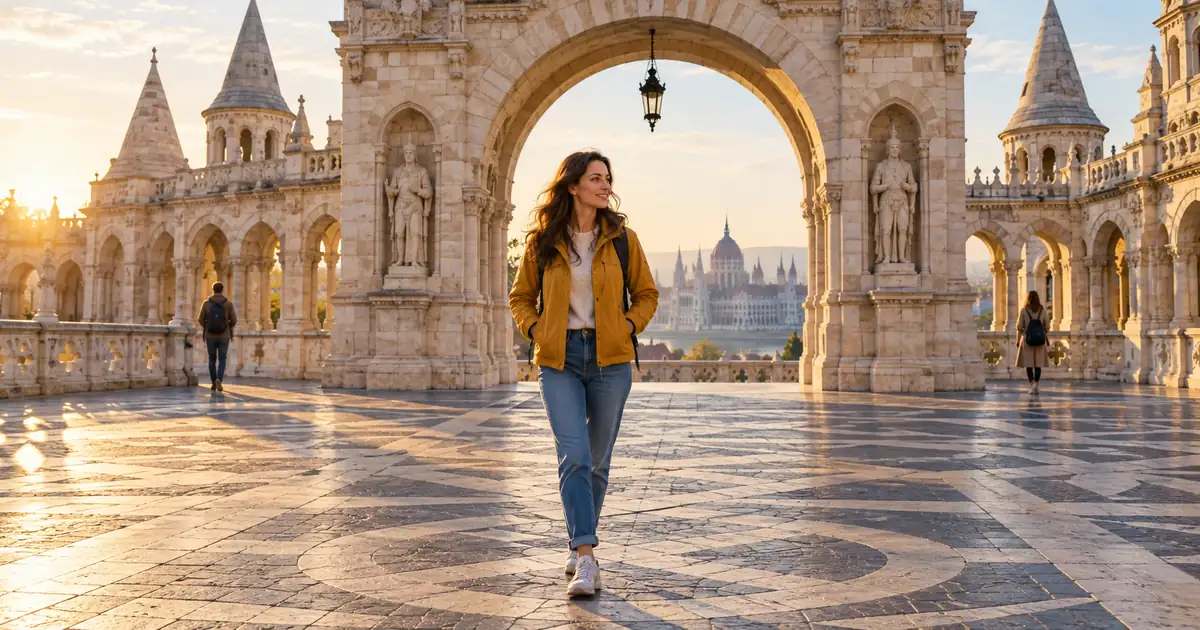
Imagine a traveler in a yellow jacket standing under a stone arch while a stranger crosses the paving behind them. The stranger does not touch the traveler, but their shadow runs toward the traveler's shoe. This is an illustrative editing exercise, not a measured model test.
First, inspect geometry: both paving seams should connect across the repaired area without changing direction. Next, inspect ownership: the stranger's shadow should be gone while the traveler's shoe and contact shadow remain. Finally, inspect texture: the repaired stone should not repeat a distinctive crack from another slab.
At close view, look for halos and small remnants. At the intended display size, ask whether the edit attracts attention. A repair that looks flawless at extreme magnification may still leave a large light patch that reads badly on a phone. Keep both checks in your approval decision.
Know when to stop
If each repair changes a different protected feature, return to the original. Repeatedly editing the last imperfect result can make it difficult to identify where the scene first went wrong. Save useful alternatives, but compare every candidate with the untouched source.
Choose a different frame when the hidden region is central to the photograph's meaning. For documentary or evidentiary use, removing a person can change what the photograph records; follow the requirements of that use instead of presenting a creative cleanup as an untouched capture.
Before export, check the final crop and resolution. A reconstructed edge near the border may become much more noticeable after a vertical crop. If you need additional canvas, complete the outpainting continuity review as a separate operation so you can identify which edit introduced a problem.
How QuestStudio helps
In Image Lab, use an editing-capable model with your authorized source and make one small repair request first. Available inputs depend on the selected model. Use a mask only where that model and the current interface support one; do not assume every image model offers local inpainting.
Keep the original, the repair instruction, and the selected result together. Once the background is approved, use that approved image for later creative variations. Generating a new scene is a separate decision from removing one distraction from an existing photograph.
Frequently asked questions
Can AI recover the real background behind a person?
It can generate a plausible replacement, but it cannot verify detail that was fully hidden in the photograph. Another source frame is stronger evidence of what was actually there.
Should I remove everyone in one selection?
Only if the selection behaves as one coherent region and protected subjects remain safe. Isolated or overlapping distractions often need separate repairs and checks.
Why is there still a shadow after I remove someone?
The shadow may lie outside the original mask. Determine whether it belongs only to the removed person before including it in another repair.
Why does the background look obviously edited?
Look for broken lines, repeated textures, inconsistent light, and overly smooth patches. Repair the specific defect or use a better source instead of applying more global blur.
Keep the photograph coherent
The best removal is the one that preserves the reason you kept the photograph. Choose one distraction, map the background around it, and approve structure, shadows, and texture before moving to the next edit.
Plan a controlled image repair
Hero image: AI-generated editorial illustration. Examples are original planning exercises, not measured model tests.