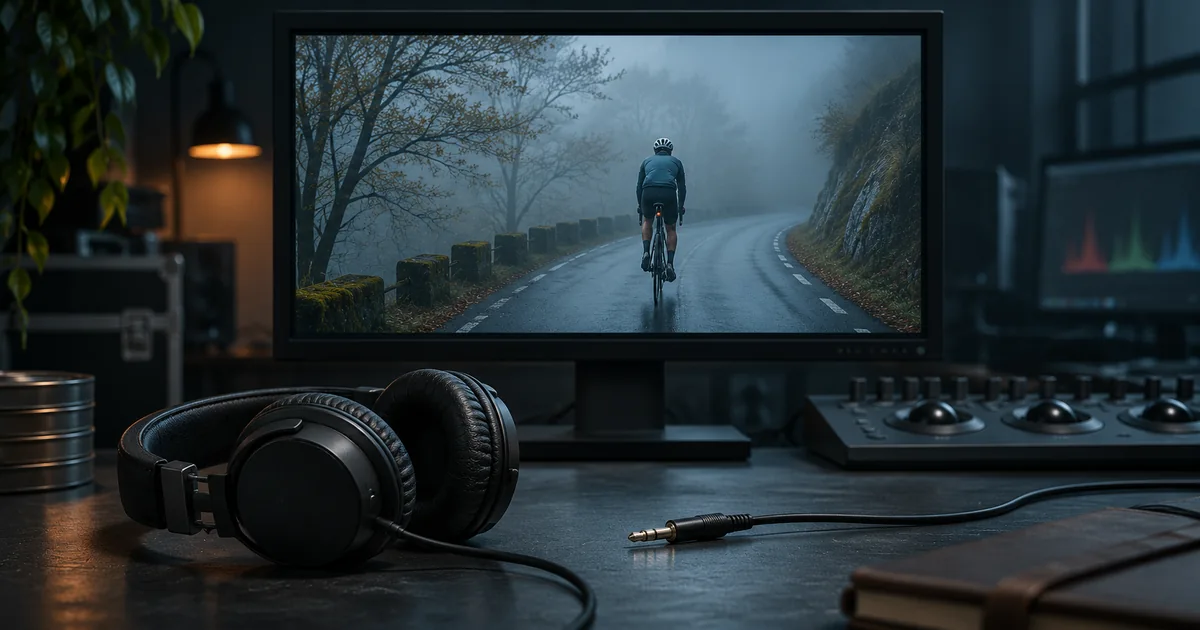

To remove sound from a video, mute or delete the audio in a copy of your edit, export a new file, and open the export itself. If a client or platform requires a file with no audio track, inspect the export for audio streams. A mute button makes playback quiet. The exported container can still carry a silent audio stream.
Choose the file you need to deliver
For a quiet approval video, exporting your existing edit with every audible track disabled can be enough. A new silent audio stream may still appear in the file. For a picture handoff with no audio stream, use a video-only output or strip the track from the finished export. For a replacement narration, keep the original sound separately so you can consult it for pauses or sync.
Treat these as different requests when a note arrives saying “send us a silent version.” If the recipient wants to drop the video into their edit and add music, a video-only copy is convenient. If their ingest checklist requires stereo audio even on silent material, a silent audio track may be part of the spec. Ask for the expected container, picture format and audio track state. Write those down in the filename or delivery note.
Keep the camera file and the editable project in their existing folders. Make a delivery copy with a name such as tour-picture-only-v02.mp4. A filename containing “silent” helps the recipient identify the intention. Stream inspection proves whether the file meets it.
Remove the sound in your editor
Duplicate the sequence before altering audio. If you just need a quiet review, lower the master output or mute every audible layer in the copy. Scrub through the timeline and watch the master meter where the source used to be loudest. Check music beds, embedded camera audio, narration and effects individually. A muted camera clip tells you nothing about a separate narration layer.
For replacement audio, keep a reference copy of the complete project and label the old tracks before disabling them. Put the new narration on its own layer and compare it against the picture where timing is tight. A good test is a clearly visible action, such as a hand closing a latch, with the corresponding line or sound pinned to that moment.
If the editor offers a video-only export, use that option for a no-audio spec. Reopen the delivered file in a fresh player or new project. Timeline controls you used before exporting are separate from what is stored in the exported file. Check the start, a loud section and the end. Then inspect its streams if they matter to the recipient.
Remove every audio stream without re-encoding the picture
With an MP4 containing compatible video, map the main video stream and copy it into a fresh MP4. This is useful when the picture is already approved. The example assumes the first video stream is the picture you intend to deliver. Inspect your input first if it contains cover art, multiple angles or unusual tracks.
ffmpeg -i input.mp4 -map 0:v:0 -c:v copy -an -map_metadata -1 -map_chapters -1 picture-only.mp4This command selects one video stream, copies the encoded picture, excludes audio and drops automatic metadata and chapter copying. Audio, subtitle and alternate camera tracks are not selected. Picture stream copying avoids a new image encode. If MP4 cannot carry your input video format, choose a compatible container or make a deliberate picture transcode according to the delivery spec. For footage with rotation or color information, compare appearance and orientation after export. The command is specific to stream delivery, not a general privacy scrub of picture content or all stream metadata.
There is a separate reason to transcode. If the recipient asks for a different resolution, a crop, a baked-in title or a target codec, the picture itself has to change. Export those changes, then inspect the result. Keep the picture-only copy's name distinct from the approval master.
Check the downloaded copy instead of trusting playback
Use FFprobe to list the video and audio streams in the deliverable. Run the command against the final file after any upload or download round trip. A video-only file should report the intended picture stream and no audio rows.
ffprobe -v error -show_entries stream=index,codec_type,codec_name -of csv=p=0 picture-only.mp4For the practice files, the input includes an H.264 picture stream and an AAC tone. After extraction the new MP4 has one H.264 video stream and zero audio streams. The picture is a simple synthetic test pattern. Run the same command against the input and output to see the difference. A tone is included so you can also hear the before-and-after change without turning up a quiet dialogue recording.
If the target service creates its own preview, inspect both the uploaded master and the playable version when you can. A preview can start muted as a player setting. Likewise an uploaded asset may be re-encoded by the host before a viewer sees it. Document which one you checked and what the recipient is expected to use.
Troubleshoot the three usual mismatches
If you still hear an echo or music after muting camera audio, search for the remaining layer. Solo narration, music and effects one at a time. Duplicate sound can also come from a nested sequence or a second clip whose picture is hidden. Fix the timeline and export a new version.
If the file plays silently but the ingest report still lists audio, use a video-only export or explicit stream mapping. Re-importing a muted result into a timeline and muting it again repeats the same ambiguity. Run the stream listing and match it to the delivery requirements.
If the picture changes when you remove the sound, compare the same timecode in both versions and check the output settings for scaling, frame rate and color. For compatible files, stream copy removes an unnecessary encode as a possible explanation. When a new encode is required, confirm the result still matches the approved picture before delivery.
Practice and verification
| File | Expected picture | Expected audio | Verified on delivered copy |
|---|---|---|---|
| tour-picture-only-v02.mp4 | Original first video stream | No audio streams | Open start, middle and end plus stream listing |
How QuestStudio helps
Use Video Lab to generate a new picture shot if the edit needs a clean insert or replacement take. Keep that new shot alongside the approved source and add it in your editor. The stream selection and file inspection in this guide happen on the exported file.
Frequently asked questions
Does muting a video delete its audio track?
Muting affects playback or mixing. To guarantee that the exported file contains no audio stream, use a video-only export and inspect the result.
Can I remove audio without changing the video quality?
Yes, when the existing video codec is supported by the output container and you copy the video stream without re-encoding. Check the resulting file's playback and stream list.
Can a video be silent and still have two audio channels?
Yes. A silent stereo track is still an audio stream. Some delivery specifications explicitly require one, so confirm the recipient's requirement.
How do I remove background music but keep speech?
Mute the music layer if you have a separate track. When both sounds are already mixed into the same track, selective removal requires a different workflow and can leave artifacts.
Why does a website preview show a mute icon after I strip audio?
Some players show volume controls by default. Inspect the file streams to determine whether an audio track actually exists.
Before you deliver
Save the audible master, export the version the recipient asked for, and inspect the actual file before handing it over. If the picture still needs work, prepare the replacement shot before making the final silent copy.
Sources
Related QuestStudio guides
 Voice
How to Extract Audio From Video With FFmpeg or an Editor
Extract audio from a video with FFmpeg or a timeline editor. Select the correct track, choose M4A, WAV or MP3, and verify the exported audio before delivery.
 Voice
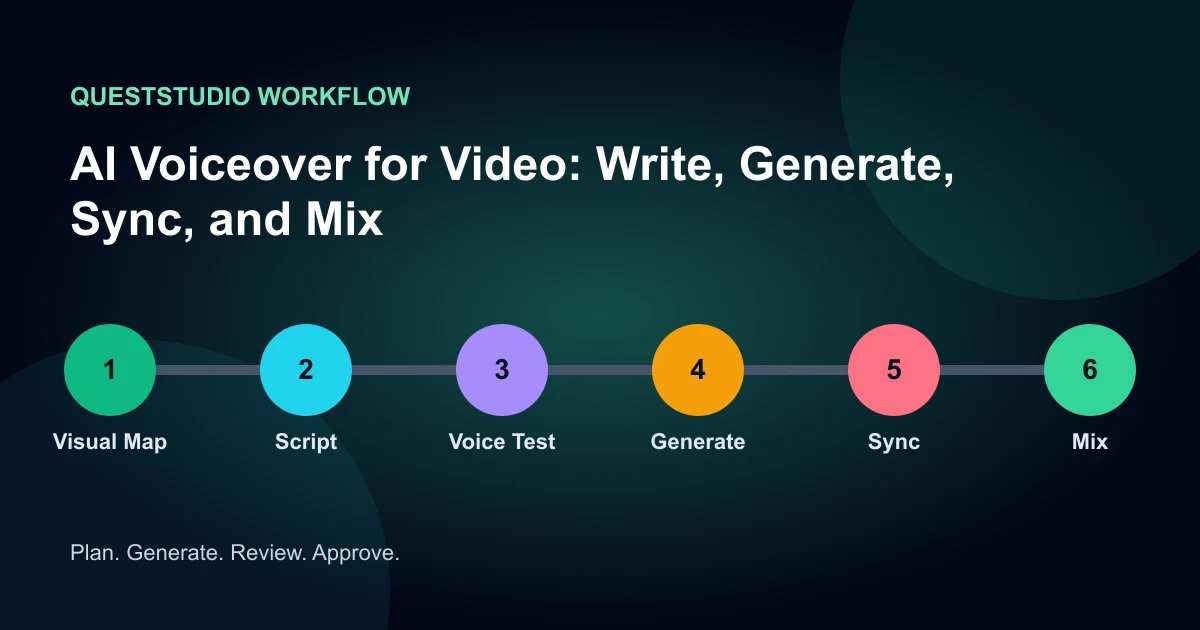
AI Voiceover for Video: Write, Generate, Sync, and Mix
Create an AI voiceover for video with a beat-based script, voice test, pronunciation guide, timing workflow, audio mix, and consent checklist.
 Video
AI Video Quality Control Checklist Before You Publish
Review AI video for identity, motion, product truth, text, audio, rights, accessibility, and destination requirements before publishing.
Hero image created with AI. Practice materials by QuestStudio.