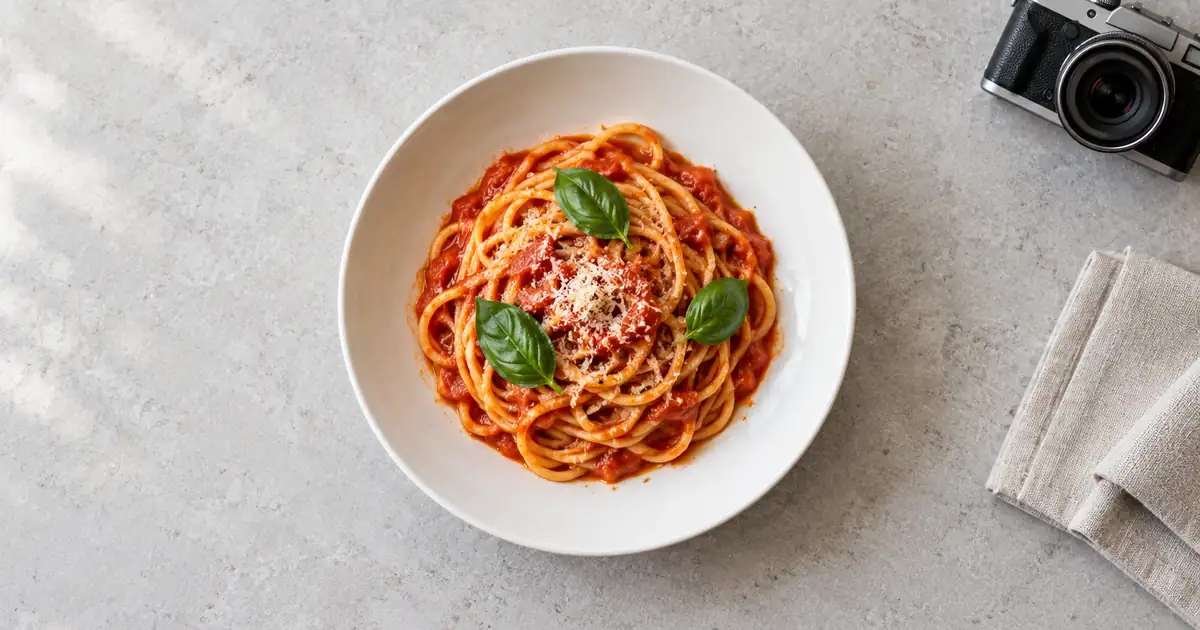

A delivery menu photo can be sharp and appetizing yet still fail because it was prepared for the wrong slot. An item image shows one orderable dish. A cover introduces the restaurant or menu. Their shapes and requirements can differ, even inside the same service.
Start with a real photograph of the dish you serve, keep an uncropped master, and make a separate export for each destination. This guide works through the crop geometry and upload review. For planning a complete menu shoot, use the existing restaurant menu photography workflow.
Download the menu crop and upload log. The pasta illustration below is an original synthetic teaching image. It demonstrates cropping, not a platform-approved photograph of a real restaurant's food.
Identify the destination before editing
Record the platform, image slot, dish name, and menu item identifier. “Delivery photo” is too vague for a filename or brief. A designer might deliver a restaurant cover while the manager tries to upload it to a single pasta item.
Read the requirement in the current merchant interface before a batch export. The following is a checked example from official help pages on October 30, 2026; platform requirements can change. Keep the source link in your worksheet so the next person can check the same rule.
| Destination | Published guidance | Our example export |
|---|---|---|
| DoorDash item | Landscape 16:9; minimum 1400 × 800 pixels | 1600 × 900, which satisfies both dimensions and ratio |
| Uber Eats item | Recommended ratio between 5:4 and 6:4; width 550–10000, height 440–10000 pixels | 1600 × 1280 at 5:4 |
| Uber Eats cover | 2880 × 2304 JPEG at 5:4; multiple products | A separate cover composition, not the single-dish item export |
Sources: DoorDash photo guidance and Uber merchant photo guidelines. These example exports are choices for this exercise, not additional platform minimums.
DoorDash's page lists a 2 MB limit in its general guidance and 16 MB in its item summary. Because the page is inconsistent, check the actual upload field; our conservative example aims below 2 MB. Uber lists a 10 MB maximum for item images. Do not solve a file-size problem by guessing a new crop.
Keep a roomy master of the actual dish
Photograph the served portion with its real ingredients, garnish, container, and accompaniments. Include only what belongs in the order. Keep enough space around the dish to make different crops without trimming the food or expanding the scene artificially.
A master is your reusable source, not necessarily the upload. Save the camera original before adjustments. Work on copies and preserve the original aspect ratio until you know which destination you are preparing. That makes an alternate export possible without undoing a chain of destructive crops.
Use a straightforward background and even light. DoorDash asks for an accurate actual dish and excludes illustrations, added text, borders, and watermarks. Uber likewise asks for a clear, centered item without added text or watermarks. A creative campaign scene belongs in a different workflow from the merchant menu submission.
If you have only a tightly cropped photograph, inspect all four edges before spending time editing it. Missing plate edges may be manageable for one presentation but impossible for another. Retake a wider photograph when the required composition cannot be made from the available pixels.
Compare two crops from the same image
16:9 item crop
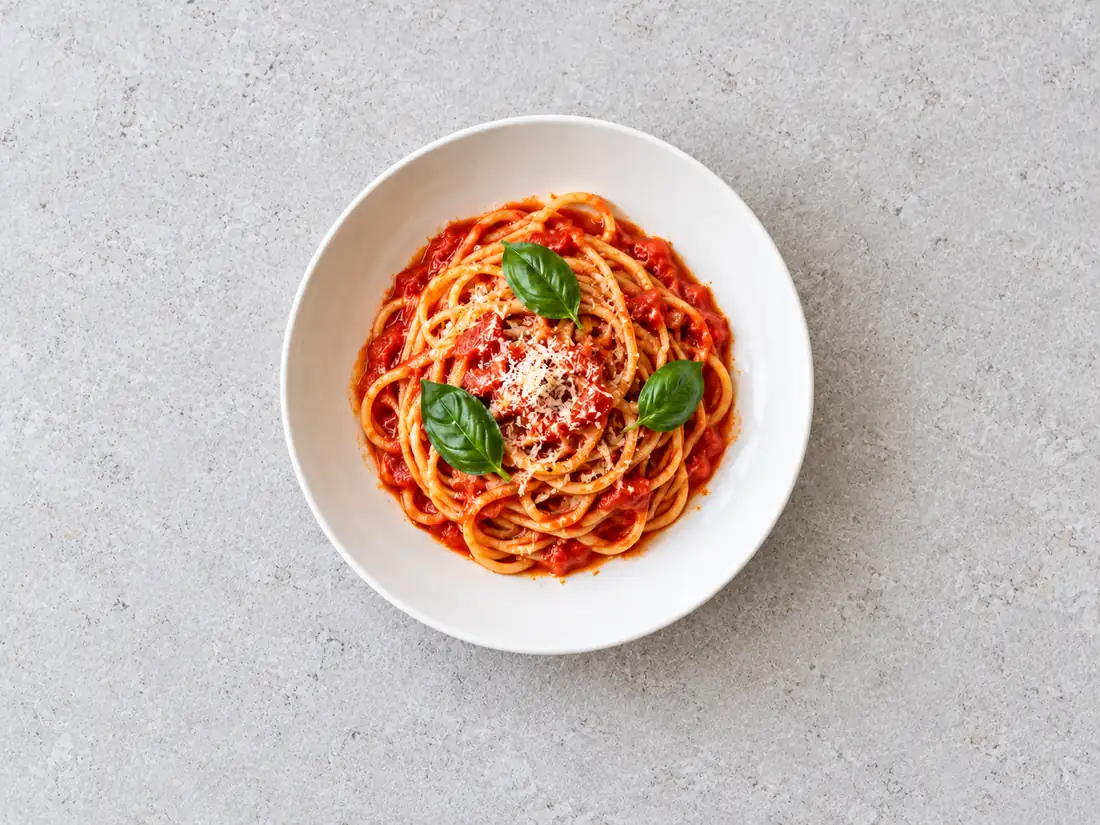
5:4 item crop
The wide version removes background at the top and bottom. The taller version trims a little from the left and right. Neither stretches the bowl. This is the distinction to preserve when a resizing tool offers several similar controls: crop changes the window, while a non-proportional resize changes the subject.
The illustration has enough surrounding space for both windows. A photograph with a plate filling the whole source height would behave differently. Inspect the actual dish, not just the green “dimensions accepted” message in an uploader.
Work through a 3200 × 2400 source
Imagine an actual camera photograph measuring 3200 × 2400 pixels. It has a 4:3 ratio. To create a 16:9 crop at the full source width, calculate the required height: 3200 × 9 ÷ 16 = 1800 pixels. A centered crop removes 300 pixels from the top and 300 from the bottom.
That keeps 75% of the original height. Check whether the bowl and garnish fit inside that retained region. If they do, resize the cropped 3200 × 1800 file proportionally to 1600 × 900. The resize changes the pixel count; it does not need to alter the bowl's proportions.
For the 5:4 version, keep the full 2400-pixel height. Its required width is 2400 × 5 ÷ 4 = 3000 pixels. A centered crop removes 100 pixels from each side. Resize that crop proportionally to 1600 × 1280.
These calculations describe the hypothetical camera source, not the smaller illustration delivered on this page. Use your file's actual pixel dimensions in the worksheet. Do not copy the example's crop coordinates into a different source and expect the same result.
Choose crop, fit, or retake deliberately
A crop fills a destination rectangle by removing pixels outside it. A proportional fit keeps the whole source but may leave empty space when the shapes differ. A stretch forces the source into the target dimensions and can make a round bowl look oval. For a menu item, that distortion can change the food's presentation.
Do not automatically pad a failed fit with decorative borders. The platform may reject them, and the item will become smaller in its card. If the required crop removes important food, return to the master or take a wider source photograph.
Move the crop window when the subject is slightly off-center, but keep the full portion understandable. A central garnish is not the only thing that matters. Check sauce at the rim, the top of a burger bun, and the ends of long dishes such as a sandwich. A crop can retain the main focal point while losing useful portion information.
Review the exported file and the upload
Open the actual export in a fresh viewer. Confirm pixel dimensions, aspect ratio, file format, and file size. Look for compression artifacts around fine noodles, rice grains, and lettering on any real packaging. Reduce unnecessary file weight without blurring the food into a smooth shape.
Name the output for the destination and item, such as pasta-042-doordash-item-1600x900. Keep the source identifier in the log. A generic final-final.jpg is difficult to match to a menu after several dishes have been revised.
Upload one representative item before exporting the entire menu. Check the preview and the published item card when available. Make sure it belongs to the correct dish and variant. A technically valid picture attached to the wrong item is a more serious failure than a slightly awkward crop.
If the image is rejected, record the actual reason. A file-format error calls for an export change; a portion mismatch calls for a new photograph. A cover-slot error calls for the correct destination. Avoid repeatedly shrinking the same file when the rejection concerns its content.
For broader visual accuracy review, use the product photo approval checklist. For a separate social campaign assembled from real dish photos, see the restaurant promo video workflow. Keep those campaign assets clearly separated from menu-item uploads.
Frequently asked questions
Is 1400 × 800 the same shape as 16:9?
No. It is 7:4. DoorDash also specifies a 16:9 item ratio, so the example uses 1600 × 900 to meet both published minimum dimensions and the stated ratio.
Does Uber's 2880 × 2304 requirement apply to every dish photo?
The cited guidance assigns that size to the cover photo. Its item-image section has separate recommendations. Identify the slot before preparing an export.
Can I use the pasta image from this article for my menu?
No. It is a synthetic teaching illustration, not a photograph of your actual served dish. Take and submit an accurate photograph of your own item under the platform's current rules.
Should I stretch a photo to meet the upload dimensions?
No. Use a proportional resize after choosing an appropriate crop. Stretching changes the shape of the food and container, even when the resulting pixel dimensions are accepted.
What if one photo cannot work in both crop shapes?
Return to a roomier original or photograph the dish again with more surrounding space. Save separate destination exports rather than forcing one tightly cropped file into every slot.
Keep the dish recognizable
Use Image Lab for creative campaign concepts. For delivery menu submissions, retain your actual dish photograph and check the platform's current requirements.
Hero: AI-generated editorial illustration. Original teaching materials and documented feature research, checked October 30, 2026. Examples are labeled where synthetic or hypothetical.