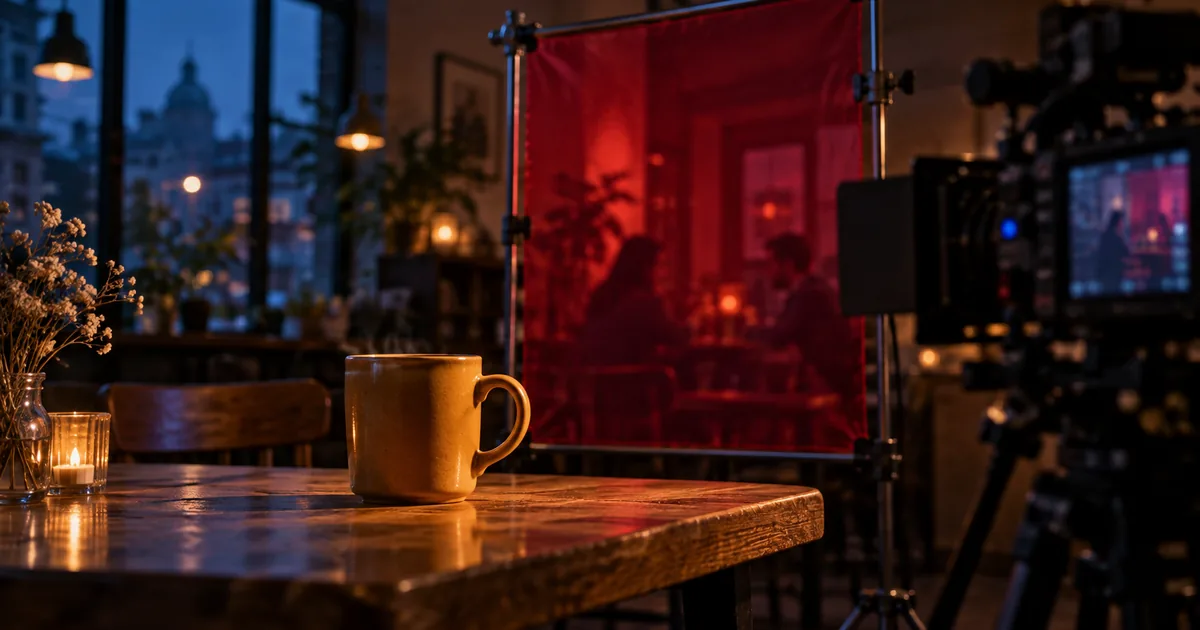

Changing the color of a cafe wall sounds easy until the mug, skin tones, and afternoon light change with it. Aleph 2's keyframe workflow gives you a useful place to catch that problem before asking for a whole edited video.
Download the edit boundary sheet · Plan a reference edit in Editor Lab
Editorial guide checked September 13, 2026. Examples and worksheets are original planning material; the hero is an AI-generated illustration, not a model benchmark.
Aleph 2 gives the edit a visual starting point
Runway's Edit Studio lets you select a keyframe, preview a change to that still, and use the selected result to guide an edited video. The workflow is documented in Creating with Edit Studio. It also offers optional extra-motion direction and the ability to limit an edit to a selected range.
The useful production idea is to separate two approvals. First, does the requested change look right in a still? Second, does it behave correctly over time? Passing the first question does not answer the second. A wall can have the right color in the preview and still flicker or spill that color onto a moving person.
Our example is a cafe shot in which the back wall should become deep blue while the foreground mug, table, performer, and existing camera move remain intact. This is an original planning scenario, not a claim of measured Aleph performance.
Decide whether generation is the right repair
Before uploading footage, define the change in one sentence. “Make this better” is an invitation to alter the whole scene. “Change the back wall from cream to deep blue” gives the edit a bounded job. Write a second sentence naming the elements whose appearance must remain stable.
A conventional color correction or tracked mask may be preferable when the change is simple and exact preservation is essential. Generative editing becomes more interesting when the scene needs a new object, altered environment, or visual transformation that would otherwise require substantial compositing. It still requires review.
Keep an untouched export of the original. Use a short section that contains both a clear view of the wall and an occlusion, such as the performer crossing in front of it. That small range tests the transformation and its hardest boundary without committing the whole sequence.
Write a change boundary before writing the prompt
| Area | Allowed change | Required preservation |
|---|---|---|
| Back wall | Cream paint becomes deep blue | Existing shape, texture, fixtures, and perspective |
| Performer | None requested | Face, clothing, action, silhouette, and timing |
| Mug and table | None requested | Color, geometry, reflections, and contact shadows |
| Camera and edit | None requested | Motion, framing, duration, and cut locations |
This is a review agreement, not a magic mask. The model can still change an area you asked it to preserve. The table tells you what to inspect and where to reject the result. It also prevents a collaborator from approving an attractive new mug when the actual assignment was only to change the wall.
Consider physically related effects. If a brightly colored wall is very close to a subject, some reflected color might be plausible. Decide whether the assignment permits that change. An absolute instruction to preserve every pixel and a request for a radically different light source can conflict; resolve that conflict before the first attempt.
Choose the frame with the most useful evidence
The first frame is not automatically the best keyframe. Choose one in which the wall is visible, the foreground objects are distinct, and the performer does not hide most of the target. Avoid a frame blurred by motion if a cleaner frame exists nearby.
For this cafe example, select a frame just before the performer crosses the wall. It shows the desired wall region and its relationship to the person. Save a second reference frame during the crossing for later review. One describes the intended appearance; the other tests whether the transformation survives an occlusion.
Runway's Aleph 2 prompting guide emphasizes direct descriptions of the requested transformation. Use the preview to judge whether your wording identifies the correct target before adding more complexity.
Approve the still without being distracted by polish
Compare the original and preview at the same size. Look first at the wall's border, then at the performer and foreground objects. A more dramatic image can hide the fact that the window moved, the mug handle changed, or the performer's face became different.
If the target looks right but the foreground changed, refine the edit before generating video. If the target itself is unclear, use a more informative keyframe or a more precise description. Stacking several unapproved still changes can make it difficult to identify which step introduced the defect.
For a paint-color change, there is usually no need to invent a new action. Optional extra motion becomes relevant when the requested transformation itself requires movement, such as a newly introduced element that must animate. Leave it out when it contributes nothing to the job.
Inspect the video at boundaries and difficult moments
After the still passes, generate the selected range and review it against the original. Watch the whole clip at normal speed before searching for individual defects. Then inspect the first changed frame, the moment of maximum occlusion, the reappearance of the wall, and the last changed frame.
The wall must remain attached to the room. Its texture should not slide independently of the camera, and its edge should not creep across the performer's hair. Watch small fixed objects such as switches, picture hooks, and window trim. These details often make an otherwise subtle spatial change easy to identify.
If your source includes cuts, check both sides of each cut. A correct wide shot does not prove that the close-up received the same transformation. A range boundary also deserves attention: an edited segment can look good alone but create a visible color jump when placed between untouched footage.
Retain and compare the original audio separately. Do not assume a visually successful export preserves every property your final delivery needs. Check the actual file's duration, frame rate, resolution, and audio before replacing footage in the edit.
Fix the smallest failed part
If the still is wrong, return to the keyframe. If the still is right but a moving edge fails, try a more informative keyframe or a shorter range containing that movement. If a single cut is troublesome, separate the shots and evaluate them individually.
Some defects are easier to finish with a mask or a small conventional composite. Others indicate that the transformation is unsuitable for the source. Set a retry limit for the experiment so an almost-correct result does not consume an unlimited budget.
Record the selected frame, source range, prompt version, and the exact defect. “Blue spills onto the mug at the end of the pan” is actionable. “Needs improvement” is not. Keep the accepted still and every rejected video linked together; they show whether the problem belongs to the appearance or its propagation through motion.
Use the correct Aleph version and keep a handoff record
Check current upload and export constraints in the Edit Studio documentation before preparing a large batch. At the time of review, the documented workflow accepts short conventional-format clips and lists 1080p as the maximum input resolution. Provider settings and plans can change, so a tutorial's old export menu is not a reliable source of current entitlement.
QuestStudio currently lists the earlier runwayml/gen4-aleph model. It is not Aleph 2, and this article does not imply that Runway's Edit Studio controls exist in QuestStudio. Editor Lab can help develop a still reference, while the Aleph 2 video workflow runs in a compatible Runway interface.
Deliver the edited clip with the unchanged source, approved keyframe, and boundary sheet. That makes the decision reviewable: someone can see exactly what changed, which elements were protected, and which section of footage was approved.
Frequently asked questions
Does Aleph 2 edit an existing video?
Yes. Runway's Edit Studio lets you preview an edit on a selected keyframe and use that approved change to guide the video edit.
Must I choose the first frame?
No. Choose a keyframe that clearly shows the element you need to change. The most informative frame may occur later in the shot.
Should I use Extra motion for every edit?
No. Runway describes it as optional direction for motion that the edit needs. A wall-color change usually does not need a new action.
Is Aleph 2 the same model as QuestStudio's Aleph?
No. QuestStudio currently lists runwayml/gen4-aleph, the earlier model. This guide explains Runway Aleph 2 and Edit Studio.