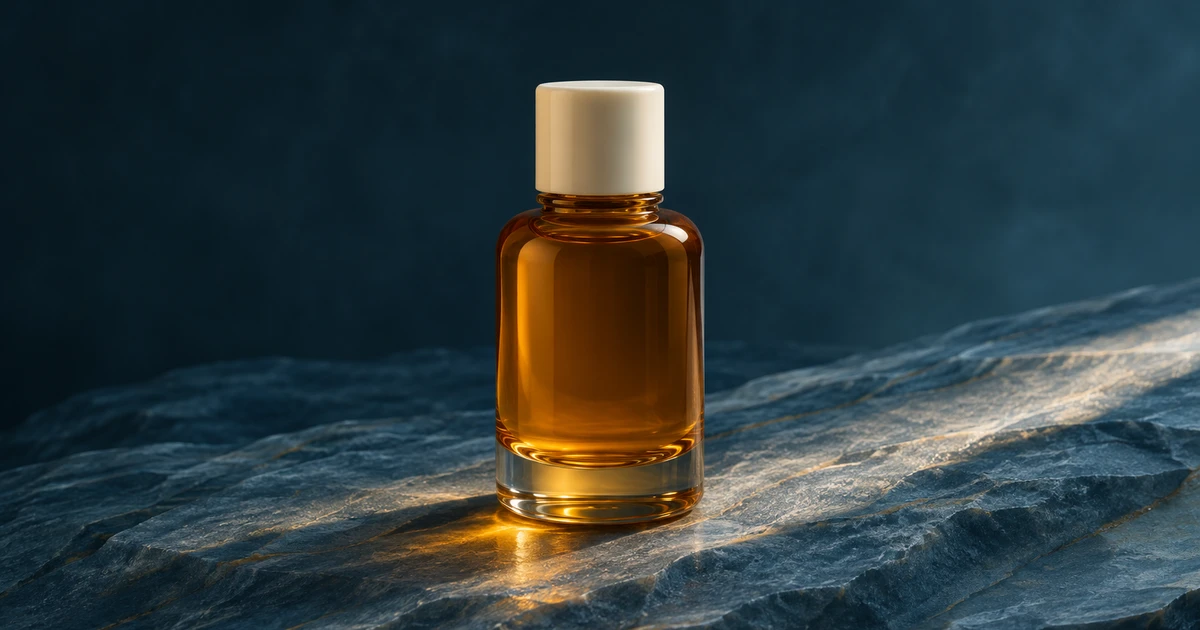

ByteDance Seedream 5 Pro is now available in QuestStudio Image Lab. Start with a written brief or add one reference image. Choose 1K or 2K output and use the prompt to say which details should survive the edit. A simple first project is moving a familiar product into a new setting while keeping its shape and finish recognizable.
Open Seedream 5 Pro in Image Lab
Use one reference to keep the job clear
Start with a reference image that shows what you care about. A sharp three-quarter photo gives the model more information about an object’s shape than a crop that only shows the front label. If you need the full object, keep the edges visible and use a source you have permission to work with.
For this exercise, imagine an amber glass skincare bottle with an ivory cap and a thick base. The cover illustration shows the setting you might ask for, with the bottle on rippled blue-gray stone. Your original reference supplies the actual bottle. A brief that describes the setting and what to keep gives you two things to check after each run.

If you’re still deciding what the subject should look like, use a written brief and start with a text-to-image draft. Save an approved first result as a reference when you are ready to try a different scene around it. The reference image workflow can help you decide which source to use when you have several candidates.
Describe what stays and what changes
Put the most important preservation details early in the prompt. Use names that correspond to visible parts of the reference, such as the bottle’s shoulder, cap, or thick base. Then describe one clear change, such as a new surface, backdrop or lighting direction. A narrow edit gives you a fairer test of whether the subject survived than changing the product, camera and environment in the same run.
Use the reference bottle as the subject. Keep its silhouette, ivory cap, amber glass color and thick base. Place it on cool blue-gray rippled stone with a soft diagonal strip of light. Keep the same viewing angle and leave open space around the bottle for the final layout.Match the prompt to the actual reference. If your product has a narrow neck or two seams, name those instead of borrowing the example details. For commercial work, compare the result with the original at full size. Keep the real logo, label or required copy editable if you need to guarantee what it says.
Choose 1K or 2K in Image Lab
- Open Seedream 5 Pro in Image Lab and choose the composition format you plan to ship. A square crop can work for a single tile, while the same subject may need more height for a product story.
- Add an image from the Reference control when your brief depends on a specific source. Paste the edit prompt and confirm the reference in the composer.
- Use 1K while deciding on the subject placement and lighting. After reviewing the composition, try the 2K option when you need more room to crop or inspect detail. Check the credit estimate with the resolution you choose.
- Save the original reference and the approved output. Use the higher-resolution result only if the details that matter still hold up when you inspect it.
ByteDance describes broader editing and design capabilities in its Seedream 5.0 Pro introduction. The QuestStudio integration offers a text brief or one reference and 1K or 2K PNG output. For a text-only cover idea, the Grok Imagine launch post takes you through a companion workflow.
Check the result before keeping the edit
Look first at the silhouette, then inspect the parts that identify the original. In the bottle example, check whether the cap still fits the neck, the glass reads as amber in the new light, and the base keeps its thickness. A strong background can make a changed product easy to miss until you put the original beside it. Check shadows and reflections too, especially around the edge of clear or colored glass.
If a key detail changes, start the next attempt from the original reference. Tighten the preservation instruction or simplify the new setting. When the result passes review, download the image for your layout or keep the version in your QuestStudio Library for another project.
For a two-image catalog row, test each new setting against the same approved product source. If the first edit shifts the cap color a little, using that edit as the next reference can carry the shift into the whole row. Keep the original next to the exports and compare the item at the same zoom before judging the new backgrounds.
Decide what quality means for the delivery. A banner needs enough negative space where the page lays text. A product tile needs a clean silhouette at thumbnail size. A larger file can make close inspection easier, but export the result whose crop and product details pass the review for that particular placement.
Frequently asked questions
Does QuestStudio offer Seedream 5 Pro?
Yes. Select Seedream 5 Pro in the QuestStudio web Image Lab. Use a written brief or add one reference image.
Can I start with more than one reference image?
The current Seedream 5 Pro setup in QuestStudio accepts one reference image. Choose the source that best shows the object or composition you want to preserve.
What output resolutions are available?
Image Lab offers 1K and 2K for Seedream 5 Pro. Review the displayed quote for the resolution and settings you select.
Can I create a Seedream image without uploading anything?
Yes. Write a text prompt that describes the subject, setting and composition, then pick the format and output resolution you need.
Will a reference image preserve my label exactly?
Review all branding, dimensions and text against the original. Place required lettering or artwork in an editable layer when exact reproduction matters.
Try one Seedream reference edit
Open Seedream 5 Pro with an image you can use. Describe one element to change and the details that must carry through to the result.
Continue with a useful next step
 Image
Seedream 5 Pro Infographics: Make the Numbers Survive the Design
Build a Seedream 5 Pro infographic from a verified fact table, check chart proportions and labels, and preserve editable data in the final deliverable.
 Image
AI Image Reference Pack Workflow: Assign Every Image a Role
Build an AI image reference pack with clear roles, source priorities, and a downloadable manifest. Resolve conflicting references before generating a new image.
 Image
Grok Imagine Image 2.0 Is Now in QuestStudio Image Lab
Try Grok Imagine Image 2.0 in QuestStudio Image Lab. Start with the red umbrella cover, see the supported formats, and adapt the prompt for your next image.