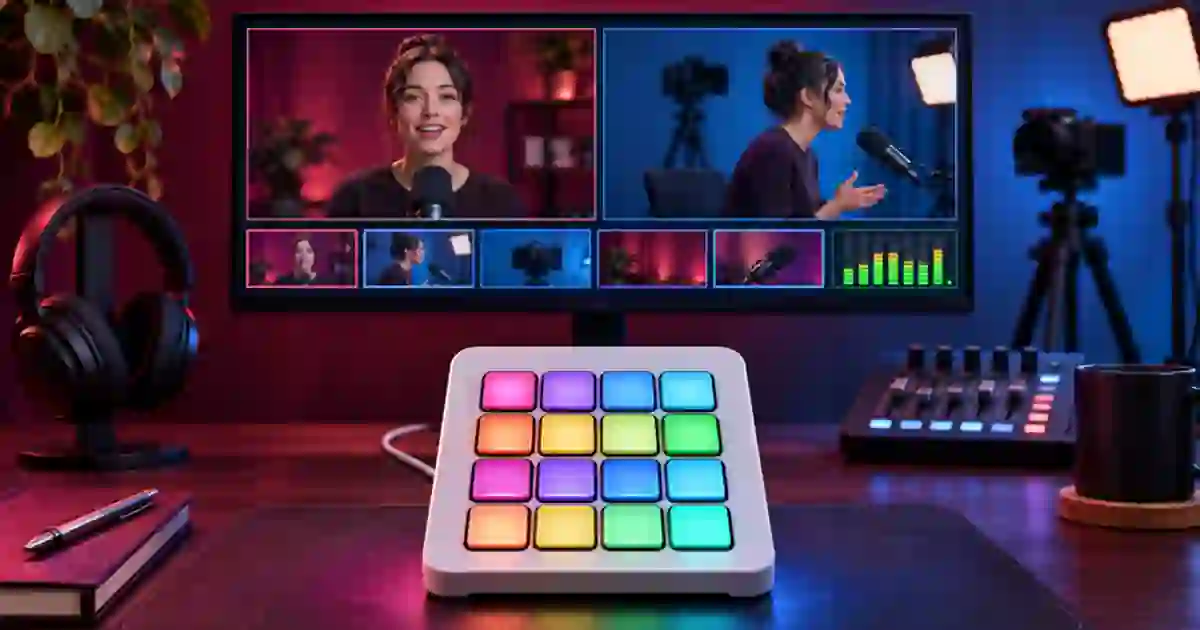

If you need to switch between a presenter view and an overhead demo in OBS, I recommend starting with three dedicated controls and rehearsing the same sequence twice. I use one key for the presenter, one for the demo, and one for a safe holding view. A clear recovery key is more useful during a take than a page full of shortcuts.
My gear pick for this setup
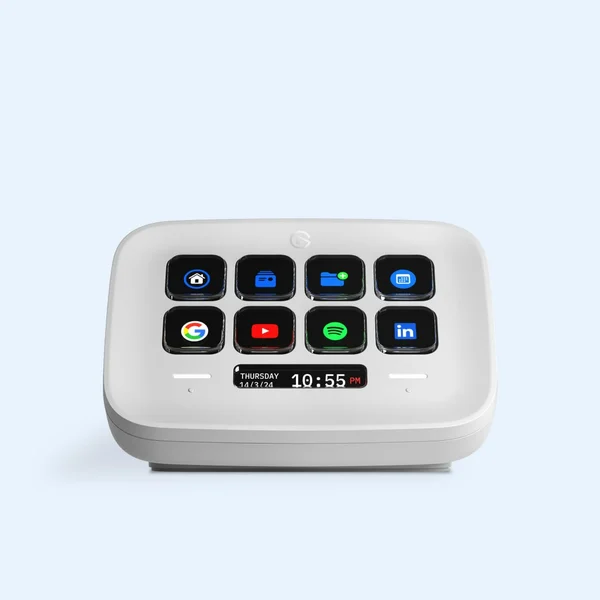
Elgato Stream Deck Neo, white
A compact set of controls for three common scene moves
I’d consider the white Stream Deck Neo if you need distinct keys for presenter, tabletop and hold. Verify the OBS integration on your operating system and test your scene targets.
Build the scenes before you map the keys
Create and name the OBS scenes with the job they serve. For example, use Presenter, Table and Hold. Give each scene the intended camera crop, audio and background. The hold scene should show a stable frame or card that you are comfortable using while you adjust the physical setup. Keep a copy of the scene collection before reworking an existing production layout.
Switch through the scenes with the mouse and record a short test. Check which microphone and desktop sources stay active. Reusing a source can make a setup easier to maintain, while duplicated inputs can produce doubled audio. I keep the same voice source when narration should remain continuous and test each scene where an app sound or separate mic is supposed to enter.
Assign buttons to outcomes you can verify
Use the official Stream Deck OBS integration and choose the supported scene action for each of your three keys. Select the correct scene collection and scene in the action settings where applicable. Name keys the way you will recognize them during the take. If you use Studio Mode, verify whether the action changes preview or the live program and decide whether a separate transition control is needed. The visible scene selection can differ from what the recording actually captures.
I give the holding view a fixed location that stays the same across profiles. Put the presenter and tabletop buttons next to it in the order of the rehearsal. Test each once and watch the program output. If the wrong scene switches, inspect the selected profile and scene target before changing OBS itself. A shortcut with the same name in a second profile can still have different settings.
Rehearse the exact transition sequence
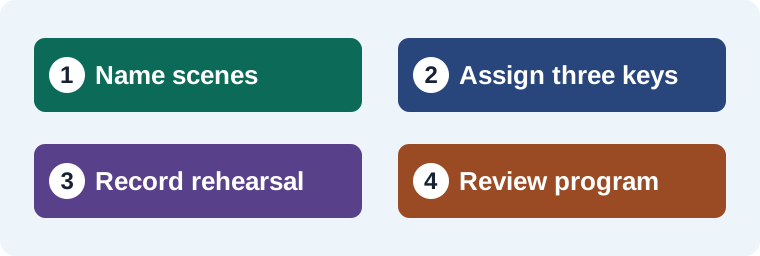
Start recording locally. Speak a short introduction on the presenter scene, switch to the tabletop view for a single movement, and switch back for the explanation. Then deliberately go to Hold and return to the presenter. Watch the complete saved recording. Look for the actual moment the scene changes and listen for a sudden level change or clipped word. I set the transition timing by what the viewer needs to follow.
With a separate operator, agree on a spoken cue or a visible action for each switch. When working alone, I put the same cues in the script so I can reach for a known button without losing my place. Keep a one-line scene order beside the controls. The teleprompter script guide includes where to put action cues. The Stream Deck Neo setup guide covers hardware and profile choices for another editing workflow.
Run through a simple recovery plan
| What happens | Recovery |
|---|---|
| Demo camera is out of place | Switch to Hold, fix the angle and preview the demo before returning. |
| Key changes preview only | Check Studio Mode and the intended transition action. |
| Voice doubles on one scene | Check duplicate audio sources and monitor routing. |
| New profile has different targets | Confirm profile and scene names during rehearsal. |
Match any inserts to the recorded scene
If the tutorial needs a brief supporting illustration from Video Lab, I keep the live demonstration intact as its factual reference. Check the edit against the saved scene transitions, then add the insert where the narrator finishes the relevant thought. Keep the recording and scene notes for future versions.
Assign one person the final switch
When two people run a stream, agree who can put a scene on air. In Studio Mode, the operator can load a camera in Preview and check its crop while Program keeps the audience on the current shot. Give the transition a separate key or use the visible Transition control so the operator can make that final decision after looking at both views. Say the next scene name out loud during rehearsal and check which view changes when you press the key.
Make a short recording of a handoff from slides to camera and then to the closing card. Have the presenter stop speaking where they normally would and listen for a clipped last syllable or an unexpectedly active room microphone. Use the recording to decide whether to adjust the timing, the scene audio, or the handoff cue.
Rehearse a three-scene tutorial without an audience
I would record a 30-second test. Start on Presenter and explain what you are about to show. Switch to Table when you put the product down, perform the motion and return to Presenter to finish the thought. Use Hold once and check how you return to the program. Review the actual recording and mark each scene change. A hand moving before the cut can be fine if the product remains visible. If the move is lost, delay it until the table scene is on screen or change the cue. Listen through each cut for doubled audio. Repeat the sequence after a profile or scene-collection change. The worksheet gives a second operator the scene names, button positions and intended timing.
Download the live production workflow worksheet (CSV)
Frequently asked questions
Can a key target an OBS scene by name?
The official integration supports scene controls. Configure the action against the correct collection and scene, then verify the result on the program output.
Why did a key switch preview instead of program?
Check the OBS Studio Mode state and the exact action assigned. Rehearse how preview and transition work in your setup.
Should every scene have its own mic source?
Use routing that matches the production. Check whether shared sources or duplicated inputs cause a level change or doubled narration.
Why have a holding scene?
It gives you a known view while you fix a camera or setup issue. Rehearse how you return to the presentation.
Sources and further reading
Affiliate disclosure
As an Amazon Associate I earn from qualifying purchases.
Continue with a useful next step
 Image Editing
Stream Deck Neo for Editing: Are Eight Keys Enough?
Decide whether Stream Deck Neo helps your editing workflow. Check its eight-key limits, map useful actions and compare a real task before adding desk hardware.
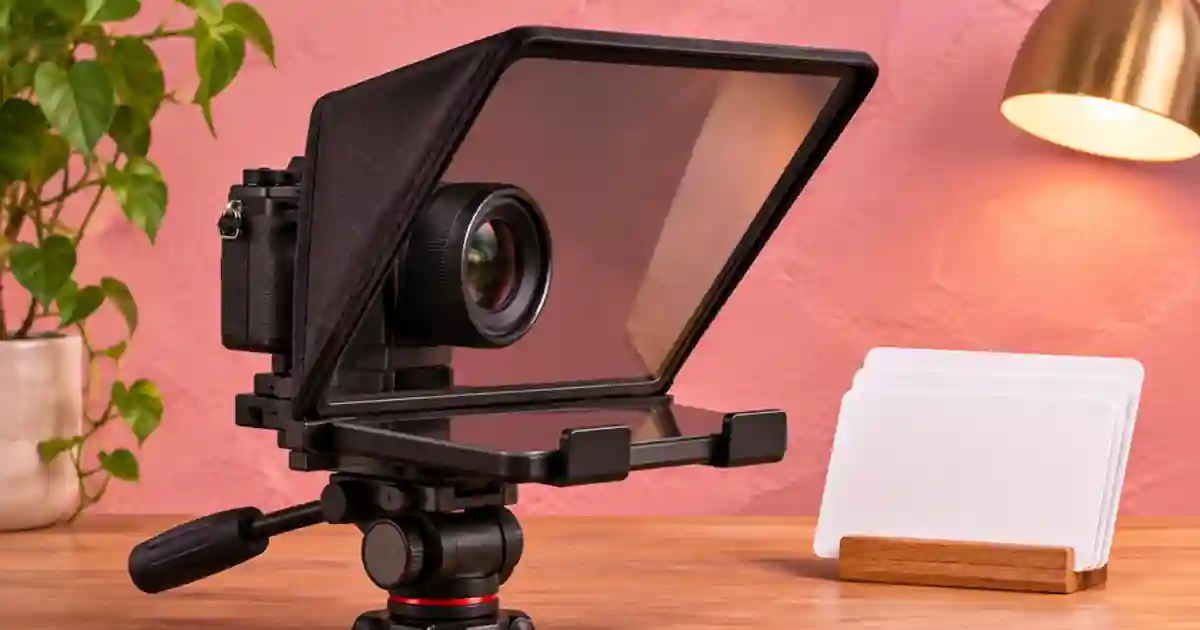 Prompts
How to Format a Teleprompter Script That Sounds Natural
Format a teleprompter script for natural delivery with spoken phrases, readable line breaks and pause cues. Rehearse one short section before recording.
 Creator Workflows
OBS Screen Recording: Capture a Clear First Tutorial
Set up an OBS screen recording with a deliberate capture source, clean microphone routing, and an export check. Use a short test plan before your full tutorial.