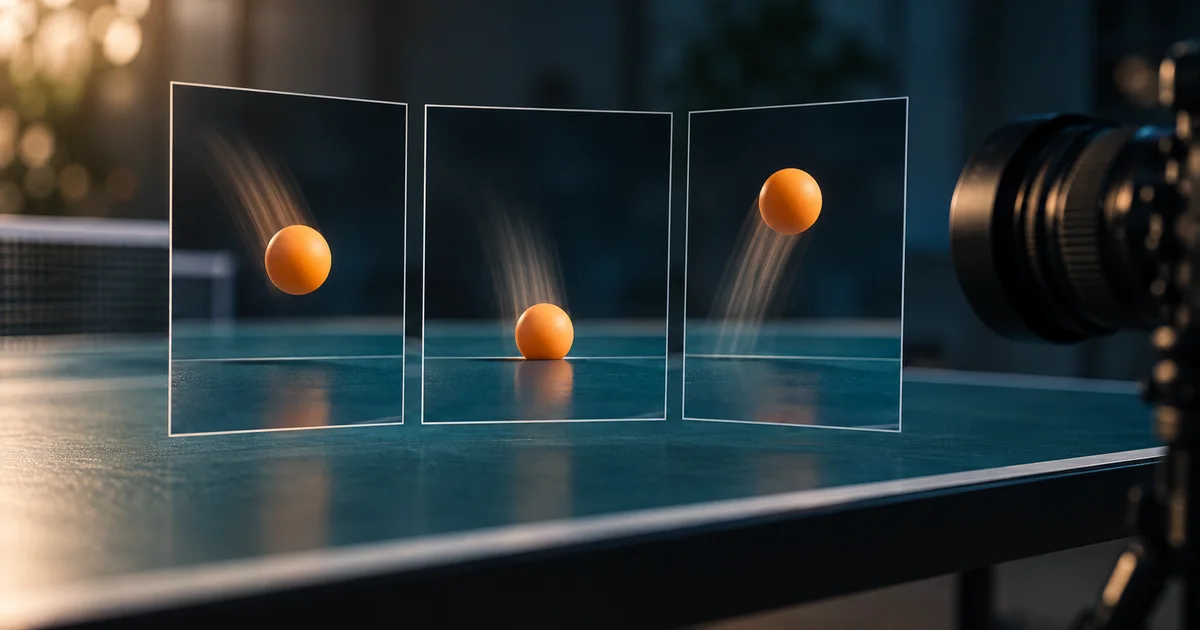

Turning a clip into slow motion can expose the exact frame where the ball merges with the table, a hand gains an extra finger, or two shots smear together. Frame interpolation creates new moments between existing ones. It needs a harder review than checking whether the export says 60 fps.
Download the interpolation decision sheet · Create a short motion source
Documentation checked September 16, 2026. The ball-bounce calculations and review exercise are original instructional material, not measured Topaz performance. The hero is an AI-generated illustration.
Separate frame rate from playback speed
A two-second source at 24 frames per second contains 48 frames. If you convert it to 60 fps while keeping its duration, the output has about 120 frames but the action still lasts two seconds. If instead you make it four times slower, the action lasts eight seconds. At 24 fps, that longer version needs about 192 frames.
These simplified counts assume constant frame rate and exact durations. Real files can contain fractional rates or boundary differences. The relationship is what matters: output frames equal output seconds multiplied by output frame rate. Write the three values down before exporting so you know what result you intended.
| Goal | Duration | Output rate | Approximate frames |
|---|---|---|---|
| Original source | 2 seconds | 24 fps | 48 |
| Smoother normal speed | 2 seconds | 60 fps | 120 |
| Four-times slower | 8 seconds | 24 fps | 192 |
| Four-times slower at 60 fps | 8 seconds | 60 fps | 480 |
Use the current Topaz controls as a starting point
Topaz’s frame-interpolation walkthrough describes loading a source, enabling Frame Interpolation, choosing slow-motion settings and a model, comparing previews, and exporting the selected version. Its examples distinguish Apollo, Apollo Fast, Chronos variants, and Aion. The useful choice depends on the footage and the machine, not just the most ambitious multiplier.
The current preset reference also distinguishes frame-rate conversion from slow-motion presets. Start with a relevant preset, then inspect its actual settings. Do not assume a preset named for a frame rate will create the longer duration you wanted.
Keep the source file untouched. Give every preview a descriptive name such as “ball_contact_2x_candidateA.” That is enough to compare two alternatives without turning the process into a catalog of mysterious exports.
Choose a test that contains the difficult event
For an original exercise, record a bright table-tennis ball bouncing once on a plain, contrasting surface. Frame the contact point clearly. You need the descent, the impact, and the rebound. A preview that includes only the easy part of the arc does not test the most important motion.
Use footage you recorded or have permission to process. If you use an AI-generated source, first decide whether the bounce is physically plausible at normal speed. Interpolation cannot make an already incorrect collision into reliable evidence of motion. It can also make an existing error easier to see.
Choose a short range around the impact and include some frames on each side. Then choose a second range where the ball passes in front of a hand or another object. That tests occlusion: the system must infer what becomes hidden and what becomes visible again.
Run two useful comparisons
First compare the original to a modest slowdown. Then compare that candidate to a stronger slowdown with the same final frame rate. Keep unrelated enhancement settings stable. If you also change sharpness, denoising, and upscaling, you will struggle to identify which operation caused the new texture or edge defect.
Use the available split or side-by-side preview to inspect shape. For timing, play the candidate by itself at the intended speed. Two clips with different durations will not remain aligned throughout a simple side-by-side playback; compare corresponding events rather than assuming equal timeline positions show equal moments.
Spend time on the contact frame. The ball may squash naturally in high-speed footage, but it should not dissolve into the table or become a different object. If the source is too blurred to resolve that distinction, say so. A sharper invented interpretation is not a recovered measurement.
Look for four classes of failure
- Shape errors: the ball stretches sideways, a racket bends, or fingers fuse. Scrub through the event frame by frame.
- Occlusion errors: a moving edge drags part of the background, or the ball briefly appears through an object that should hide it.
- Timing errors: the descent hesitates, the impact holds too long, or the rebound suddenly accelerates without a corresponding source event.
- Cut errors: the final frame of one shot blends into the first frame of another, creating an impossible transitional image.
Topaz documents scene detection for avoiding interpolation across shot changes. For a small project, you can also process shots separately and assemble them afterward. A hard cut is an editing boundary, not missing movement for the system to invent.
Repeated source frames need their own diagnosis. Determine whether they are accidental duplicates, a deliberate hold, or part of the source cadence before applying duplicate-frame handling. Removing an intentional pause can change the performance.
Keep audio on a separate decision path
A four-times-longer shot cannot retain ordinary synchronized dialogue without another choice. You might keep narration at normal speed over the slow motion, use a separately designed impact sound, or intentionally stretch a sound for effect. Decide which one serves the scene.
For the ball exercise, mute the source during the initial visual comparison. After choosing a visual candidate, restore or design the sound and place the impact at the visible contact. Do not use a convincing sound effect to hide that the contact itself is visibly wrong.
Check the final exported file after reimporting it into the editor. Confirm the duration, playback speed, audio placement, and first and last frames. A preview can pass while an export or timeline interpretation produces a different result.
Know when the original is the better version
Choose the original or a smaller slowdown when the extra frames damage the subject. A normal-speed shot with honest blur can be more useful than a smooth, distorted slow-motion shot. If the impact is essential, capturing the scene at a suitable higher frame rate is a better source strategy than demanding extreme reconstruction later.
Our proposed approval rule is simple: the action remains legible at the intended viewing size, the critical contact is coherent, and no newly invented shape distracts from the subject. This is a practical production rule, not a claim that a file can be certified correct by visual inspection.
Record the reason for rejecting a candidate. “Better detail” is vague. “The ball keeps a coherent edge through contact, but the hand smears behind it” tells you what to try next. If both candidates fail the same event, change the source or the creative plan.
How QuestStudio fits before interpolation
Video Lab can help create a short motion source for a fictional scene. Approve the action at normal speed before processing it externally. QuestStudio does not contain Topaz’s interpolation controls, and this guide does not imply that every available video model produces a suitable source.
If the real problem is resolution, use the separate video upscaling guide. If the source already has flicker or melting, first review the repair decision workflow. Changing frame rate solves a timing representation problem; it does not automatically solve all three.
Frequently asked questions
Does converting 24 fps to 60 fps make a clip slower?
Not when the duration is preserved. Slow motion requires a longer playback duration; frame rate and speed are separate settings.
Should I always choose the strongest slow-motion setting?
No. Preview the difficult motion first. A larger multiplier requires more invented intermediate information and can expose defects.
Can interpolation repair incorrect AI physics?
Do not rely on it for that. Approve the original action before interpolation, especially when contact, weight, or object identity matters.
Why does my export look different in the editor?
Check the actual output rate and duration, the editor’s interpretation of the file, and whether the intended preview version was selected for export.