
Yes, Canva can translate editable design text to Spanish. Open the design, find Translate, choose Spanish as the destination, and select the pages to translate. Keep the duplicate-page option on so you can compare the Spanish proof with the original. Then check the wording, date, links and layout before exporting.
A translated card can contain the right words and still fail if a heading wraps over a photo or a button points to the wrong destination. Check what the Spanish reader will actually see and click.
Duplicate the page and identify the editable text
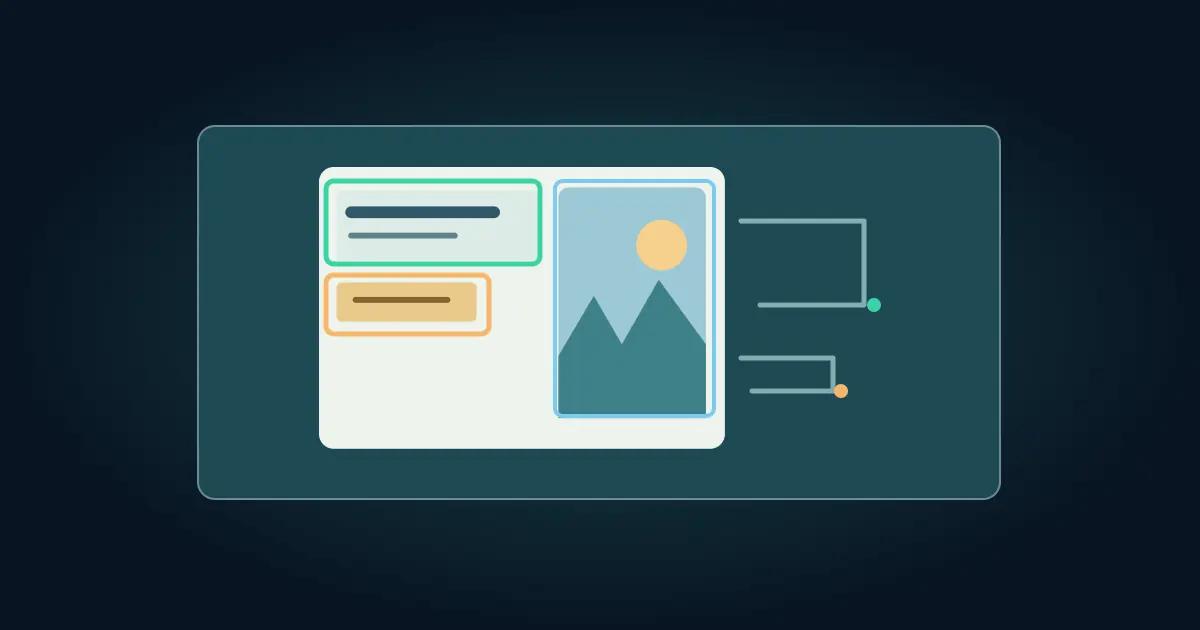
Start with a clean approved source. Make sure the title, date, location and call to action are separate editable elements. If some words are baked into a screenshot or photo, plan to replace that area separately. The Canva editable text guide explains how to build or revise a regular text box.
Open Translate using the controls available in your editor. Canva's design translation instructions describe the language and page controls, along with the option to preserve a duplicate page. Select the page you mean to translate. Give the result a clear label if the project contains several versions.
Keep the source beside the result. If there are brand names, proper names, model numbers or approved phrases, write them in the proof sheet before running Translate. Decide which items must retain their exact spelling and which should be adapted to the audience.
Work through a bilingual event card
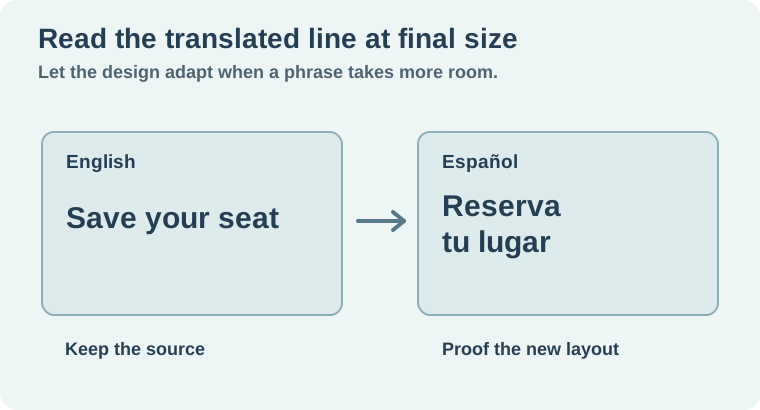
Imagine a fictional workshop card. Its source title is “Workshop registration.” The date is November 7, the venue is North Pier Studio, and the button reads “Reserve your spot.” A possible Spanish proof uses “Inscripción al taller,” “7 de noviembre,” and “Reserva tu lugar.” Confirm that the wording and tone fit the Spanish-speaking audience you intend to reach.
Check the official venue name separately. A literal translation can make a proper name harder to find on a map. Verify the date and time against the source record rather than relying on the visual similarity of the two cards. If the audience spans time zones, keep the time zone visible in the text where it matters.
Click the button in the proof. Translation can change the visible label while the link continues to point to the same form. That may be correct if the form works for the audience. If a localized form is required, verify its address and access. Keep the original link recorded so the team can see what changed.
Fix wrapping without shrinking everything
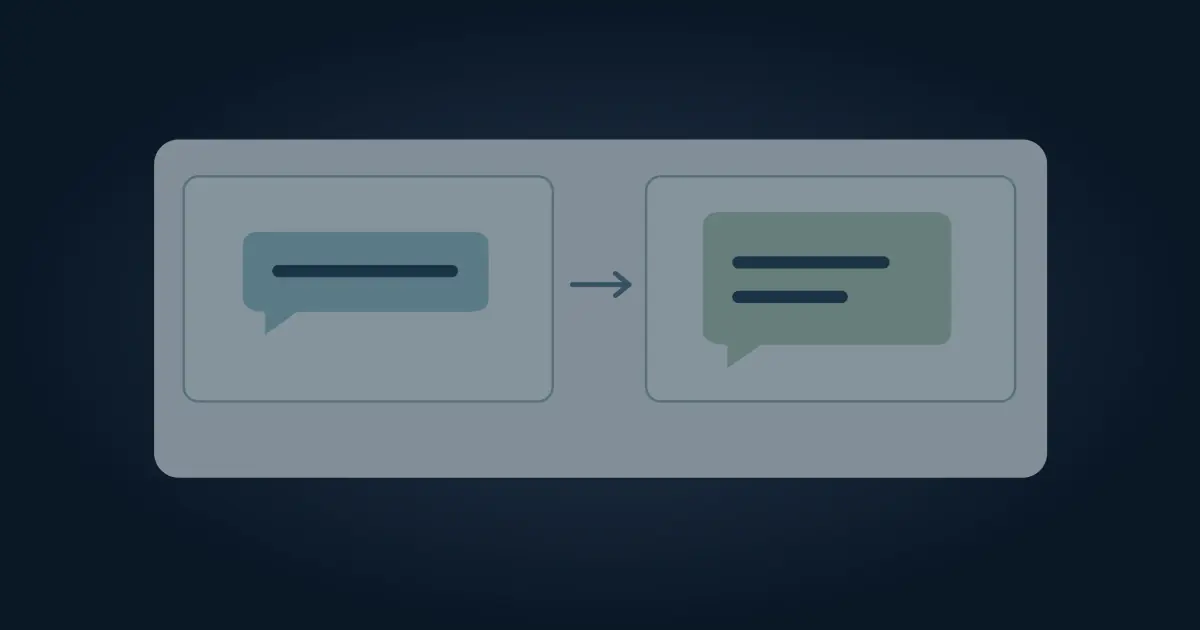
Read the Spanish headline at the intended size. Longer wording may need a two-line heading. Give the text a little more width or move the related subtitle instead of reducing all the type until it fits the English box. If the heading and subtitle need to move together, follow the Canva grouping workflow while keeping the background independently editable.
Review accents and punctuation in the actual font. Confirm characters such as í and ñ render cleanly. For a social preview, compare the smallest useful caption and call to action at phone size. For a PDF or print file, check the destination proof and confirm that every translated line stays inside the visible area.
If a photo contains wording that stayed in English, determine whether the audience needs it. Replace the visible label with an editable design layer when appropriate, or choose a source with no embedded wording. Keep essential information available in real text where the delivery format supports it.
Read the translation as its own design
Have a fluent reviewer read the Spanish version without looking at the English page first. They should understand the event, date, location and next action. Then compare the two pages for details that must agree. Record any changes to tone or regional wording in the worksheet so the next design can reuse the decision.
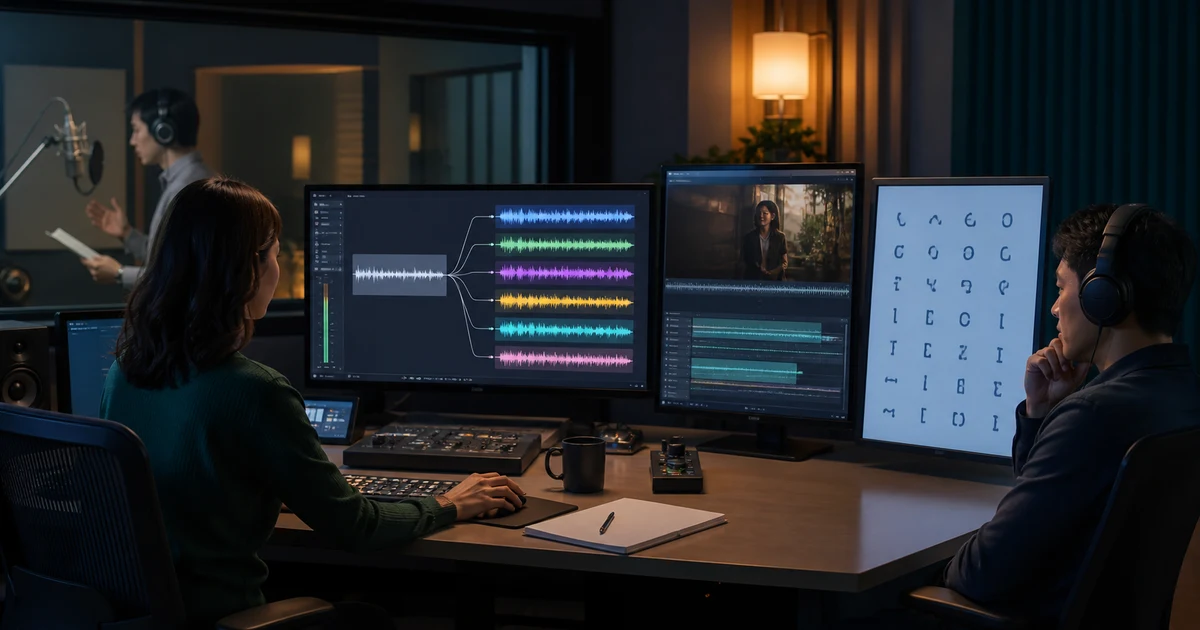
If the design includes narration, review its Spanish timing and pronunciation separately. The voice localization workflow explains why a translated script can change the duration and emphasis of a read. An approved graphic and an approved audio track need separate proofs.
Get approval on what the reader must do
Send the reviewer one copy of the translated design and identify its audience. Ask them to find the date, price, location, and action without seeing the English layout first. Compare their reading with the brief. For example, confirm whether an invitation needs a local time zone and whether a date written as a number is ambiguous for the audience. Check the exported flyer on a phone before sending it. If a button still reads Register because it was baked into a screenshot, swap the image for a localized screenshot or rebuild that label as editable text. Keep a separate export for each language and name them clearly. That makes later date changes easier to proof in both files. On a poster with a QR code, scan the exported version and verify that its destination matches the language of the poster.
How QuestStudio helps
Use Prompt Lab to maintain a short glossary of approved names, calls to action and tone notes for a series of designs. Verify the exact Spanish text in Canva and export a separate proof. Open the final file, read the date and click the intended link before sending it.
Download the canva spanish translation proof sheet.
Frequently asked questions
Can Canva translate to Spanish?
Yes. Use Translate and choose Spanish as the target language for your selected pages.
How can I keep the English page?
Use the duplicate-page option or make a separate design copy before applying the translation.
Why did words in my photo stay in English?
Words baked into an image are not regular editable text boxes. Replace or edit that part separately if needed.
Should the Spanish text have the same line breaks?
Use line breaks that read well in Spanish and fit the intended layout.
What should I verify in the export?
Check wording, accents, dates, names, text wrapping, and the actual link destinations.