

If your 4K monitor works through a USB-C hub but feels sluggish, I recommend checking the active refresh rate before changing anything. If the computer reports 30 Hz, test the display directly at the same resolution. A working 60 Hz direct connection gives you a reference for testing the hub, its input, the cable, and the monitor mode.
My gear pick for this setup
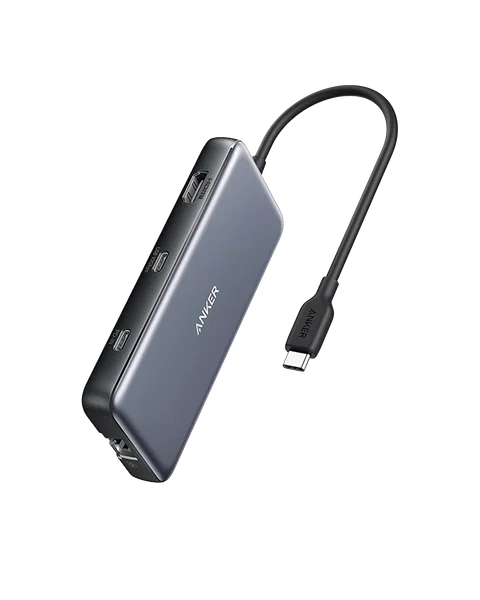
Anker 555 USB-C Hub, 8-in-1
A hub to shortlist for a compatible 4K 60 Hz host
I’d consider the Anker 555 A8383 after confirming the laptop’s video mode and the hub’s published host requirements. Check the exact HDMI output and verify 60 Hz with your own screen.
Read the active signal before you buy
Open your computer’s display settings, select the external screen and read its current resolution and refresh rate. The active mode matters more than a monitor's maximum printed specification. A 60 Hz panel can still be receiving a 30 Hz signal. Moving a cursor or scrolling a timeline can feel less fluid at 30 Hz, but an editor’s playback stutter can also have other causes. Reading the signal mode makes the problem specific.
Check the monitor’s information menu when it offers one. This helps confirm you are reading the settings for the actual external display and input. Write down the path from the laptop port through the hub and HDMI cable to that input. I keep the resolution fixed for the first comparison because changing both resolution and refresh rate can hide the exact limit you need to identify.
Establish the simplest 4K reference path
Connect directly with a suitable cable or adapter that both endpoints support. Use the documented laptop video port and the monitor’s input rated for your desired mode. If the display lists 60 Hz at the chosen resolution, select it and confirm the signal on the screen. If the direct route also stops at 30 Hz, the hub has yet to be isolated. Check the host’s display capability, the display input’s supported settings and the cable before moving on.
When the direct connection works, return the hub to the chain and keep as many other pieces steady as possible. If the same HDMI cable cannot be used in both setups, write down the difference. Choose one known cable for the hub test. If a different input fixes the rate, look up which modes the display supports per port. I save the verified configuration with the model number of each device so a second desk can reproduce it.
Read the conditions attached to 4K at 60 Hz
The host, hub, cable and monitor have to negotiate a mode they all support. A USB-C hub's product page may describe a maximum that depends on the host’s DisplayPort capability and the configuration. Check whether the product is specified for 60 Hz at 4K, which upstream mode it needs, and whether other ports or additional monitors change the output. A physical connector does not establish the transport or bandwidth available.
If the hub works at 60 Hz at 1080p but stops at 30 Hz at 4K, that observation points toward a mode limit or a configuration that cannot carry the higher rate. Try one display and remove optional peripherals for the test. Where the manufacturer lists an input setting or firmware step for your exact model, follow its instructions. I check the plain SDR mode first and retest the required color or HDR mode after establishing a stable path.
Use the first working result
| Result | Next step |
|---|---|
| Direct 4K at 60 Hz, hub 4K at 30 Hz | Check hub model, host requirements and supported HDMI mode. |
| Direct and hub both at 30 Hz | Check the laptop output and display input specifications. |
| Another cable restores 60 Hz | Label the working cable and test after sleep. |
| Panel goes dark instead of showing 30 Hz | Check signal and power as separate paths. |
For a review screen, I would keep a verified direct cable as a fallback. A hub can still serve storage or other desk accessories separately. See the creator hub compatibility guide for checking the ports you need and the no-signal monitor guide if the screen cannot establish a connection at all.
Check the workflow that motivated the change
Once the mode is stable, compare a short export and its source with the review screen you actually use. In Image Lab, I like to keep the approved product still beside a candidate and look at edges at a matched zoom. The display mode makes the workspace comfortable. Use a separate color check for approval decisions and remember that a smooth cursor alone cannot verify the content.
I keep a record of the refresh rate with the display resolution and which ports were in use. When a dock works on one laptop and falls back on another, compare the host capability before returning the dock. A written inventory also helps you avoid accidentally testing a spare charging cable in place of the one that passed. Check with the power supply connected if that is how you use the desk every day.
Log a working 60 Hz route before you shop
Say the external display reports 3840 × 2160 at 60 Hz when connected directly and 3840 × 2160 at 30 Hz through the hub. I would save the direct route as a baseline, then unplug extra accessories and try the documented host and HDMI ports. Record the same two readings again. If the hub documentation limits the exact setup to 30 Hz, keep the direct connection for editing or choose a model that explicitly supports the needed mode. If the new route works, repeat the check with the laptop on battery and after sleep. One stable result that survives the normal setup routine is the one I’d trust for a review session.
Download the display troubleshooting worksheet (CSV)
Frequently asked questions
Can changing the cable fix 30 Hz?
It can if the old cable or adapter cannot carry the mode. Check the host and display as well before assigning the problem to the cable.
Does every 4K HDMI hub do 60 Hz?
No. Check the exact product model, supported modes, and the upstream requirements for the laptop.
Why can I get 60 Hz only at 1080p?
That mode generally needs less bandwidth. A limit somewhere in the connection may keep the higher resolution from using the same rate.
Does a 60 Hz setting change my export frame rate?
The display refresh rate affects your preview. Your sequence and export settings determine the video’s frame rate.
Sources and further reading
Affiliate disclosure
As an Amazon Associate I earn from qualifying purchases.
Continue with a useful next step
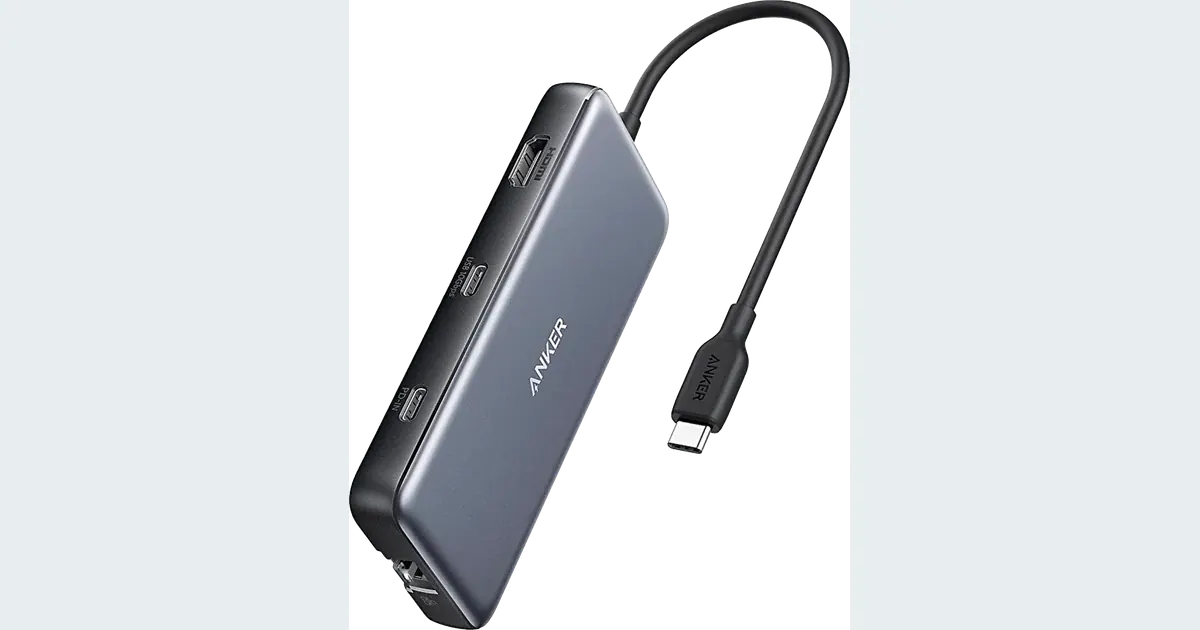 Image Editing
USB-C Hubs for Creator Laptops: Check the Whole Setup
Choose a USB-C hub for a creator laptop. Review Anker 555 power, display and card-reader limits, then map your devices and test them in a sensible sequence.
 Creator Workflows
Portable Monitor USB-C No Signal Fix for Creators
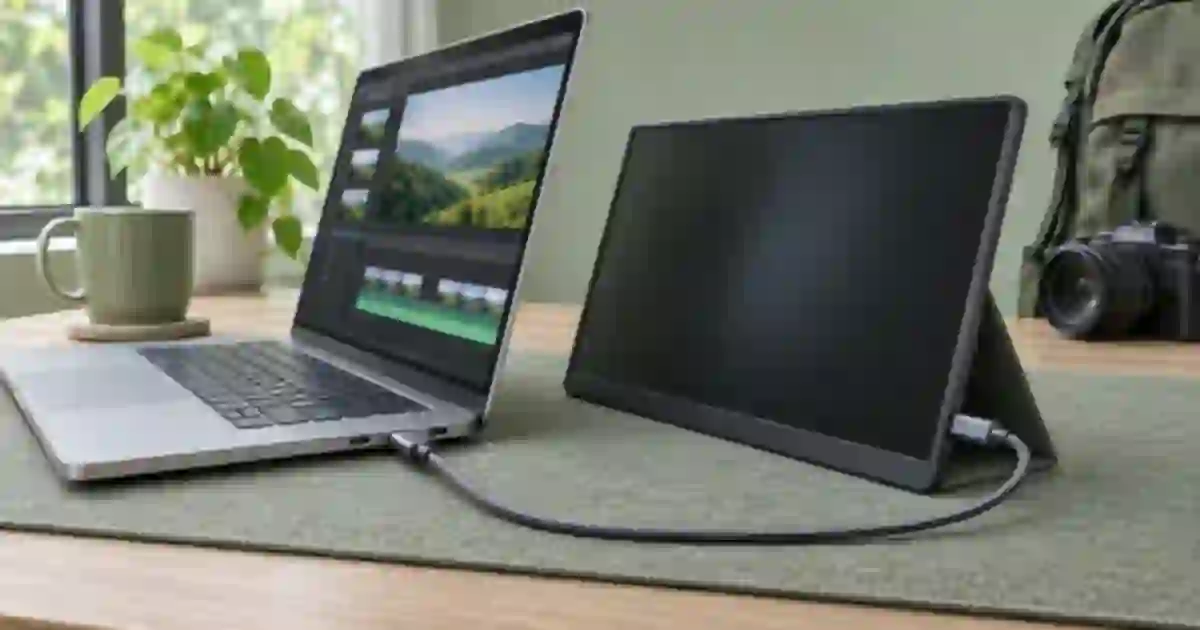
Fix a portable monitor that says no signal over USB-C. Check the laptop port, video cable, monitor input and power, then test the dock and HDMI fallback.
 Creator Workflows
USB-C Cable Speed: A Creator's Compatibility Guide
USB-C shape does not guarantee fast data, video or charging. Check the port, cable, hub and device with a practical connection worksheet for creators.