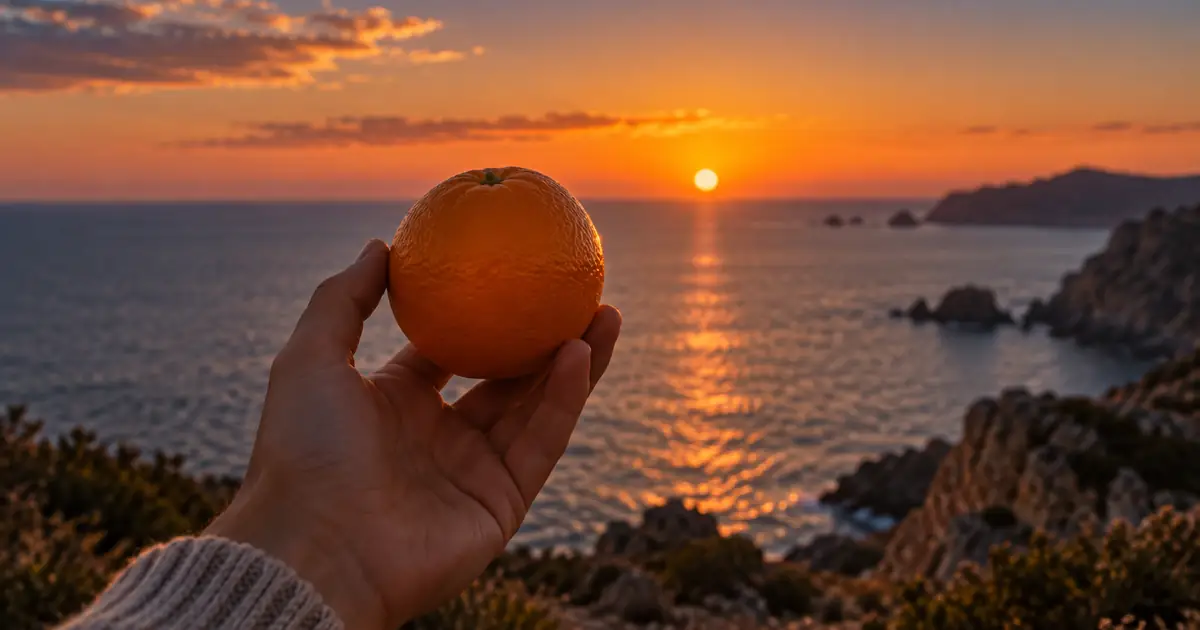

Two clips can share a subject and still make an awkward cut. The shape jumps, the motion reverses, or your eye has to search the frame again. An AI match cut works when you design the relationship between two shots before asking either shot to move.
Create the first matching frame · Download the two-shot alignment sheet
Checked September 14, 2026. Coordinates and shot briefs below are original planning examples, not measured model performance. The hero is an AI-generated illustration.
Choose what the audience should connect
Adobe's match-cut guide distinguishes graphic, action, and audio matches. A graphic match connects visual features. An action match carries a movement across the edit. An audio match links scenes through sound. The creative purpose is the relationship the viewer notices, not the presence of an elaborate transition effect.
For our example, a circular orange on a breakfast table cuts to a low round sun over the water. The link suggests the start of a day. We will preserve the circular shape and its screen position. We do not need the orange to melt into a glowing sphere or the table to transform into an ocean.
Write the relationship in one sentence before generating: “The orange and the sun occupy the same part of the frame, connecting breakfast with morning.” If the idea needs a paragraph to explain, simplify the first attempt. The cut must be readable in a fraction of a second.
Plan the two anchor frames in shared coordinates
Use the same aspect ratio for both shots. Then describe the matching feature as a fraction of the frame, which makes the plan portable across resolutions. In this example, place the center at half the width and just below half the height. Give both circles approximately the same visible diameter.
| Feature | Shot A: orange | Shot B: sun |
|---|---|---|
| Frame | 1920 × 1080 planning canvas | 1920 × 1080 planning canvas |
| Center | x = 0.50W; y = 0.48H | x = 0.50W; y = 0.48H |
| Approximate diameter | 0.18W | 0.18W |
| Boundary at cut | Clearly readable circular edge | Clearly readable circular edge |
| Camera near cut | Still or moving very slowly | Still or moving in a compatible direction |
On that canvas, the proposed center is x = 960 and y ≈ 518; the diameter is about 346 pixels. These are design targets, not a promise that a text prompt will place every pixel correctly. Use the generated image as material to align in the editor. If the sun that large looks too stylized for your story, choose a smaller orange in the first shot or a different matching object.
Generate two clean images before generating motion
Create the first frame and inspect it. Is the orange isolated enough for its circular shape to read? Does the hand or a bowl obscure half of it? Is the background so busy that a different shape dominates? Choose the frame that serves the cut, even if another image would work better as a standalone photograph.
Then create the second image to match the selected first image. Do not keep changing both simultaneously. You need a fixed reference for the comparison. Save the accepted versions and record any planned crop; the original generation and the actual cut frame may have different boundaries.
Use Image Lab to develop the anchors. A reference-capable model may help communicate the composition, but check the result visually. A written percentage is a direction, not a coordinate constraint enforced by every image model.
Prove the cut with stills
Place the two images next to each other in a timeline. Cut directly from one to the other. If the relationship does not read with stills, motion will probably add more uncertainty. Temporarily overlap the images at reduced opacity to compare the matching edges, then remove that overlap for the actual cut.
Measure alignment on the frame that will actually be displayed. For example, if the second circle is 390 pixels wide and the first is 346, the second needs a scale factor of roughly 346/390, or 88.7%, before any crop-dependent adjustment. Scaling the whole shot may reveal empty borders or alter the horizon; choose between reframing, a different source, and a less exact match.
A numerical match is a diagnostic aid. It is not the only successful edit. A slight change in scale may feel deliberate, while exact geometry paired with a large brightness jump may feel harsh. Watch the cut repeatedly at normal speed and judge where your eye lands.
Add motion without losing the relationship
When you need moving shots, send the approved images to a compatible Video Lab workflow. Start with a locked camera or a restrained push. Keep the motion simple near the intended cut; an orbit changes the visible outline of the orange and can move it away from the agreed center.
Generate enough material to choose a cut point. You may use the final stable frame of shot A and an early stable frame of shot B rather than the exact endpoints of both generated files. Recheck alignment using those actual frames. The clean anchor image may have drifted during motion generation.
For an action match, also preserve direction and speed. A hand moving left to right should not abruptly continue right to left unless the reversal is intentional. Pause on either side of the edit and compare the action's phase: a reach should not turn into a withdrawal midway through the cut.
Use sound to support the edit
The eye can accept a visual jump more readily when the sound has a clear purpose. A quiet breakfast-room ambience can give way to waves after the sun appears. Alternatively, bring the water sound in just before the cut to anticipate the new scene. The right timing depends on whether you want surprise or continuity.
Avoid adding a loud whoosh by default. It can make a calm graphic match feel like a template transition. Start with the existing ambience or a subtle musical phrase. Preview the cut without sound, then with sound, so the audio does not conceal a broken visual relationship.
Diagnose the cut before regenerating
- The viewer's eye jumps sideways: align the centers or reduce competing detail near the second subject.
- The shape seems to swell: compare the actual boundary sizes on either side of the cut.
- The motion stutters: choose a different action phase or change the timing; inspect direction before adding smoothing.
- The cut flashes: compare the overall luminance and local contrast around the matched shape.
- The objects turn into each other: you generated a morph. Use separate clips and a direct edit for a match cut.
The transition workflow from Versely covers multiple methods, including frame bridging and generated motion. Those methods are useful options, but choose the simplest one that communicates this particular connection. For the orange-to-sun example, two strong shots and a carefully placed cut are sufficient.
Frequently asked questions
Is a match cut the same as an AI morph?
No. A match cut changes shots while preserving a visual, action, or sound relationship. A morph continuously transforms one image or object into another.
Do both subjects need identical size and position?
Exact alignment is a useful starting test for a graphic match, but a deliberate mismatch can also work. Judge whether the relationship reads clearly at normal speed.
Can I make the entire transition with one prompt?
You can experiment, but generating two anchors separately gives more control over the cut. The actual edit belongs in a timeline when precise timing matters.
Why did matching the starting images fail in the final video?
The subjects may have drifted during generation. Compare the actual frames immediately before and after the cut, rather than only the original reference images.