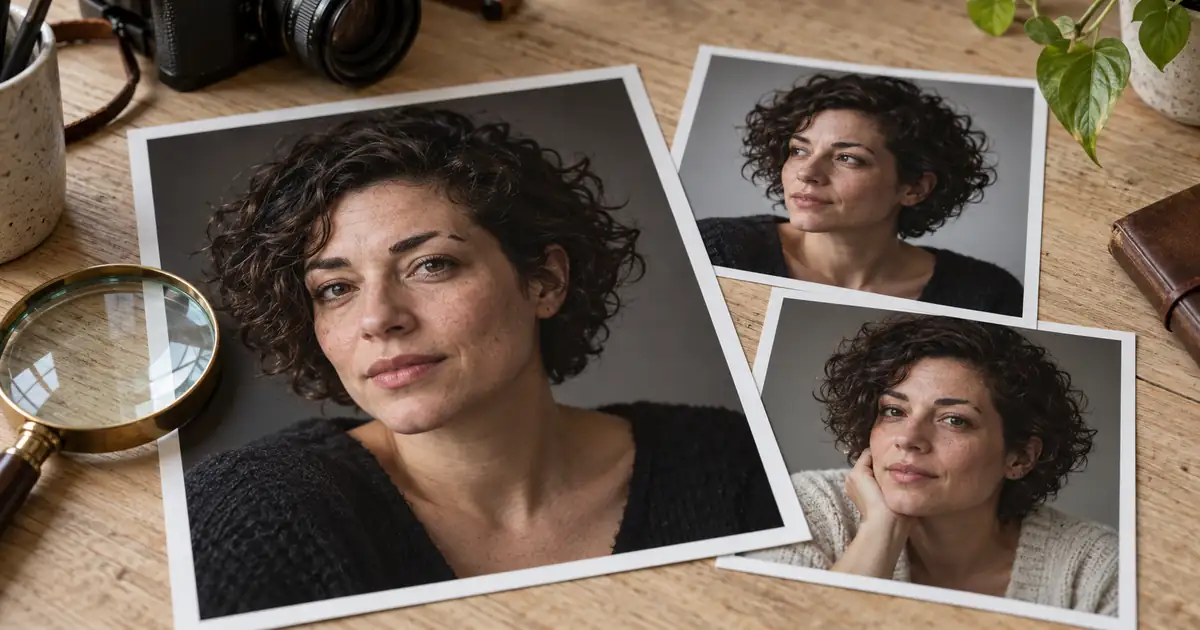

Your edited portrait has polished lighting and a good background, but the person in it feels like a relative instead of you. Adding “keep my face exactly the same” to another full-image edit may produce a different mismatch. Start by finding where the likeness changed.
Quick answer: compare the original with each saved edit, separate lighting and crop changes from changes to facial structure, and restart from the last trustworthy source. Request one change at a time. When the job is only a background or wardrobe adjustment, protect the face wherever the editor supports local controls and verify that it stayed unchanged.
The face-identity review sheet helps record specific differences without turning the review into a vague judgment about whether a portrait looks attractive.
Distinguish unfamiliar from inaccurate
A camera angle, expression, or unfamiliar lighting setup can make an accurate photograph feel unusual. Compare like with like before deciding that the model changed your face. A wide-angle selfie taken close to the lens is a poor geometry reference for a portrait made from farther away.
Use a clear, recent, unfiltered photograph that shows the features relevant to the edit. If you are reviewing a three-quarter portrait, a reference from a similar angle is helpful. Do not use a heavily smoothed profile picture as the only reference for natural skin texture.
Ask what is actually different. “The outer eyebrow now slopes upward” is actionable. “It looks too AI” could describe lighting, texture, expression, or identity. Write down two or three observations before making another generation. Otherwise, you may spend the next attempt changing an unrelated feature.
Find the first unreliable version
Lay out the original and the saved edits in order. Label them by what changed: background, lighting, coat, crop. The purpose is to discover whether a mismatch appeared in one operation or accumulated across several.
Suppose the first background change preserves the face, a second lighting change narrows the nose, and a third beauty request smooths away a distinctive smile line. The third output is not the right starting point for another correction. Return to the first edit or the original and make a smaller lighting request.
If you only saved the final output, retrieve the original upload before continuing. A generated version can become a misleading reference because the next edit treats its invented details as part of the starting image. Keep an edit history even when the tool does not expose an obvious version timeline.
| Observation | Check first | More useful next action |
|---|---|---|
| Face looks narrower | Camera angle, crop, jaw outline | Compare a similarly framed original |
| Age appears different | Skin texture and expression changes | Remove broad beautification requests |
| Smile feels unfamiliar | Mouth shape and visible teeth | Preserve the original expression |
| Identity changed after several edits | First changed version | Restart from the last reliable source |
| Background is wrong but face is right | Local editing controls | Edit only the background where supported |
Separate identity from styling instructions
An instruction can ask for incompatible results. “Keep my face unchanged” conflicts with “give me a narrower jaw and the model's smile.” The editor cannot preserve all features while replacing the same features with someone else's.
Describe the styling you actually want: soft side light, a plain office background, a navy jacket, or a wider crop. Keep references to another person's facial appearance out of the instruction. A mood or photographic treatment is different from borrowing a face.
Avoid long lists of beauty terms when the goal is recognition. Words such as flawless or perfect do not specify a useful repair and may encourage changes you did not intend. Name the capture issue instead: reduce the green cast on the background, soften a harsh shadow, or remove a distracting reflection without reshaping the eye beneath it.
For prompt ideas that establish a scene, use the realistic portrait guide. Treat those scene descriptions as creative direction, then add the narrower preservation requirements of your actual editing job.
Use an identity checklist with observable features
Compare eyebrow shape, eye spacing, nose outline, lip shape, jaw contour, ears, and distinctive visible marks. You are checking whether an edit changed the source, not making claims about personality or background from appearance.
Look at relationships as well as individual details. The mouth may look plausible by itself but sit at an unfamiliar distance from the nose. Glasses can shift the apparent eye position. A hairline change can alter recognition even if the central face looks similar.
Check expression separately. A closed-mouth smile and a wide smile naturally change the cheeks and eyes. If you request a new expression, some visible differences are expected; that makes the identity review more demanding, not unnecessary. When exact likeness matters most, preserving the original expression is the smaller intervention.
Ask the person pictured to review the result when practical. Their approval is useful for a profile portrait, but it should complement comparison with the source rather than replace it. A flattering image can still change recognizable features.
Run a controlled two-version test
Make two edits from the same trustworthy original. Version A changes only the background. Version B changes the background and the lighting. Keep the other instructions and available model settings consistent. This is an editorial comparison exercise, not a promised benchmark result.
If A preserves likeness and B does not, you have a useful clue about the intervention that needs restraint. Reduce or isolate the lighting change rather than adding more identity adjectives to an already complicated prompt. If both change the face, try a local editor or a different source before repeating the same full-image operation.
An example instruction for the smaller test is:
Even a clear instruction needs visual verification. No wording guarantees exact identity preservation across every model. If you require unchanged face pixels, use an editing method that can actually preserve them and inspect the exported file.
Repair the surrounding image before regenerating the face
Sometimes the face feels wrong because its environment no longer fits. A cool-lit face against a warm sunset background can look pasted in. Changing the background light may resolve that mismatch without reconstructing facial detail.
Similarly, an oversized head in a tight crop can create an unfamiliar impression. Check crop and body proportions before editing the face itself. Follow the headshot background workflow when the main task is replacing the setting while keeping the person recognizable.
Local retouching is appropriate for a clearly identified capture problem, but every repair should have a stop condition. If the correction changes an adjacent feature or starts a chain of additional repairs, return to the original and reconsider the method. Do not use a damaged edit as the new definition of the person.
Approve the actual destination crop
Inspect the portrait at full size, then at the size it will appear in a profile or directory. The small version reveals whether recognition survives the crop; the larger version reveals changed teeth, mismatched glasses, and artificial skin transitions.
Keep the final crop consistent across your comparison. A reference shown larger than the result can make proportion judgments unreliable. Check that export sharpening or face enhancement did not introduce a final identity change after the image was approved.
Use the headshot quality checklist for the broader delivery review. That covers professional suitability and destination requirements; this guide's narrower job is diagnosing and reversing likeness drift.
How QuestStudio helps
Use an image-editing-capable model in Image Lab to compare restrained requests from the same authorized source. Start with one change you can judge clearly. Available reference, mask, and editing controls vary by model.
QuestStudio can support the creative comparison, but a generated result still needs the person's review. Keep the approved source and prompt record so later variations do not begin from an already altered face. For a high-stakes identity document, follow the issuing organization's photograph requirements instead of assuming a creative portrait is suitable.
Frequently asked questions
Does “keep my face exactly the same” guarantee a match?
No. It states an intention, but the model may still modify facial detail. Inspect the output and use a method that preserves original pixels when exact preservation is required.
Should I upload more photos?
Use only the references supported by the selected tool, and choose clear, relevant images. More conflicting angles, filters, or older photos do not automatically create a better reference set.
Why does every edit make the face less familiar?
An edited output may carry invented details into the next request. Return to the original or the last trustworthy version and make a smaller, isolated change.
Can I fix likeness with a face enhancer?
An enhancer may sharpen or reconstruct detail, but that is not proof of identity accuracy. Compare its result with the original and reject changes to recognizable features.
Make the next change easy to judge
Choose one source, one intended edit, and a short list of features to preserve. A portrait that still looks like its subject is more useful than a polished image that needs an explanation.
Compare a focused portrait edit
Hero image: AI-generated editorial illustration. Examples are original planning exercises, not measured model tests.