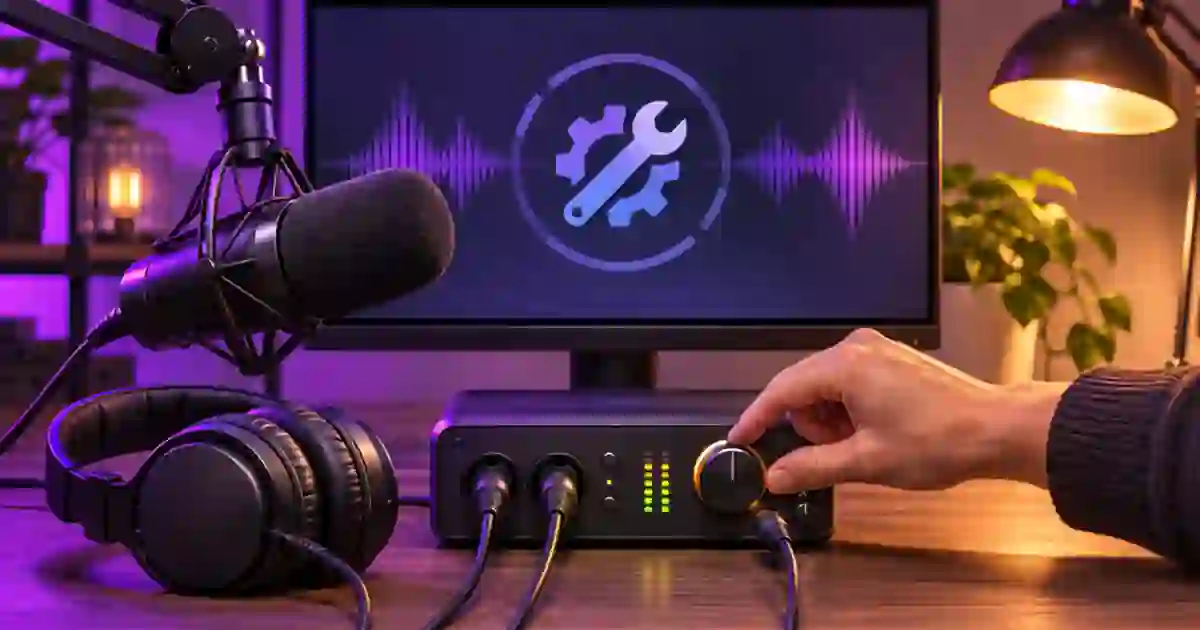

When my voice reaches the headphones a moment after I speak, I recommend testing direct monitoring. It routes the mic to a compatible interface’s listening output without taking the round trip through the recording app. The check I care about is hearing one clear voice while the recording still receives a clean input.
My gear pick for this setup
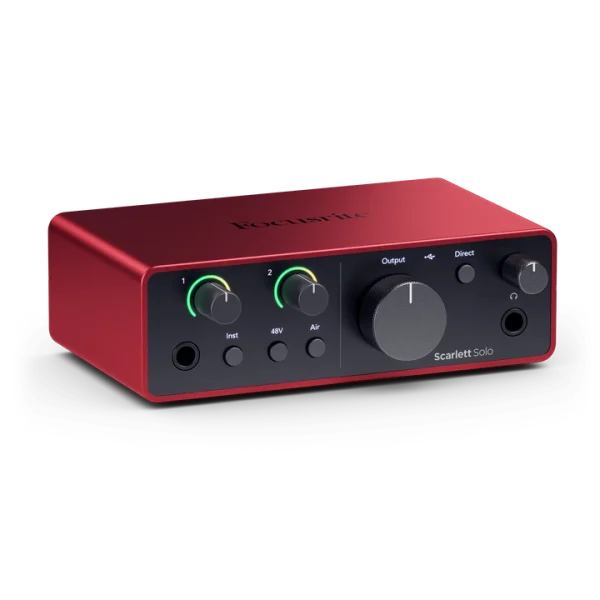
Focusrite Scarlett Solo, 4th generation
An interface with direct monitoring for a compatible XLR mic
I’d consider the Scarlett Solo if your setup needs a separate XLR input and direct monitoring. Check its controls and keep the software input armed while turning off the duplicate listening route.
Separate the recording and listening paths
The recording app captures the microphone input. Software monitoring sends a copy of that input back to your headphones after passing through the computer and any active effects. That route can add delay. Direct monitoring offers another route in a supported interface. It does not change which input the app records just because you enabled it for listening.
Plug wired headphones into the intended monitoring output and select the interface in the recording application. Listen at a modest level. If you hear yourself through Bluetooth or through another computer output, you may be hearing a different path from the interface’s monitor mix. I confirm the headphone route before making a buffer or processing change. Record one short word and look for the expected microphone meter to move.
Listen to one path at a time
Turn on the interface’s direct monitor option according to its manual. Turn off live input monitoring on the armed software track for the test. Keep the track armed and confirm recording is still enabled. Say a few words. If you hear one prompt response, record the line and then play it back with input monitoring still off. The saved recording should contain the microphone signal even though you did not listen through the software path during the take.
If you hear a dry sound followed by a quieter copy, look for both routes being active. Check the recording app, OBS monitoring, and any loopback or mixer utility in use. I turn off one route at a time and keep notes. A second person can open another recording app or scene later, so the named monitoring settings are useful when the setup changes.
Keep the cue track you need
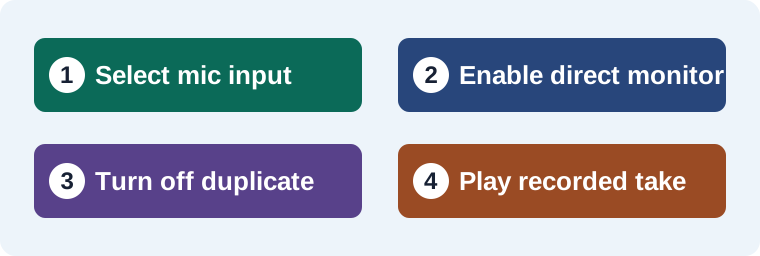
Many narration tasks need playback of an existing video, music cue or guide voice during recording. Keep that playback in your headphones and monitor the live mic through the direct path if the interface allows it. Balance the playback and monitor signal with the supported controls. I reduce the cue level until I can comfortably hear the cue without asking the speaker to talk over it. Check whether sound from the headphones reaches the mic during pauses.
A performer who relies on a software effect may prefer to monitor through the app. Try a supported lower buffer and a lighter processing chain if the machine can run it cleanly. Listen for clicks and interruptions as well as delay. If the effect does not need to be printed, keep the dry recording and apply it during editing. A monitor change is easier to undo than a processing choice baked into the only take.
Read the symptom before changing the system
| Symptom | First check |
|---|---|
| Dry voice plus delayed echo | Check whether direct and software monitoring are both enabled. |
| Mic heard live, file is silent | Check input selection and record arming. |
| Cue plays but mic cannot be heard | Check the direct monitor control and headphone output. |
| Software monitor crackles after lowering buffer | Try a stable buffer or a lighter processing chain. |
I keep a rehearsal file with one spoken phrase and one cue. Compare it to the saved picture if the reader must hit a visual mark. The interface setup guide covers input choices. The Bluetooth playback guide handles a delay during video review rather than live self-monitoring.
Keep the dry voice when using a pickup
If I audition an authorized replacement phrase in Voice Lab, I compare it with the dry take and the delivery mix. Match its start and end to the picture. Preserve the original take and cue track so you can reopen the project without depending on the temporary monitoring state used during recording.
Check the cue balance with a spoken pause
Read one sentence, then pause through a marker in the cue. If the marker disappears beneath your own voice, lower the source track and raise its level again only as far as you need to find the beat. If the backing track is loud in the exported vocal stem, check input routing and headphone spill separately. Save a dry vocal stem and a reference mix for the editor. The reference mix preserves the timing you heard in the booth.
Test a cue and a spoken response
Put a short guide line or audible marker in the project. Start a recording and speak a phrase in response to it. Keep the interface direct monitor enabled and the software track’s live input monitor off. You should hear the cue and a single live voice if the playback and mic are routed as intended. Stop and listen to the saved take. Verify that the voice was actually captured and lines up with the picture. If you hear a second copy while recording, trace the monitor paths before lowering the buffer. If the saved file contains the guide cue on the mic track, check spill or loopback as a separate issue. Keep the short rehearsal file with the scene notes so a later app or interface change can be verified.
Download the voiceover monitoring worksheet (CSV)
Frequently asked questions
Does direct monitoring change the recorded file?
It changes what you hear while recording. The app still needs the correct input selection and an armed recording track.
Why do I hear two copies of my voice?
The hardware and software monitor paths may both be active. Turn off one path at a time and listen.
Can I hear my computer’s cue track at the same time?
Many interfaces let you hear playback alongside the direct input. Check the device’s documented mix controls and test the balance.
Will I hear my software plug-ins in direct monitoring?
A direct path usually bypasses the recording app’s effects. Use a supported software path if hearing those effects is necessary.
Sources and further reading
Affiliate disclosure
As an Amazon Associate I earn from qualifying purchases.
Continue with a useful next step
 Voice
Audio Interfaces for Voiceover: Is Scarlett Solo Enough?
Choose an audio interface for one XLR voiceover microphone. Review Scarlett Solo input limits, direct monitoring and setup, then test a clean mono recording.
 Voice
Reduce Headphone Bleed in Voiceover Recordings
Reduce headphone bleed in voiceover by comparing cue levels, headphone fit and routing. Check the same pause before editing or replacing the take.
 Voice
Microphone Only on One Side? Record It in Mono
Fix a microphone playing on one side by finding the active input channel, mapping it to mono and checking that the final export plays centered.