

To edit a TikTok video, choose the useful parts of your clips, put them in a clear order, correct the captions, and listen to the complete result before posting. Make those decisions before adding decorative transitions. A short video needs enough time for its action and wording to be understood.
This walkthrough builds a twelve-second edit plan for a fictional ceramic-cup demonstration. The plan is an original teaching example, not a measured performance result or an app-account test. TikTok's controls can vary by version and account, so use the current editing interface available on your device.
Start with the clips and one clear action
Keep your original recordings outside the draft. For this example, collect four useful views: the finished cup, a hand moving a light card, a close view of the reflection, and the finished cup again. The viewer should understand how moving the card changes the reflection while leaving the cup's mark readable.
Choose takes where the hand, cup, and light remain consistent. If the cup rotates between clips, a change in the reflection may come from the rotation rather than the card. An attractive cut should not misrepresent what the demonstration proves.
In TikTok, begin a new post, record or upload your footage, and enter the editing preview. TikTok documents clip trimming and splitting, sound editing, text timing, overlays, and speed changes in its editing-tools overview. That overview establishes the editing capabilities; it is not a guarantee that every device shows identical controls.
Build a twelve-second cut with a reason for each shot
Use the first two seconds to show the finished result. The opening line can be “See the difference.” That line only works if the picture gives viewers something concrete to compare later. Avoid an unrelated introduction that consumes the time needed to show the actual adjustment.
From two to six seconds, show the card moving. Keep the beginning and end of the action so the viewer can understand what changed. From six to nine seconds, hold the close view long enough to inspect the reflection and mark. Use the final three seconds to return to the overall cup and let the conclusion land.
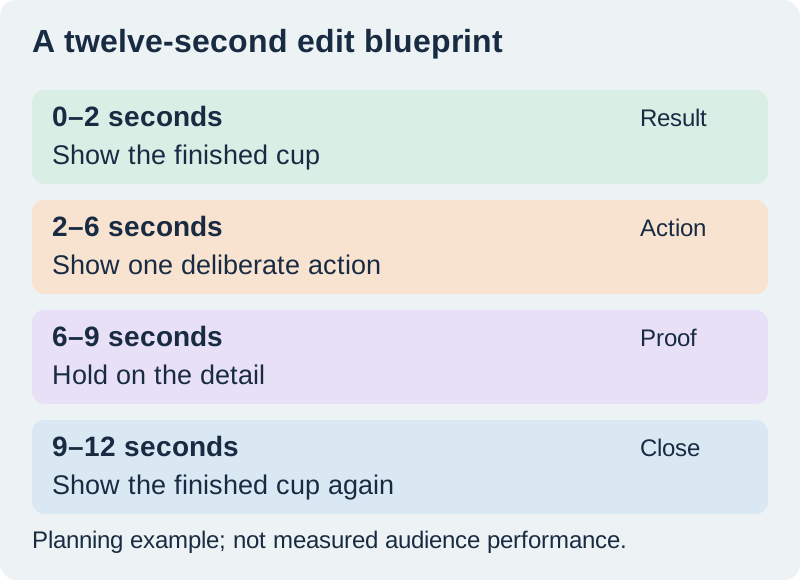
Download the shot and caption worksheet. Replace its sample lines with your own approved wording. If the sentence cannot be spoken clearly in its allotted section, shorten the line or give the section more time.
Trim dead time without removing the explanation
Select a clip in the timeline and use the available trim controls to remove waiting before the action and unused footage afterward. Split a clip only when you need to remove a middle section or separate two different editorial jobs. Keep a copy of the source so that a tight cut can be reconsidered.
Replay the boundary between clips. A hand that jumps from one side of the cup to another may distract from a small lighting change. A cut that removes the instant the card moves may make the result look unexplained. Leave a little visual context when it helps the viewer follow the cause and effect.
Do not speed up the only proof shot merely to match a music beat. Speed changes can be useful for repetitive setup, but the critical action should remain interpretable. If the tutorial depends on real-time behavior, make any time change clear.
Watch the rough cut without sound. You should still recognize the object, action, and result. If the sequence is confusing, fix the shot order before asking captions to carry the entire explanation. The broader video-editing workflow covers organizing larger collections of source clips.
Correct the words, then style the captions
TikTok's accessibility guidance describes creator captions in the preview, with line-by-line review and editing. Generate captions where the feature is available, compare them with the actual speech, and save the corrections. Check names, numbers, negations, and similar-sounding words first.
In our example, “move the card” must not become “move the cup.” Both phrases are plausible, but they describe different actions. Correct that word before adjusting the font. If the speaker says something inaccurate, fix the underlying narration too; a corrected caption should not quietly contradict the audio.
Keep captions in short readable units that follow the sentence. Avoid leaving a single important word on screen for an instant or splitting a measurement away from its unit. Read at normal playback speed, not while the video is paused in the editor.
Use a stable text/background combination and inspect it over the brightest and busiest frames. Position captions so they do not cover the hand or the mark you are explaining. The vertical safe-zone review explains how to check the actual destination's interface rather than relying on a universal margin.
Make the voice understandable before adding music
Listen to the speech alone. Remove an unnecessary duplicate audio route, choose the cleaner take, and check that trims do not cut the beginning or end of a word. Music cannot repair unclear narration; it can make the problem harder to notice during editing.
If you add a music bed, use audio appropriate for the account, placement, and intended use. Reduce it under the spoken instructions and listen on the kind of speaker the audience will use. Do not rely on one universal volume percentage: the source recordings and music may start at very different levels.
Replay the six-to-nine-second detail shot with sound. Does the narration describe what is visible now, or what was visible in the previous clip? Move the line or adjust the shot if necessary. A small timing correction can help more than another transition.
Inspect the finished preview before posting
Check the beginning, every cut, every corrected caption, and the last second. Confirm that the end does not stop halfway through a word or action. Review the cover frame separately; it should represent the actual video rather than promise an unrelated result.
TikTok's editing and draft guidance describes cover selection and saving drafts. It also warns that drafts can be lost through device or installation changes. Keep original footage and approved copy independently rather than treating the draft as your only archive.
QuestStudio's Video Lab can help create a planned supporting shot when generated imagery is appropriate. Label synthetic material where needed and do not use it as evidence that a real product performed a particular way. For this cup demonstration, the actual reflection test should come from the real footage.
Frequently asked questions
Should I edit the captions before trimming the clips?
Establish the cut and narration first, then correct caption wording and timing. Major timeline changes after caption review can leave words aligned with the wrong moment.
Does every TikTok video need transitions?
No. A direct cut often explains an action clearly. Add a transition only when it helps the viewer understand a change of place, time, or section.
What if the automatic caption changes a key word?
Compare the caption with the audio and approved meaning, then edit it. If the audio itself is wrong, repair the narration rather than leaving the two versions in conflict.
Is twelve seconds the ideal duration?
No. It is the length of this original planning example. Choose a duration that allows the action, explanation, and result to be understood without unnecessary waiting.
Can I rely on a saved draft as my backup?
No. Preserve the original footage, approved script, and any available finished export separately. TikTok documents circumstances in which drafts may be removed.
Create a missing supporting shot
Use Video Lab for one planned supporting clip, then finish the cut and caption review in your editor.
Hero: AI-generated editorial illustration. Original teaching materials and documented feature research, checked October 31, 2026. Examples are labeled where synthetic or hypothetical.