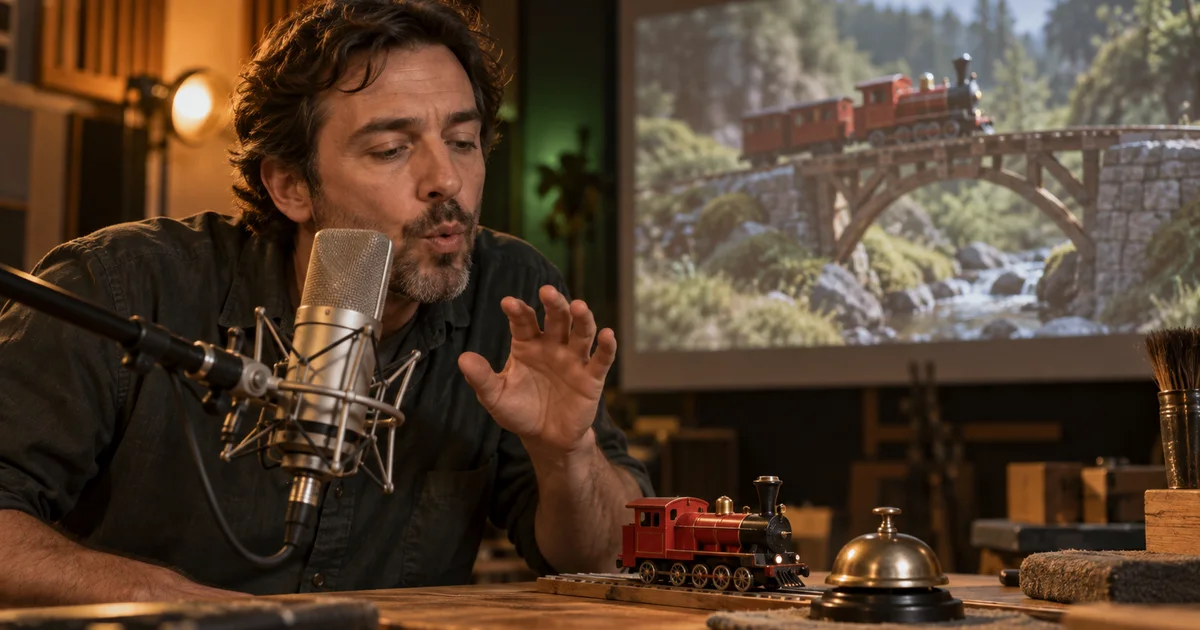

Describing “a train passing” tells an audio model what kind of sound you want. It does not tell it exactly when the wheels begin, when the train passes closest to the camera, or how quickly the sound should fade. Firefly’s voice-to-sound-effects workflow lets you perform that shape.
Download the sound-effect timing score · Create a short scene in Video Lab
Feature information checked September 17, 2026. The toy-train cue is an original timing exercise, not a reported Firefly audio result. The hero is an AI-generated editorial illustration.
Use your voice to direct the event’s shape
Adobe’s voice-to-sound-effects instructions, updated August 18, describe using a voice recording to guide timing and energy while a text prompt identifies the sound. The feature does not generate spoken dialogue or sung lyrics. Treat the recording as a performance guide, not as narration you expect to hear in the final effect.
You do not need to be a voice actor. A rising breath can describe an approaching whoosh; a short burst can mark an impact; a soft trailing sound can suggest a decay. The goal is an understandable shape. A long spoken explanation of what should happen is less useful than a brief performance of when and how it happens.
Separate the event’s identity from its envelope. “Small metal bell” identifies the source. “Short onset, clear peak, gentle tail” describes its behavior. This distinction makes both the text instruction and the voice performance easier to revise.
Score the picture before recording
Our exercise is a six-second miniature train shot. The train starts moving, passes the camera, and finishes with a small bell. We want a light, playful cue that still leaves room for a narrator. The following timings are proposed editorial targets, not measurements from a generated clip.
| Picture event | Target time | Sound shape | What matters |
|---|---|---|---|
| Wheels begin moving | 1.2 seconds | Soft rhythmic onset | No premature movement cue |
| Train passes nearest camera | 2.5 seconds | Brief rise and fall | Peak matches the closest pass |
| Bell gesture | 4.1 seconds | Clean short attack, restrained ring | Tail leaves space for the next line |
Do not treat every visible movement as a request for another effect. A tiny shadow change probably does not need its own sound. Choose the moments that help the audience understand weight, action, and rhythm. The empty space between effects gives each one definition.
If there is dialogue, mark its important words on the same sheet. A whoosh can arrive on time and still make the line harder to understand. Timing is a relationship between picture, effects, music, and speech.
Record one clear gesture at a time
For the passing sound, rehearse a short “whoo” that swells toward the near-camera moment and falls away afterward. Watch the picture while performing. Leave a little space before and after so you can identify the onset and decay. Avoid clipping the microphone or recording beside a loud fan.
For the bell, perform a short clean attack and a softer trailing tone. You are describing an energy contour rather than impersonating a perfect bell. If the gesture becomes long and wobbly, the generated effect may be difficult to place even if its timbre is interesting.
Keep separate recordings when the events need independent control. A single performance containing wheels, a whoosh, and a bell makes it harder to change one event without disturbing the others. Combining events is useful only when you deliberately want them to behave as one cue.
Pair the performance with a specific sound description
In Firefly, open Audio → Voice to sound effects, bring in the relevant media, place the playhead, and record or upload the voice guide using the available controls. Add a sound description, generate, and audition the variations. Adobe documents a recording limit of up to 30 seconds, or the shorter video length. Verify the current interface before planning a long cue.
This proposed prompt narrows the scale and material. A full-size freight-train description would create a different emotional result. Avoid asking for a bell in this same prompt if you need to position the bell independently later.
For the bell pass, describe only the bell. Hold the voice timing steady while changing the target material if you want to compare a soft brass ring with a brighter metal chime. Otherwise you will be comparing different performances and different sound identities at once.
Align the audible onset, not just the clip’s left edge
A generated file may contain silence, a breath-like lead-in, or a gradual rise before the recognizable sound begins. Lining up the clip boundary with the visual event does not necessarily synchronize the cue. Listen for the actual onset.
For the passing train, the loudest moment should usually relate to the closest visual approach in this exercise. Move the clip until that relationship feels right, then inspect the beginning and end. An effect can have a correctly placed peak but an implausibly early approach or a tail that continues after the scene has cut away.
Use trimming, movement, and volume controls before regenerating a fundamentally good effect. Regenerate when the sound’s internal rhythm or character is wrong. Editing is the more direct solution when the whole event is simply a little early.
Judge the cue in context and at ordinary volume
- Play the picture and effects without music. Check whether the action reads clearly.
- Add the narrator and listen for masked consonants or important words.
- Bring back the music and reduce competing layers if the scene becomes crowded.
- Listen through a phone or small speaker at a realistic level.
- Review the transition into the next shot, including effect tails.
A dramatic effect often sounds satisfying on its own and excessive in a small scene. Keep the implied scale consistent: a tabletop toy does not need the low-frequency weight of a heavy train unless the exaggeration is intentional.
Compare candidates at similar loudness. Write down whether you prefer a variation because its timing fits, its material sounds right, or it is simply louder. Those are different judgments, and only the first two necessarily improve the cue.
Use a repair map when the result misses
| Problem | First repair | When to generate again |
|---|---|---|
| Correct sound, early event | Move the clip to align its onset or peak | The internal timing still cannot fit |
| Bell masks the narrator | Lower level or shorten the tail | The timbre remains too dense |
| Train sounds enormous | Revise scale and material description | A new interpretation is required |
| Unwanted syllable-like sound | Use a simpler nonverbal guide | The artifact remains in the useful range |
Keep the picture version, voice guide, prompt, selected variation, and final timing together. If the edit changes, you can determine whether to move the cue or regenerate its shape. A five-frame picture adjustment does not always require a new sound.
Develop a short visual source in QuestStudio Video Lab, then perform and generate the voice-guided effects separately in Firefly. For text-led effect planning, the sound-effects guide offers a related workflow. Choose the control method based on whether your main problem is sound identity or precise performance timing.
Frequently asked questions
Can I use this feature to generate dialogue?
No. Adobe describes it as sound-effect generation guided by voice timing and energy, not spoken dialogue or sung lyrics.
Do I have to imitate the exact sound?
No. Perform a clear timing and energy shape, then use text to identify the desired effect. A simple guide is often easier to direct and compare.
Why is the effect late even when the clip starts on time?
The audible onset may occur after the file begins. Align the sound itself, and check its peak and tail against the picture.
Should I generate the whole scene as one effect?
Use separate cues when events need independent timing or volume. Combine them only when their relationship is stable and the result remains easy to edit.
For alternative input methods and production workflows, compare AI sound effect generators in 2026 using the same cue and listening criteria.
For a walking shot, use the AI footstep contact cue sheet to mark each visible impact, surface transition and stopping point before judging the audio.